
Every device that signs in to the Mobile POS is enrolled to your store, and whoever has device administration can see the list and take a device out of service. This page covers the enrolled-device list, taking a device out of service, and what to do if a device is lost or stolen.
Prerequisites
- Someone at the store has been given device administration. It is a permission an administrator grants under the store's own policy. A manager does not have it simply for being a manager. Decide who runs this at each store while nothing is going wrong.
- Your session is bound to an outlet. The device list is scoped to one outlet, so you cannot manage devices with no outlet bound.
The enrolled-device list
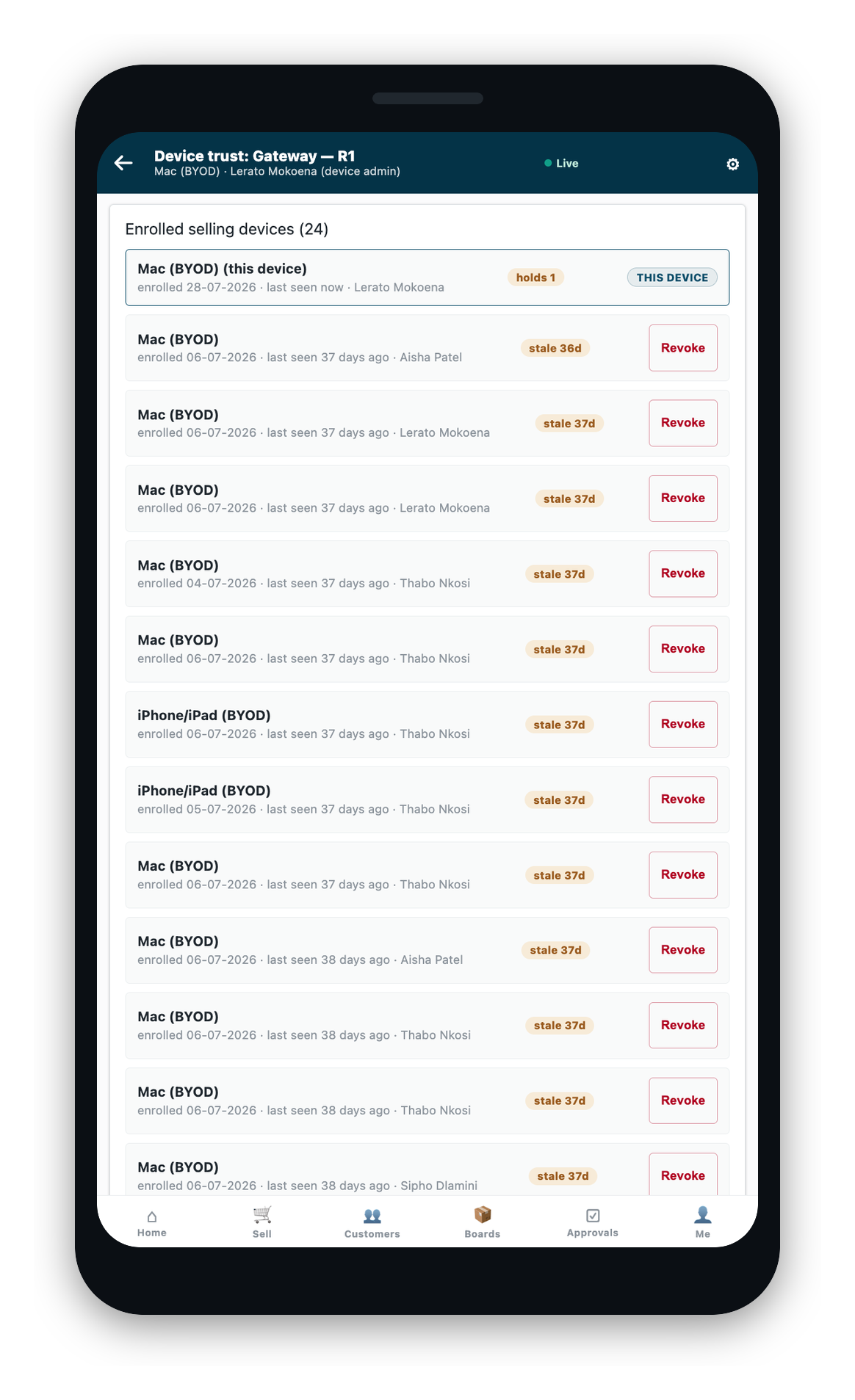
The list shows the devices enrolled at your outlet. The device you are on is pinned at the top and marked as this device. Each other row names the device type, when it was enrolled, how long since it was last seen, and the person it belongs to, each with its own Revoke button. A device not seen for a while carries a stale marker.
The list needs a connection. Offline, device administration is unavailable, and the app says so rather than showing a stale list.
Taking a device out of service
- Open the enrolled-device list on a device where you have device administration.
- Find the device you want to take out of service.
- Select Revoke on its row, and confirm.
If that device last reported held sales that have not yet been sent, the app warns you before you confirm, because revoking destroys their only record. Get held sales sent before you revoke a device where you can.
What revoking does
- Sign-ins on that device are refused at once.
- The data on it is cleared the next time the device reaches the internet. The list shows the difference between cleared on next contact and already cleared, so you can see which state a device is in.
- A device that never comes back online is never cleared. Revoking stops the device being useful, but it cannot reach inside a phone that stays switched off or in a drawer.
What you cannot revoke
Three actions are refused on purpose:
- The device you are on. Sign out instead.
- A device that belongs to another outlet. One exception: a device that has not yet recorded which outlet it belongs to is listed, and can be revoked, from any outlet until its next contact.
- Any device, if your session has no outlet bound. Bind an outlet first.
Retail Device Trust
The enrolled-device list on the phone has a counterpart in iVendNext Desk: Retail Device Trust, one record for each device that has signed in to your stores. Open it when you need more than the phone's list shows, such as which till a device is using or what a lost device last reported. A System Manager can read every device and change them. Retail Managers and Retail Cashiers see only the devices they enrolled.
| Field | What it tells you |
|---|---|
| Device ID | The device's own identifier. The record is named by it. |
| Device Label | A name for the device, so you can tell it apart in the list. |
| Enrolled By, Enrolled On | The last operator to sign in on the device, and when the device was first enrolled. The system fills both in. |
| Outlet Profile | The store the device belongs to. |
| Claimed POS Terminal | The till the device is using now. The system sets it when the device takes a till and clears it when the device lets go. |
| Status | Enrolled when the device is in service, Revoked when it is out of service. |
| Last Contact | The last time the device reached the server. |
| Revoked On, Revoked By | When the device was taken out of service, and by whom. |
| Purge Delivered On | When a revoked device reconnected and received the order to clear its data. Empty means it has not reconnected yet, so its data is still on it. |
| Last Reported Held Sales, Held Sales Reported At, Held Sales Reported By | How many unsent offline sales the device had when it last reported, when it reported, and for which person. A shared device may have sales from more than one person. The count stays after a revoke. A report older than your store's offline window may be out of date. |
| Highest Offline Receipt Number | The highest offline receipt number the device has reported, so that a restored till never reuses one. |
Setting Status to Revoked here does the same as Revoke on the phone: sign-ins are refused at once, the till the device was using is freed, and its data is cleared the next time it reaches the internet. If the device last reported held sales, Desk warns you once the change is saved, because revoking destroys their only record. Unlike the phone, Desk does not ask you to confirm first. Revoking does not close off the operator's PIN. Read the next section before you revoke a lost device.
If a device is lost or stolen
Do two things, not one: take the device out of service, and close off the operator's PIN. Revoking the device is not enough on its own, and this is the part that is easy to get wrong.
Step 1: Revoke the device
Revoke it from the enrolled-device list, as above. This refuses its sign-ins at once and clears its data on next contact.
Step 2: Close off the PIN
The operator's PIN is a real sign-in credential. The same PIN works on any device in the store, and revoking the lost device does not change it. To close it off, an administrator either disables the operator's account or revokes the operator's badge, if they have one. Either action removes the PIN, and the operator sets a fresh one themselves the next time they sign in. There is no back-office control that changes another operator's PIN directly. Issuing and revoking staff badges is done in iVendNext Desk, on the Retail Badge Credential screen (see Signing In).
What a lost phone can expose
State this plainly, because it decides what you do about a loss. Nothing stored on the device is encrypted. The code an operator uses when they step away locks the till. It is not an encryption key, and neither is the PIN.
Until a revoked device is cleared, someone technical who keeps the phone can read what is stored on it:
- Held sales that were taken during an outage and not yet sent.
- The cached product list.
- A customer book of names, phone numbers, and tax IDs for customers who have bought at that store, unless your estate has switched the book off for devices (see below).
Because the data is cleared only when the device next reaches the internet, a phone that is never brought back online keeps all of this. So: get held sales sent before a phone is handed on, retired, or reported lost, and tell a manager about a loss straight away rather than waiting to see if it turns up.
The customer book on devices
By default, devices carry a customer book so customer lookup works during an outage. This book contains names, phone numbers, and tax IDs for customers who have bought at that store.
If that is not acceptable to your estate, there is one supported control: a site setting keeps the book off devices entirely. Two things to know before you switch it on:
- There is no encrypted middle option. Devices cannot encrypt data at rest yet, so the choice is between carrying the book in the clear and not carrying it at all.
- Offline customer lookup stops when the book is withheld.
An estate with a formal privacy posture should make this choice deliberately rather than leave it at the default. The reasoning behind device data and this setting is explained in the Knowledge Article on device security.