
An Item Group is a way to classify items based on types.
Depending on the type of product, you can categorize an item under its respective field. If the product is service-oriented, assign it under the Item Group - service. If the product is used as a raw-material, assign it under the Raw Material category. In case, an item is used only in trading, you can categorize it under an Item Group called Trading.
To open the Item Group list, search for Item Group in iVendNext Desk.
This is what the Item Group tree looks like: 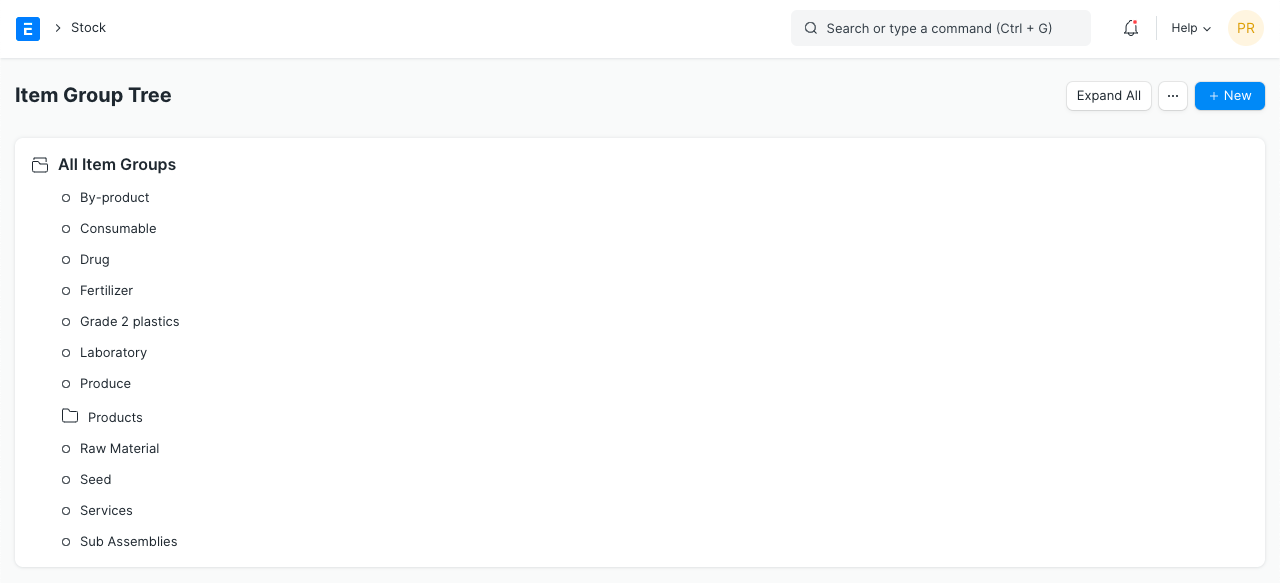
- How to create an Item Group
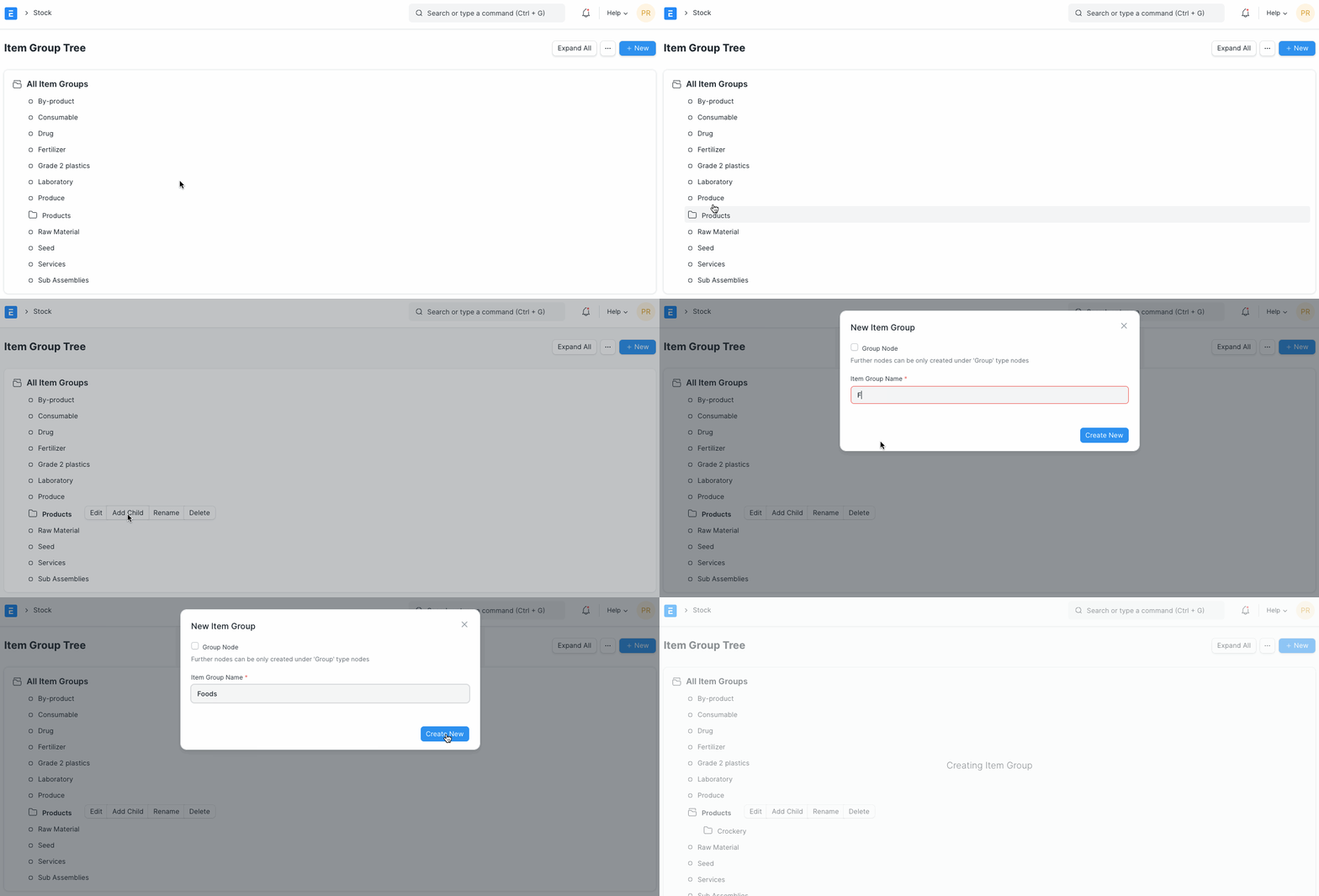
- Go to the Item Group list, click on New.
- Select a group node under which you wish to create the Item Group, the default root is 'All Item Groups'.
- Select 'Add Child' or click on the New button.
- To make this child a category/group node, tick on Is Group.
- Click on Create New.
Note:
- Nodes in different parts of the tree cannot have the same name.
- The child notes get alphabetically arranged.
1.2 Delete an Item Group
-
Select the Item Group you want to delete.
-
Select 'Delete'.
-
Click on Yes.
-
Features
To see the following options, click on an Item Group, click on Edit.
2.1 Parent Item Group
You can change the parent Item Group of an item by choosing another one under General Settings.
2.2 Defaults
The Item Group Defaults table has one row for each company. In a row you can set:
- Company: The company the row applies to.
- Default Warehouse: Default Warehouse set in transactions for the items that belong to this group.
- Default Price List: A default price list that will set the Item Prices for this Item Group.
- Default Buying Cost Center and Default Selling Cost Center: The cost centers that items in this group are billed against.
- Default Expense Account, Default Income Account and Default Discount Account: The default accounts for items that belong to this group.
- Default Supplier: On setting a Supplier here, this supplier will be chosen in purchase transactions by default for items in this group.
2.3 Item Tax
A default item tax template will be applied to all items belonging to this group. Similarly a Tax Category can also be selected, visit Quotation to know more about Tax Categories.