
Opportunity is a qualified lead.
When you get a hint that lead is looking for a product/service that you offer, you can convert that lead into an opportunity. You can also create an opportunity against an existing customer. Multiple Opportunities can be collected against a lead or a customer.
To access the Opportunity list, go to:
Home > CRM > Sales Pipeline > Opportunity
- How to Create an Opportunity
- Go to the Opportunity list and click on 'Add Opportunity'.
- In 'Opportunity From', select Lead if opportunity is from a lead.
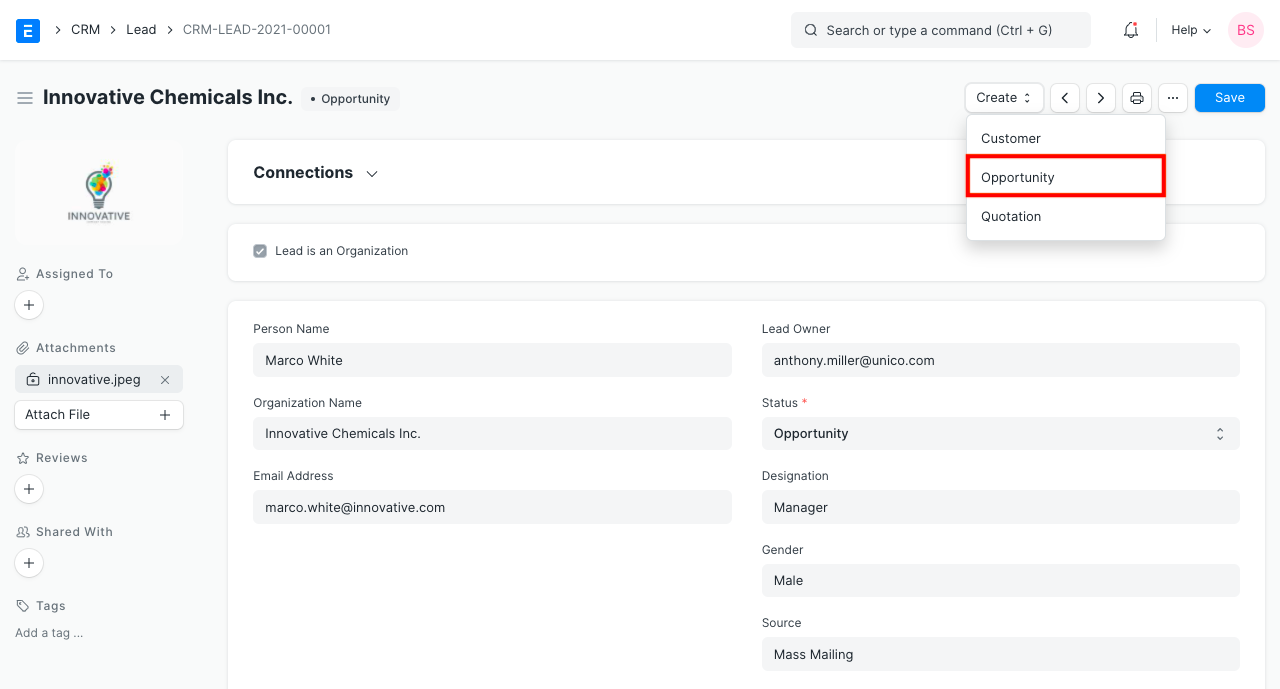
Alternatively, you can also go to a Lead with 'Open' status and select “Opportunity” under Create dropdown as shown below.
- In 'Opportunity From', select Customer if opportunity is from a customer.
- Select Opportunity Type. This indicates the broad category of opportunity like Sales, Support, Maintenance etc.
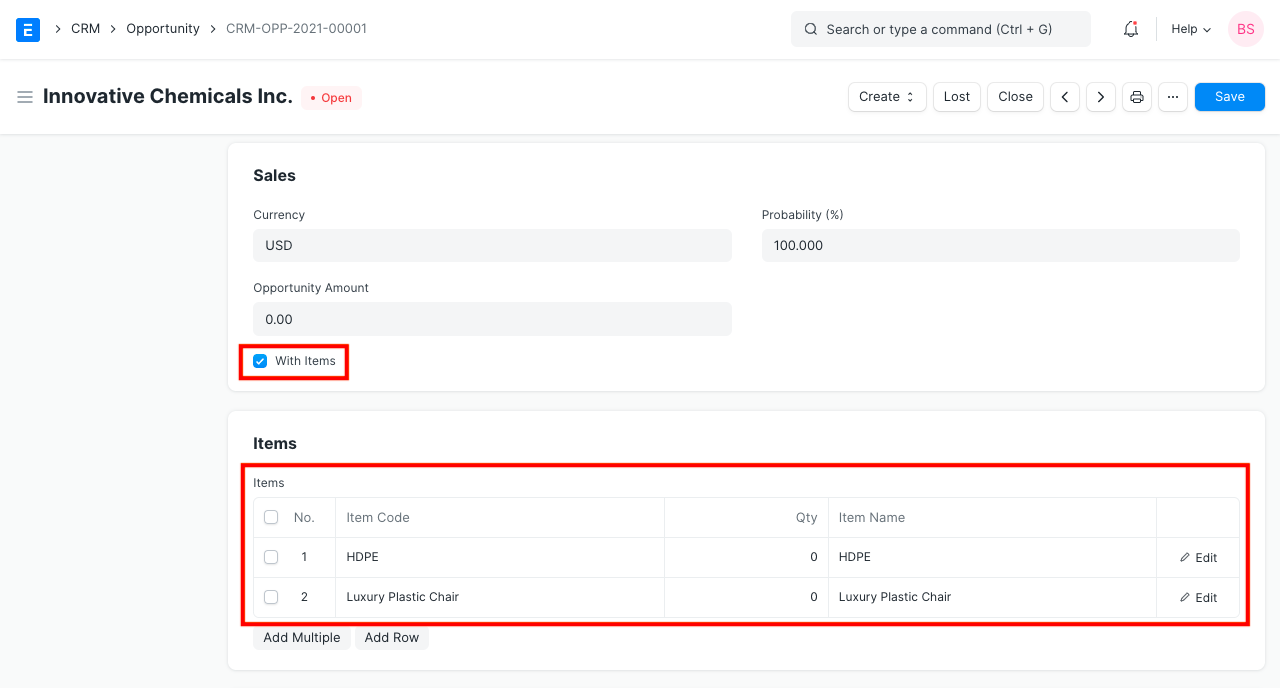
- You can add more details like Opportunity Amount, Probability (of conversion), Currency in 'SALES' section.
- You can capture the details of the products/services needed by adding the item and quantity details in the 'Items' section.
-
Enter the Source of the opportunity in the SOURCE section.
-
Features
2.1 Auto-assign Opportunities to Sales Executives
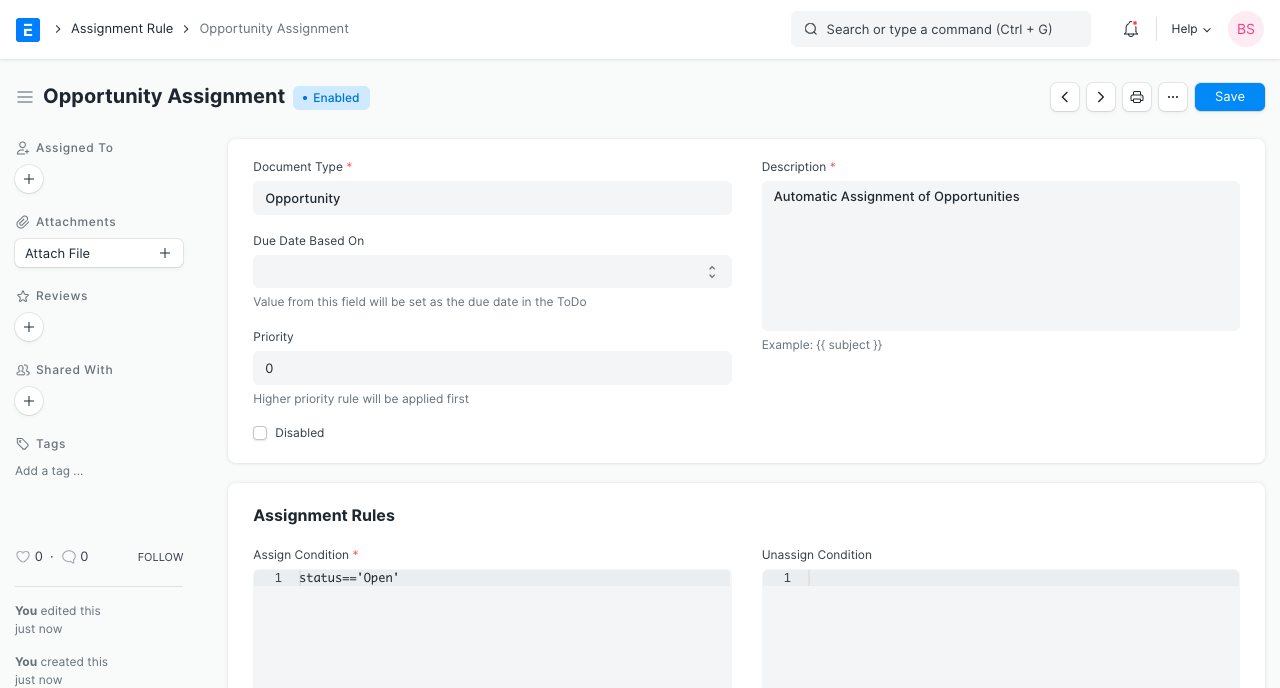
You can define Assignment Rules to automatically assign the opportunities to sales executives.
2.2 Auto-close Opportunities
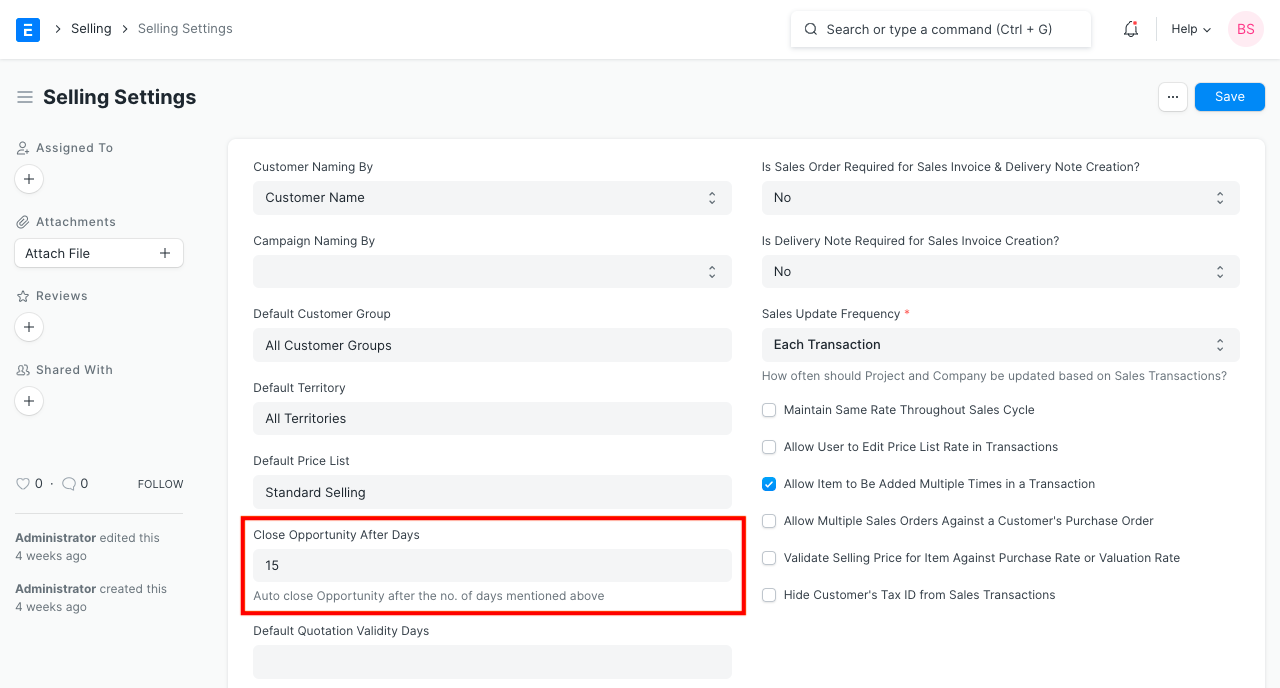
If you do not receive a response from an opportunity for a certain number of days, you may want that opportunity to be closed automatically.
iVendNext closes an opportunity whose status is Replied when it has had no change for that many days. You can set the number of days in Close Replied Opportunity After Days in CRM Settings. See CRM Settings. The default is 15 days.
2.3 Create a Quotation
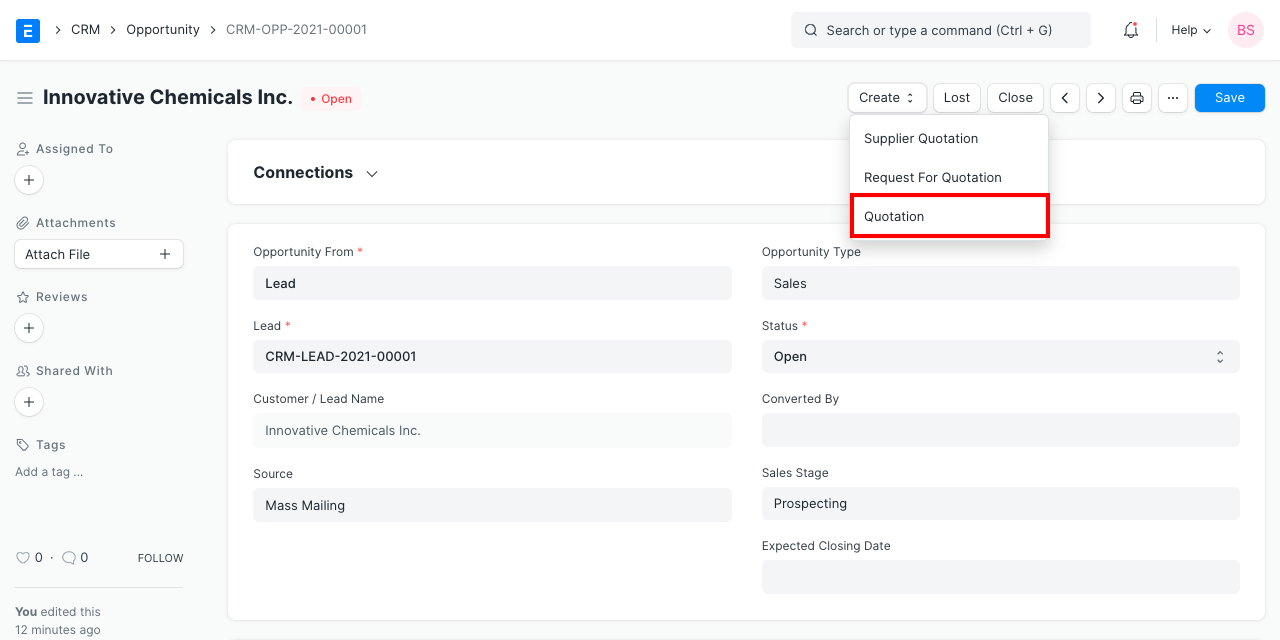
You can create a Quotation from the Create button. Relevant field values will be copied over.
2.4 Create a Supplier Quotation
You may need to get a quotation from your supplier against the customer requirement and based on that, prepare the quotation for your customer. With iVendNext, you can make a Supplier Quotation from the opportunity itself.
Best Practice: Leads and Opportunities are often referred as your “Sales Pipeline” this is what you need to track if you want to be able to predict how much business you are going to get in the future. Its always a good idea to be able to track what is coming in order to adjust your resources.
2.5 Capture the Reasons and Competitors for Lost Opportunities
When an opportunity is lost, you can capture the reasons, competitors and detail reason for losing. This will help you to analyse the trends over a long period of time and identify the insights needed for improvements at various areas in the organisation.
2.6 Minutes to First Response
When you send the first reply(email) to an Opportunity, it calculates Mins to First Response and is displayed in a field.
A report is generated called 'First Response Time for Opportunity'. Read CRM Reports for more details.