
A Pricing Rule defines the discount/pricing rules that apply based on set conditions.
A Pricing Rule has many options using which you can control the pricing of an Item. Filters like quantity, date, groups, and other conditions can be set.
A Pricing Rule is somewhat similar to a Tax Rule.
In iVendNext a Pricing Rule is for buying. The Pricing Rule form shows Buying only. You make till promotions in Retail. See Promotions Setup.
Following are the few cases which can be addressed using Pricing Rule:
-
For Supplier "XYZ", the buying price for the specific Item should be updated as ###.
-
Items categorized under specific Item Group have the same buying price.
-
Supplier categorized under specific Supplier Group should have ### buying rate applied.
-
If you buy more than 10 units of an Item, you get a 20% discount from the Supplier.
To have Discount and Price List Rate for an Item auto-applied on a purchase, create Pricing Rules for it.
To open the Pricing Rule list, search Desk for Pricing Rule.

That should take you to the Pricing Rule List View screen.

Click on the Add Pricing Rule button. That should take you to the New Pricing Rule Creation screen.

Fill in the required information including the mandatory fields and then click the Save button to create a Pricing Rule.
1. Prerequisites
Before creating and using a Pricing Rule, it is advisable to create the following first:
2. How to create a Pricing Rule
Go to the Pricing Rule list and click on New.
Set a title for the rule.
Select what to Apply On from Item Code, Item Group, Brand, or Transaction.
Select whether you want to apply Price discount or Product discount. If you want to give free products then select the product discount.
For a single item, select Item Code and select the items.
If you want Pricing Rule to be applied on all the items, select 'Item Group' and select All Item Group (parent Item Group).
Set the discount/price to be applied. To know more, go to this section.
Save.
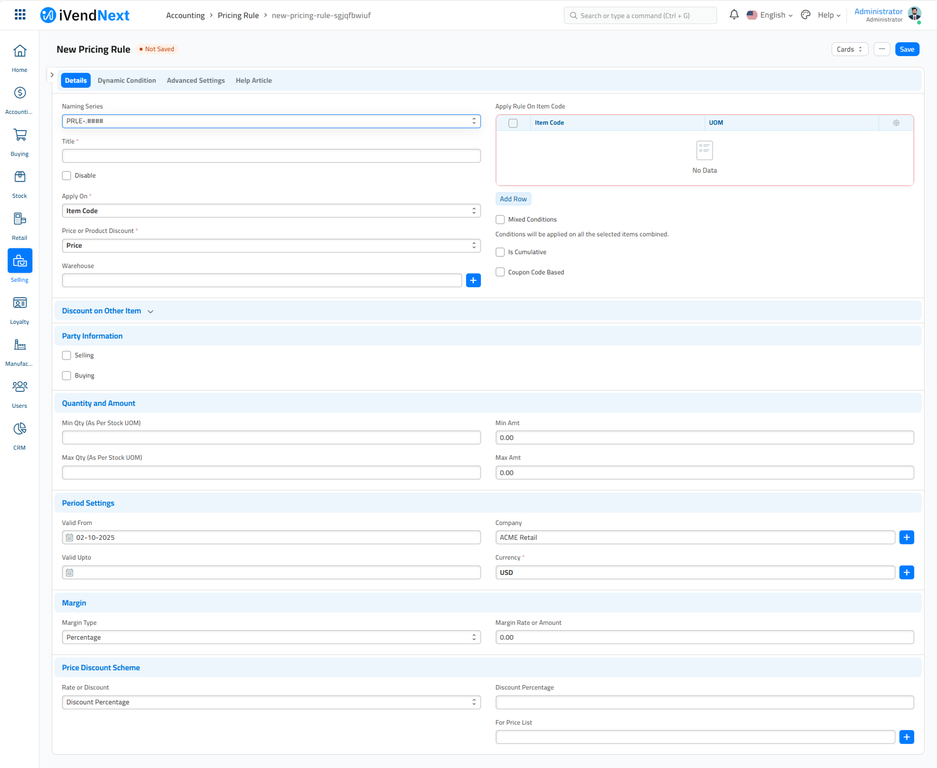
The New Pricing Rule Screen is split into tabs. Each Tab contains information specific to the section it corresponds to.
-
Details Section
-
Dynamic Condition
-
Advanced Settings
-
Help Article
The Details Section
A screenshot of the Details Section is pasted below:
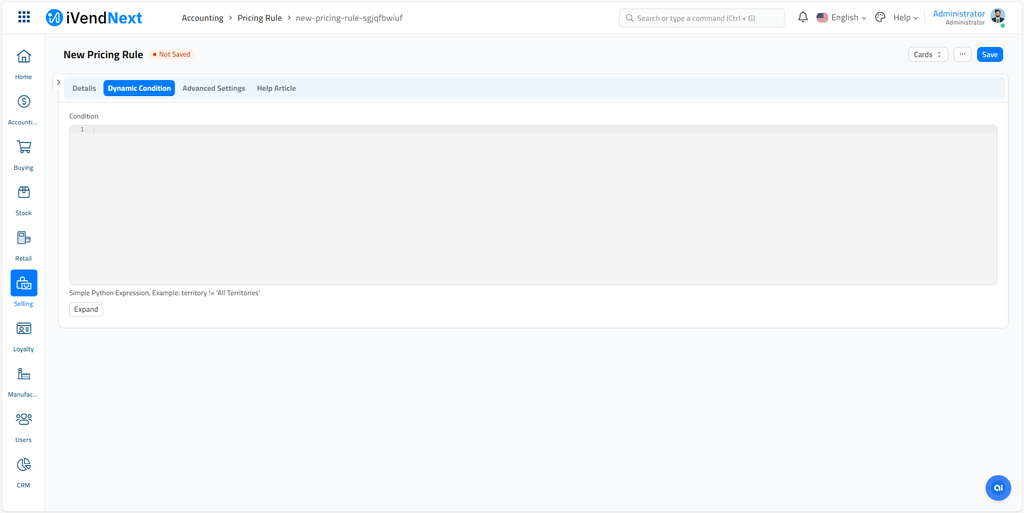
The Dynamic Condition Section
A screenshot of the Dynamic Condition Section is pasted below:
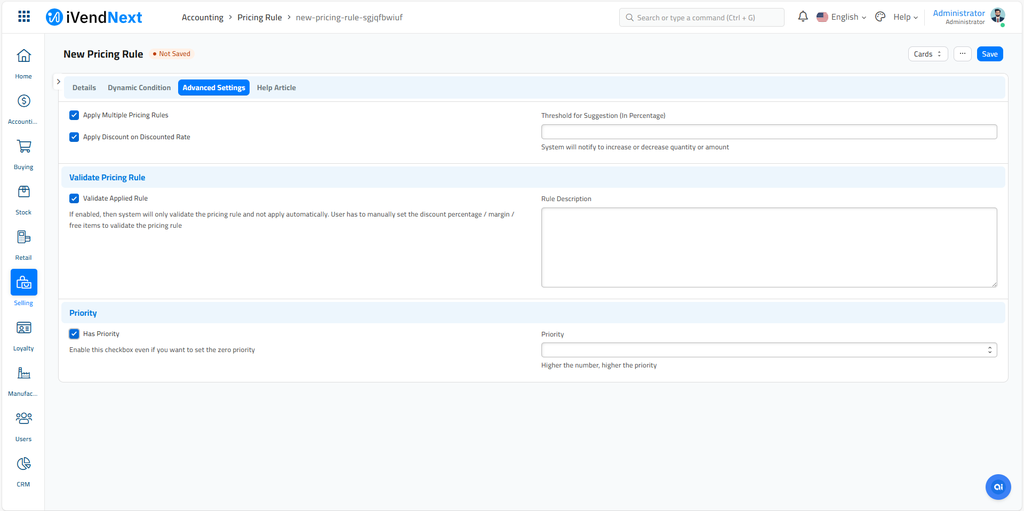
The Advanced Settings Section
A screenshot of the Advanced Settings Section is pasted below:
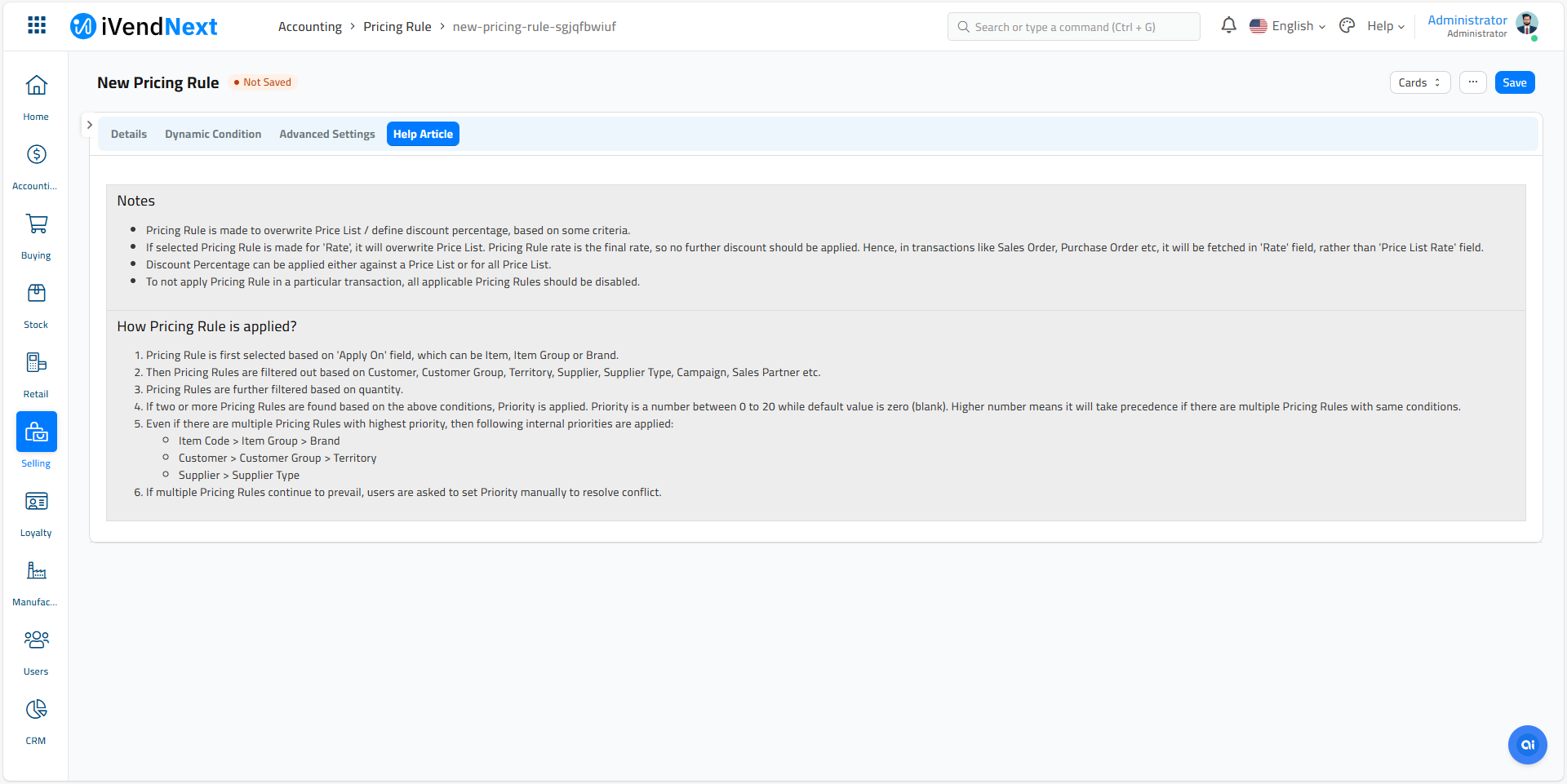
The Help Article Section
A screenshot of the Help Article Section is pasted below:
2.1 Additional options when creating a Pricing Rule
Warehouse
Setting a Warehouse here will cause the Pricing Rule to be applied only if the Item is selected from the Warehouse specified here.
Apply Rule On
Based on the attribute selected in the 'Apply On' field, you can set the Pricing Rule based on one of these:
-
Brand
-
Transaction (on the total amount of the transaction)
In this table, you can select the specific Item/Item Group/Brand. For example, if you select Apply On 'Item Group' and select 'Raw Materials' in the table, this Pricing Rule will be applied only on Items that belong to the Group 'Raw Materials'.
UoM: The Pricing Rule will apply only if the UoM set here matches with the transaction.
Condition
In this field you can add a condition in python to check against field values in the transaction doctype, like shown below for Purchase Invoice:
supplier=='Supplier Name' and status!='Overdue'
Please note that only single line python conditions will work, using fieldnames of the target doctype.
Mixed Conditions
If you select two or more Items and set the Min and Max Quantity. The Pricing Rule will be applied only if the total sum of Items matches the set quantities. For example, you create a Pricing Rule on Item 1 and Item 2 and set the Min and Max Quantity as 30, the Pricing Rule will apply only if the total quantity is 30.
3. Features
3.1 Apply Rule On Other
This feature checks the condition on the first Item but applies a rule on another Item.
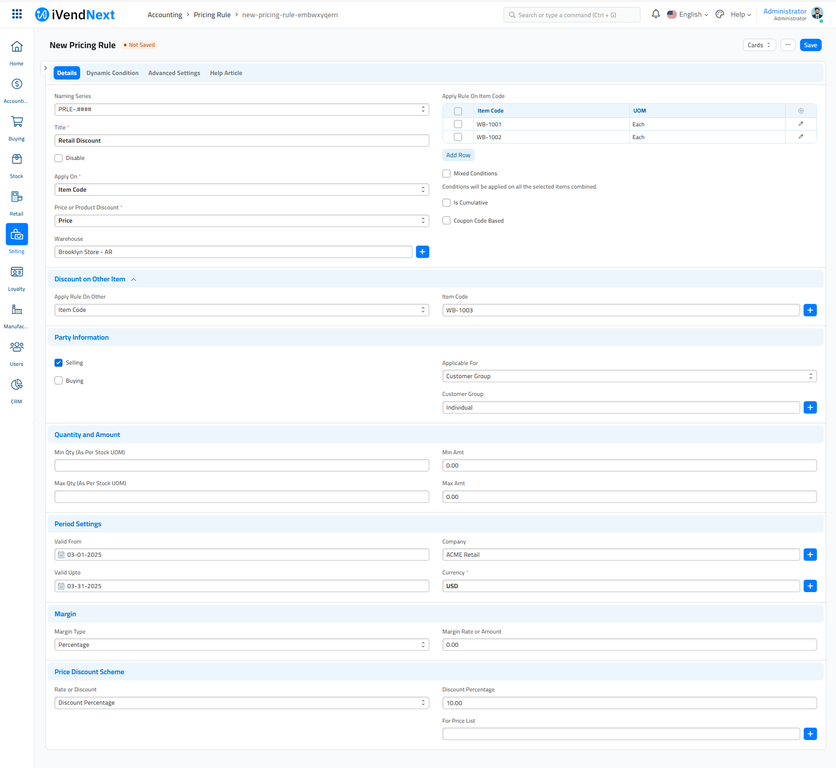
For example, set Item1 (WB-1001) and Item2 (WB-1002) in the 'Apply Rule On' table and set 'Apply Rule On Other' on Item3 (WB-1003). Now, if the transaction has Item1 (WB-1001), Item2 (WB-1002), and Item3 (WB-1003), the Pricing Rule will apply on Item3 (WB-1003) since the first two Items were present in the transaction.
3.2 Party Information
Select Buying. The Pricing Rule form offers Buying only.
You can then set applicability to one of the following masters.
3.3 Quantity and Amount
Specify minimum qty, maximum qty, minimum amount, or maximum amount of an Item when this Pricing Rule should be applied.
Note that if the quantity or amount falls short or exceeds the limits set here, the Pricing Rule will not be applied at all. However, it will be applied if you have enabled the option Mixed Conditions.
3.4 Validity
You can also set a date interval for when the Pricing Rule will be valid. This is useful for a supplier offer that runs for a limited time. On leaving the dates blank the Pricing Rule will not have any time frame limit.
3.5 Margin
You can also add a margin.
-
Margin Type: When you buy an Item, the rate can carry a margin. If you do not want to enter the rate every time and would like to set a margin automatically, you can do it with this feature.
-
Margin Rate or Amount: The margin set can be based on Percentage or Amount, eg: 5% margin or $50 fixed margin.
Read adding margin for more details.
3.6 Price Discount Scheme
The actual rule to be applied is set in this section.
-
Rate: This will be the new rate for an Item. For example, if an Item is priced at 100 and you want to buy it at 112 from a specific supplier, then select Rate and set the Rate as 112.
-
Discount Percentage: A specific discount percentage can be set. The discount percentage can be set to a specific Price List. Leaving the 'For Price List' blank will apply the Pricing Rule to all Price Lists.
-
Discount Amount: A fixed discount amount will be applied. For example if an Item is priced at 100 and you want a discount of 7 when you buy it, then this condition can be set using the Discount Amount option.
3.7 Advanced Settings
You can define the Advanced Settings for the Pricing Rule.
-
Threshold for Suggestion: This is the threshold based on which the system will notify you to adjust Item Quantity for discount. For example, if the Min Quantity is 10 and the Threshold is 9, the system will notify to add 1 more Item for the discount to be applicable. This also applies to the amount set.
-
Priority: Consider an Item Group, you want to set specific rules on one Item from the group. This can be done by creating a new Pricing Rule and setting a higher priority. This can also apply to Supplier Group.
-
Apply Multiple Pricing Rules: To understand this, consider an Item of Rate 500. There are two Pricing Rules on it P1 and P2. P1 applies 10% discount and P2 applies 5%. Enabling this option will apply a total of 15% on the Item Rate which gives 425.
-
Apply Discount on Rate: The discount will be compounded. Consider the same scenario as above. On enabling this option, 10% will be applied on 500 which will give 450, then 5% will be applied on 450 which will give 427.5.
-
Validate Applied Rule: Shows the entered validation message if the discount/rate set manually by you in a transaction does not match the Pricing Rule.
This is useful when the top distributor in the hierarchy decides the discount/rate to be applied and you are only validating if the Pricing Rule is applied correctly.
4. Pricing Rule Discount Types
4.1 Price Discount
-
Under the Margin Type, you can set whether the margin is calculated as a percentage or an amount. Eg: 10% margin on the supplier price list at the time of purchase.
-
Rate mentioned in Pricing Rule will be given priority over Item's Price List (Item Price) rate.
-
Discount Percentage can be applied for a specific Price List. To apply it to every Price List, leave the 'For Price List' field blank.
-
Discount can also be set in terms of amount.
4.2 Product Discount
-
"Buy 2 quantities, get 1 free quantity of the same item." To configure such types of rules, set the Price or Product Discount as 'Product discount', tick the Same Item checkbox, and set the quantity.
-
"Buy 2 quantities, get 1 free quantity of the other item." To configure such types of rules. Set the Price or Product Discount as Product discount, untick the 'Same Item' checkbox and set the 'Free Item' and quantity.