
From the BOM Update Tool, you can replace a sub-assembly BOM and update costs of all parent BOMs.
Using this utility, you can replace an existing BOM of a sub-assembly item which is linked to a parent BOM. The system will update the new BOM in all the parent BOMs where it was used. You need to create a new BOM first.
To access the BOM Update Tool, navigate to:
Home > Manufacturing > BOM Update Tool
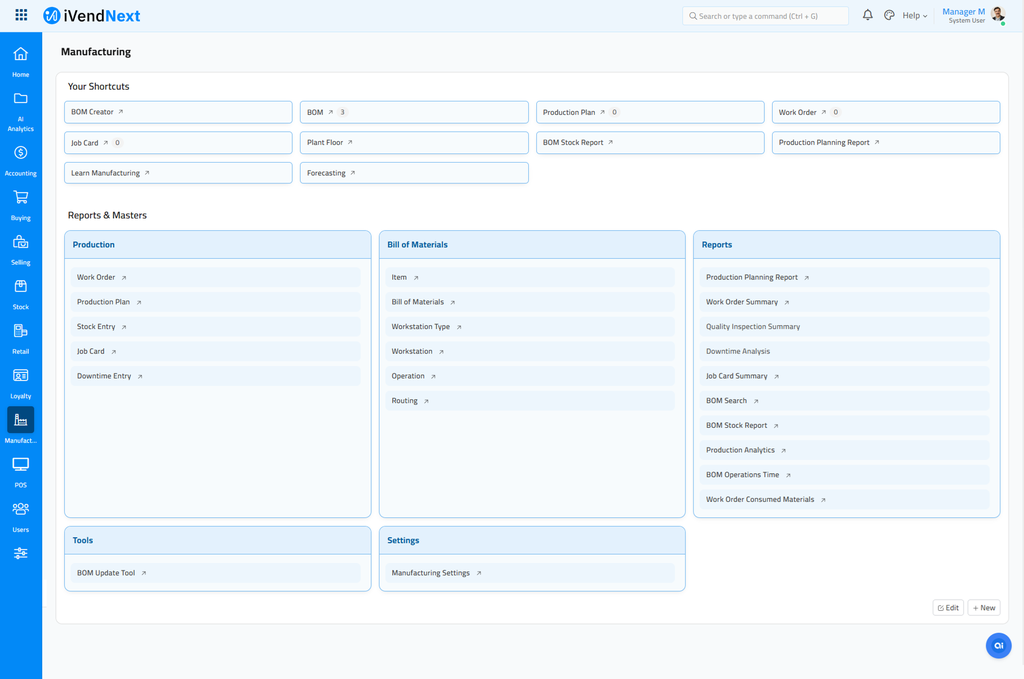
Click on the BOM Update Tool shortcut. This should take you to the BOM Update Tool.
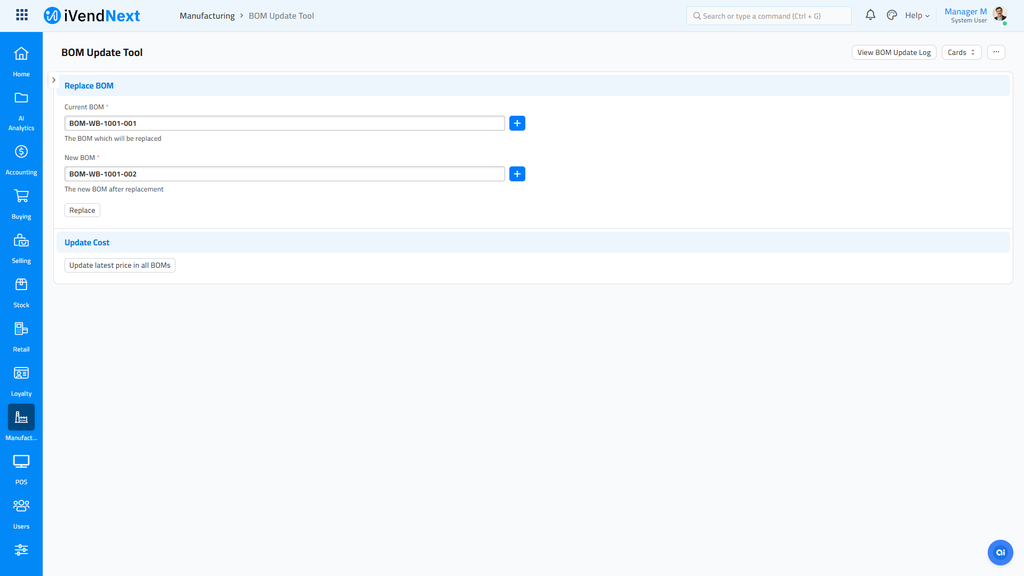
1. Steps to use the BOM Update Tool
Let’s consider a scenario to understand this better.
Suppose a company manufactures women’s handbags. The Bill of Materials (BOM) for the handbag will look like this:
- Outer Material (Leather / Faux Leather / Canvas)
- Lining Fabric (Polyester / Cotton)
- Handles/Straps
- Zippers
- Metal Hardware (Rivets, Buckles, D-rings)
Out of all the items above, Handles/Straps are assembled separately. Hence, a separate BOM will be created for the Handles/Straps. Following are the items from the BOM of Handles/Straps:
- Strap Material (Leather / Fabric)
- Buckles
- Sliders
- Stitching Thread
If more items need to be added, or existing items edited in the Handles/Straps BOM, then create a new BOM for it. For example, updating the strap material:
- Premium Braided Leather Strap
- Buckles
- Sliders
- Stitching Thread
2. Select Current BOM and New BOM of the sub-assembly Item
Select Current BOM and New BOM of the sub-assembly Item:
To update the new BOM in all the parent BOMs, where CPU is selected as sub-assembly, you can use the Replace button.
On clicking the Replace button, the old BOM of CPU will be replaced with the new BOM in the BOM of finished Item (Computer).
Will BOM Replace Tool work for replacing the exploded items in the parent BOM?
No, exploded Items which do not have any BOMs of their own cannot be replaced in the parent BOM. For example, consider if the Item Monitor does not have a sub-assembly and it cannot be updated using this tool. For updating exploded items you should Cancel and Amend current BOM, or create a new BOM for the finished item.
3. Update BOM Cost
Using the button Update latest price in all BOMs, you can update the cost of all Bill of Materials, based on the latest purchase price/price list rate/valuation rate of raw materials. This is useful if your updated BOM has materials with different Rates.
On clicking this button, the system will create a background process to update all the BOM's cost. It is processed via background jobs because this process can take a few minutes (depending on the number of BOMs) to update all the BOMs.
This functionality can also be executed automatically daily. For that, you need to enable "Update BOM Cost Automatically" from Manufacturing Settings.