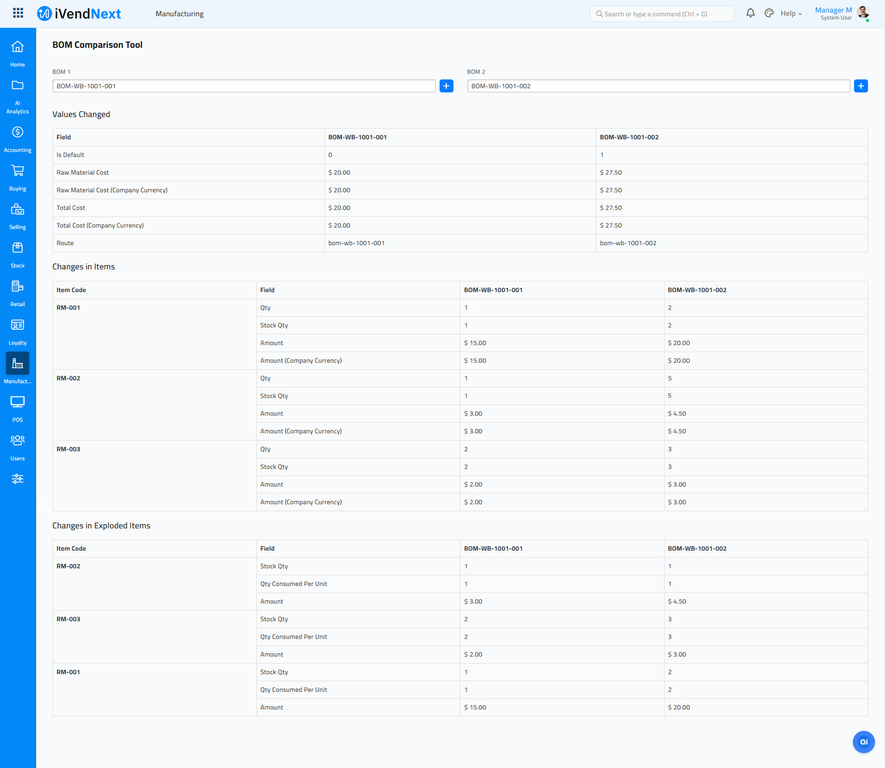
BOM Comparison Tool
Using the BOM Comparison Tool, you can compare two BOMs and see what changed between their iterations.
A BOM (Bill of Materials) of an Item undergoes several changes over time. When you need to change something in your BOM, you have to Cancel the BOM, Amend it, make the change and create a new version of the BOM. Now you have two different BOMs and change history is lost.
The BOM Comparison Tool lets you compare two different BOMs and will show you what changed between them.
To access the BOM Update Tool, navigate to:
Home > Manufacturing > BOM Comparison Tool
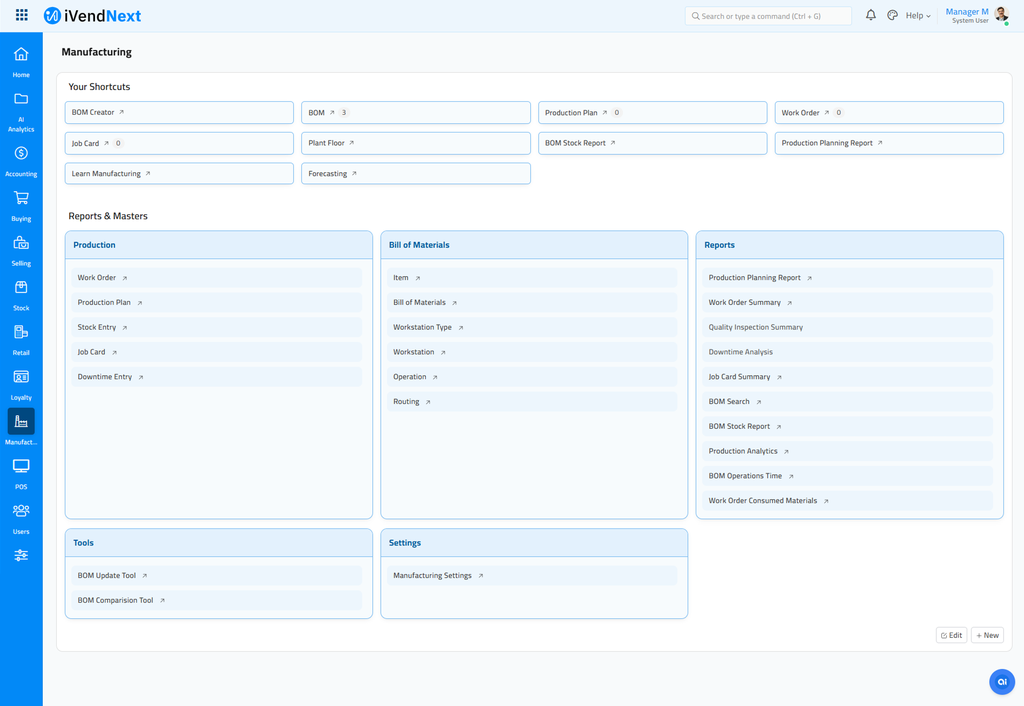
This should take you to the BOM Comparison Tool.
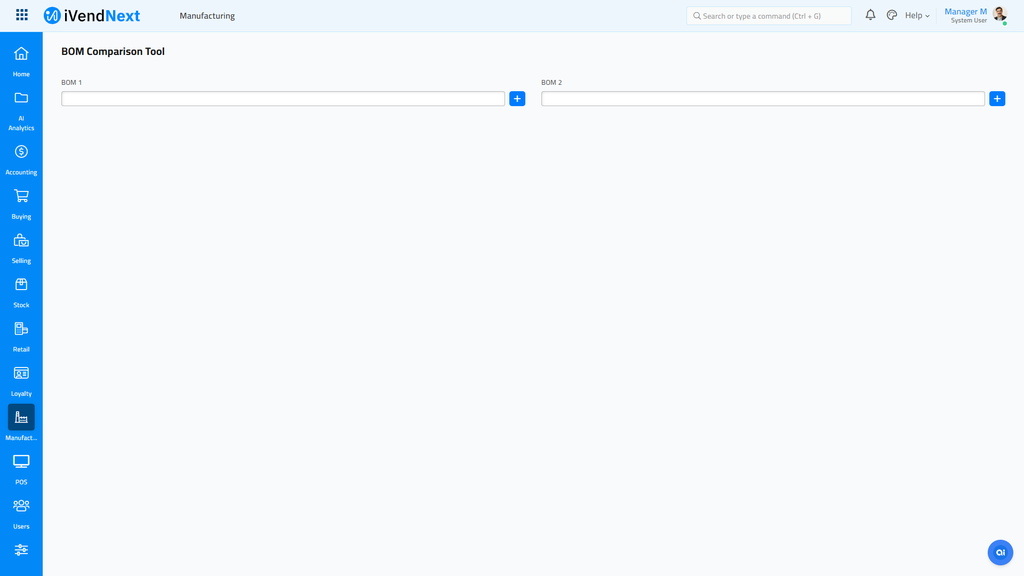
Alternatively, navigate to the iVendNext Home Page and type 'BOM Comparison Tool' in the Awesome Bar. This should open the BOM Comparison Tool
Steps to use the BOM Comparison Tool
Select the old BOM against which you want to compare in BOM 1 field.
Select the new BOM of which you want to see the changes in BOM 2 field.
The changes will be shown as soon as you select both the values.