
The Mobile POS installs to a phone or tablet from the browser, sets the device up the first time you sign in, and then opens on your home screen. This page covers all three: getting the app onto a device, the first-run setup, and finding your way around. Signing in has its own page, Signing In.
To open it, go to your store's web address in the device's browser:
Your store address > Add to Home Screen > iVendNext Mobile POS
Installing the app
The app installs to the device's home screen from the browser. There is no app store, and there is nothing to download and update on each device.
Prerequisites
- The app is served over a secure (HTTPS) web address. On a plain, unsecured address, the offline features, camera scanning, and installation all fail quietly. Your implementation partner sets this up.
- The device's browser is open at your store's web address.
Steps to install the app
Open your store's web address and look for Add to home screen.
- On most devices, the app offers to install itself. Accept it. The app gets its own tile on the home screen and launches full screen, with no browser bars.
- On iPhone and iPad, there is no install button, because Apple does not offer one. Tap the Share button, then Add to Home Screen. The app shows you these steps when you tap install.
- On other browsers, install from the browser's own menu. The app tells you to, because that prompt belongs to the browser rather than to the app.
The installed tile carries the app's own name and icon.
Setting up a device (first run)
The first time you sign in on a device, the app walks you through setting it up. It needs no technician and no administrator account.
Prerequisites
- The app is installed, and you can sign in. See Signing In.
- A till (POS Terminal) is free at your store for you to claim.
Steps to set up a device
- Install the app to the home screen, if you have not already. The setup screen offers this as its first row.
- Choose your till from the ones free at your store.
- Register the device. The device registers itself to you and confirms it. The confirmation also reminds you that no sign-in details are stored on the device.
- Start your day. Open your trading day and go to your home screen.
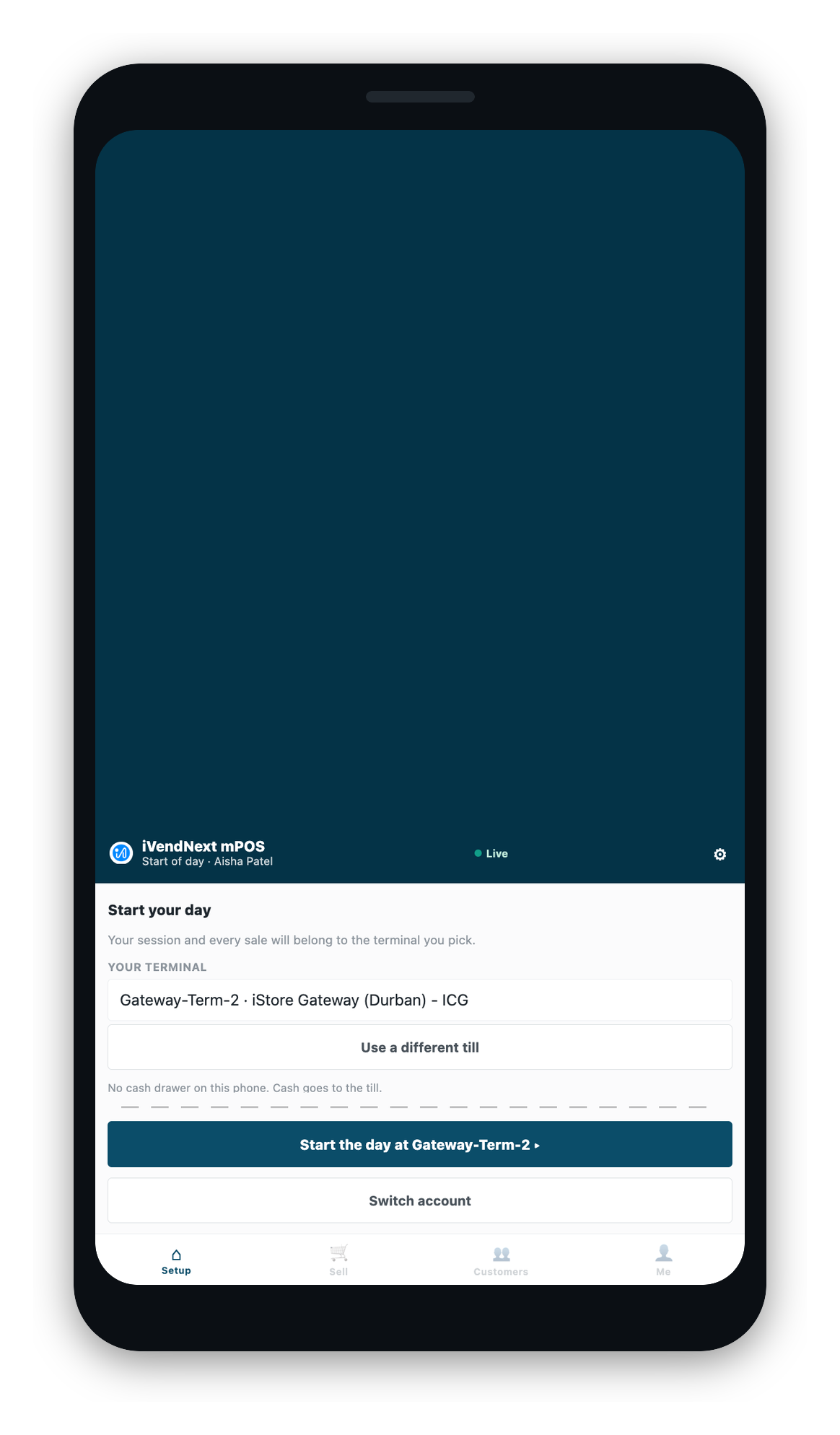
If no tills are free at your store, the app says so rather than failing silently. Choosing, claiming, and freeing tills is covered in the till and day guide.
Finding your way around
The home screen
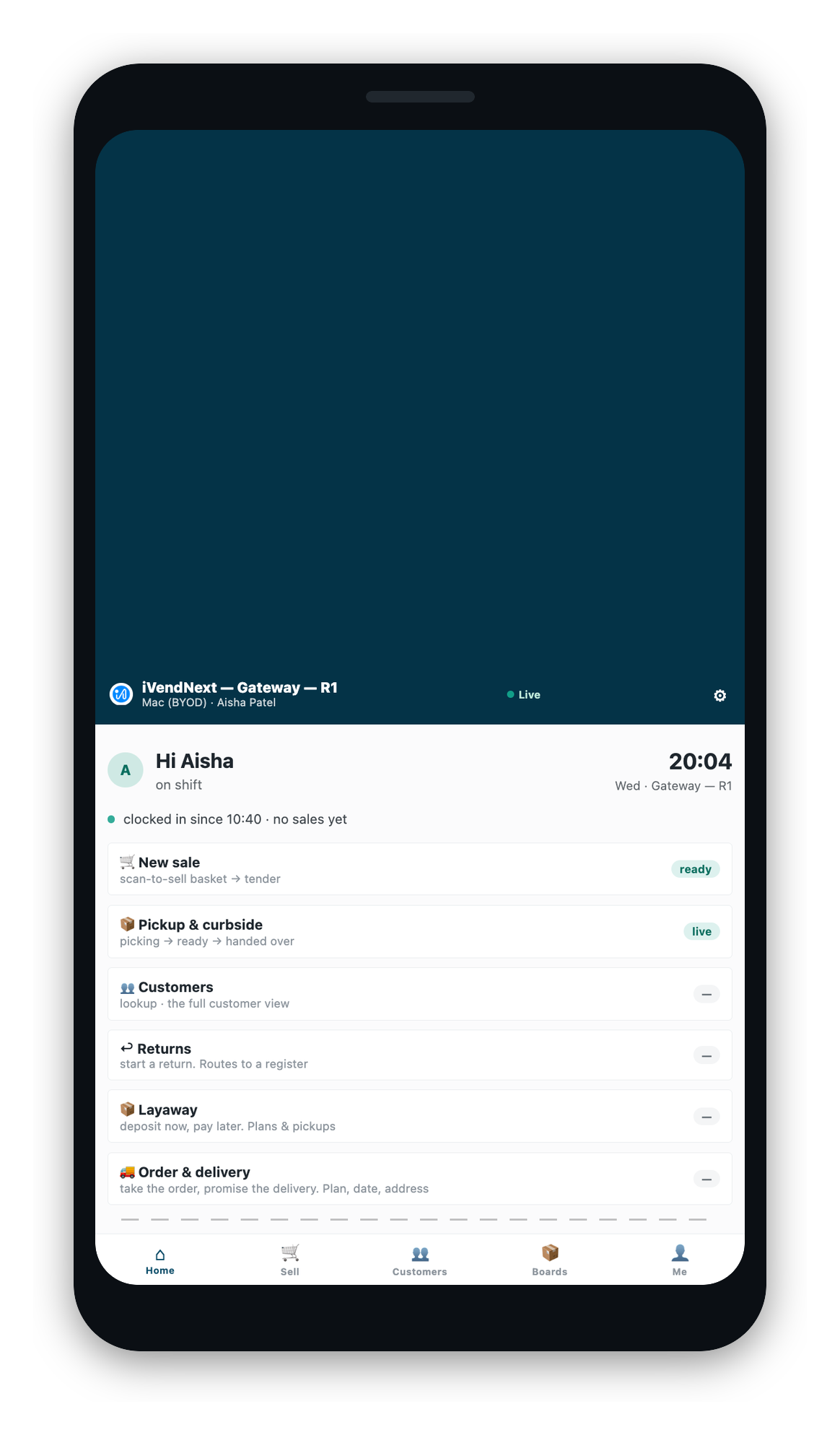
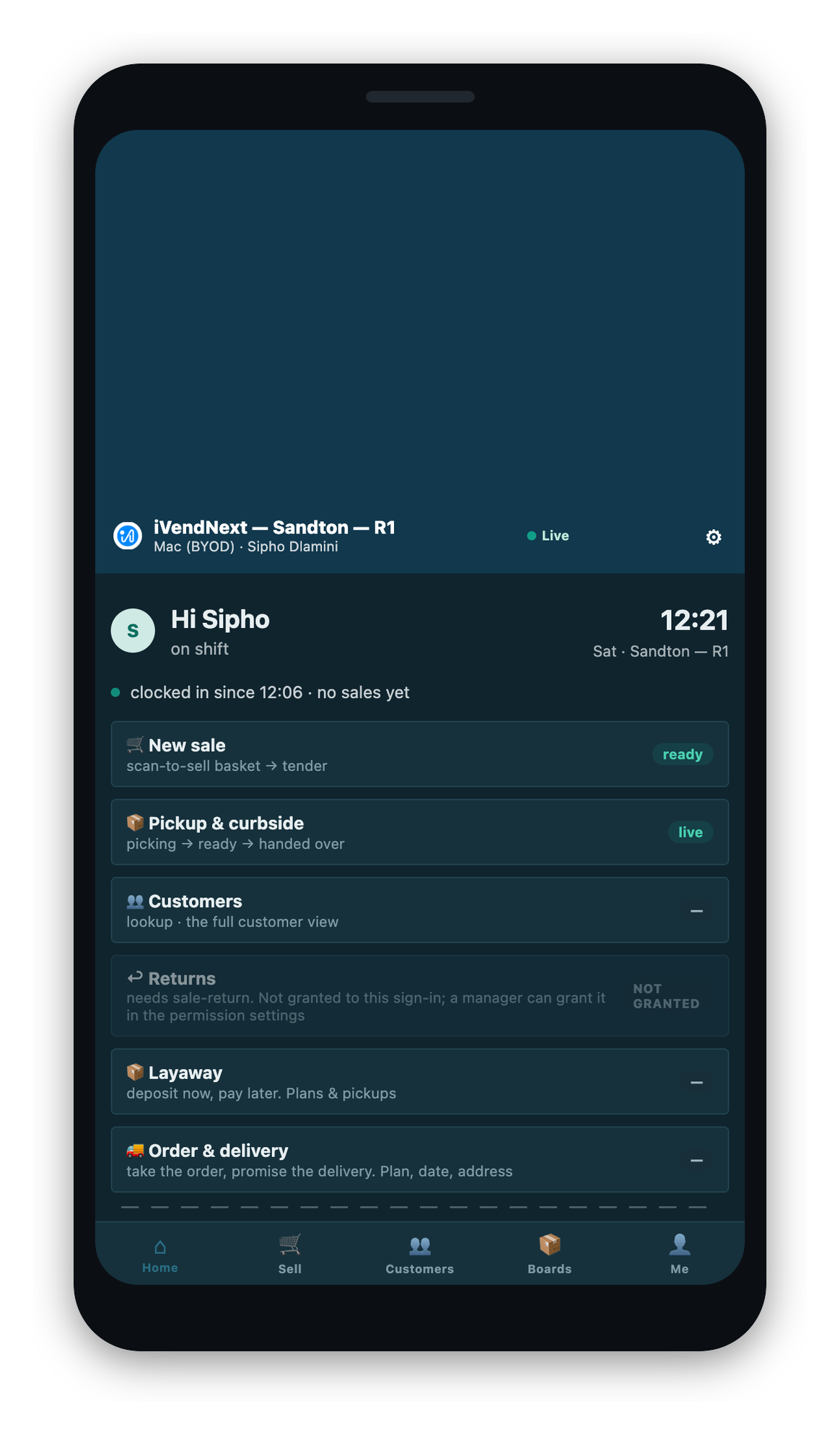
When you open Home, you see your own actions as tiles. What appears depends on what you have permission for. The shipped tiles are New sale, Pickup & curbside, Customers, Returns, Layaway, and Order & delivery. Above the tiles is your shift line: who you are, and which till you are on.
Some tiles may appear grayed, with a note naming what they need. This is on purpose. The note tells you which permission to ask a manager for. Tiles that would tell you nothing useful are not shown at all.
If you manage the floor, your home has more on it: your figures and your team appear below the tiles. It is the same home screen with more on it, not a different app or a different sign-in.
If your sign-in has no selling permission at this store at all, home shows a full-screen message saying you do not have access to selling, rather than an empty screen. A manager grants the access, and it appears the next time you sign in.
The tab bar
Along the bottom are Home, Sell, Customers, Boards, Approvals, and Me. You see only the tabs you have permission for. A manager's tab bar is an associate's tab bar plus Approvals.
The Me tab
Me is your own page. It shows who you are signed in as, the till your open day is running on, and your device. It also shows how the day was started: whether this till is counting cash on the phone or runs without a drawer. (A suspended day shows no such line, because no till is claimed while it is suspended.) It also has the three ways to leave, which do different things:
| Option | What it does | When to use it |
|---|---|---|
| Sign out | Signs you out but leaves your trading day open. | Putting the phone down for a moment, not finishing. |
| Suspend shift | Keeps the day open and moves it with you to another device or a register. | Carrying your day to a different device. |
| End of day | Closes the day and frees your login for a colleague. | Finishing your day. This is the only one that frees the till. |
The screen says which is which as you look at it.
Settings, from anywhere
The settings gear sits on every screen, including the sign-in screen. You never have to go somewhere else to change how the app looks or to set your PIN. See Preferences.