Retail Extensions · checked 2026-10-18
The App library is the Desk page where you find ready-made apps and add them to your site. This page covers what the page shows, what a card says and how a shop opens its own shelf. Adding an app, step by step, is on Installing and updating.
Opening the page
In Desk, search for App library, or open the Retail Extensions card on the settings workspace and choose App library. Only a user with the System Manager role can open the page. You can also choose Choose from the library on the Extension Packages list, or on a new package.
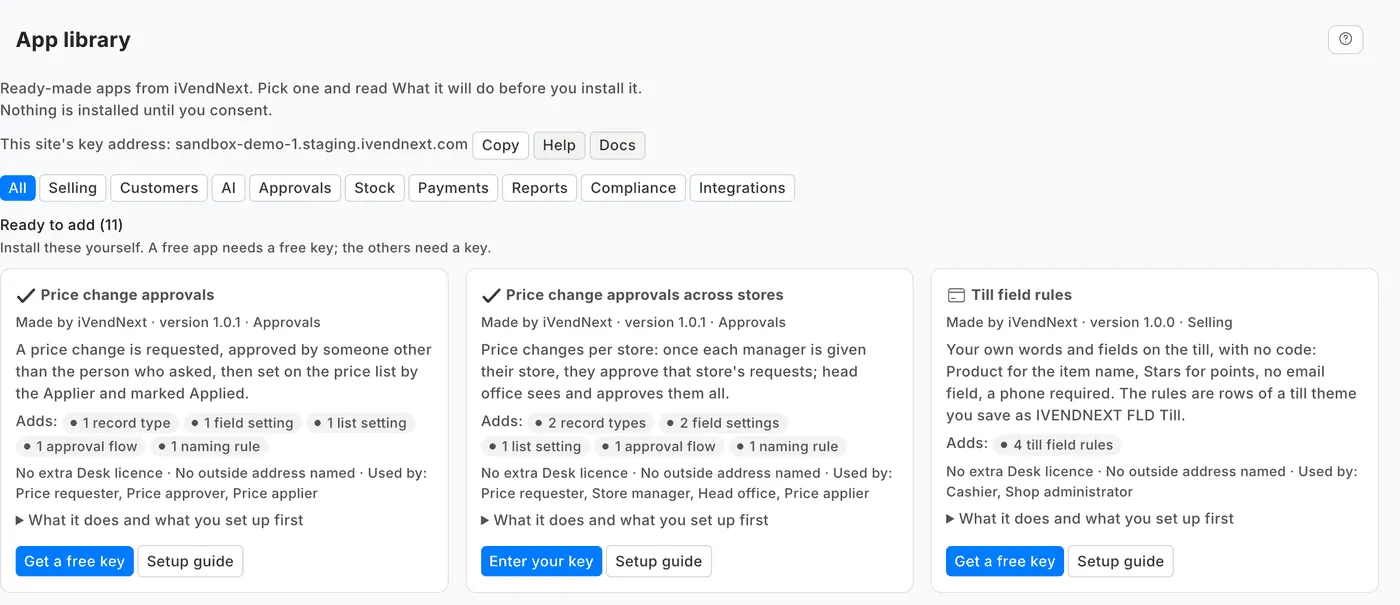
At the top of the page you see your site's key address, with a Copy button. A key is a short code that iVendNext or your partner gives you for this site, and they ask you for this address. The page also has a Help button and a Docs button. A site with no key address shows the line This site has no key address. Keys work only on a site iVendNext hosts.
Finding an app
Under the key address, the buttons All and one for each category show only the apps of that category. The apps come in groups, and a group with no apps is left out. Each group's title shows how many apps it has.
| Group | What it shows |
|---|---|
| Ready to add | Apps your site can install. A free app needs a free key, and the others need a key. |
| Installed | "On this site now, or being installed." An update, an install under way and a failed change come first. |
| Part of iVendNext | Apps that run inside your site. Your partner adds them. |
| Made for you and your name | Your own shelf, above the groups, when you have opened one (see below). |
Reading a card
A card says what the app does, who made it, its version and its category. Open What it does and what you set up first to read what the app does, how to set it up and anything good to know.
The line Adds: counts what the app adds, such as record types, a workspace or a till key. The facts line under it tells you what an app asks of you, in these parts:
- No extra Desk licence, or Needs 1 Desk user (one Desk licence), or the same line for more users.
- No outside address named, or Sends to: and the addresses the app names. A card never says that an app sends nothing outside, because a print layout can reach an address that a card cannot see.
- Used by: and the roles that use the app.
The card's button and line say where the app stands:
| What the card shows | What it means | What to do |
|---|---|---|
| Install | Your site can install the app now. | Press it. See Installing and updating. |
| Get a free key | A free app. You need a key first. | Press it, then Get the key. iVendNext records that your site asked for the key. |
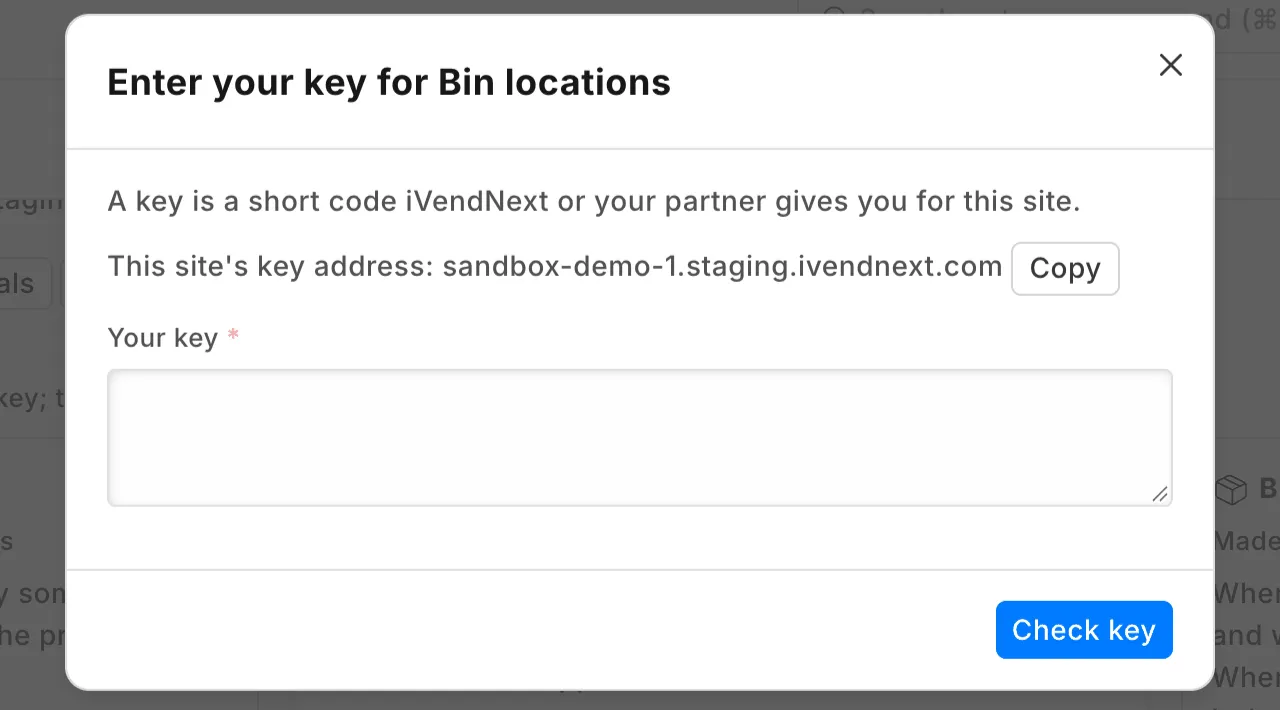
| Enter your key | The app needs a key from iVendNext or your partner. | Paste the key and press Check key. |
| Installing… This can take a minute. | The install is running. | Wait. The card changes by itself. |
| Installed · version and the number | The app is on your site. | Press Open if the card has it, or Details for the app's record. |
| Version and a number, then is ready | A newer version is listed. | Press Update. |
| The last change to this app did not finish. | An install or update stopped. | Press Details. After a failed install, the record has Finish. After a failed update, the version you had keeps running, and the record offers Consent and update to try again. |
| Your key ended on and a date, Your key was withdrawn or Your key was replaced | The key no longer works. | Press Enter a new key. For a free app, an ended or replaced key offers Get a free key. |
| This app now needs a key from your partner or iVendNext | A new version needs a key. | Press Enter your key. |
| Talk to your partner to add it. | The app runs inside your site and your partner adds it. | Press Help. |
A card also has Setup guide. It opens the app's guide in a new tab, on docs.ivendnext.com or on the maker's own site. It shows only when the app has a guide. After you install an app, its details also list Next steps: what to set up first, in order.
Your own shelf
A customer can have apps made only for that customer. They sit on a private shelf called Made for you, and a shelf key opens it. At the foot of the page, press Open your shelf next to the line Have a shelf key? Paste the key. The apps on the shelf install the same way as any other.
Remove, on the shelf, makes your site forget the shelf key. Its apps stay installed. Their updates stop until you enter a shelf key again. You find the installed apps under Extension Packages. A site has one shelf key, so a second key replaces the first. See How to customize.
Library settings
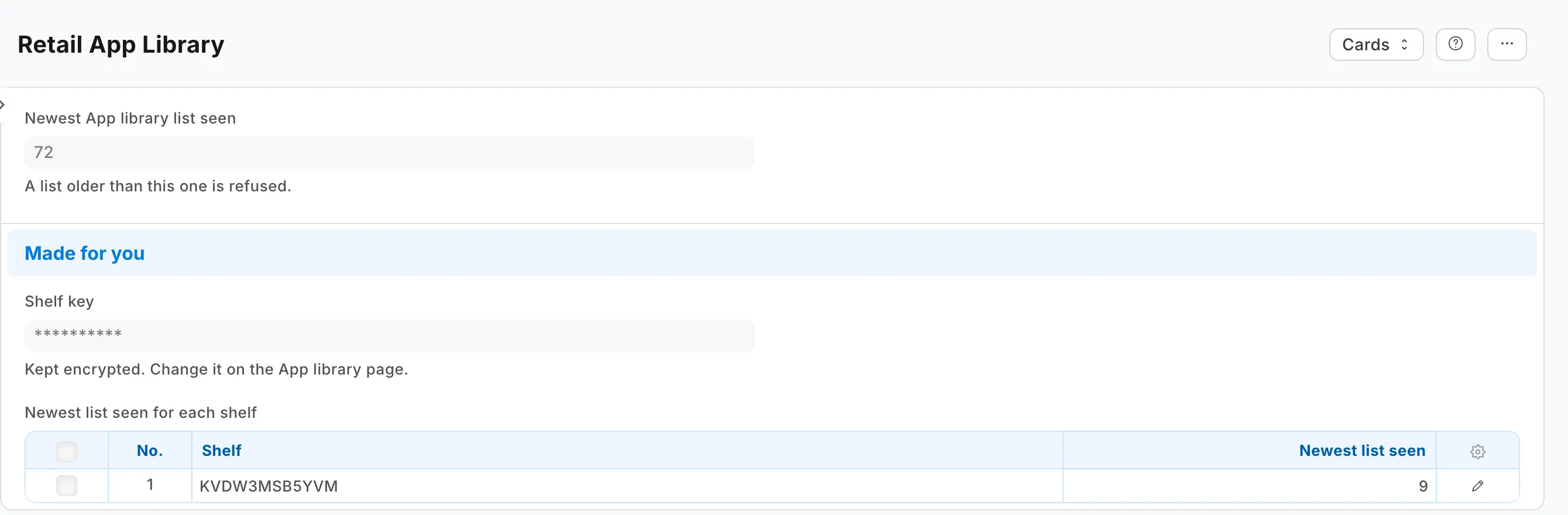
Search Desk for Retail App Library. This record is what your site keeps from the App library: the newest list it has seen, and the newest list it has seen for each shelf. A list older than that is refused. The page writes the record, and you only read it. A System Manager can open it.