
Retail Extensions · App · checked 2026-10-18
Set up customer-owned loyalty in this order: install the app, give it a user, make a customer group for each plan, add your plans and your settings, then connect the app and switch on the till key. This page covers each step. What the app does is on Customer-owned loyalty.
The steps
- Install the app from the App library (see About Retail Extensions). The app needs a key from iVendNext or your partner. The install adds the role IVENDNEXT LYL Integration, with no one in it.
- In Desk, search for Role Permissions Manager. Give the role IVENDNEXT LYL Integration Read and Write on Customer, and Read on POS Invoice.
- Make a user for the app. Tick Is Desk User, give it the role IVENDNEXT LYL Integration alone and save. Then generate its API key: on the user, open Settings and press Generate Keys.
- Make a customer group for each plan, such as Bronze, Silver and Gold. For each group, make the promotion that gives its member discount. Then add your plans and the settings record (below).
- Search Desk for Registered Application and open IVENDNEXT LYL Loyalty. Choose the app's user as its Application User, tick Customer and POS Invoice, and save.
- In the App library, find the app under Installed and press Details. On the app's record, press Connect again. The record then says that it sent the API key of the app's user.
- In POS Studio, open Apps. Switch Member on for the till's theme and save. The install already gave your consent to the key.
Plans
Search Desk for IVENDNEXT LYL Plan and press Add for each plan.
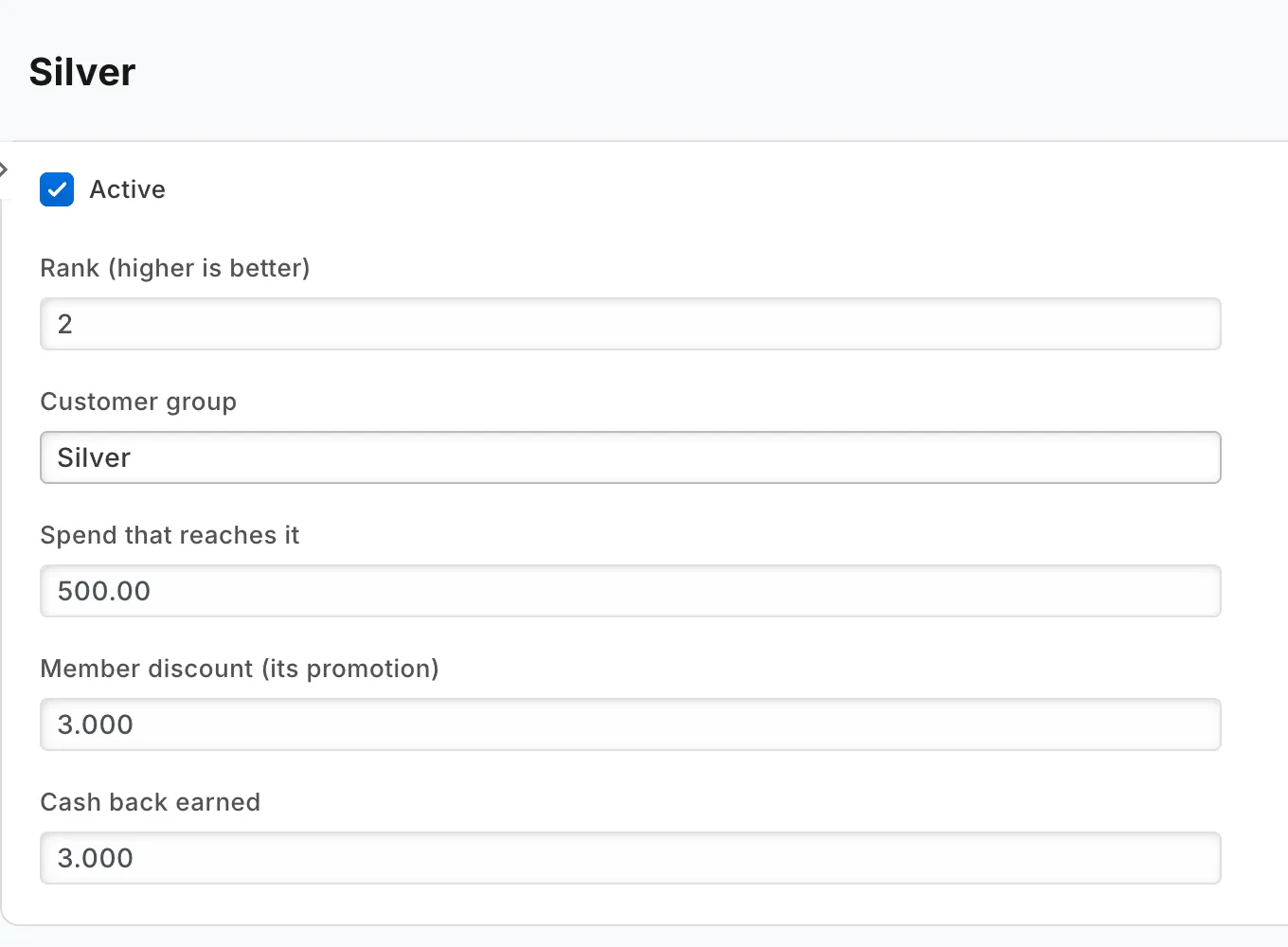
| Field | What to enter |
|---|---|
| "Plan" | The plan's name, such as Silver. |
| "Active" | Tick it. The app uses active plans only. |
| "Rank (higher is better)" | 1 for your first plan, then 2, 3 and so on. |
| "Customer group" | The plan's customer group. |
| "Spend that reaches it" | The spend in your spend window that moves a member to this plan. 0 for your first plan. |
| "Member discount (its promotion)" | The discount your promotion gives. The till key shows it. |
| "Cash back earned" | The percent of what a sale earns as cash back. |
Settings
Search Desk for IVENDNEXT LYL Settings and press Add. Enter Default as its Title. The app reads only the record with that title, and enrols no one without it. Then fill in the rest.
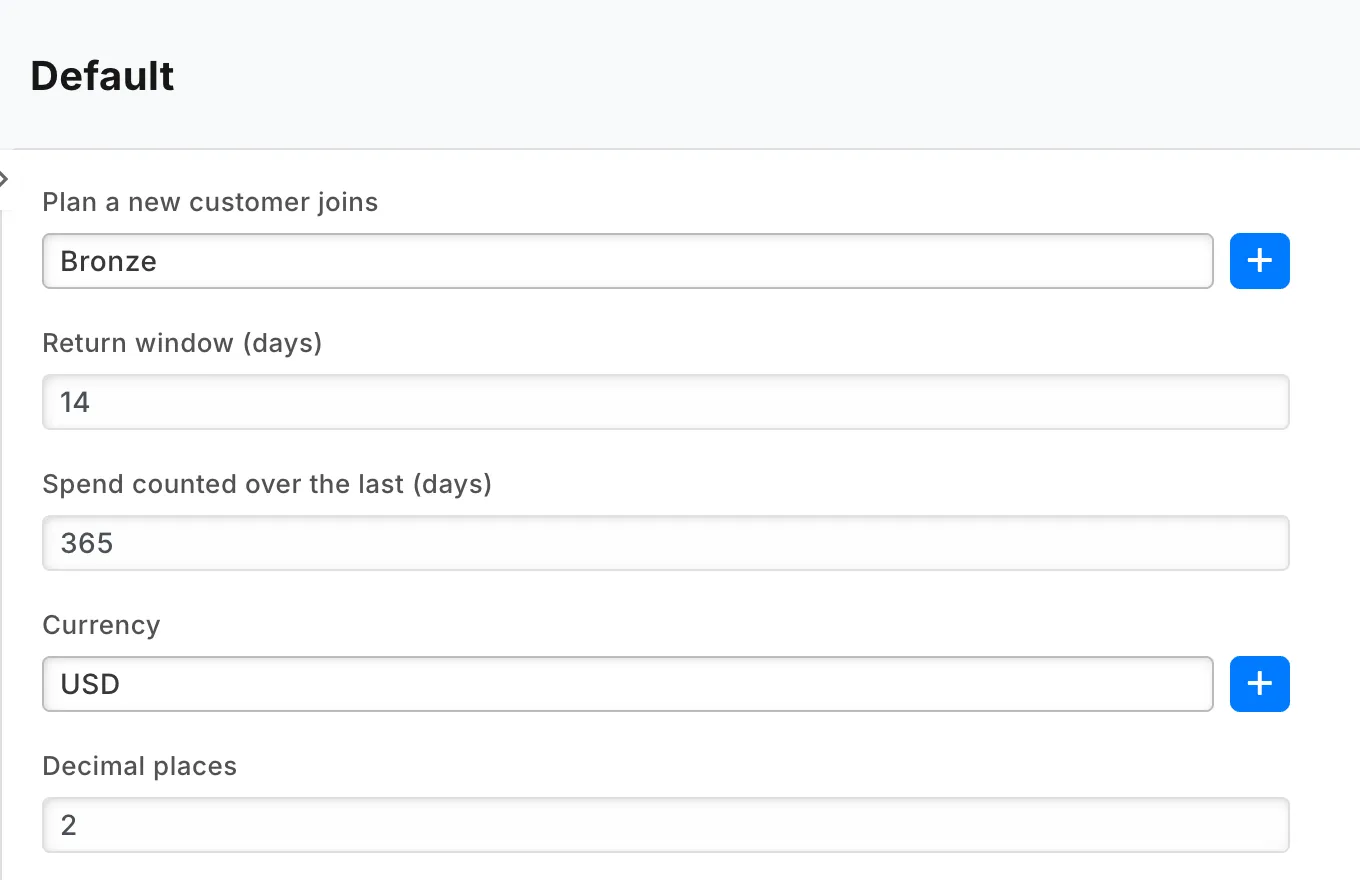
| Field | What to enter |
|---|---|
| "Plan a new customer joins" | Your first plan. |
| "Return window (days)" | How long new cash back stays Pending. Match your returns policy. |
| "Spend counted over the last (days)" | Your spend window. 365 if you leave it empty. |
| "Currency" | The currency of your sales. |
| "Decimal places" | The decimal places of that currency. 2 if you leave it empty. |
| "Walk-in customers (never enrolled), one per line" | Your walk-in customers. |
Last updated 15 hours ago
Was this helpful?