
Turning on a service or a check
Retail Extensions · checked 2026-10-18
An extension subscription is one partner service that answers one job in your shop, with your consent. This page covers what the job can be, how you turn a service on, and what each setting does. Only a System Manager keeps these records.
What a subscription does
Search Desk for Extension Subscriptions, or open it from the Retail Extensions card. Each record joins one partner service to one Extension point, which is the job the service does. A subscription does not install anything.
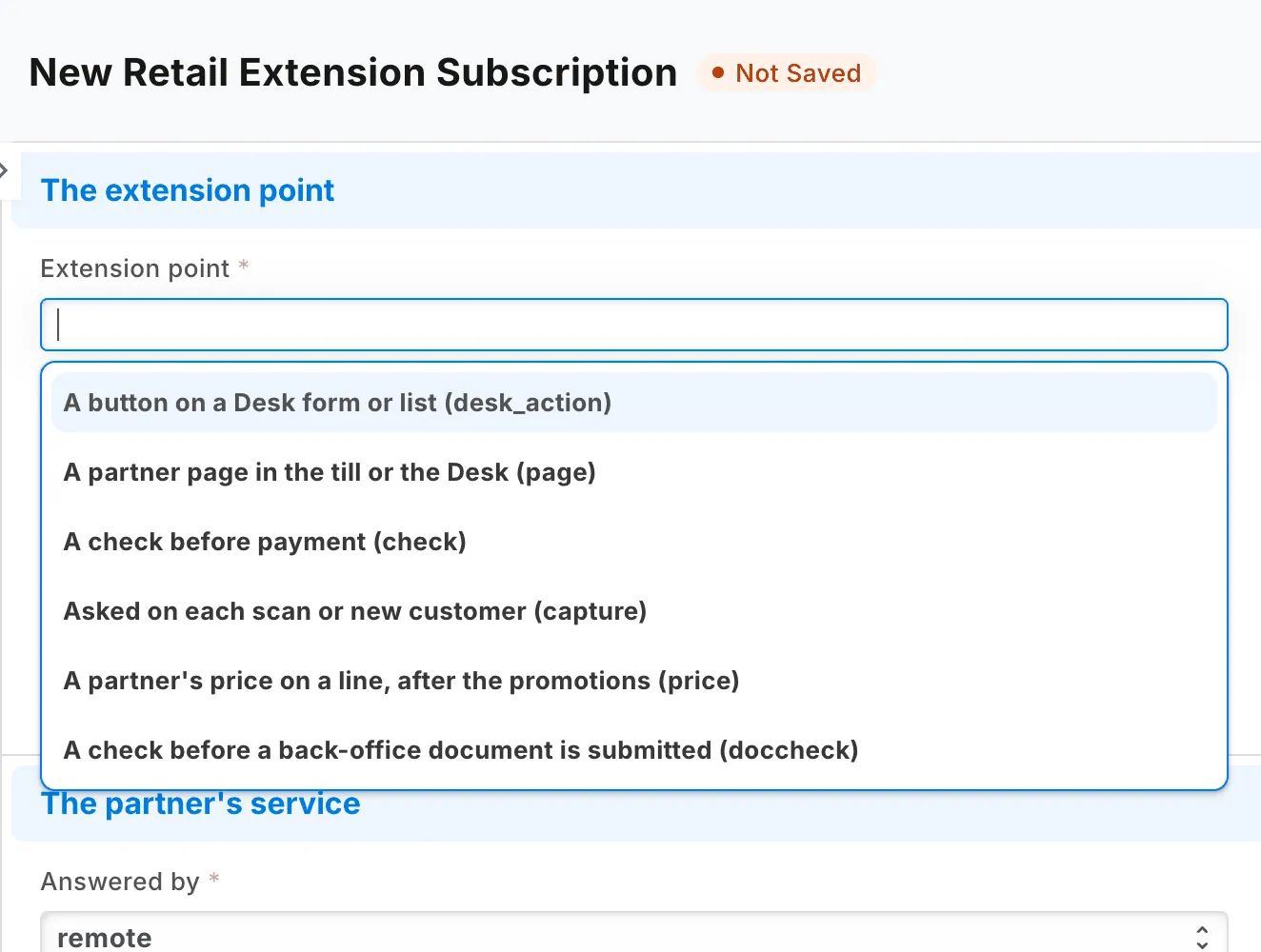
| Extension point | What the service does |
|---|---|
| A button on a Desk form or list | Answers when someone presses the button |
| A partner page in the till or the Desk | Shows the partner's page |
| A check before payment | Checks a sale before the cashier takes payment |
| Asked on each scan or new customer | Answers when the cashier scans a code or adds a customer |
| A partner's price on a line, after the promotions | Takes an amount off a line, up to the limit you set. A partner module answers it |
| A check before a back-office document is submitted | Checks a document before a user submits it |
A till key is not a subscription. An app's till key arrives with your consent to the install, and a store switches it on in POS Studio, under Apps.
Turning a service on
A service that comes with an app arrives switched off. You turn it on yourself, because you decide whether your shop sends it details.
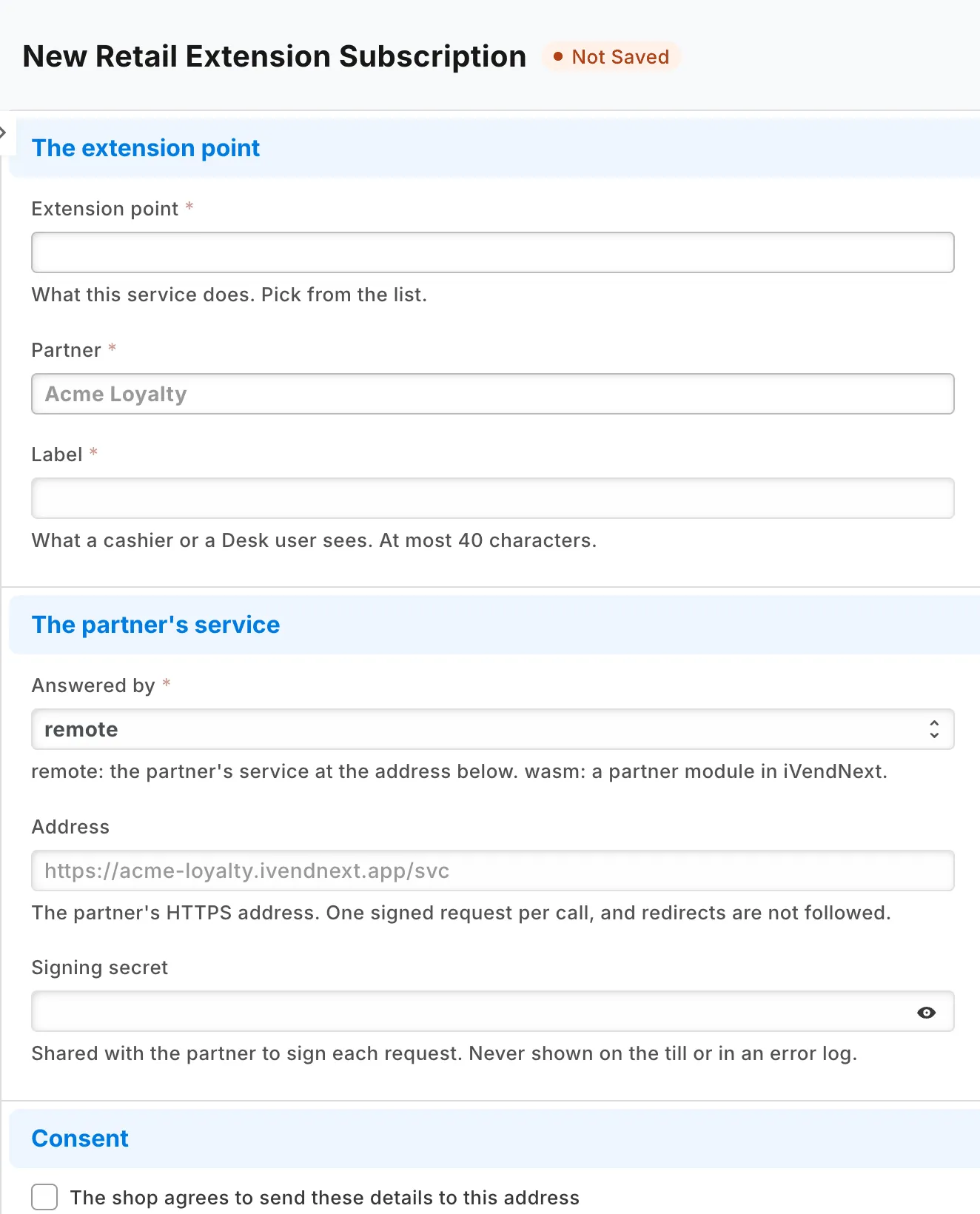
- Search Desk for Extension Subscriptions and open the service. A line at the top says which app it was installed with.
- Read Extension point, Partner and Label. The label is what a cashier or a Desk user sees. It has at most 40 characters.
- Read the Address of the partner's service. It is an HTTPS address.
- Under Consent, tick "The shop agrees to send these details to this address". The details for this extension point show there once you tick it.
- Tick Enabled, and save.
A new address, or a release that changes the list of details, clears your consent. You then consent again. An update of the app switches off every service that changed, and clears its consent.
The settings
| Field | What to enter |
|---|---|
| Order | When several services answer one job, the lower number is asked first. |
| Only for these POS Profiles | The profiles that use the service. Empty means every profile. |
| Answered by | remote for the partner's service at the address. wasm for a partner module in iVendNext: see Modules. |
| Time to answer (seconds) | How long the service has. Each job sets its own default and its most. |
| When the service is down | What happens when the service cannot be reached: "Let it go on and flag it for review", "Stop until the service answers", "Ask the cashier whether to go on" ("Ask the user whether to submit anyway" for a check before a back-office document is submitted) or "Charge the shop's own price". Empty means the first the job allows. |
| Settings for this extension point | Some jobs only. For example, the item groups a scan asks about. |
| May ask for a manager's approval | Off by default. It lets a check answer approve, which asks for a manager. |
| Most a module may take off a line (%) | The most a module may take off a line, after promotions. 0 means the module does not run. Only a System Manager sets it. |
For a partner page, the record also asks where it opens (Till key, Desk page, or both), who may open the Desk page, and what the page may send and answer.
What you can read afterward
Each call that matters writes a row in the extension log.