
Retail Extensions · App · checked 2026-10-18
Click and collect gives each store two lists in Desk: the web orders it still has to pick, and the orders waiting for their customer. When the customer comes, the person at the store records the hand-over on the order's delivery note. This page covers what the app adds, how a store uses it, where it shows, and how to remove it.
What it does
A web order is a sales order with a customer's order number, which the web shop fills with its own order number. Our WooCommerce connector does this for every web order.
- Web orders to pick lists the submitted sales orders still to deliver that carry a web order number.
- Waiting for collection is the Delivery Note list, filtered so that it shows only the submitted delivery notes of web orders that the customer has not yet collected (step 4 below).
- On each delivery note, Handed over and Collected by record the hand-over. You can set both after the note is submitted. The note's history shows who ticked it and when.
Store staff with Desk use it: anyone who can read sales orders opens the lists, and recording a hand-over needs the right to change delivery notes (a Stock User has both). The app works in Desk only. It changes no price, stock or order.
What you set up first
-
Install the app from the App library (see About Retail Extensions). It adds the two fields, the report and the workspace. It adds no role. Anyone who can read sales orders can open the report.
-
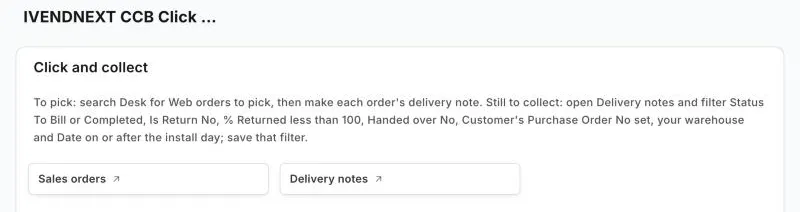
Search Desk for Click and collect to open the workspace. It opens your sales orders and delivery notes, and says where the two lists are.
-
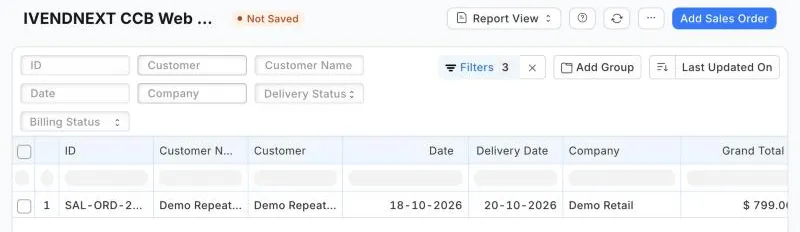
Search Desk for Web orders to pick. In it, filter Set Source Warehouse to your store's warehouse. The report opens with the sales order list's usual columns: add Customer's Purchase Order No and Set Source Warehouse from the column settings if you want to see them.
-
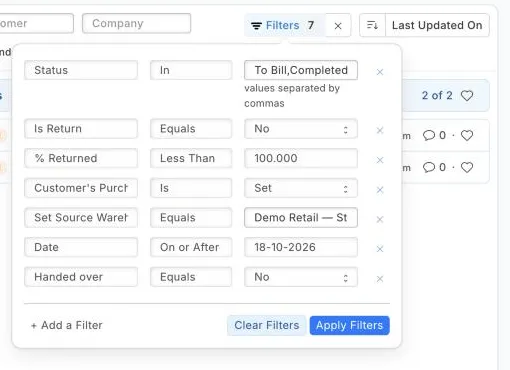
Open Delivery notes and filter: Status is To Bill or Completed, Is Return is No, % Returned is less than 100, Handed over is No, Customer's Purchase Order No is set, and Set Source Warehouse is your store's warehouse. Add Date on or after the day you install the app, so your older deliveries stay out. Add each condition under Filter, then + Add a Filter: the tick filter above the list finds only ticked notes. Save the filter as Waiting for collection. This is your waiting list. A saved filter is your own: each person who hands orders over saves it once. Each filter matters: without Status a draft or canceled note shows, without Is Return a return shows, without % Returned an order returned before collection would show, without the order number your other deliveries show.
How a store uses it
-
Pick. Open Web orders to pick, open an order, and make and submit its delivery note the usual way. A WooCommerce web shop then tells the customer that the order is ready to collect. The order leaves the pick list, and its delivery note appears in your Waiting for collection list.
-
Hand over. When the customer comes, open their delivery note from your Waiting for collection list. On the More Info tab, open Customer PO Details. Tick Handed over, write in Collected by the name on their ID, and save (Update). The note leaves the list.
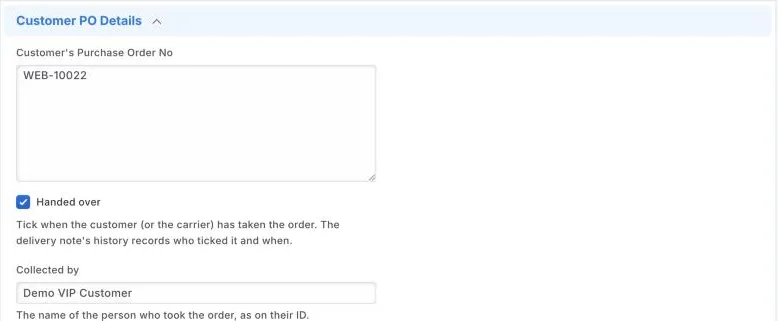
The note's Activity records who ticked it and when:

Where it shows
- Desk: the Click and collect workspace, the report, and the two fields on the delivery note form and list. Handed over is a list column and a list filter.
- The till: nothing. The till's own pickup board lists sales rung at the till only; see Click and collect on the till for those.
- Print layouts: nothing.
What leaves your shop
Nothing. The app has no service and no outside address.
Limits
- The lists are in Desk, not on the till.
- If a customer never collects, cancel the order's delivery note. A return made instead does not yet take the note off your list.
- The report opens for the roles that could read sales orders when you installed the app. To add a role later, open the report Web orders to pick and add it under Roles.
- A Desk order typed with a customer's order number shows too. So does a web order sent from a store's warehouse by carrier: tick Handed over when the carrier takes it.
- A web order booked as a sales invoice has no sales order to pick. It shows once its delivery note exists.
- An order stays on Web orders to pick until it is fully delivered.
- A return or an amended delivery note copies Handed over and Collected by from its original. Your waiting list leaves returns out; clear the two fields on an amended note by hand.
- The waiting list is a list filter you save once, not a report: a report cannot use the fields this app adds.
- The report Web orders to pick opens with the sales order list's usual columns, not the order number and warehouse; add those two from the column settings.
- Desk shows the workspace and report titles with the app's prefix, IVENDNEXT CCB. Searching for Click and collect or Web orders to pick still finds them.
How to remove it
- In the App library, find the app under Installed and press Details.
- On the app's record, press Export and uninstall and confirm. iVendNext first exports the two fields' values on your delivery notes to a file.
- iVendNext removes the two fields and their values, the report and the workspace. Your sales orders and delivery notes stay.