
Call-centre orders by district
Retail Extensions · App · checked 2026-10-22
Call-centre orders by district sends each phone order to the store that serves the customer's district. Your manager sets a Serving store on each district of your Territory tree. A call-center agent enters the order once and presses Send to store: the order and every line then ship from that store's warehouse, and the store finds the order in its own list. This page covers what the app adds, how to set it up, how the agent and the store use it, and how to remove it.
What it does
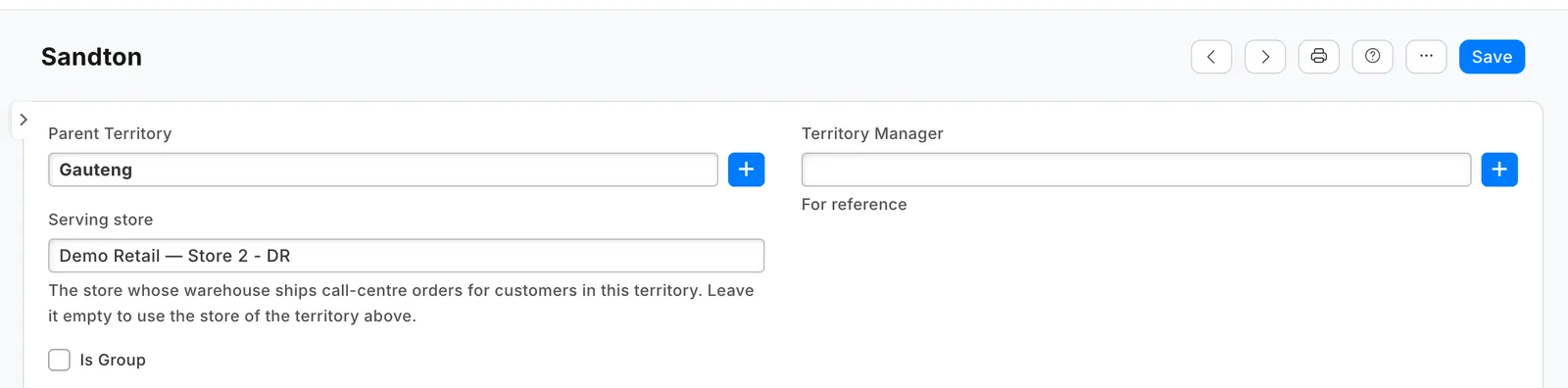
- Serving store, on each Territory. It is the store whose warehouse ships call-center orders for customers there. A district with no store of its own takes the store of the territory above it: set a store on a region, and only the districts that differ need their own.
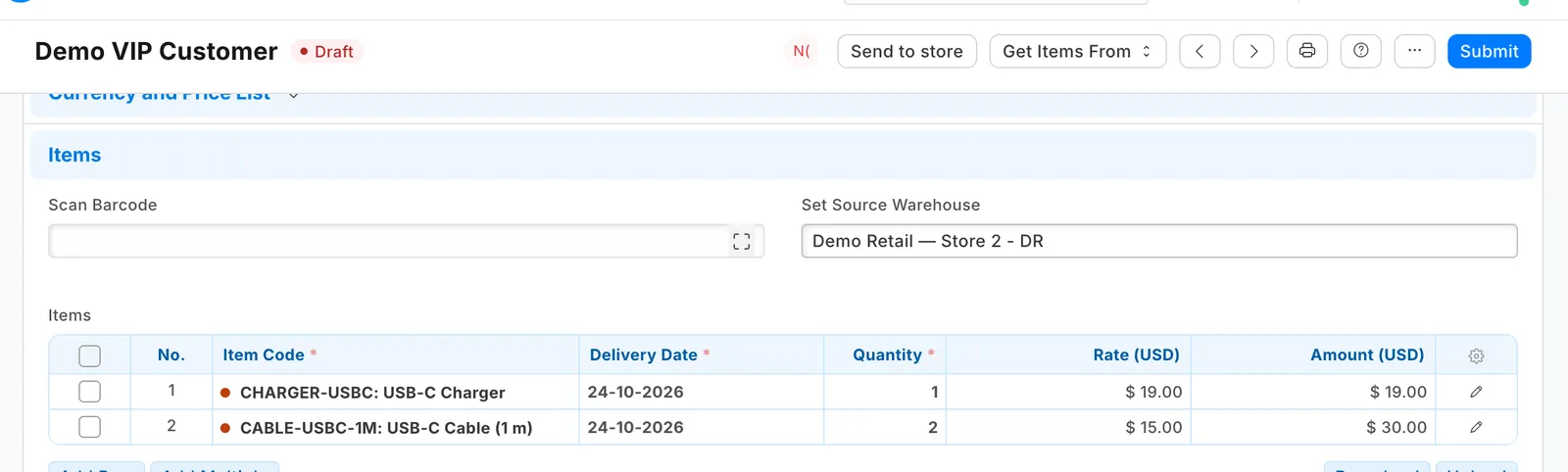
- Send to store, a button on a draft sales order. The app's service reads the order's territory, finds its store and writes that store's warehouse on the order (Set Source Warehouse), on every line and on a product bundle's parts. The form reloads. Pressed again, nothing changes.
- Each store's list. A store finds its orders in the Sales Order list filtered on its own Set Source Warehouse. Its delivery notes then ship from its own warehouse.
The service sets no price and never touches a submitted order. It never writes over an edit someone saved after it read the order.
What you set up first
-
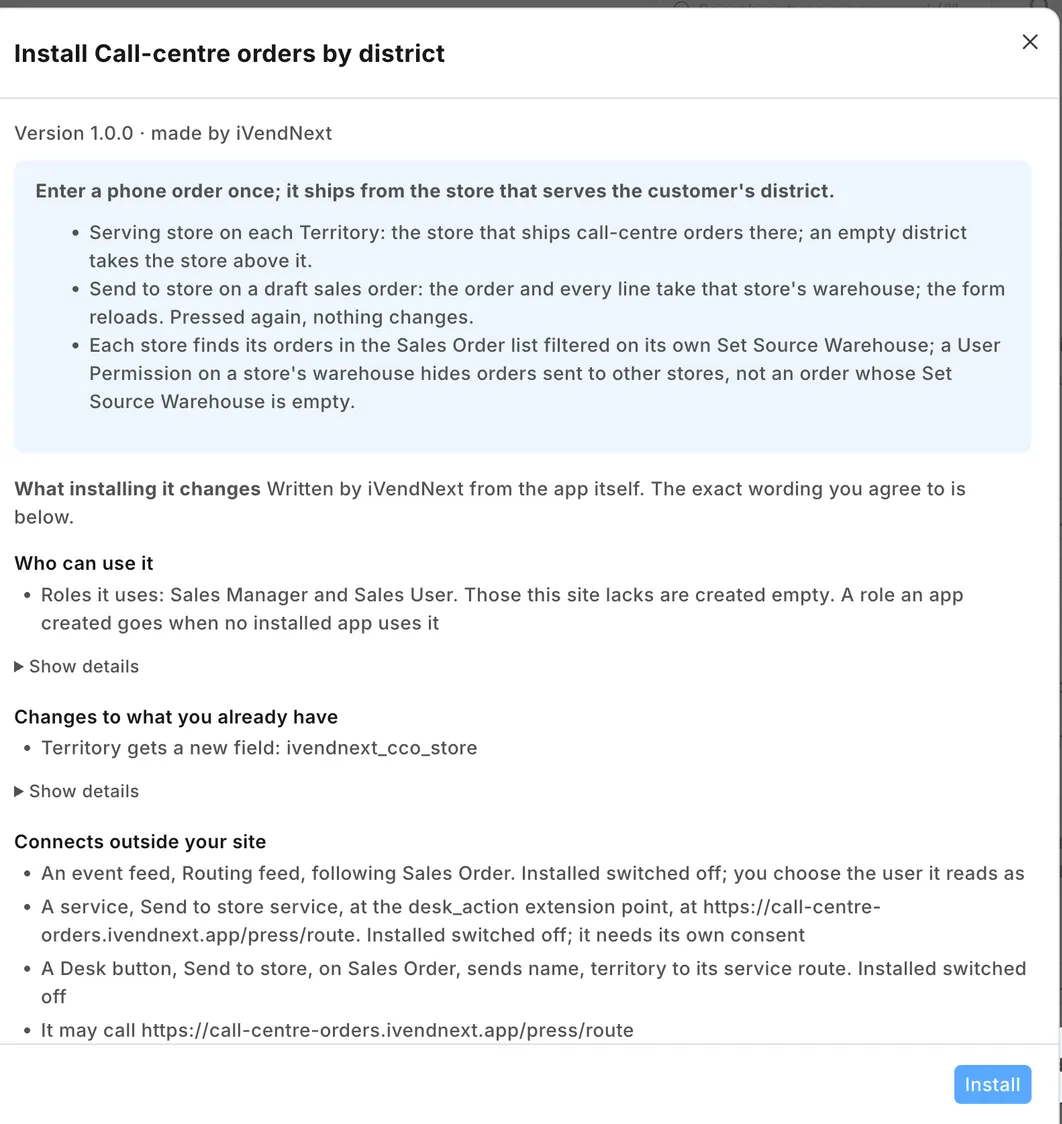
Install the app from the App library (see About Retail Extensions): press Get a free key, read what it will change, tick the box under it and press Install. The button and its service come in switched off. The install adds the Serving store field to Territory and makes no role.
-
Make a user for the app. Tick Is Desk User, give it no User Permissions and save. Then generate its API key: on the user, open Settings and press Generate Keys.
-
Search Desk for Role Permissions Manager. Give one role of your own these rights, and give the app's user that role alone:
Record type Right Why Sales Order Read, Write the service reads the order and writes its warehouses Territory Read it walks up your district tree Customer Read the order's own save reads its customer Warehouse Read it checks the store before it writes The role reaches every sales order (read and write) and every customer, territory and warehouse (read). Give it to the app's user and no one else.
-
Search Desk for Registered Application and open IVENDNEXT CCO Routing feed. Choose the app's user as its Application User and save. Leave the feed switched off: switched on, it would record every sales order's saves.
-
In the App library, find the app under Installed and press Details. On the app's record, press Connect again. Your site sends the service the API key of the app's user.
Switch it on
-
Search Desk for Retail Extension Subscription and open Send to store service.
-
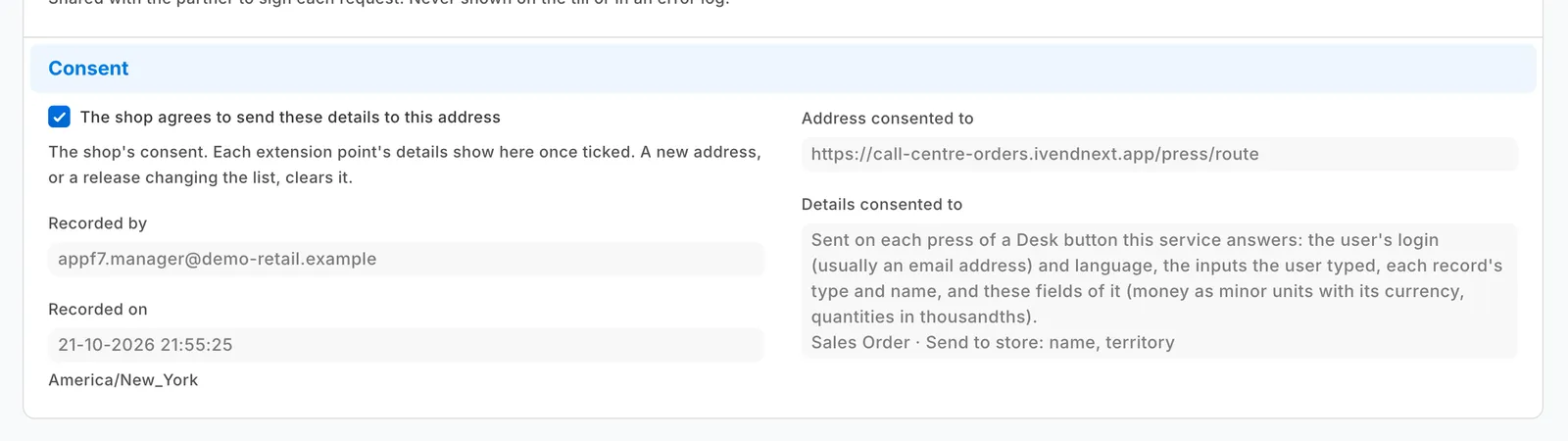
Read what it is sent, tick "The shop agrees to send these details to this address", tick Enabled and save.
-
Search Desk for Retail Desk Action, open Send to store, tick Enabled and save. The button shows to the Sales User and Sales Manager roles.
Set a store on your districts
Open Territory and, on each district, choose its Serving store: a store warehouse of your company, never a group warehouse. A region's store serves its districts that have none. A Sales Master Manager or a System Manager can change a Territory.
Taking an order by phone
-
The agent enters the sales order as usual and saves it. Its Territory comes from the customer. For an order going to another district (a gift, a second address), change the order's Territory before you save.
-
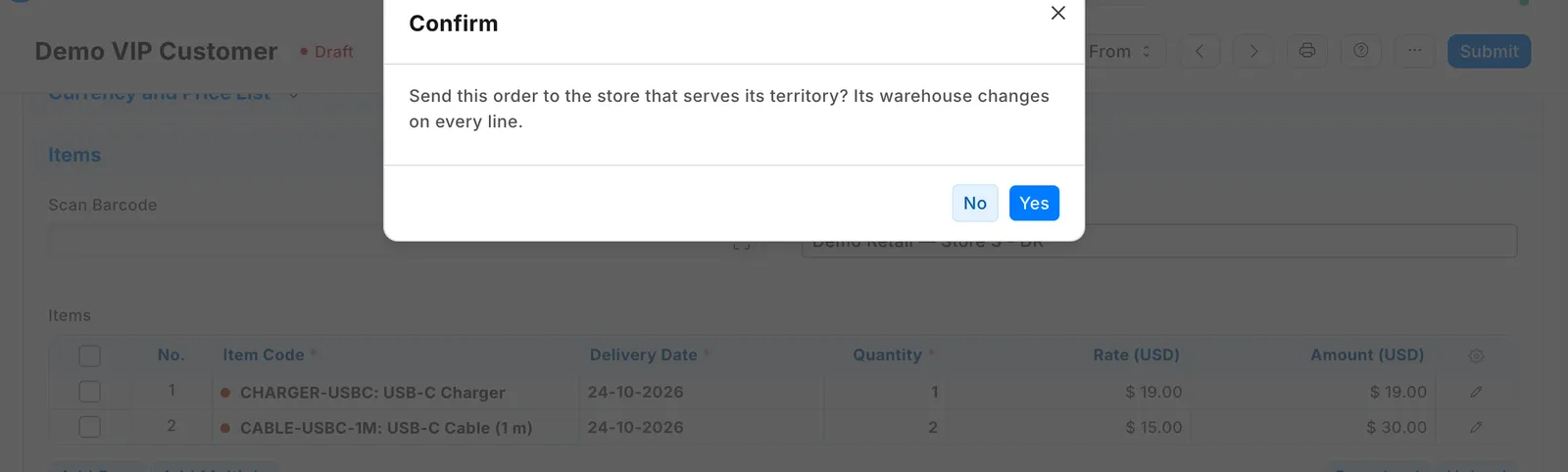
The agent presses Send to store and confirms.
-
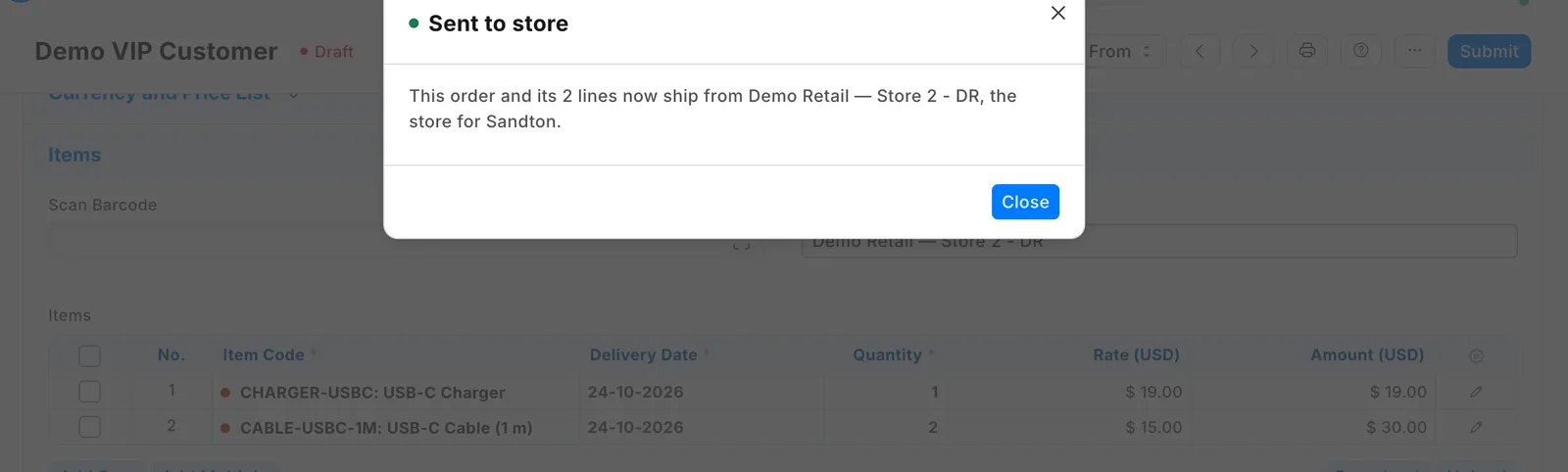
The answer says where the order now ships from, and the form reloads.
-
The agent submits the order.
| The agent sees | When |
|---|---|
| Sent to store: "This order and its 2 lines now ship from ⟨store⟩, the store for ⟨district⟩." | The district has its own Serving store. |
| Sent to store: "…the store for ⟨region⟩, which ⟨district⟩ is part of." | The district has none, so the store of the territory above it is used. |
| Sent to store, starting "Its total is now ⟨new⟩ (was ⟨old⟩): the store's own tax or prices apply." | The store's own item tax, or a price limited to its warehouse, changed the total at the new warehouse. Check the order before you submit it. |
| Already with its store: "This order already ships from ⟨store⟩, the store for ⟨district⟩. Nothing changed." | The order already ships from that store. |
| "This order has no territory. Choose the customer's territory on the order, save it, and press Send to store again." | The order has no territory. |
| A refusal that names the store or the territory | No territory above the order's has a Serving store, or its Serving store is a group warehouse, disabled, or another company's. Nothing changed. |
| "This order changed while it was being sent. Reload it and press Send to store again." | Someone saved the order after the service read it. Their edit stands. |
Each store's list
Each store saves its list once: open the Sales Order list, filter on Set Source Warehouse = its own warehouse, and save the filter. That list is the store's inbox of call-center orders.
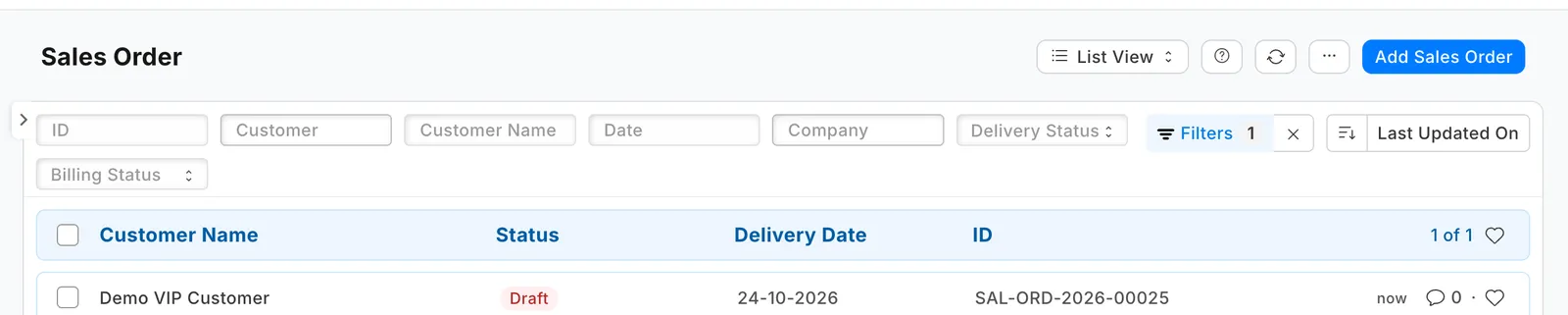
With a User Permission on its own warehouse, a store's staff see the orders sent to their store and not those sent to another. An order whose Set Source Warehouse is empty (none set, or lines on different warehouses) is seen by every store.
What leaves your shop
The app's service runs at call-center-orders.ivendnext.app, hosted by CitiXsys. After the install, and when you press Connect again, your site sends the service its key from the App library, its address, the button's signing key and the API key of the app's user.
Each press sends the order's name and territory, the agent's user (an email address) and the language. The service then reads, with the app's user, the whole order (customer, addresses, lines, quantities and prices), the territories up the tree and the store's warehouse, and writes the order back with the new warehouse. It keeps none of it. It keeps your site's keys until you remove the app.
Limits
- The order must be saved before the press: the service reads the saved order.
- Only draft orders. To send a submitted order elsewhere, cancel and amend it.
- One order at a time: the button is on the order's form.
- The store gets no message. Its filtered list is its inbox.
- The territory is the customer's unless the agent changes it on the order.
- A press after a quiet spell can take a few seconds longer than usual.
How to remove it
- In the App library, find the app under Installed and press Details.
- On the app's record, press Export and uninstall and confirm. iVendNext first exports the Serving stores to a file, and tells the service that the app was removed.
- iVendNext removes the Serving store field, the button, the service and the feed registration.
- Make a new API key for the app's user, or disable the user, so the key the service had stops working.