
Retail Extensions · App · checked 2026-10-22
Expiry markdown marks down stock whose expiry date is near, so it sells before it is thrown away. You give each perishable item group its markdown steps, such as 25% off from 5 days before expiry and 50% off from 2 days. Each morning a manager ticks the lots in the Batch list and presses Mark down: each lot inside a step gets its own lower price on your selling price list, until its expiry date. The till already rings a lot at its own price and prints its lot label, so the cashier does nothing new. This page covers what the app adds, how to set it up, how the manager uses it, and how to remove it.
What it does
| What happens | When |
|---|---|
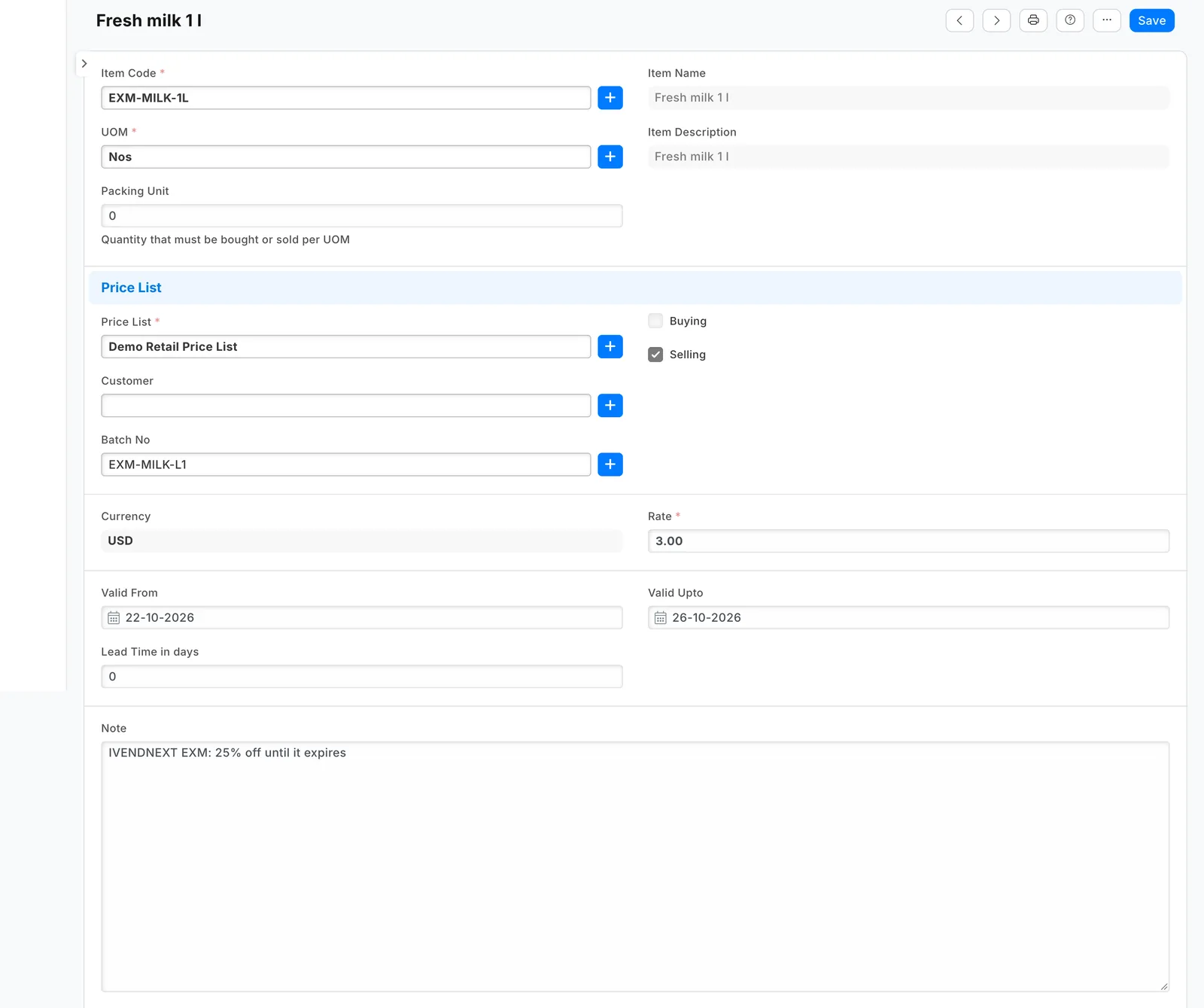
| The lot gets its own price: the item's price less the step's percent, rounded down to your currency's smallest unit, valid from today until the lot's expiry date, with the note "IVENDNEXT EXM: 25% off until it expires" | A ticked lot has reached a step |
| Its price is changed to the last step's percent | A ticked lot has reached its last step |
| The app's price for the lot is taken off | A ticked lot is past its date, has no stock left, or is outside every step (you changed the steps) |
| Nothing | A ticked lot is not yet inside a step, or already has its price |
| The lot is left as it is, and the answer says so | You typed a price for that lot yourself |
| Up to 20 of the app's prices whose date has passed are removed, on any lot | Every press |
The answer counts what happened, such as "Marked down 2 lots. 2 lots not yet due." Pressing again writes nothing.
What you set up first
Your perishable items must be tracked by lot, with expiry dates: on the item, Has Batch No and Has Expiry Date.
-
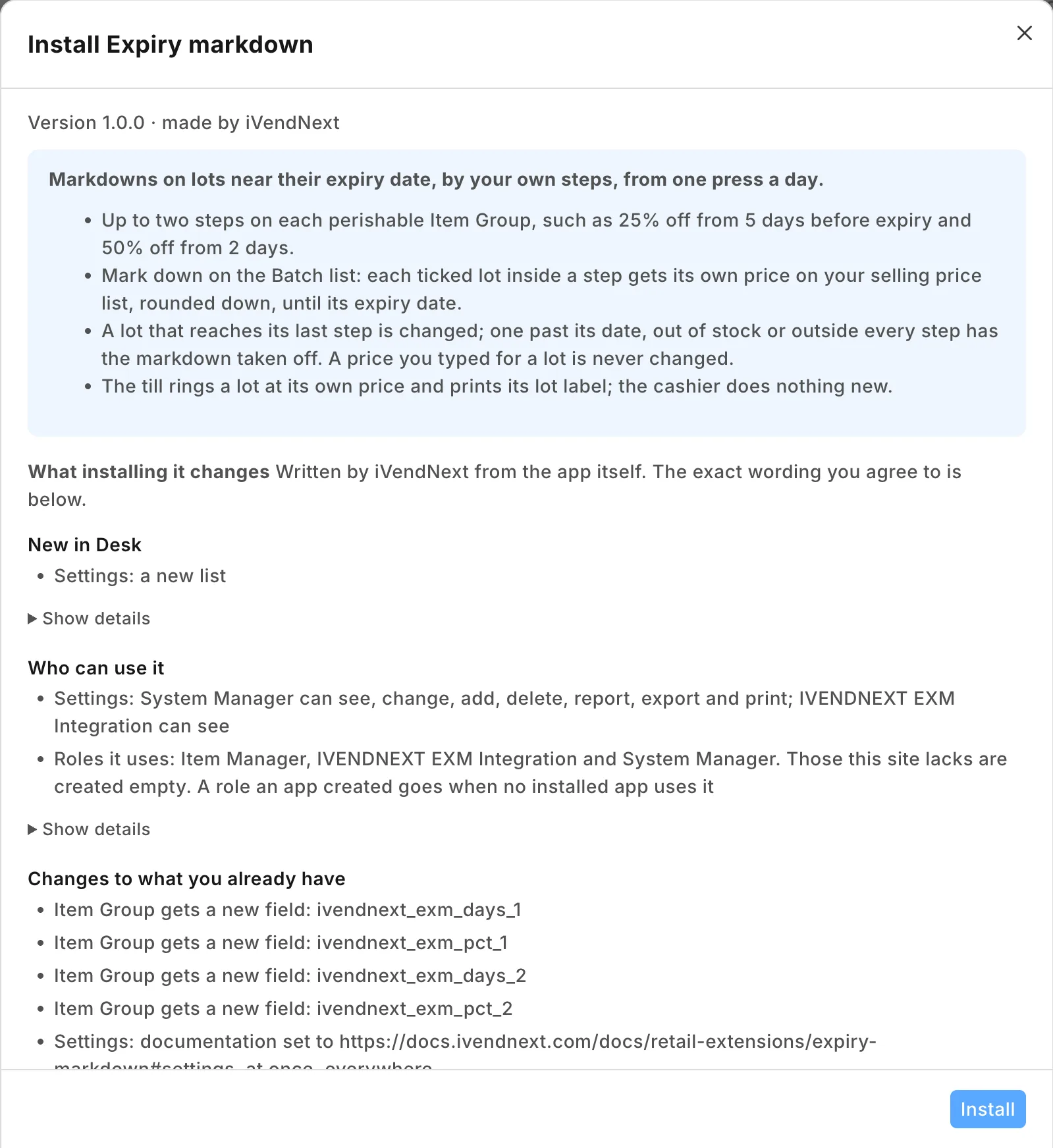
Install the app from the App library (see About Retail Extensions). The install adds the settings record IVENDNEXT EXM Settings, four step fields on Item Group, the role IVENDNEXT EXM Integration with no one in it, and the Mark down button on Batch. The button and its service come in switched off.
-
Make a user for the app. Tick Is Desk User, give it the role IVENDNEXT EXM Integration alone and save. Then generate its API key: on the user, open Settings and press Generate Keys.
-
Search Desk for Role Permissions Manager. Give IVENDNEXT EXM Integration these rights:
Record type Right Why Batch Read the ticked lots: item, expiry date, stock Item Read each lot's item group Item Group Read your steps, and the group tree they are read up Price List Read the list your tills sell from, and its currency Currency Read the currency's smallest unit, for the rounding Item Price Read, Write, Create, Delete the item's price, and each lot's own price The role reaches every price on every list: give it to the app's user and no one else.
-
Search Desk for Registered Application and open IVENDNEXT EXM Markdown feed. Choose the app's user as its Application User and save. Leave the feed switched off.
-
Make the record Default of IVENDNEXT EXM Settings, and set the steps (below).
-
Switch the service and the button on (below).
-
In the App library, find the app under Installed and press Details. On the app's record, press Connect again. Your site sends the service the API key of the app's user.
Settings
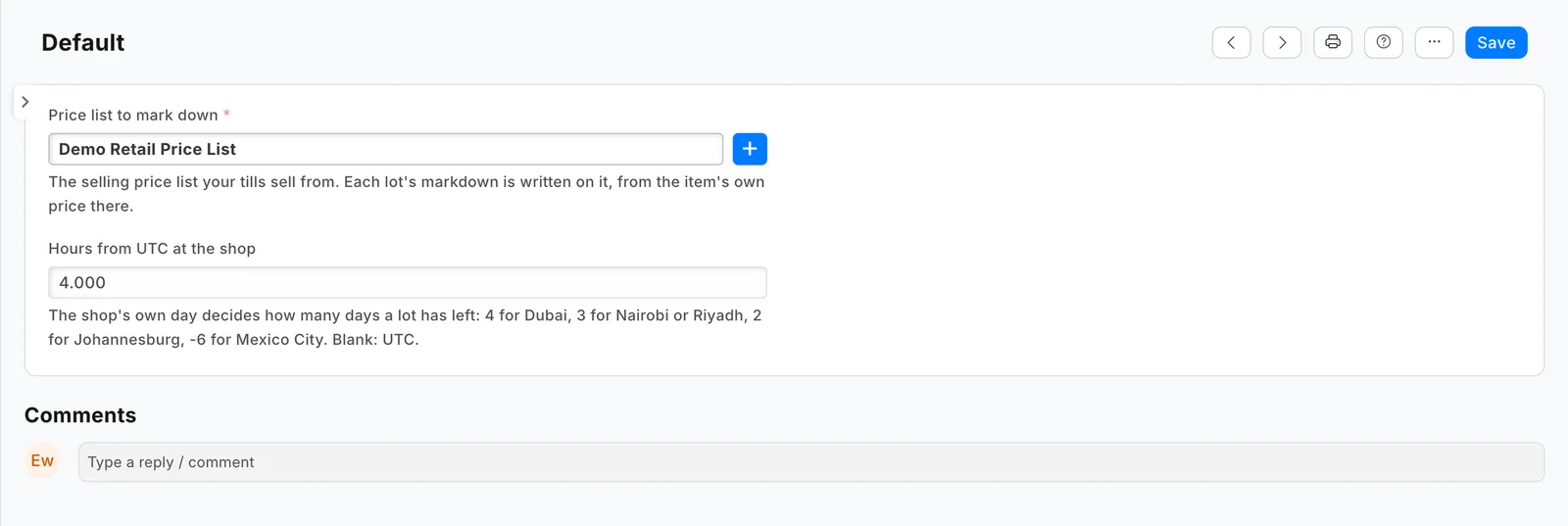
Search Desk for IVENDNEXT EXM Settings and make the record Default.
| Field | What it does |
|---|---|
| Price list to mark down | The selling price list your tills sell from. Each lot's markdown is written on it, from the item's own price there. |
| Hours from UTC at the shop | Your own day decides how many days a lot has left: 4 for Dubai, 3 for Nairobi or Riyadh, 2 for Johannesburg, −6 for Mexico City. Blank: UTC. Change it when your clocks change. |
Steps
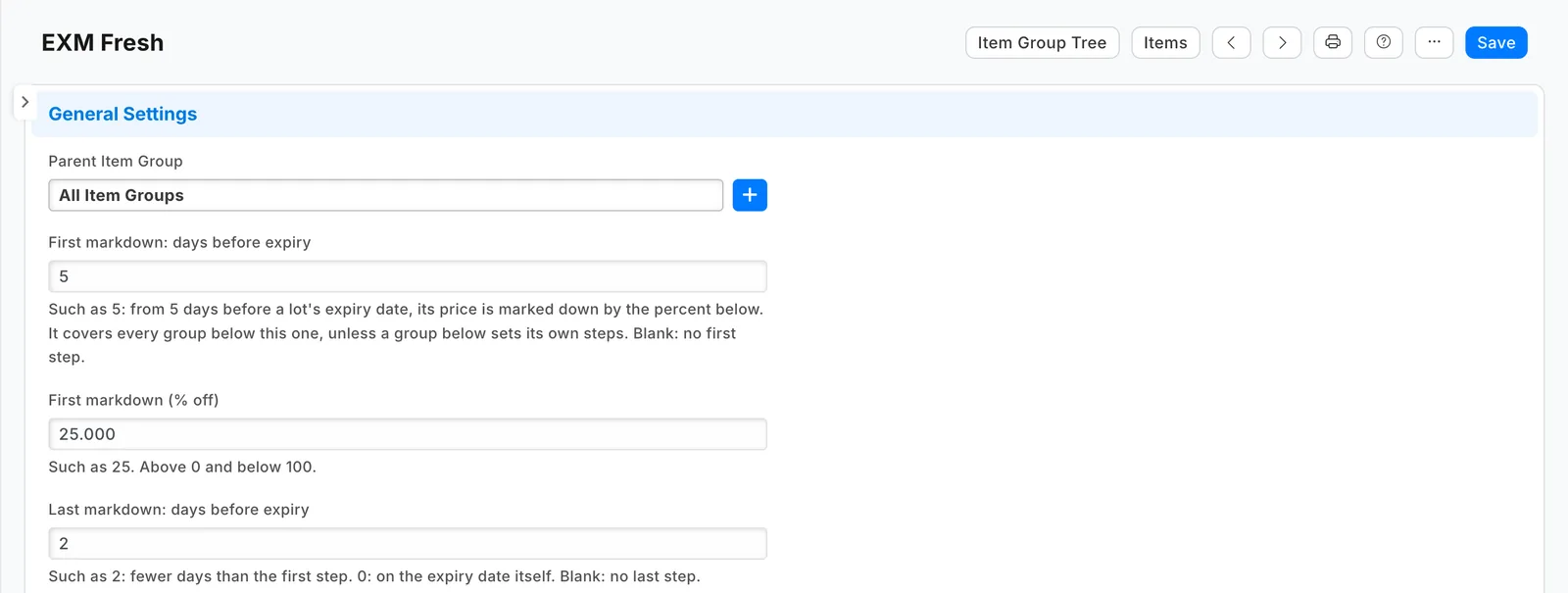
Open Item Group and, on each perishable group (such as Dairy or Bakery), set the steps:
| Field | Example |
|---|---|
| First markdown: days before expiry | 5 |
| First markdown (% off) | 25 |
| Last markdown: days before expiry | 2 (0: on the expiry date itself) |
| Last markdown (% off) | 50 |
A group without steps takes the nearest group above it that has some: steps on Fresh cover Dairy and Bakery below it, unless Bakery sets its own. A step needs both its days and its percent, above 0 and below 100.
 Put steps only on item groups whose every item may be sold below its price: a group below takes its parent's steps, and a step of 0 is no step, so a group of price-regulated medicines must not sit under one with steps.
Switch it on
-
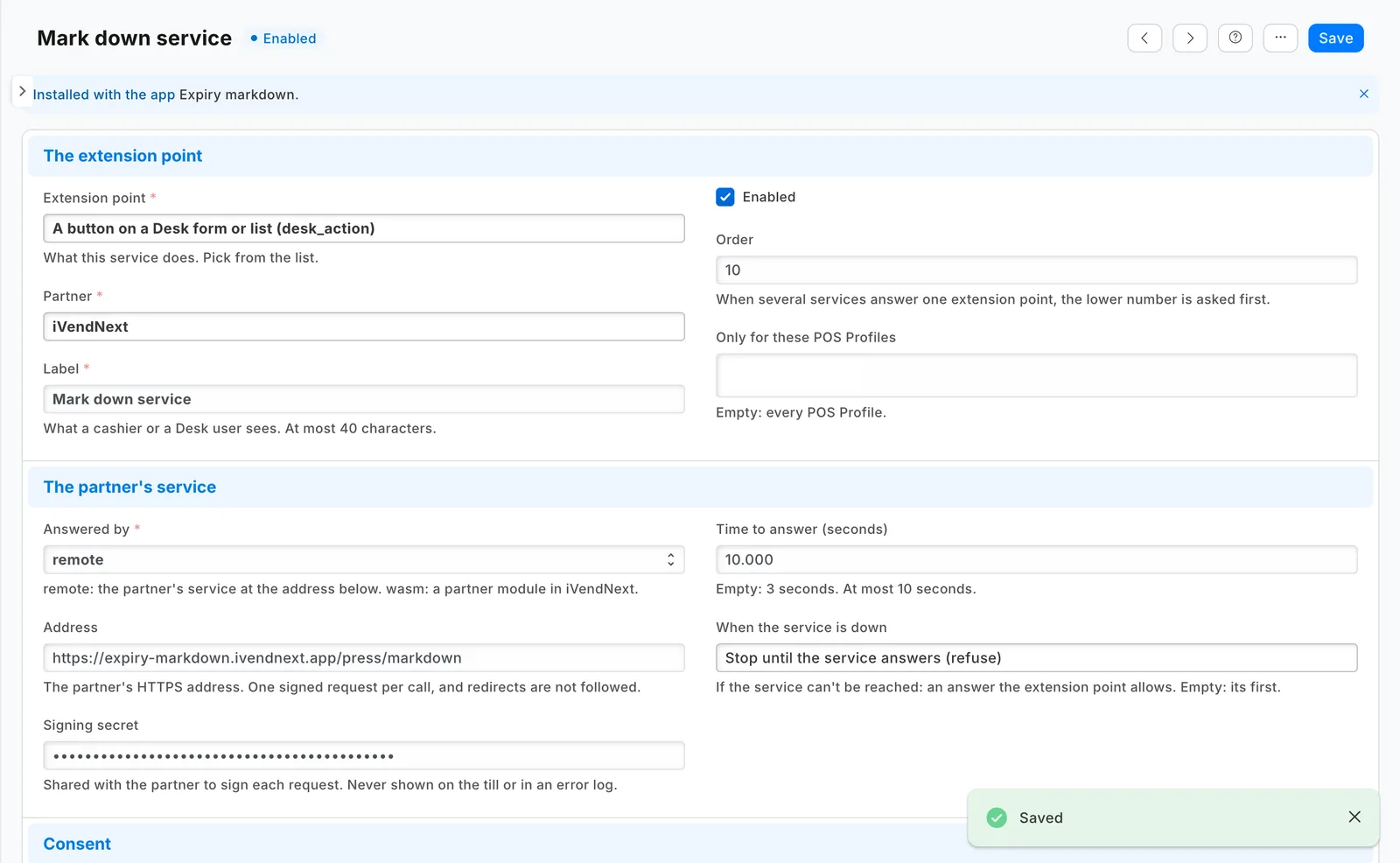
Search Desk for Retail Extension Subscription and open Mark down service. Read what it is sent, tick the consent and switch it on.
-
Search Desk for Retail Desk Action and open Mark down. Switch it on.
The button shows to an Item Manager, the role that reads Batch in iVendNext: at every press your site checks that the user may read each ticked lot. If your markdowns are someone else's job, add their role on the button and give that role read on Batch.
Marking down each morning
-
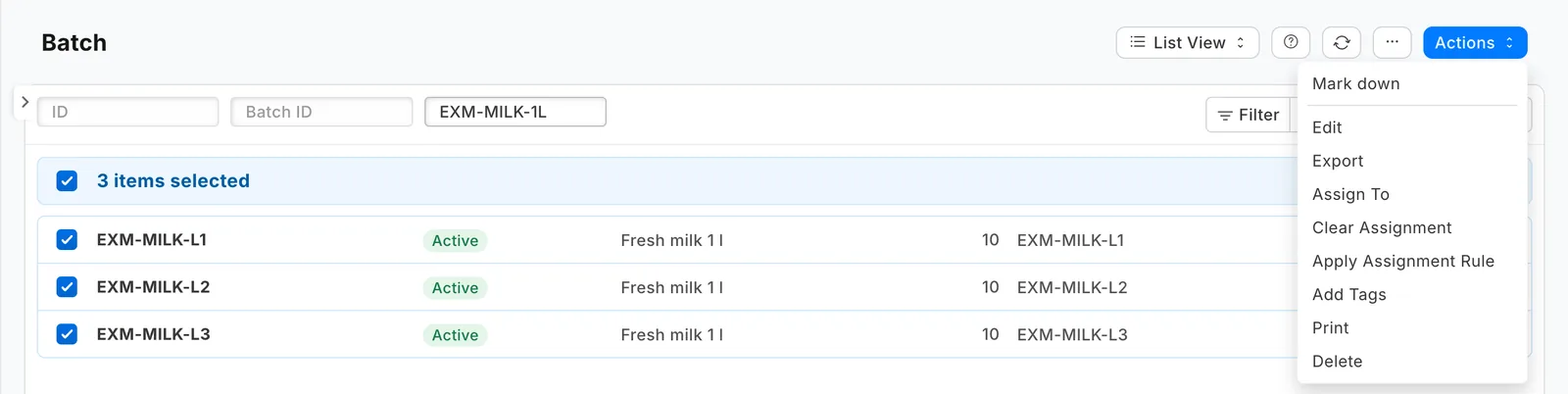
Open the Batch list and filter it on Expiry Date for this week (and on the item, if you like).
-
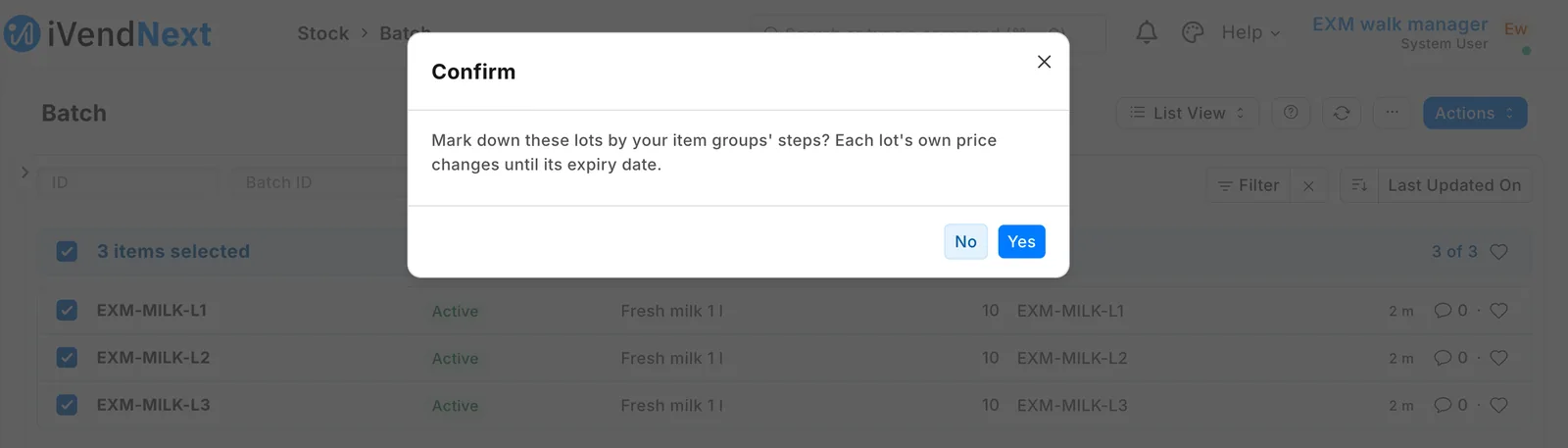
Tick the lots, open Actions and press Mark down. Confirm: "Mark down these lots by your item groups' steps? Each lot's own price changes until its expiry date."
-
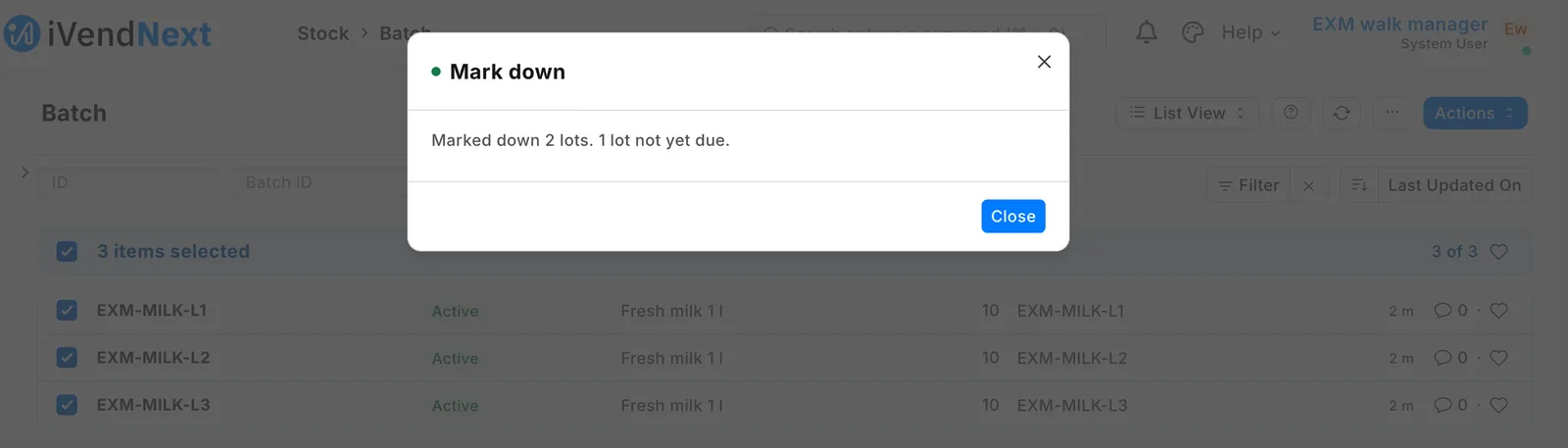
Read the answer, such as "Marked down 2 lots. 2 lots not yet due." With many lots, the answer may say "Did 40 of 100 lots. Press Mark down again for the rest."
-
At the till, print the lot labels: Print label on the item, the lot chosen. The label shows the lot's price and its expiry date.
The lot's own price is on your price list, in Item Price (a Sales Master Manager reads that list), with the note "IVENDNEXT EXM: …".
What leaves your shop
The app's service runs at expiry-markdown.ivendnext.app, hosted by CitiXsys. After the install, and when you press Connect again, your site sends the service its key from the App library, its address, the button's signing key, and the API key of the app's user.
On each press, your shop sends the ticked lots' names, items and expiry dates, the pressing user's login and their language. The service then reads, with the app's user, your settings, the lots, their items' groups, your item group tree with its steps, the price list and its currency, and those items' prices on the list, and writes the lots' prices. It keeps nothing of a press. It keeps your site's keys until you remove the app.
Limits
- A manager presses it: there is no daily run without a press.
- Only items tracked by lot are marked down.
- While any lot on your site has a price of its own, your tills do not sell a lot-tracked item offline: the till's offline price list has no lot in it. Each press removes up to 20 expired markdowns; once none is left, tills sell lots offline again from their next start.
- Before the till prices a line, the item's tile or a scan can show another lot's price; the line, the total and the receipt carry the right one.
- A scanned lot label rings its lot. An item's own barcode rings the lot your stock settings pick (Pick Serial / Batch Based On): with Expiry, the lot nearest its date sells first. A line filled from several lots takes one price: scan each lot's label.
- A customer with their own price for the item pays it on a scanned lot, not the lot's markdown.
- A new price for the item, or one dated to start later, takes the markdown off a scanned lot label from that day until the next press, which moves the lot's price to it.
- Prices are rounded down to your currency's own digits. If your site's currency precision is set to fewer digits, the till rounds the line again.
- One set of steps per item group and one price list for your site. Up to 100 lots a press.
- After the first press, restart the tills (or sign them in again) before they go offline: a till started before any lot had its own price keeps selling lots offline at the item's own price, above the markdown on the label.
- If the service does not answer in time, some lots may already be marked down: press again, and a repeat writes nothing.
- A price you edit on one of the app's lot prices (its note starts with "IVENDNEXT EXM:") is the app's again at the next press. To keep a lot price of your own, write your own note.
How to remove it
- Filter Item Price on Note starting with "IVENDNEXT EXM:" and delete those rows. Nothing removes them after the app is gone, and while they exist your tills do not sell lot-tracked items offline.
- In the App library, find the app under Installed and press Details.
- On the app's record, press Export and uninstall and confirm. iVendNext first exports the settings and the steps to a file, and tells the service that the app was removed.
- iVendNext removes the settings, the step fields, the button, the service and the feed registration.
- Make a new API key for the app's user, or disable the user, so the key the service had stops working.