
Setting up a café or quick-service counter
Hospitality · checked 2026-10-23
This guide sets up a counter where the cashier rings dishes, adds a service charge and takes payment, online or offline. Do the steps in Desk, as a user who may create stores, items, prices and users. Set up in this order: the store, the dishes, the service charge, the till, the staff, the house account, then offline selling.
Making the store
First, search Desk for Price List, make a list for the store, and tick Selling.
The till calls a store what Desk calls a Warehouse. Search Desk for Warehouse and open your store, or make a new one. Tick Is Retail Store. The fields below show only after you tick it.
| Field | Where | What to enter |
|---|---|---|
| Selling Price List | Warehouse Detail | The price list your dishes are priced on at this store. |
| Cash Customer | Warehouse Detail | The customer a sale goes to when the cashier names no one. |
| Item Tax Template | Warehouse Detail | The tax the store works out for its dishes. |
| Company Currency | Store Setting | Your company's currency. |
Fill in Item Tax Template before you sell offline. When the store has none, the offline till says "This store's tax setup can't be worked out here." and cannot price the sale.
Adding your dishes
A dish is a plain item that the shop does not keep in stock. Search Desk for Item and make one item for each dish:
- Choose an Item Group of your own, such as your menu.
- Leave Maintain Stock unticked and tick Allow Sales.
- Save the item.
Then search Desk for Item Price and add one row for each dish. Choose the store's Price List and type the Rate.
Selling a dish does not take its ingredients off stock. Make each ingredient an item with Maintain Stock ticked. The Restaurant back office app takes the ingredients off stock by each dish's recipe when a manager presses Issue ingredients, usually after the day's close. It also shows each dish's allergens on the till line and on the receipt, and works out your food cost. Use its guide for the recipes and for checking allergens.
Setting up the service charge
A service charge is a Surcharge. Search Desk for Surcharge and make one. The till calls it a charge.
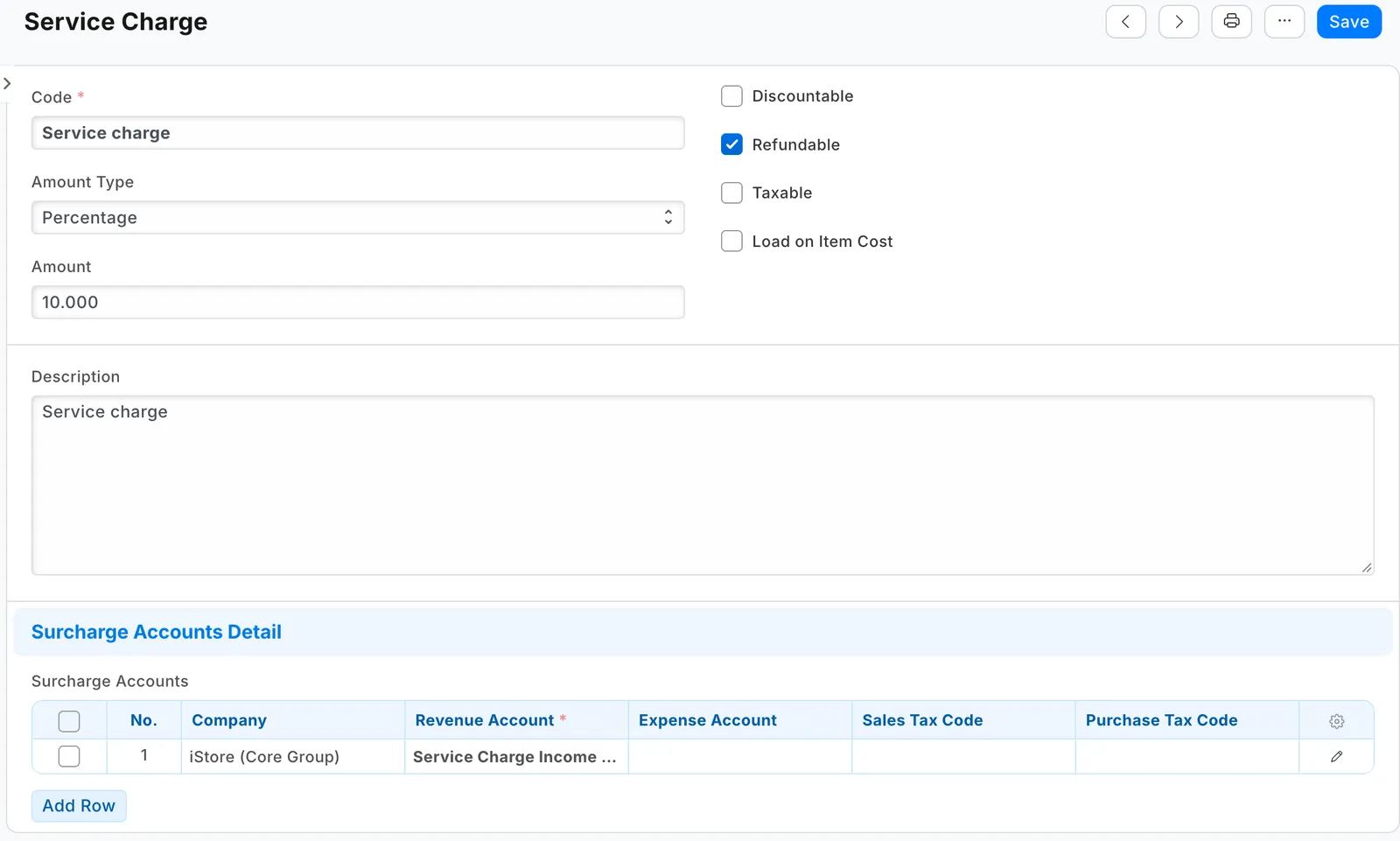
| Field | What to enter |
|---|---|
| Code | A short code for the charge. |
| Description | The name the cashier sees, such as Service charge. When it is empty, the till shows the Code. |
| Amount Type and Amount | Percentage and 10, for a charge of 10 percent. |
| Discountable | Tick it if a discount may lower the charge. |
| Refundable | Tick it if a returned dish gives the charge back. |
| Taxable | Tick it if the charge carries tax, and choose the Sales Tax Code in the company's row below. Leave it empty for a charge with no tax. |
| Surcharge Accounts | One row for each company. Choose the Company and the Revenue Account that takes the charge. |
A charge appears on the till only for a store whose company has a row in Surcharge Accounts.
Adding the charge to a dish by itself
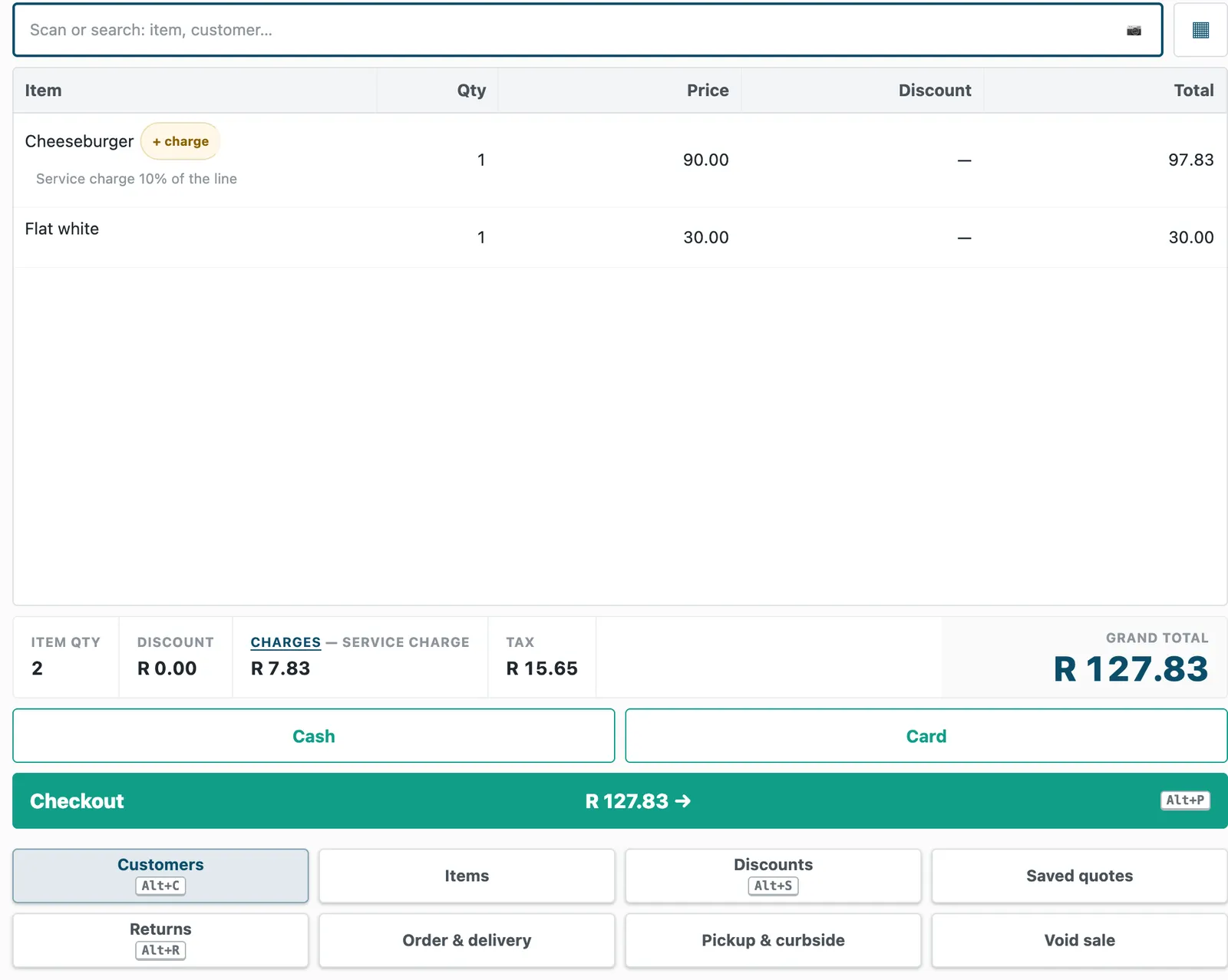
To make the charge come with a dish, open the item. On the Details tab, tick Has Default Surcharges. On the Surcharge tab, add a row to Surcharge List, choose the Surcharge and set Type to Sale. Each time the cashier rings that dish, the line shows a "+ charge" tag. The totals show the charge, and the receipt prints a row for it.
Letting the cashier add the charge
The cashier can also add the charge to one sale. For this, make the charge as above and skip the item step.
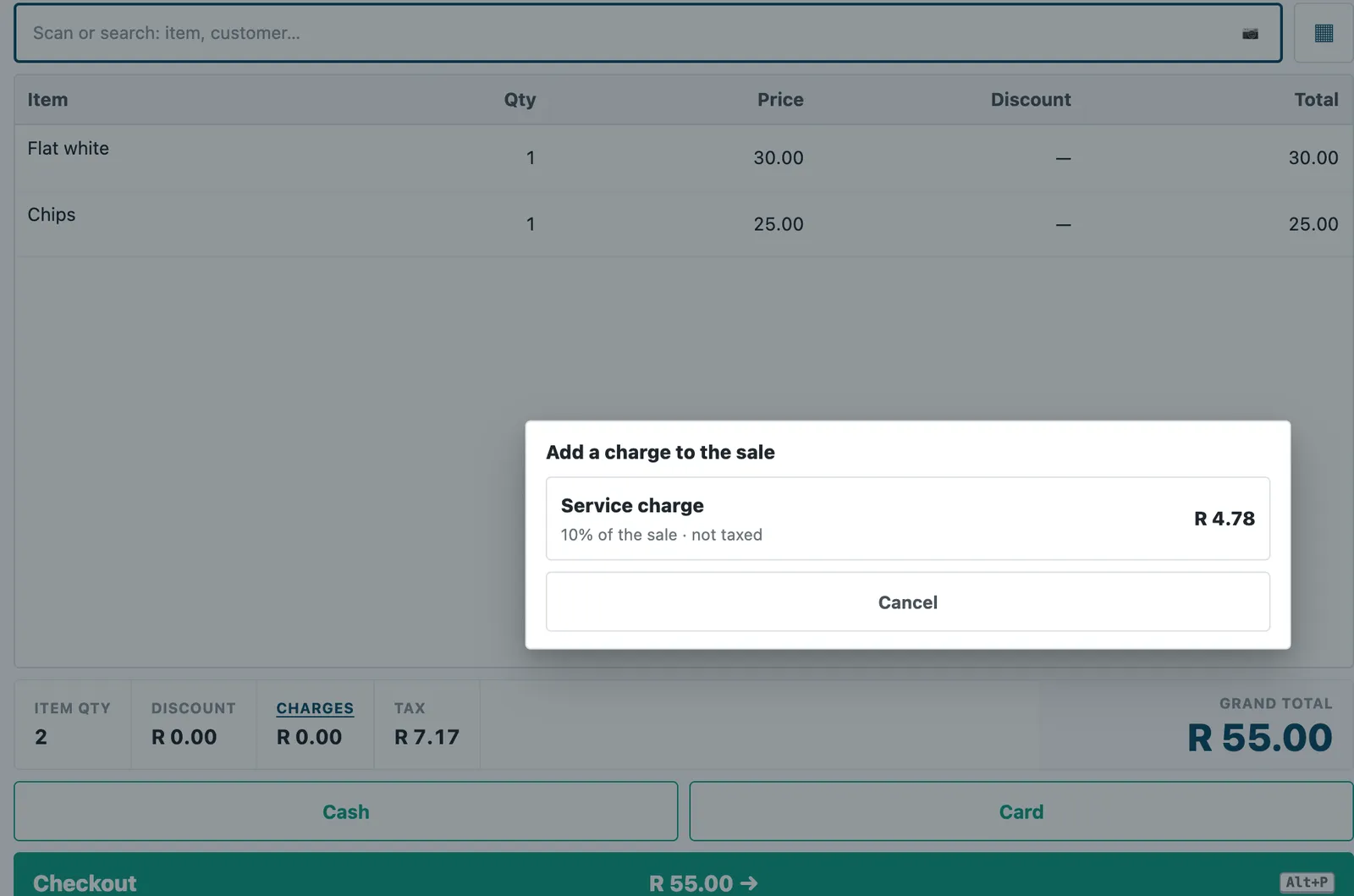
- On the till, tap Charges in the totals.
- Press "Add a charge to the sale…".
- Choose the charge. The list shows its amount and whether it carries tax.
The sheet then lists the charge as "whole sale · added by you" and has a button to remove it. The payment screen and the receipt show it as a row.
What happens to the charge offline
- A charge with no tax that comes with a dish is still worked out offline, and the total includes it. The offline basket and the provisional slip show no line for it, so the lines can look short of the total. A taxable charge needs its Sales Tax Code. Without it, the offline till says "A charge on this item needs a connection to work out."
- The offline sale and line screens have no control to add a charge. If the cashier adds a charge while online and the connection then drops, the till says "Discounts, charges, price changes and bundles come from the back office. They need a connection." The totals show pricing… and the sale cannot be paid until the connection returns. This is on purpose.
Making the till
You need a terminal and a profile for the store.
- Search Desk for POS Terminal and make a terminal. Choose the Company and the Store. Tick Has Cash Drawer if the till counts cash at the start and end of the day.
- Search Desk for Mode of Payment and open each payment method the profile will use, such as Cash and On Account. Each needs a row in Accounts with your company and its default account. Without that row, the profile will not save.
- Search Desk for POS Profile and make a profile. Choose the Company, the Store and the Interface Profile. In the Accounting section, choose the Price List, the Currency, the Write Off Account and the Write Off Cost Center. For the receipt and report print formats, choose the ones your other profiles use.
- In Payment Methods, add Cash as the default. Add On Account if you run a house account.
- In the POS (Till, Tablet and Phone) section, set POS Offline Selling to Enabled.
Give each store one live profile. If a store has two, the till cannot tell which one to run.
Letting your staff sell
Search Desk for User and open each person who sells.
- Give a manager the role Retail Manager. Give a cashier the role Retail Cashier.
- In Allow Access to Stores, add a row with the Store and the POS Profile.
- Save the user.
The first time a person signs in on a device, the till enrolls the device and says "Device enrolled." The person picks the till, types the opening float and presses the button that reads "Start the day at" and the till's name. See Starting your day.
Setting up a house account
A house account lets a regular guest pay later. The cashier chooses the customer and takes the sale on account.
- Search Desk for Customer and open the guest.
- On the Accounting tab, in Credit Limit and Payment Terms, add a row for the company with a Credit Limit.
- Where your country's tax rules ask for the buyer's tax registration, add it to the customer too. In a South African company, the sale asked for it.
Without a credit limit, the till says "This customer has no credit limit, so on-account isn't available." A Retail Manager can open a customer but not change it, and the Accounting tab does not show for that role. Ask a user who can edit customers to add the row.
On account is not available offline. The offline payment screen says "Gift card, store credit, on-account and loyalty need a connection. Offline this till takes its own currency only."
Selling offline
When POS Offline Selling is Enabled, the till keeps selling when the connection drops. The till shows "Offline. Offline-aware mode" and marks the totals as provisional.
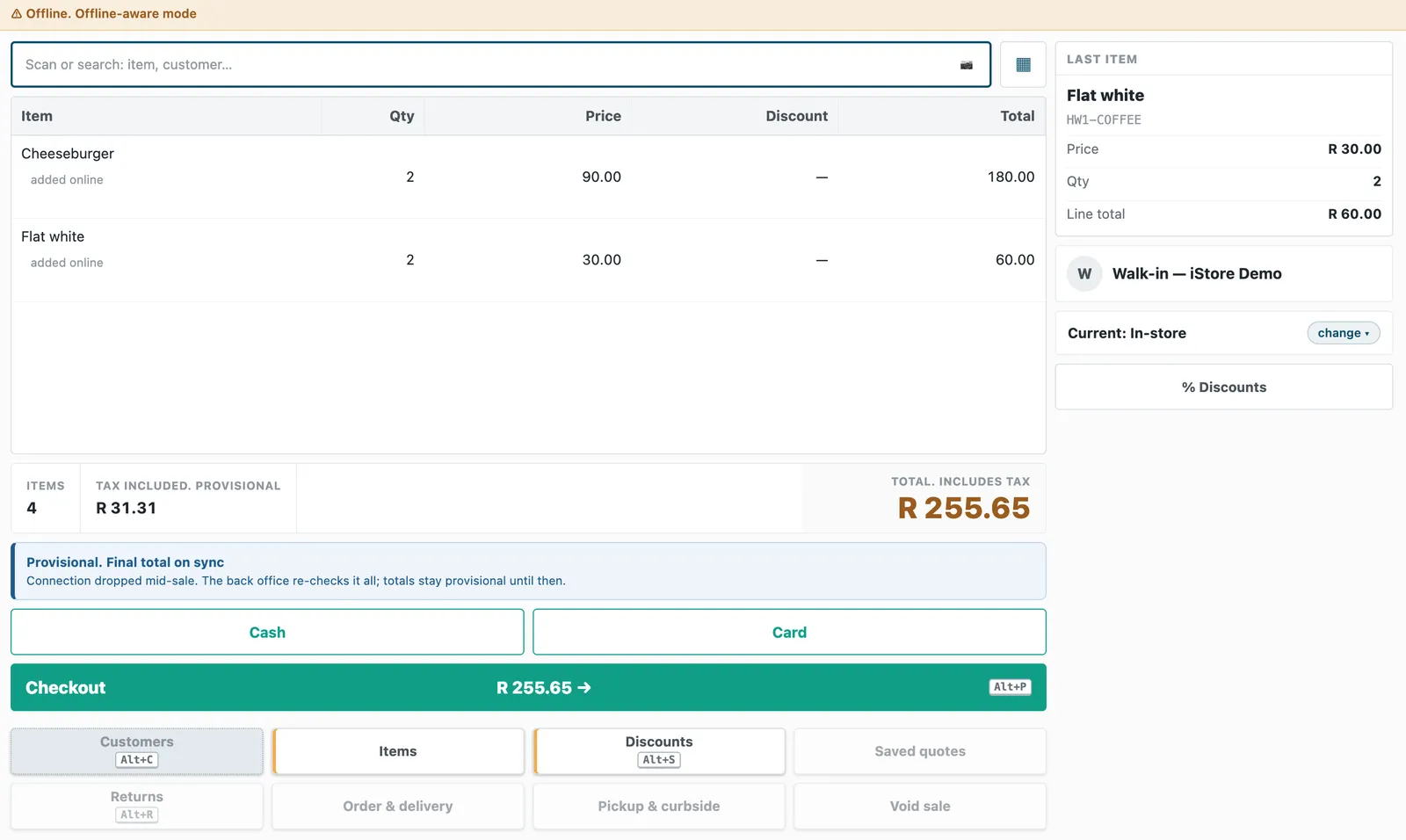
- The cashier rings the dishes as usual. The screen says "Provisional. Final total on sync".
- The cashier presses Cash, types the cash received or presses exact, and presses the button that reads "Hold sale:" and the amount. The till says "Held here" and gives the sale its own number, which starts with PROV. The final tax invoice number comes when the cashier posts the sale.
- For a card, the till says "The app's card reader needs a connection. Use the bank's machine and record its slip."
- When the connection returns, the till says "Back online: 1 held to review". It sends nothing by itself. This is on purpose.
- The cashier presses Review. The screen counts the sales that match exactly. The cashier presses "Post 1 that match exactly", and the till says "Connected. Nothing held. Everything has been sent or reviewed."
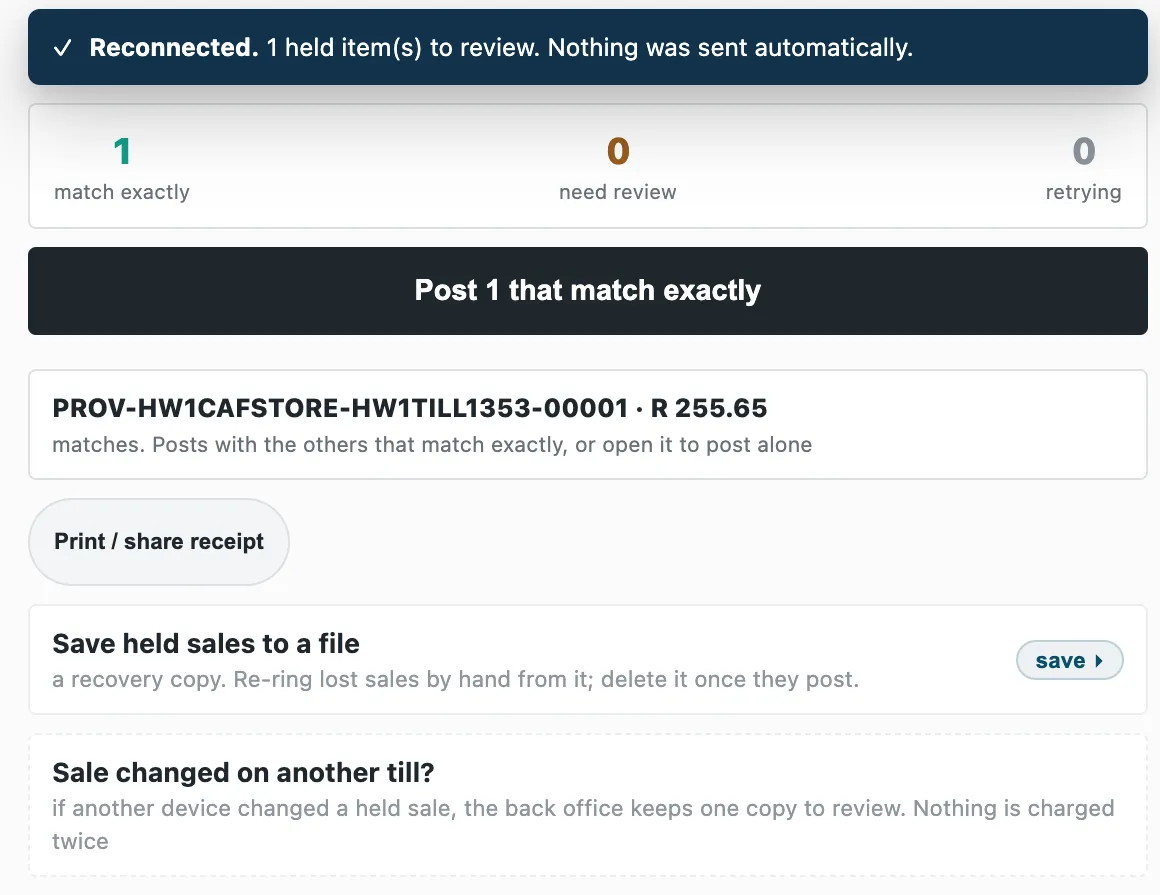
The sale then posts with the same total and the service charge. For more, see Reconnecting and sending held sales and What still works and what is refused.
A new device has an empty offline catalog until its first check-in after the day starts. A scan before then says "Not found".
Taking ingredients off stock
Selling a dish moves no stock. To take its ingredients off stock yourself, make a Stock Entry of type Material Issue from the store that keeps the ingredients, with the parts of the dish's recipe. To have the app do it from your recipes, press Issue ingredients (see Issues).
A stock issue that needs more than the store has is refused. Receive the stock or count it first. The setting Allow Negative Stock in Stock Settings covers the whole site, so a restaurant and a shop on one site share it.
Limits to know
- The till asks "No seller on this sale. Continue?" on every sale when Warn if Transaction has no Sales Person is ticked in Retail Setting. The setting covers the whole site.
- The Sales today tile on the Home screen counts the dishes and leaves out the service charge.
- A service charge added by hand needs a connection (see above).
- On account needs a connection, and a customer with a credit limit.