
Retail Extensions · App · checked 2026-10-23
Lucky draw runs a shop-and-win campaign. Every amount you choose, such as 200, that a customer spends at your tills during the campaign is one entry. After the last day, your manager presses one button, and the app draws the winners and the reserves. Each entry has the same chance, and a customer wins once. This page covers what the app adds, how to set it up, how your manager runs a campaign, and how to remove it.
What it does
| Where | What you get |
|---|---|
| Campaign | A record for each campaign: its company, its first and last days, the spend for one entry, the most entries one sale may give, the tills and customer groups that take part, how many winners and reserves, and the prize in your words. |
| Count entries | A button on the campaign. It counts the sales, the customers and the entries so far, and writes them on the campaign. You can press it at any time. |
| Draw winners | A button on the campaign. After the last day, it draws the winners, then the reserves, and writes the results on the campaign. The campaign then reads Drawn: its rule is locked, and the button is gone. |
| Results | Each winner and reserve in drawn order, with their name, mobile and e-mail from your own customer record, their entries, the entry number drawn and the sale that has it. You tick Handed over when they collect the prize. |
What counts as an entry
A sale gives entries when all of these are true:
- It is a till sale, submitted, from the campaign's company, dated from its first day to its last day.
- It is on one of the campaign's tills. If you list no tills, every till counts.
- The cashier added the customer. A sale on a till's walk-in customer is never an entry.
- The customer is in one of the campaign's customer groups, or in a group below one. If you list no groups, every customer counts.
The app takes what the customer paid, in your company's currency, takes off every till return made against it, and divides by the spend for one entry. It rounds down. A sale of 650 with a spend of 200 is 3 entries. If you set Most entries per sale, no sale gives more than that.
Desk sales and web orders do not count.
What you set up first
-
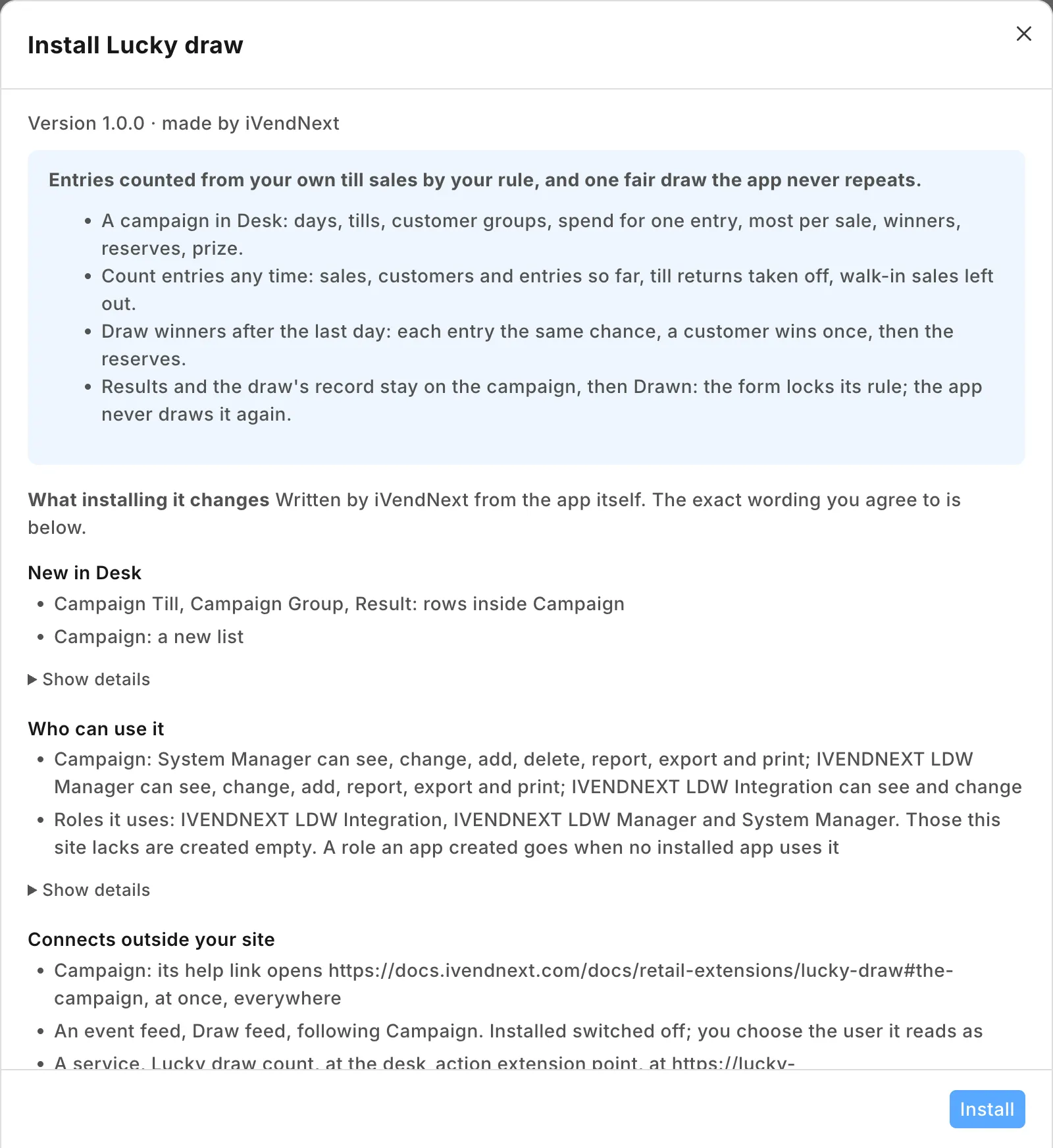
Install the app from the App library (see About Retail Extensions). The install adds the record IVENDNEXT LDW Campaign, two buttons on it, and two roles with no one in them: IVENDNEXT LDW Manager and IVENDNEXT LDW Integration. The buttons and their services come in switched off.
-
Give the role IVENDNEXT LDW Manager to whoever runs your campaigns, such as marketing or the head of stores. Then search Desk for Role Permissions Manager and give IVENDNEXT LDW Manager Read on Company, and Select on POS Profile and Customer Group, so the campaign form can look them up and fill the campaign's currency from the company.
-
Make a user for the app. Tick Is Desk User, give it the role IVENDNEXT LDW Integration alone and save. Then generate its API key: on the user, open Settings and press Generate Keys.
-
Search Desk for Role Permissions Manager. Give IVENDNEXT LDW Integration these rights:
Record type Right Why POS Invoice Read the campaign's till sales and their returns POS Profile Read each till's walk-in customer, whose sales never count Customer Group Read your group tree, so a group takes the groups below it The app's user reads every till sale on your site, with its customer: give the role to the app's user and no one else.
-
If your campaigns name customer groups, stop cashiers moving a customer into one. The till lets a cashier change a customer's group, so a cashier could move a customer into a campaign's group before a sale, and the sale would count. Search Desk for Customize Form, open Customer, set Customer Group's Perm Level to 1 and save. Then in Role Permissions Manager, give level 1 Write on Customer only to the roles that may move customers, such as your managers. A cashier's change to the group then does not save, though the till still says Saved: the customer's profile shows the group unchanged. A cashier also can no longer give a new customer a group: a customer created at the till takes your default customer group (Selling Settings), or none if you have not set one, and a manager sets the right one. Check the level 1 rows already there: Sales Master Manager has one by default, and none of your cashiers' roles may have level 1 Write.
-
Search Desk for Registered Application and open IVENDNEXT LDW Draw feed. Choose the app's user as its Application User and save. Leave the feed switched off.
-
Switch the services and the buttons on (below).
-
In the App library, find the app under Installed and press Details. On the app's record, press Connect again. Your site sends the service the API key of the app's user.
Switch it on
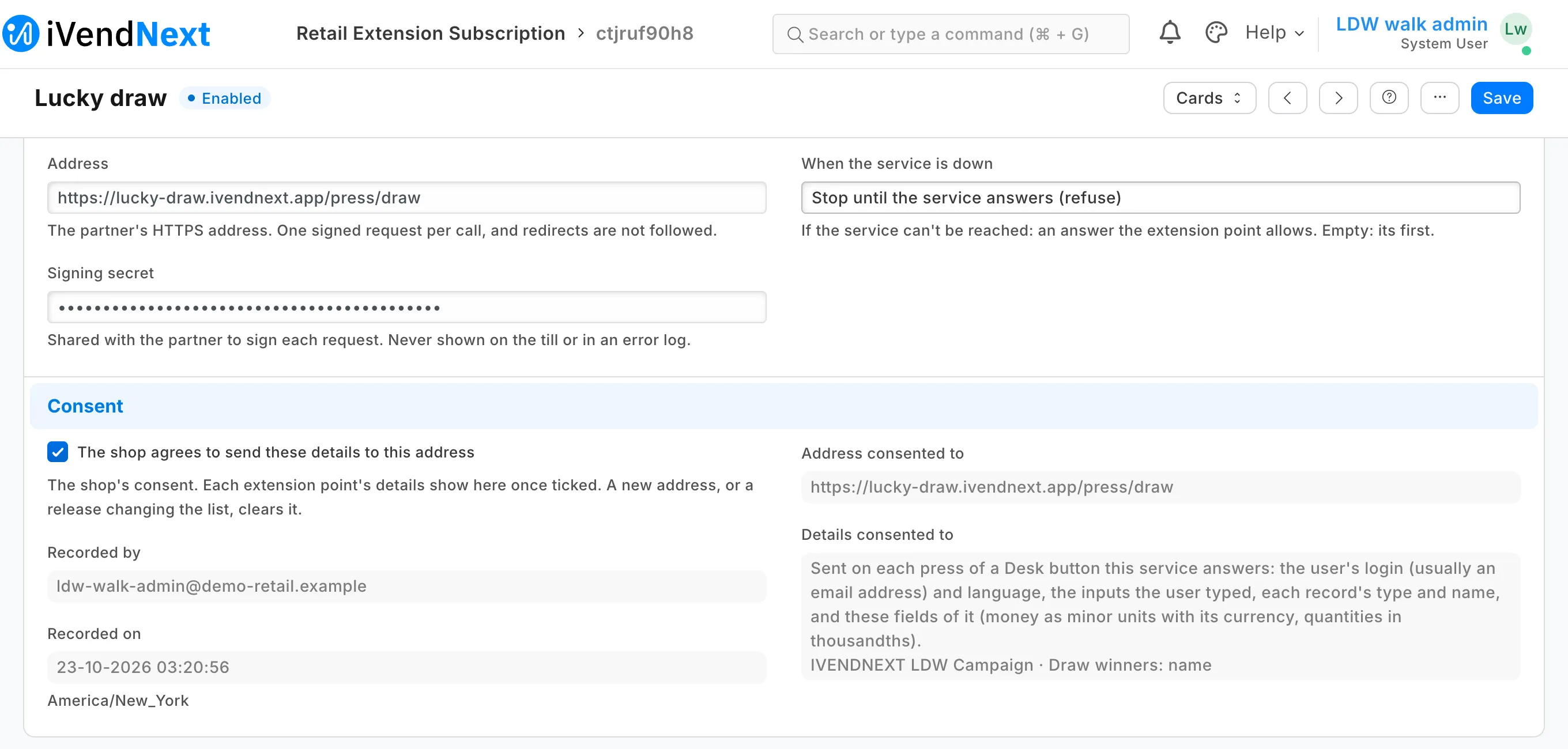
- Search Desk for Retail Extension Subscription. Open Lucky draw count, read what it is sent, tick the consent and switch it on. Do the same for Lucky draw.
- Search Desk for Retail Desk Action. Open Count entries and switch it on. Do the same for Draw winners.
Running a campaign
The campaign
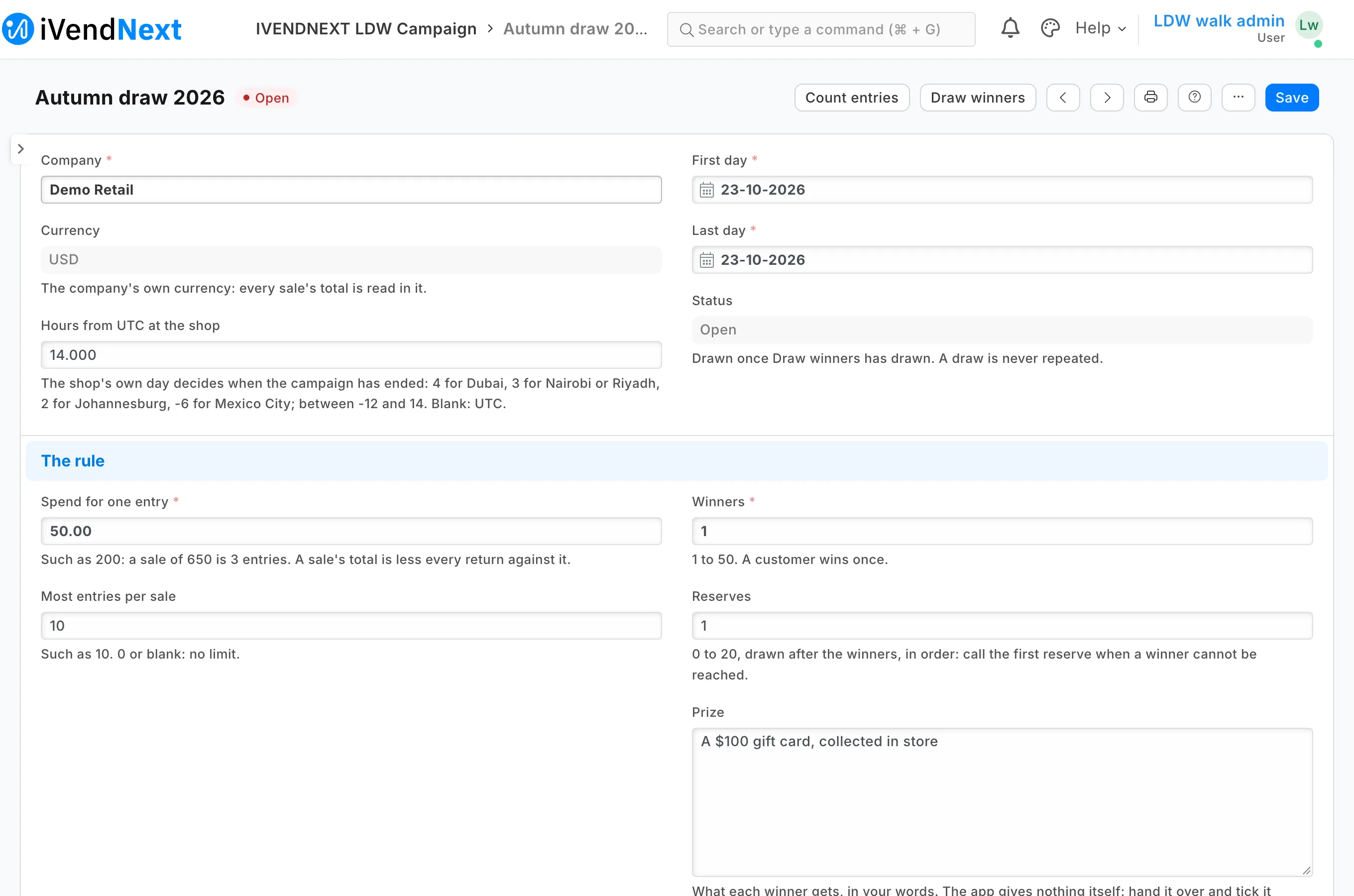
Search Desk for IVENDNEXT LDW Campaign and add one.
| Field | What it does |
|---|---|
| Campaign | Its name, such as Summer draw 2026. |
| Company | The company whose sales count. Its currency is the currency of the spend. |
| First day, Last day | The days whose sales count. |
| Hours from UTC at the shop | Your own day decides when the last day has ended: 4 for Dubai, 3 for Nairobi or Riyadh, 2 for Johannesburg, −6 for Mexico City. Blank: UTC. |
| Spend for one entry | Such as 200. |
| Most entries per sale | Such as 10. 0 or blank: no limit. |
| Winners | 1 to 50. |
| Reserves | 0 to 20. A reserve takes a winner's place when you cannot reach the winner. |
| Prize | What each winner gets, in your words. The app gives nothing itself. |
| Tills | The POS Profiles whose sales count. None listed: every till. |
| Customer groups | The groups whose customers take part. None listed: every customer. |
Tell your cashiers to add the customer to every sale during the campaign.
During the campaign
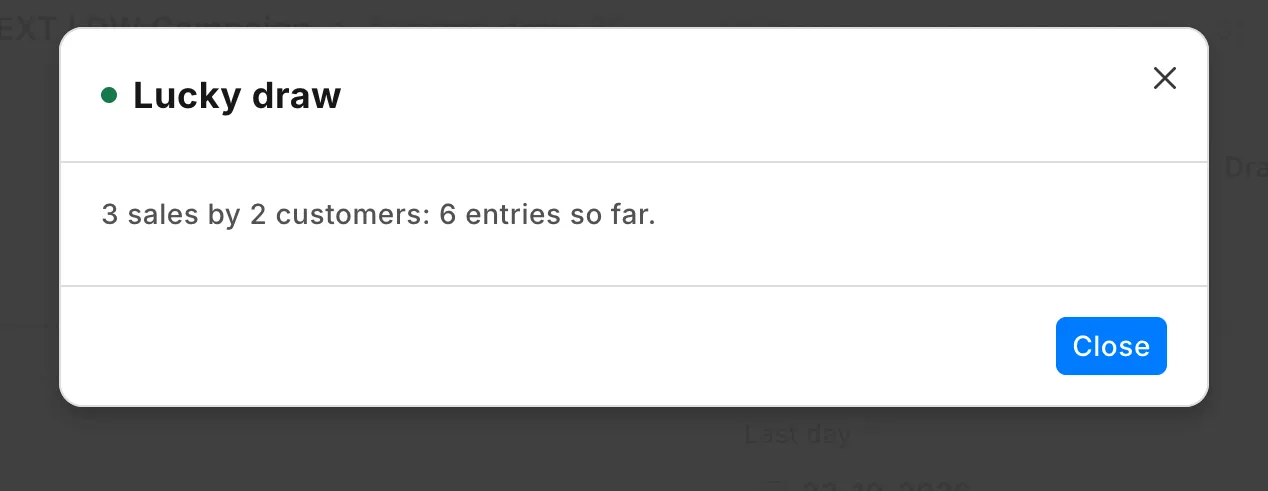
Press Count entries on the campaign. You read, for example, "412 sales by 297 customers: 1,036 entries so far." The counts stay on the campaign until the next press.
The draw
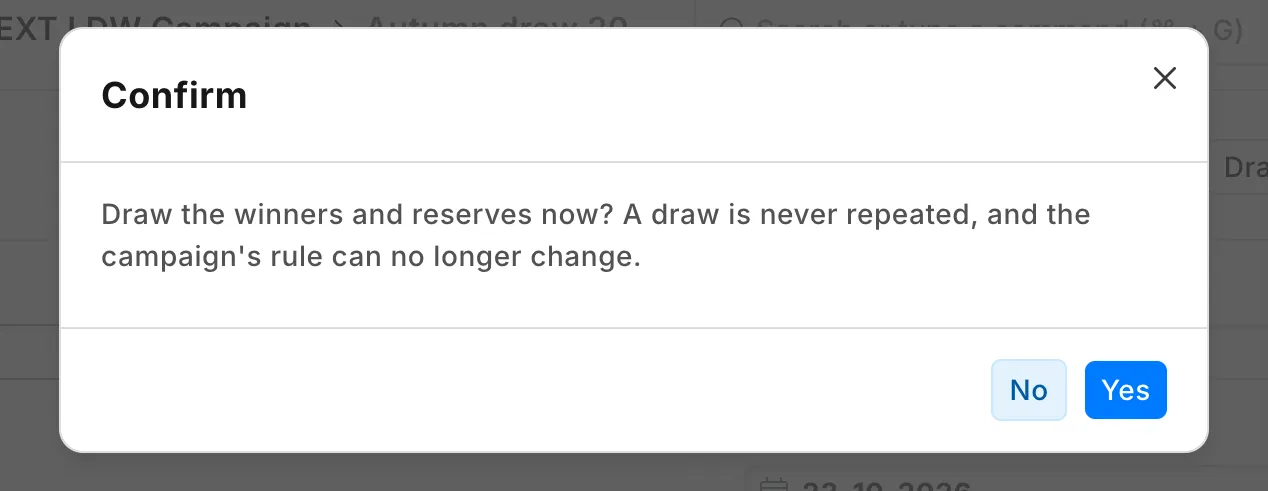
After the last day, and once every till has sent its sales, open the campaign and press Draw winners. Confirm: "Draw the winners and reserves now? A draw is never repeated, and the campaign's rule can no longer change."
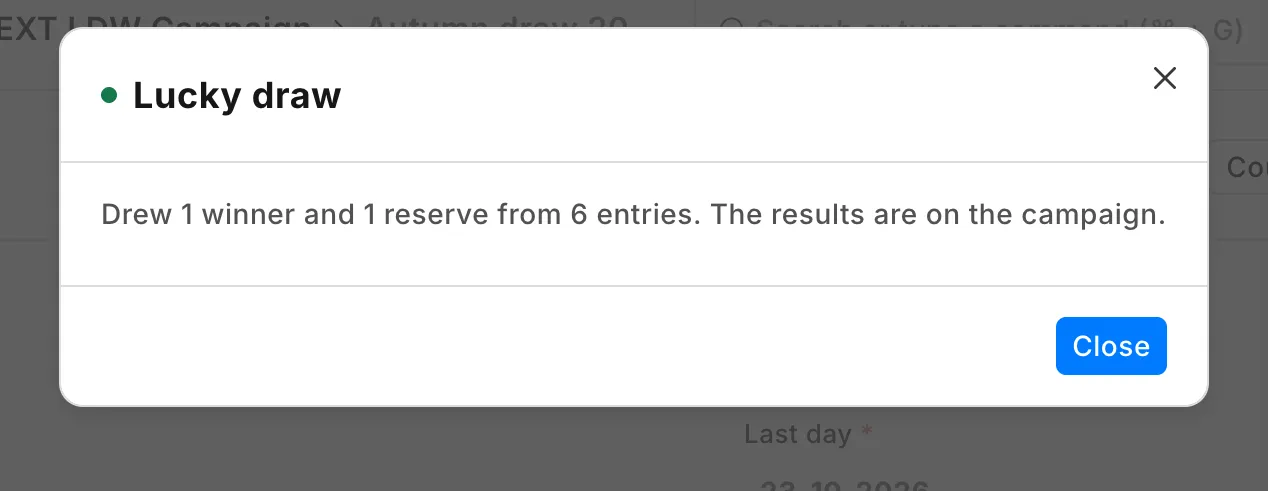
You read, for example, "Drew 3 winners and 2 reserves from 1,036 entries. The results are on the campaign." The results list each winner and reserve in drawn order.
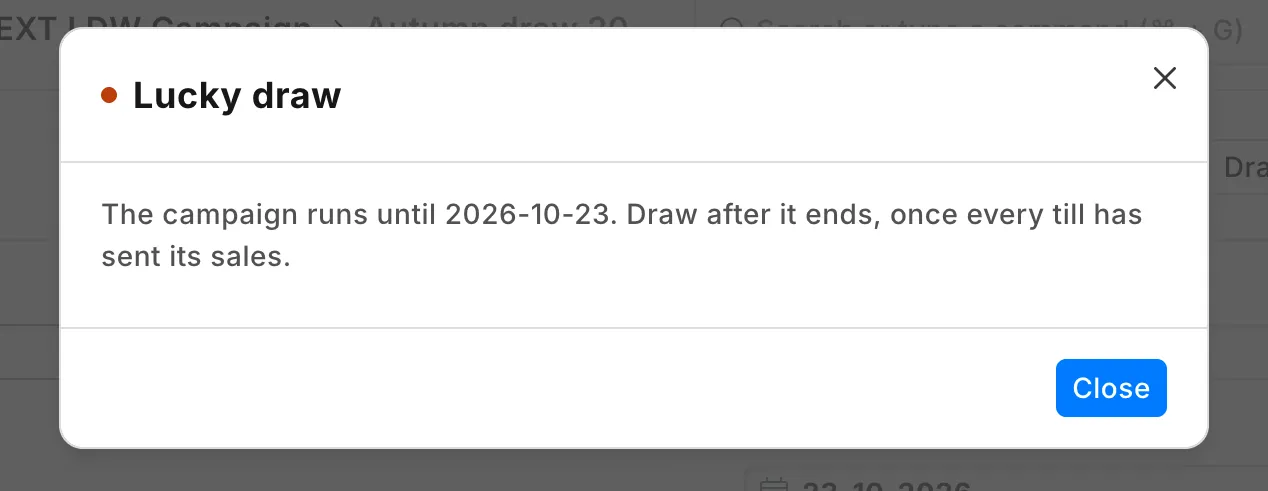
Before the last day has ended at your shop, the app answers "The campaign runs until 2026-10-31. Draw after it ends, once every till has sent its sales." It writes nothing.
After the draw
Call each winner, and tick Handed over with the date when they collect the prize. If you cannot reach a winner, call the first reserve.
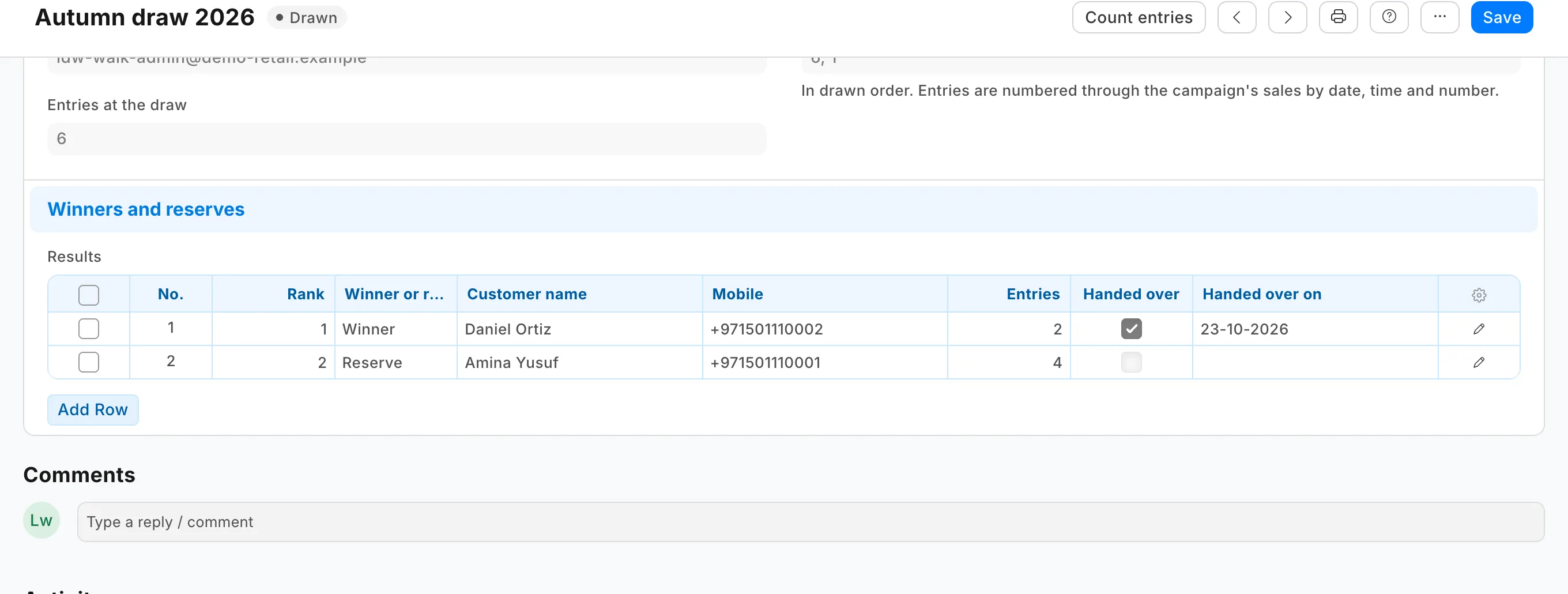
The campaign keeps a record of the draw: when, who pressed it, how many entries there were, their fingerprint, and the entry numbers drawn. Entries are numbered through the campaign's sales by date, time and sale number, so anyone who has the sales can find the sale that has each drawn number. The same sales, counted again, give the same fingerprint.
What leaves your shop
The app's service runs at lucky-draw.ivendnext.app, hosted by CitiXsys in the US. After the install, and when you press Connect again, your site sends the service its key from the App library, its address, the buttons' signing keys, and the API key of the app's user.
On each press, your shop sends the campaign's name, the pressing user's login and their language. The service then reads, with the app's user, the campaign, its till sales (each sale's number, customer, customer group, total, date, time and till), the returns made against them, your tills' walk-in customers and your customer group tree, and writes the campaign. It keeps nothing of a press. It keeps your site's keys until you remove the app.
Limits
- Till sales only. Desk sales and web orders do not count.
- A sale counts only when the cashier added the customer.
- A sale that reaches your site after the draw, such as one from a till that was offline, is not in it.
- One press reads the whole campaign. If a campaign is too large for one press, the press writes nothing and you read that it did not answer in time: make one campaign per group of tills.
- Returns made at the till take entries off. A credit note made in Desk after the day closed does not.
- A customer's own entries are not shown at the till or on the receipt.
- The app never draws a campaign twice, and your manager cannot delete a campaign. Someone with write on campaigns can still add or remove a result row, or change a drawn campaign through the API, and a System Manager can delete a campaign and draw again. The campaign's history shows every change. Give the manager role only to people you trust.
- Every till sale counts, a gift card sold or a sale paid by gift card included.
- If you leave Hours from UTC blank, the app uses UTC. West of UTC, set it, or the draw can open before your last day ends.
- A draw for customers may need a permit where you sell, and some countries require a free way to enter. Both are yours: the app counts sales only.
- If you read that the press did not answer in time, open the campaign before you press again. The draw may already be on it.
Removing it
Removing the app removes its campaigns, with their results. Before you remove it, export any campaign you need to keep: open the IVENDNEXT LDW Campaign list and use its Export.
- In the App library, find the app under Installed and remove it.
- Remove the app's user, or take away its role.