
Optical prescriptions and lab orders
Retail Extensions · App · checked 2026-10-23
Optical prescriptions and lab orders is for an optical store. Your optometrists keep each customer's eye prescription in iVendNext, your staff follow each pair of glasses through the lab until the customer collects it, and your tills sell contact lenses and prescription lenses only to a customer whose prescription is on file and still valid. This page covers what the app adds, how to set it up, how your optometrists, staff and cashiers use it, and how to remove it.
What it does
| Where | What you get |
|---|---|
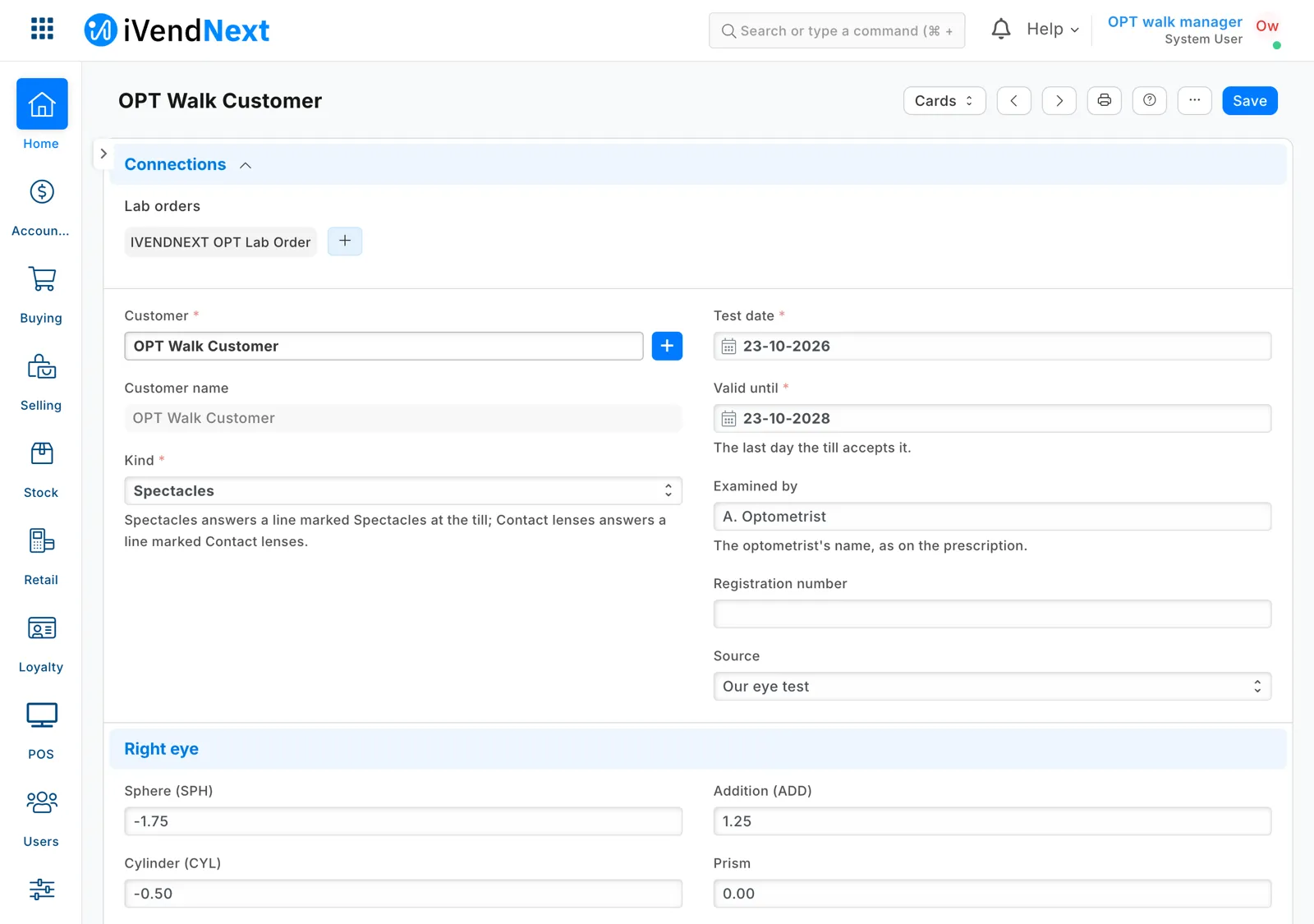
| Prescription | The customer, Spectacles or Contact lenses, the test date and Valid until, who examined, each eye's sphere, cylinder, axis, addition, prism, base and visual acuity, the distances between pupils, a contact lens's base curve and diameter, notes, and a scan of another practice's prescription. Numbered IVN-OPT-RX-00001 and on. |
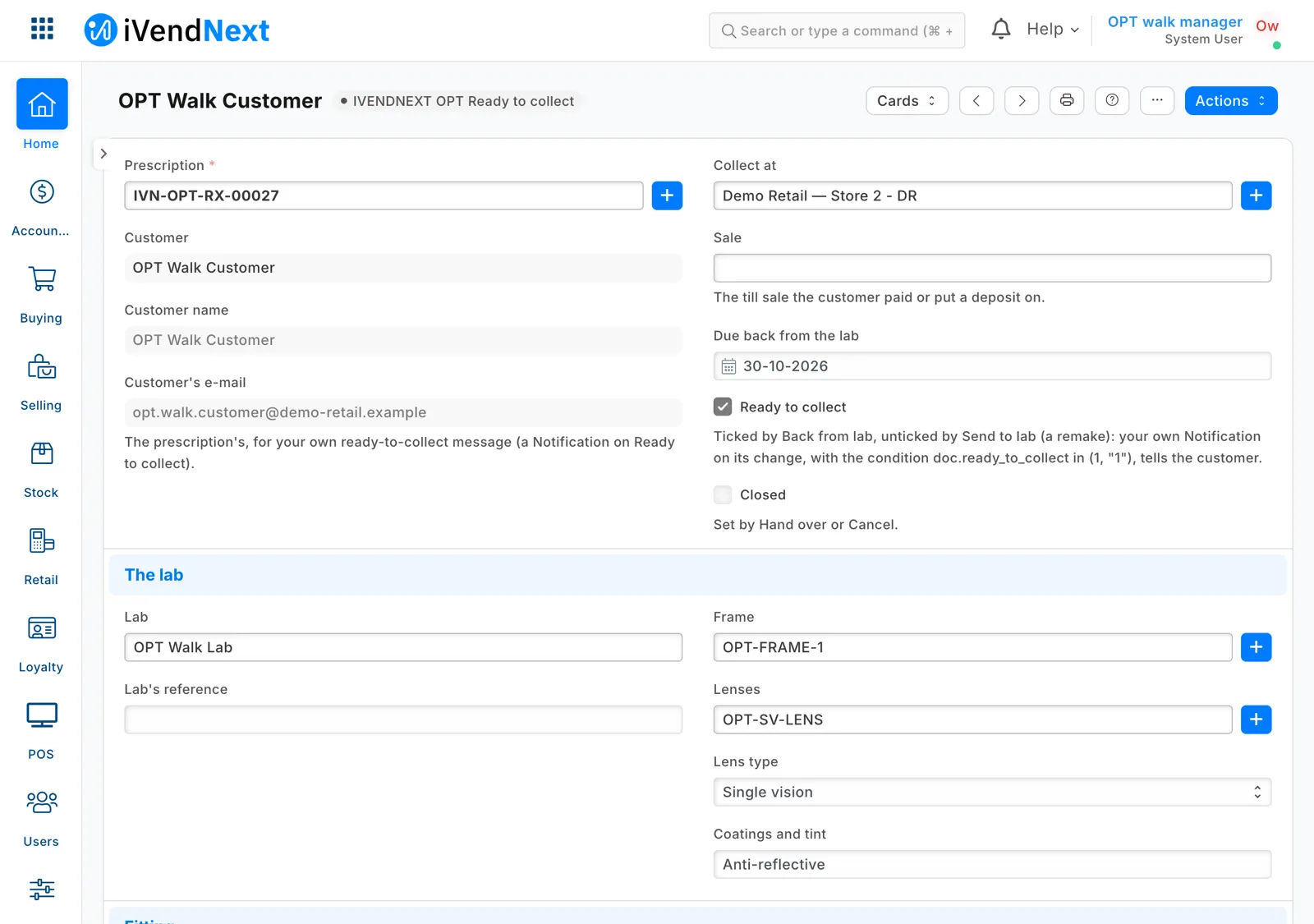
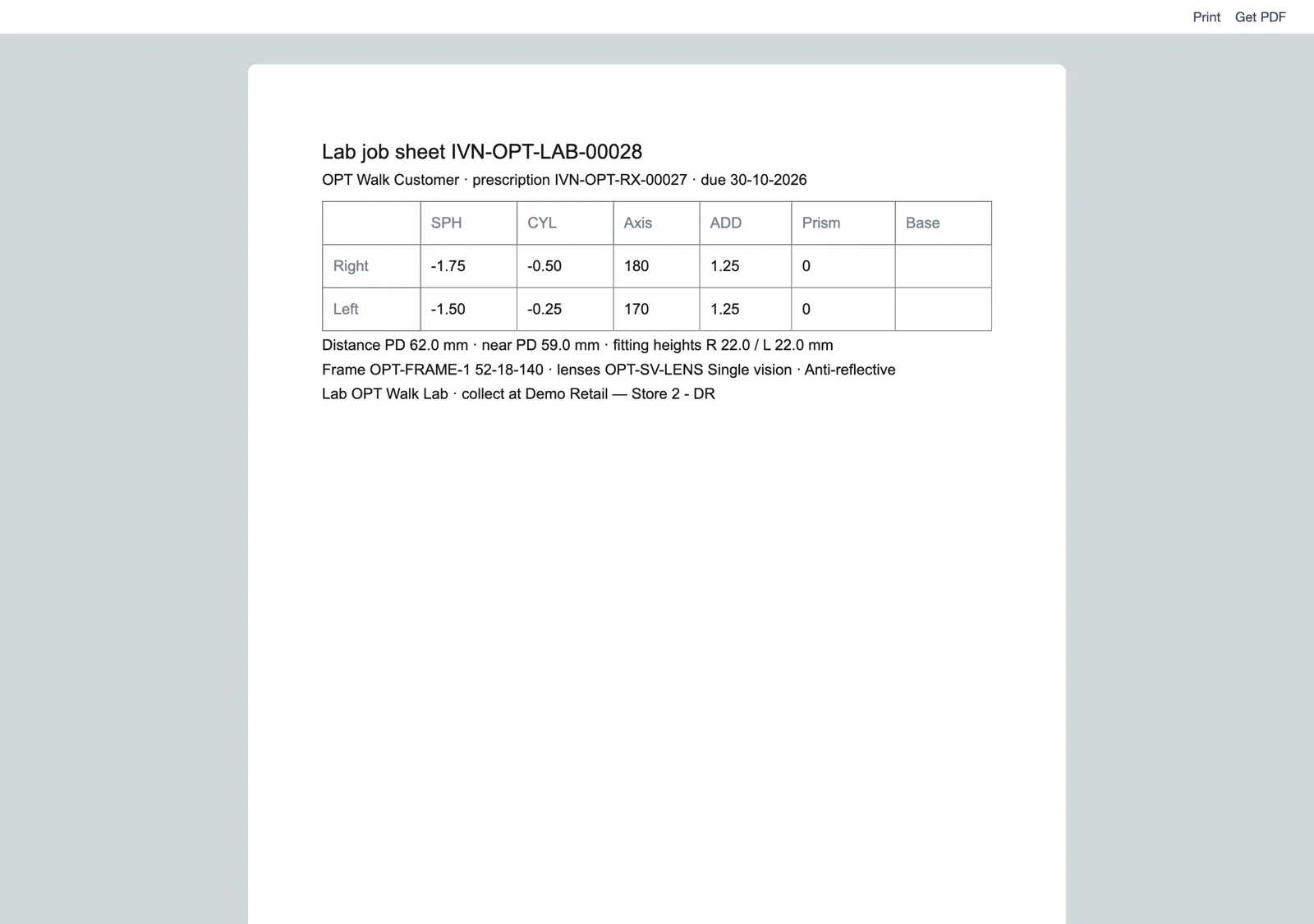
| Lab Order | Made from a prescription: its customer and lens values are copied in, read only. You add the lab, the frame and lenses, the lens type, coatings, fitting heights, frame size, the store where the customer collects, the till sale and the date it is due back. Numbered IVN-OPT-LAB-00001 and on. It prints as a job sheet for the lab. |
| Its steps | Ordered → Sent to lab → Ready to collect → Collected, or Cancelled; Send back to lab for a remake. Back from lab ticks Ready to collect; Send to lab and Send back to lab untick it. Hand over and Cancel tick Closed. |
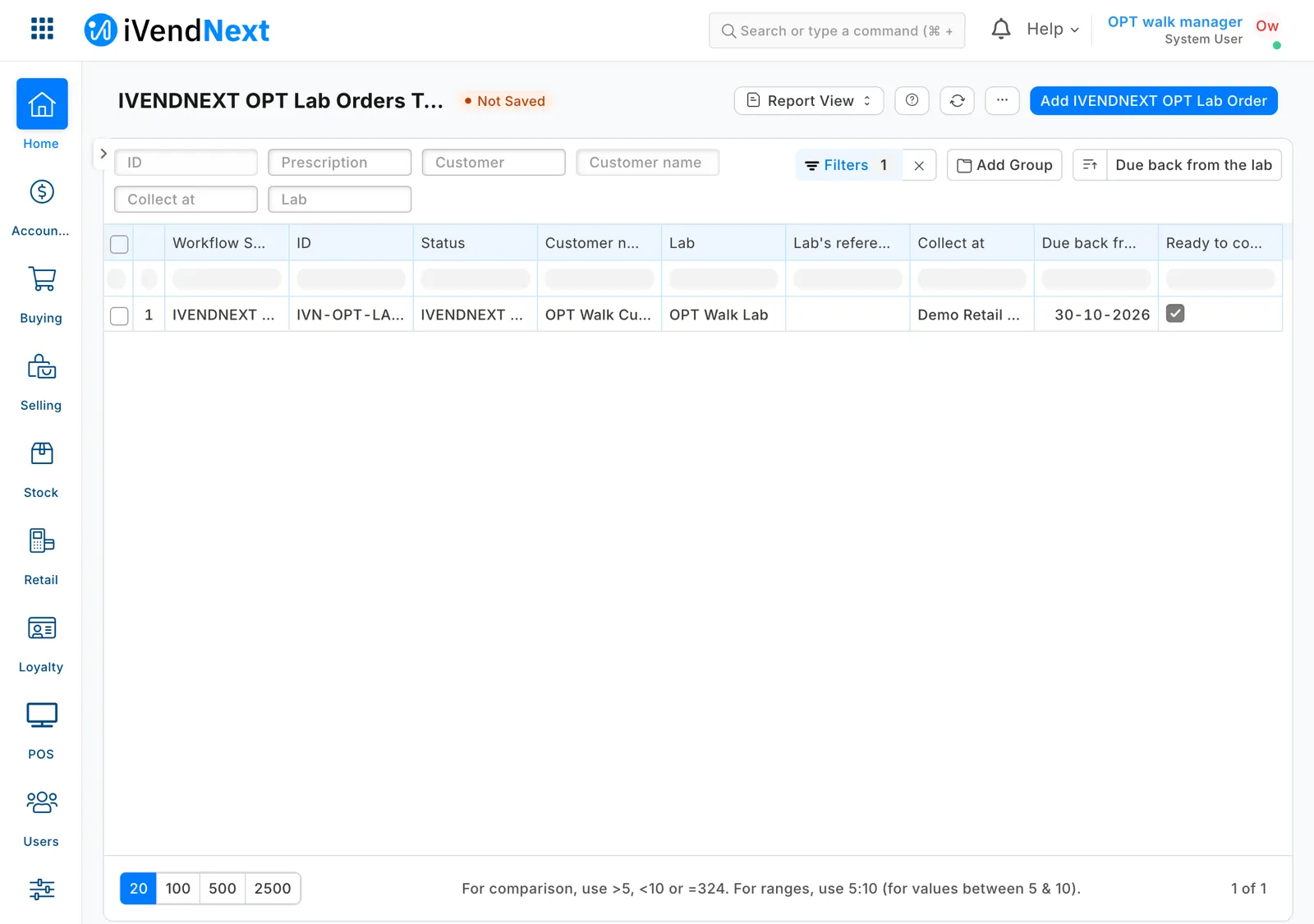
| Lab orders to chase | A report of every order not closed, the one due back first at the top. |
| The customer | The customer's form lists their prescriptions and lab orders under Optical. |
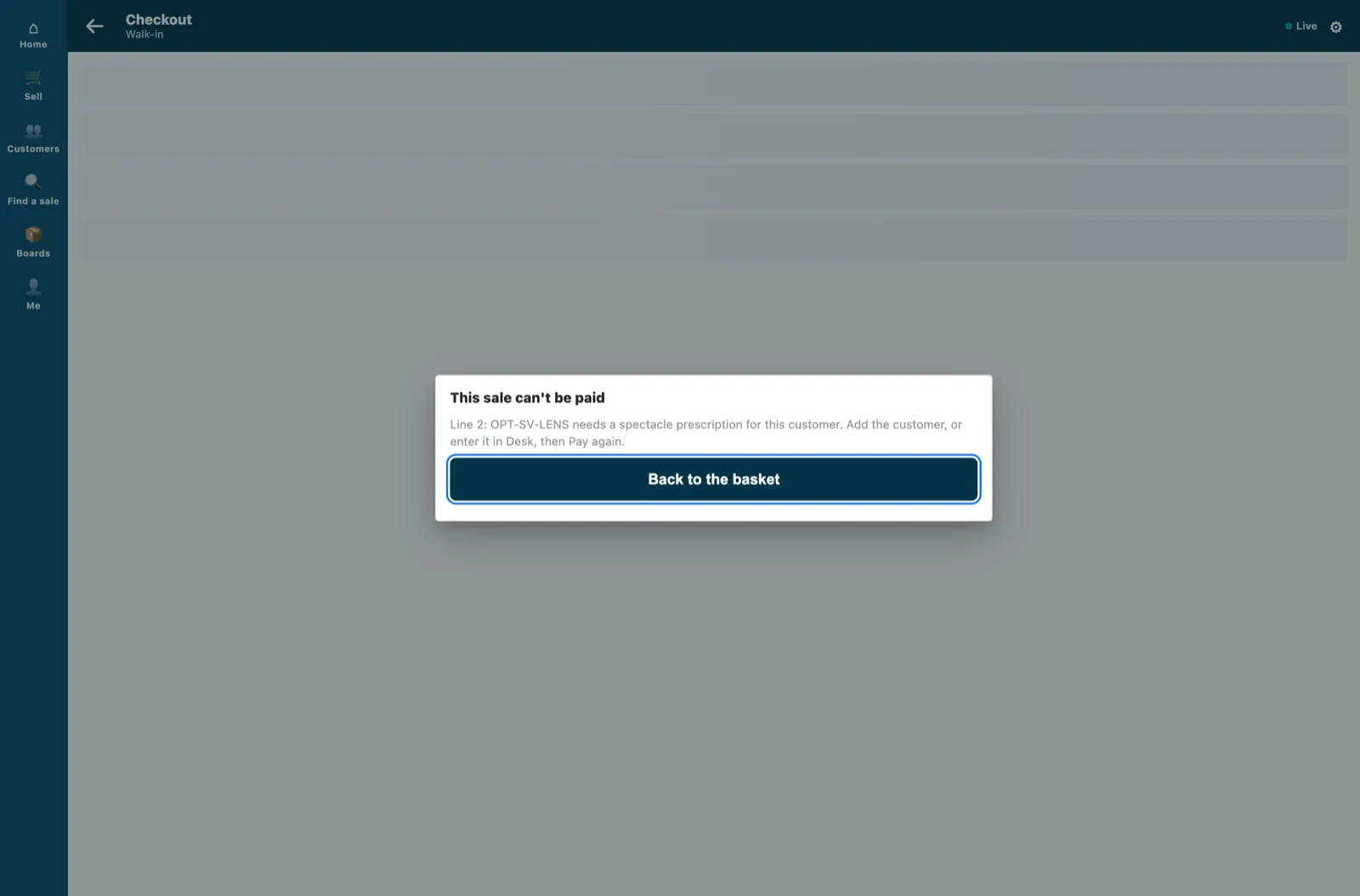
| The till | When the cashier presses Pay, a lens line is refused if the customer has no prescription of its kind in date. |
At the till the cashier reads, for example:
- "Line 2: SV-LENS needs a spectacle prescription for this customer. Add the customer, or enter it in Desk, then Pay again." (The customer has none, or the sale is still on your walk-in customer.)
- "Line 1: ACUVUE-30: the customer's contact lens prescription ran out on 18 Sep 2026. Enter the new one in Desk, then Pay again."
A frame, solutions, and plano lenses in a group marked Not needed are never asked about. A refund is never refused.
What you set up first
- Install the app from the App library (see About Retail Extensions). The install adds the records Prescription, Lab Order and IVENDNEXT OPT Settings, the steps, the job sheet, the report, the field Sold against a prescription on Item Group and Item, and two roles with no one in them: IVENDNEXT OPT Optometrist and IVENDNEXT OPT Integration. The till check comes in switched off.
- Give your optometrists the roles IVENDNEXT OPT Optometrist (they write prescriptions) and Sales User (to pick the customer, and to make and move lab orders). Your store staff keep Sales User: they read prescriptions, and make and move lab orders. Whoever chooses a lab order's lab also needs a role that can see suppliers, such as Stock User or Purchase User: with Sales User alone, the lab picker answers that they have no permission for Supplier.
- Make a user for the app. Tick Is Desk User, give it the role IVENDNEXT OPT Integration alone and save. Then generate its API key: on the user, open Settings and press Generate Keys.
- Search Desk for Role Permissions Manager. Give IVENDNEXT OPT Integration a Read on Item Group and on Item. It can already read the settings and the prescriptions.
- Search Desk for Registered Application and open IVENDNEXT OPT Check. Choose the app's user as its Application User and save. Leave the feed switched off.
- Make the record Default of IVENDNEXT OPT Settings, and mark your lens item groups (below).
- Switch the till check on (below).
- In the App library, find the app under Installed and press Details. On the app's record, press Connect again. Your site sends the service the API key of the app's user.
Settings
Search Desk for IVENDNEXT OPT Settings and make the record Default.
| Field | What it does |
|---|---|
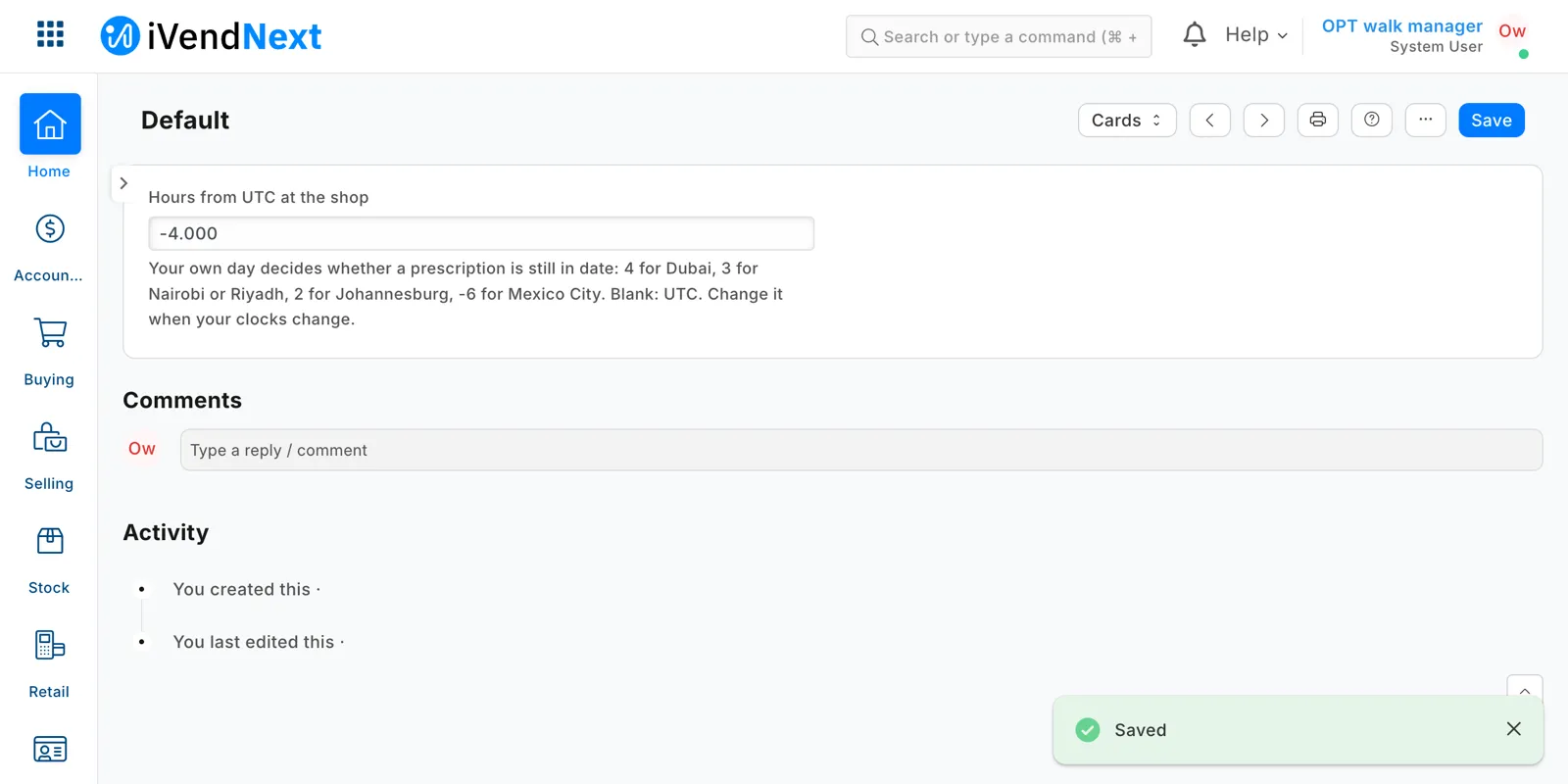
| Hours from UTC at the shop | Your own day decides whether a prescription is still in date: 4 for Dubai, 3 for Nairobi or Riyadh, 2 for Johannesburg, −6 for Mexico City. Blank: UTC. Change it when your clocks change. |
Lens item groups
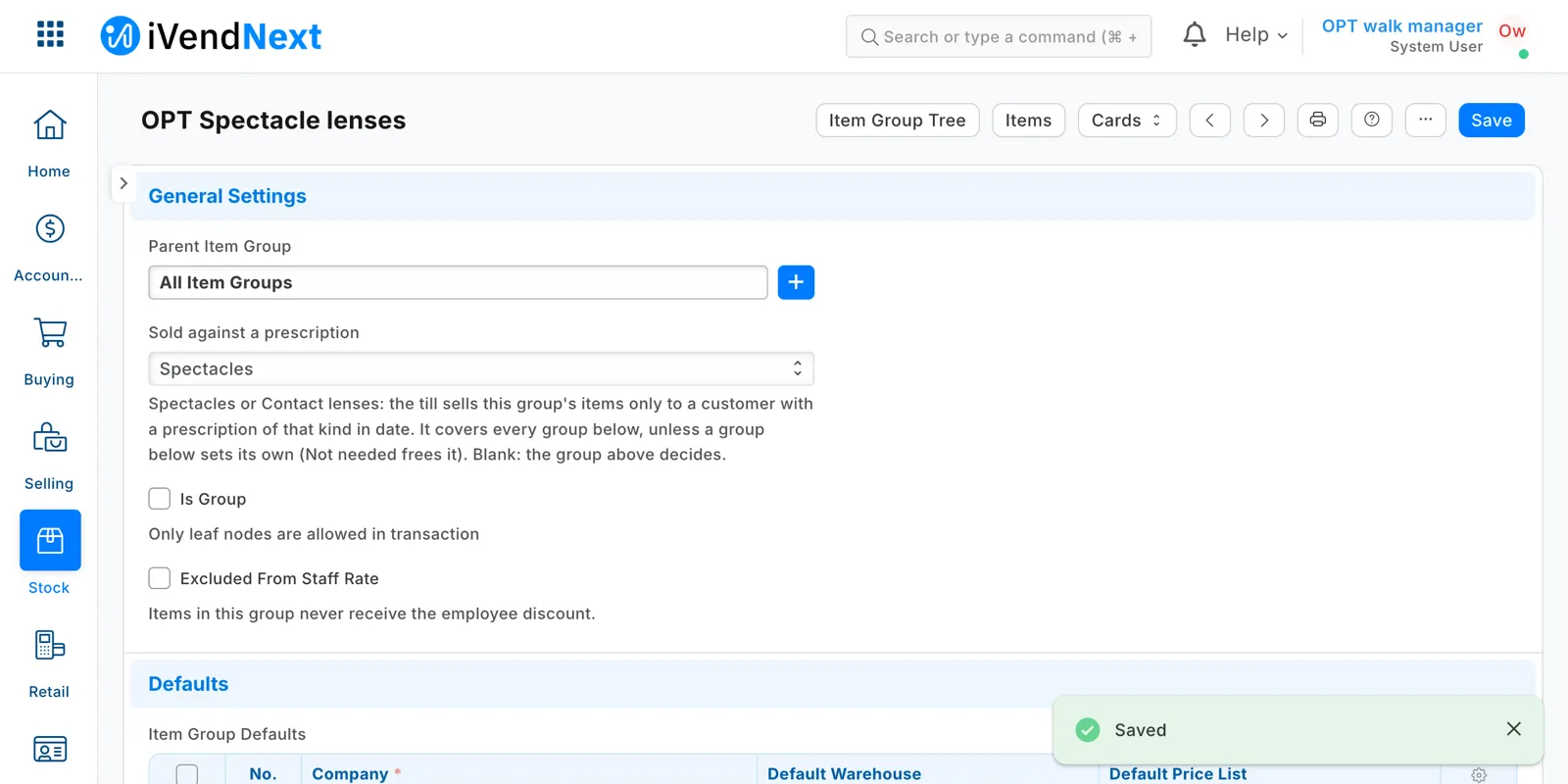
Open Item Group and set Sold against a prescription on your lens groups:
| Value | What it means |
|---|---|
| Spectacles | This group's items are sold only to a customer with a spectacle prescription in date |
| Contact lenses | This group's items are sold only to a customer with a contact lens prescription in date |
| Not needed | Frees a group below a marked one, such as plano lenses under spectacle lenses |
| (blank) | The group above decides |
An item can carry its own value, which wins over its group's. On an item with variants, set it on each variant or on their group.
Switch it on
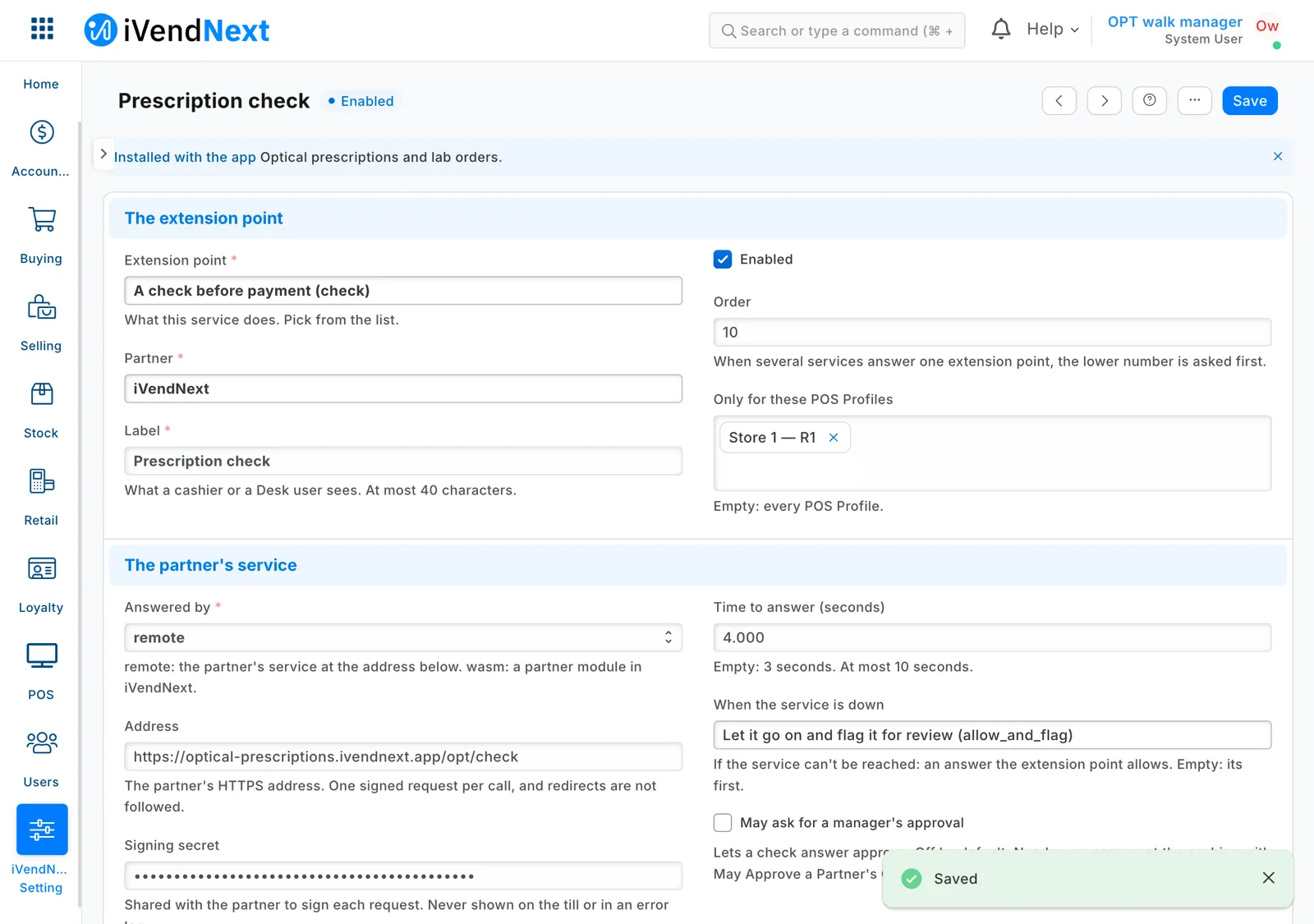
Search Desk for Retail Extension Subscription and open Prescription check. Read what it is sent, tick the consent, choose your optical stores' POS Profiles and switch it on.
A POS Profile takes at most three checks before payment, 10 seconds together: this app is one of them.
Prescriptions
The optometrist opens Prescription, picks the customer, chooses Spectacles or Contact lenses, and fills the test date, Valid until and each eye's values. For another practice's paper prescription, choose Another practice as the source and attach its scan (keep Is Private ticked). The till accepts a prescription until its Valid until, that day included.
Lab orders
-
Open Lab Order and choose the prescription: the customer, the e-mail and the lens values come with it.
-
Fill the lab (a supplier), frame, lenses, lens type, coatings, fitting heights, frame size, the store where the customer collects, the till sale and the date it is due back. Save.
-
Print the job sheet for the lab: Print, then IVENDNEXT OPT Job Sheet.
-
Move the order on with its buttons: Send to lab when it leaves, Back from lab when the glasses arrive at the store, Hand over when the customer collects them. Send back to lab sends a remake; Cancel closes an order that was not made, or one the customer never collects.
-
Search Desk for Lab orders to chase to see every open order, the one due back first at the top.
Telling your customers
The app sends no message itself. Each prescription and lab order keeps the customer's e-mail (filled from the customer), so you can add your own Notifications: search Desk for Notification and make one of each.
| To say | Document type | Send alert on | Field | Recipient |
|---|---|---|---|---|
| Your glasses are ready to collect | IVENDNEXT OPT Lab Order | Value Change, with the condition doc.ready_to_collect in (1, "1") |
Ready to collect | Customer's e-mail (the document's field) |
| Your eye test is due | IVENDNEXT OPT Prescription | Days Before, 30, with the condition doc.remind |
Valid until | Customer's e-mail (the document's field) |
To send none for one prescription, untick its E-mail reminders (an emptied e-mail is filled again from the customer when you save). A newer eye test does not stop an older prescription's reminder: untick the older one's E-mail reminders. For a text message, choose the SMS channel: it goes through your own SMS settings.
What leaves your shop
The app's service runs at optical-prescriptions.ivendnext.app, hosted by CitiXsys in the United States. After the install, and when you press Connect again, your site sends the service its key from the App library, its address, the check's signing key, and the API key of the app's user.
When the cashier presses Pay, and before each refund the till pays, your shop sends the priced basket: its lines and their item groups, totals, store, till, the cashier's login, the customer and the sale's details. The service then reads, with the app's user, the marks on your item groups and items and, only when a line is marked, the customer's prescriptions' kind and Valid until. It asks only for those two fields, never a lens value, a note or a scan, writes nothing, and keeps nothing about a prescription. The app's user can read your prescriptions (it needs that right for the two fields), so give its role to the app's user alone. That a customer has a spectacle or contact lens prescription, and until when, is health-related personal data.
Limits
- The check is made when the cashier presses Pay, not when a line is added.
- A sale made in Desk, on the Desk POS screen or through the API is not checked.
- If the service does not answer in time, before Connect again, or when the till is offline, the sale is paid and flagged for review.
- A lab order shows its prescription's values as they were when the order was last saved.
- A step's who may edit applies on the screen; anyone with write access through the API can change an order in any step.
- An insurer's or optical plan's share of the payment is not part of this app.
- The check passes a lens on any prescription of the sale's customer: a family on one customer record shares its prescriptions. Never enter a prescription on your walk-in customer.
- Hours from UTC applies to every store of your site.
- The ready message has no opt-out of its own: leave Customer's e-mail out of your Notification's recipients for a customer who asked for none, or give that customer no e-mail.
How to remove it
- In the App library, find the app under Installed and press Details.
- On the app's record, press Export and uninstall and confirm. iVendNext first exports your prescriptions, lab orders and settings to a file, and tells the service that the app was removed.
- iVendNext removes the records, the steps, the job sheet, the report, the field on Item Group and Item, the check and the feed registration. Remove your own Notifications on the app's records before you uninstall.
- Make a new API key for the app's user, or disable the user, so the key the service had stops working.