
Retail Extensions · Rule · checked 2026-10-23
Customers by store decides at which stores each group of your customers may buy. For example, your account customers buy only at the store that keeps their account, and your trade customers only at the trade counter. When the cashier puts a customer on a sale at any other store, the till takes the customer off the sale and shows your reason, and no new sale for that customer can be paid there. This page covers what the app adds, how to write your rules, how to switch it on, and how to remove it.
What it does
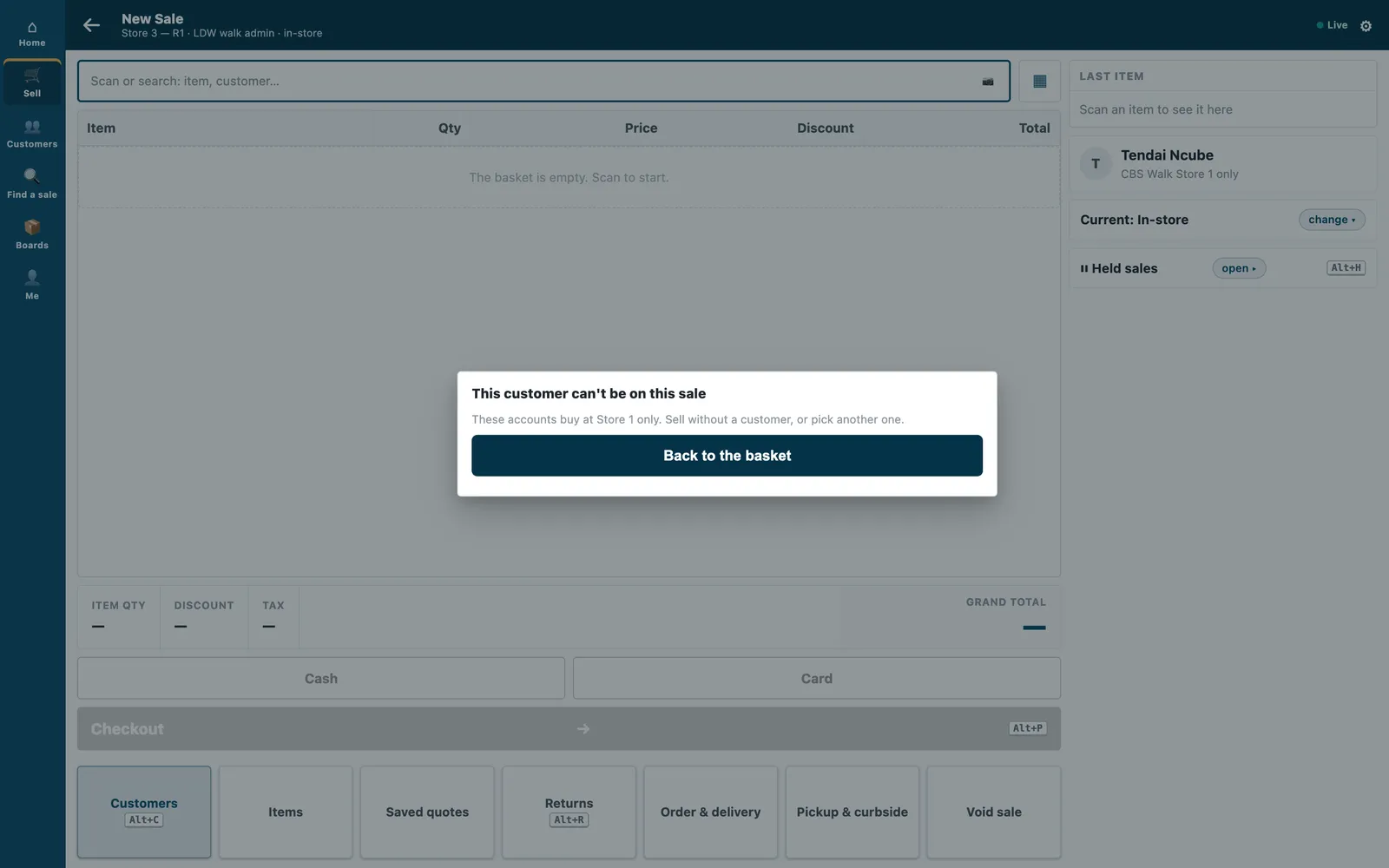
When the cashier puts an existing customer on a sale (picked from the list, found by their card or phone, or brought back with a parked sale, a quote or an exchange), your shop asks the app's service about that customer. The service finds the rule for the customer's group and answers at once.
| The cashier sees | When |
|---|---|
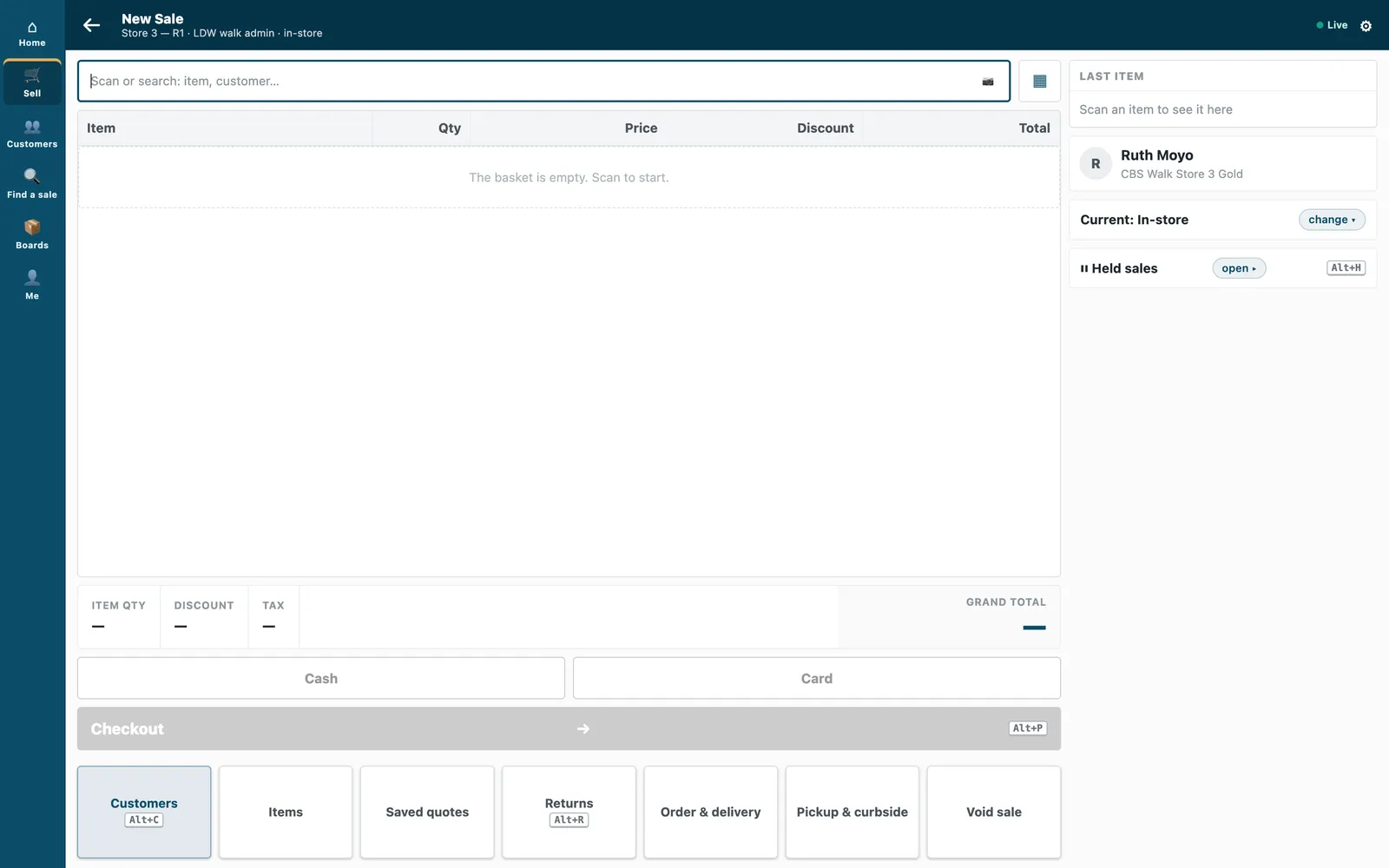
| The customer on the sale, as always | The customer's rule names this store, or this till's POS Profile. Or no rule applies to the customer. |
| "This customer can't be on this sale", your reason, and "Sell without a customer, or pick another one." | The customer's rule names neither this store nor this till. The customer is taken off the sale. |
| "This customer has not been checked. Pick them again, or sell without a customer." | At payment, for a customer who is on the sale without the service's yes (for example a sale picked up hours later). Picking the customer again asks the service. |
| The customer on the sale, and the sale flagged on Sales to review | The service did not answer within 3 seconds, has not been sent the app's user yet, or could not read your shop. |
Your store's walk-in customer is never asked. While the app is switched on for a POS Profile, every way of paying at those tills (the card, a split, a wallet, a layaway or an order) waits for the service's yes for that customer. The app writes nothing to your shop.
What you set up first
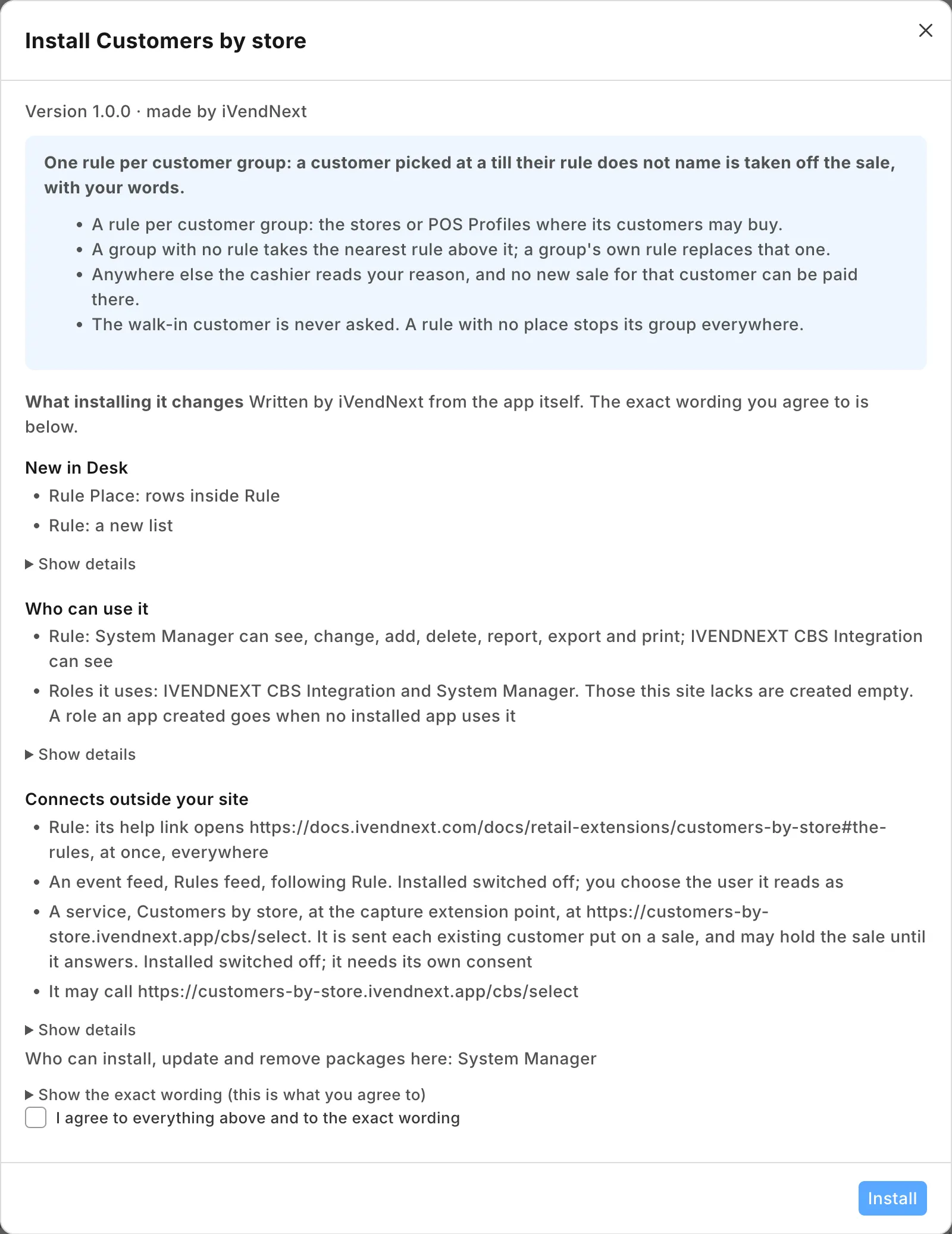
- Install the app from the App library (see About Retail Extensions). The install adds the role IVENDNEXT CBS Integration, with no one in it. The app's question comes in switched off.
- Make a user for the app. Tick Is Desk User, give it the role IVENDNEXT CBS Integration alone and save. Give the user no User Permissions. Then generate its API key: on the user, open Settings and press Generate Keys.
- Search Desk for Role Permissions Manager. Give IVENDNEXT CBS Integration Read on Customer Group. The service reads your customer group tree, so that a group can take the rule of a group above it.
- Stop cashiers moving a customer out of a locked group. The till lets a cashier change a customer's group, so a cashier refused at one store could move the customer to a group with no rule and pick them again. Search Desk for Customize Form, open Customer, set Customer Group's Perm Level to 1 and save. Then in Role Permissions Manager, give level 1 Write on Customer only to the roles that may move customers, such as your managers. A cashier's change to the group then does not save, though the till still says Saved: the customer's profile shows the group unchanged. A cashier also can no longer give a new customer a group: a customer created at the till takes your default customer group (Selling Settings), or none if you have not set one, and a manager sets the right one. Check the level 1 rows already there: Sales Master Manager has one by default, and none of your cashiers' roles may have level 1 Write.
- Search Desk for Registered Application and open IVENDNEXT CBS Rules feed. Choose the app's user as its Application User and save. Leave the feed switched off.
- Write your rules (below).
- In the App library, find the app under Installed and press Details. On the app's record, press Connect again. The record then says that it sent the API key of the app's user.
- Switch it on (below).
- Test it: pick a customer whose rule names another store. The till must take them off the sale. If they stay on and the sale shows on Sales to review, check the Read on Customer Group (step 3), then press Connect again.
If you must never sell to a customer outside their stores, then change When the service is down to Stop until the service answers (refuse), after Connect again. Every pick of a customer then waits on the service.
The rules
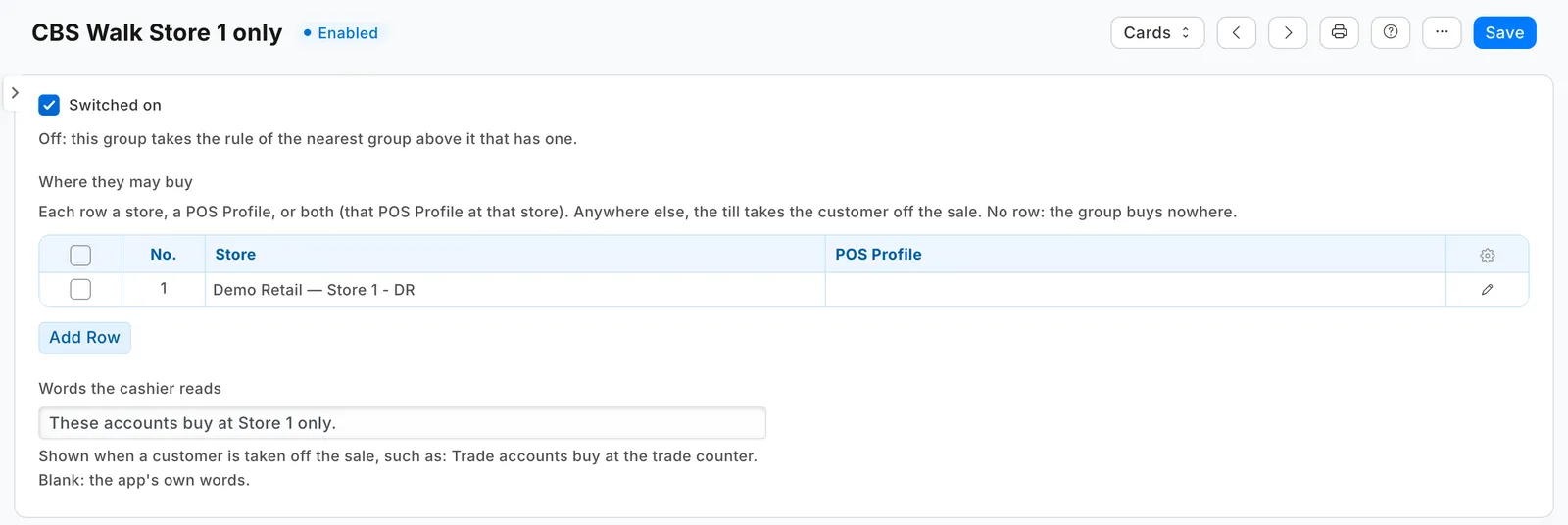
Search Desk for IVENDNEXT CBS Rule and press Add. Make one record for each customer group that needs a rule. The record is named by its customer group. Only a System Manager can add or change these records, unless you give another role rights on them in Role Permissions Manager. That role also needs Select on Customer Group, Warehouse and POS Profile, or the rule's lookups find nothing.
| Field | What it does |
|---|---|
| Customer group | The group this rule is for. One rule per group. |
| Switched on | Untick to stop using the rule. The group then takes the rule of the nearest group above it that has one. |
| Where they may buy | One row for each place. A row with a Store alone means every till at that store. A row with a POS Profile alone means its tills. A row with both matches only when that POS Profile's store is that store. No row: the group buys nowhere. |
| Words the cashier reads | Shown when the customer is taken off the sale, such as "Trade accounts buy at the trade counter." Blank: "Customers in ⟨group⟩ buy only at ⟨places⟩." |
A store is the warehouse your tills' POS Profile names as its store, never a warehouse group.
A customer takes their own group's rule. A group with no rule takes the rule of the nearest group above it in your customer group tree. A customer with no rule up the tree buys anywhere. A group's own rule replaces the rule above it entirely. So these two rules keep trade customers at the trade counter, and let your key accounts buy at every store:
| Customer group | Where they may buy |
|---|---|
| Trade accounts | the POS Profile Trade Counter |
| Key accounts (below Trade accounts) | Harare, Sandton and Bulawayo, one store a row |
- A rule with no row stops its group at every store. Desk drops a row left blank.
- The service reads your rules and your customer groups again within a minute of a change. A customer in a group made within that minute is let on and flagged for review, and the next pick reads your shop again.
- The app's yes lasts for that cashier, that customer and that POS Profile, until the sale is paid or for twelve hours, even if you change the rule meanwhile.
Switch it on
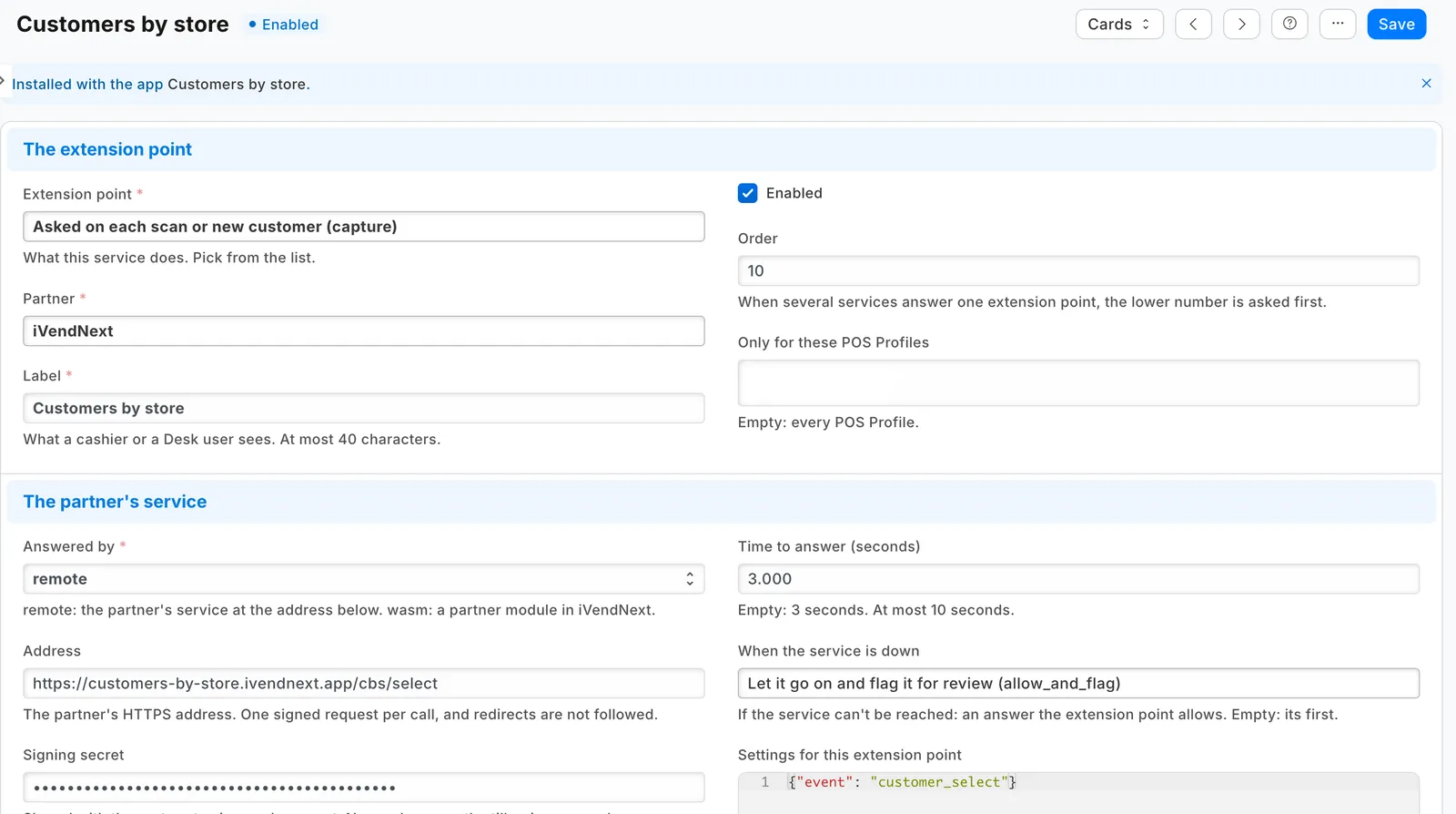
- Search Desk for Retail Extension Subscription and open Customers by store.
- Read what it is sent, and tick the consent.
- Leave its POS Profiles empty, so every till asks. A POS Profile left off a list never asks, and every customer buys there.
- Switch it on and save.
A POS Profile has one app for this question (the till asks it when a customer is put on a sale). So Customers by store cannot share a POS Profile with another app that asks it, such as a loyalty app that sends the customer a code. It adds no check at Pay.
What leaves your shop
The app's service runs at customers-by-store.ivendnext.app, hosted by CitiXsys in the US. After the install, and when you press Connect again, your site sends the service its key from the App library, its address, the app's signing key, and the API key of the app's user.
Each time a cashier puts an existing customer on a sale, your shop sends: the store, the POS Profile, the till's language, the signed-in cashier's user, the till's own reference for the sale, an id for a code check, and the customer's id, name, phone, email and customer group. No price, total or payment is sent.
The service reads your IVENDNEXT CBS Rule records and your customer group tree with the app's user. It keeps them for up to a minute and keeps nothing of a sale. It never reads the customer record. It keeps your site's keys until you remove the app. It writes nothing to your shop.
Limits
- A rule change can take up to a minute to apply.
- Sales orders and invoices made in Desk are not checked: only the till asks.
- A payment on something the customer already has is not checked: a later payment or the settlement of a layaway plan, an order's balance, a payment on their account.
- While an app that checks new customers is switched on for the POS Profile, a customer the cashier added in the last ten minutes goes on the sale without this app being asked.
- One cashier can put at most 60 customers on sales in ten minutes; after that the till says "Too many attempts. Try again in a few minutes."
- A rule is per customer group. A customer who needs a rule of their own needs a group of their own.
- Offline, the till cannot ask the service, so it acts as when the service does not answer (above). A sale paid offline is flagged when it syncs. A sale paid after the connection returns needs the customer picked again.
- If you make the app's user a new API key, press Connect again. If you disable the user, switch it back on (or give it a new key), then press Connect again. Until then every pick of a customer is flagged for review (or stopped, if you chose Refuse).
- A pick after a quiet spell can take longer than usual.
- After you install the app again, it comes in switched off and your rules are gone. Add your rules again (the uninstall exported them to a file). Give the app's user the role IVENDNEXT CBS Integration and its read right again, choose it again as the Application User of IVENDNEXT CBS Rules feed, press Connect again, then switch it on with its consent.
How to remove it
- In the App library, find the app under Installed and press Details.
- On the app's record, press Export and uninstall and confirm. iVendNext first exports your rule records to a file, and tells the service that the app was removed.
- iVendNext removes the question, the rule records, the feed registration and the role.
- Make a new API key for the app's user, or disable the user, so the key the service had stops working.