
Restaurant back office
Retail Extensions · App · checked 2026-10-23
Restaurant back office is for a café, a restaurant, a quick-service counter or a kitchen that cooks for several brands. Your cashiers ring dishes as they do today, and the app takes the ingredients of what was sold off your kitchen's stock by your own recipes, once a day. It also shows each dish's allergens on the till and the receipt, checks them against the recipes, works out your food cost by recipe against what you really used, and reports sales by item, by who rang them and by the part of the day. This page covers what the app adds, how to set it up, how your managers use it, and how to remove it.
What it does
| Where | What you get |
|---|---|
| Issue ingredients | A button on your company's settings. Each press takes up the till sales booked since you started that no earlier press took, and books one stock issue per store and day: the ingredients of what was sold, by each dish's recipe. A sale is never taken twice; a sale made offline is taken up once it posts. |
| IVENDNEXT RBO Issue | One record per store and day: its sales, every line of them, the ingredients it took, the stock issue, and why not if it was not booked. Numbered IVN-RBO-ISS-00001 and on. |
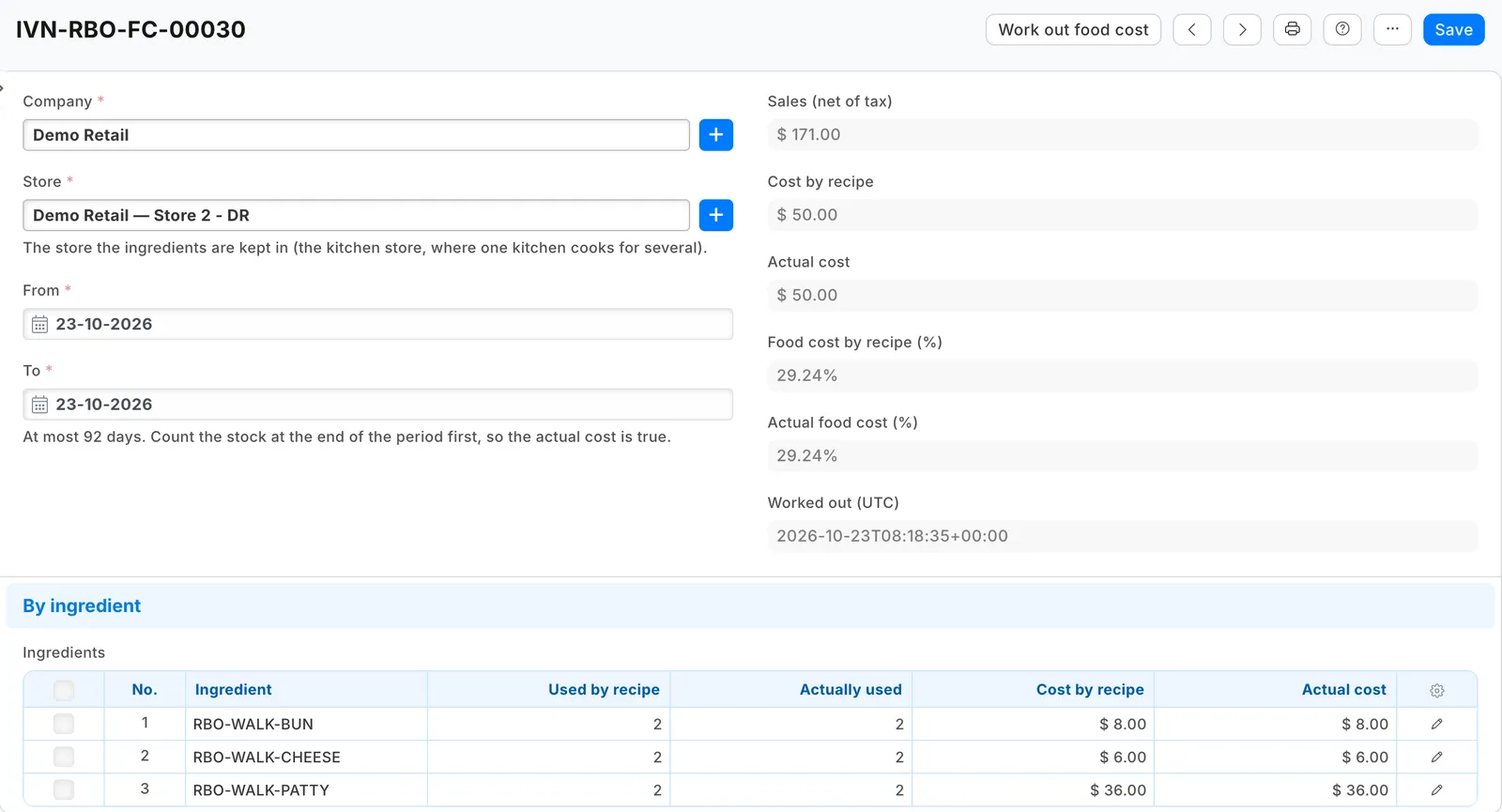
| Work out food cost | A button on a food cost record for a store and a period: per ingredient, what the recipes used, what was sold as it is, what other issues took (waste, staff meals) and what the stock count found missing, with the cost by recipe and the actual cost, each as a share of sales. |
| Check allergens | A button on the Item list and an item's form: a check record of each dish that leaves out an allergen of its recipe's ingredients, each variant with none of its template's allergens, and each word not on your allergen list. |
| Allergens on the till | An Allergens field on Item. With two field rules, the till shows it under each line of the sale and the receipt prints it under the item. |
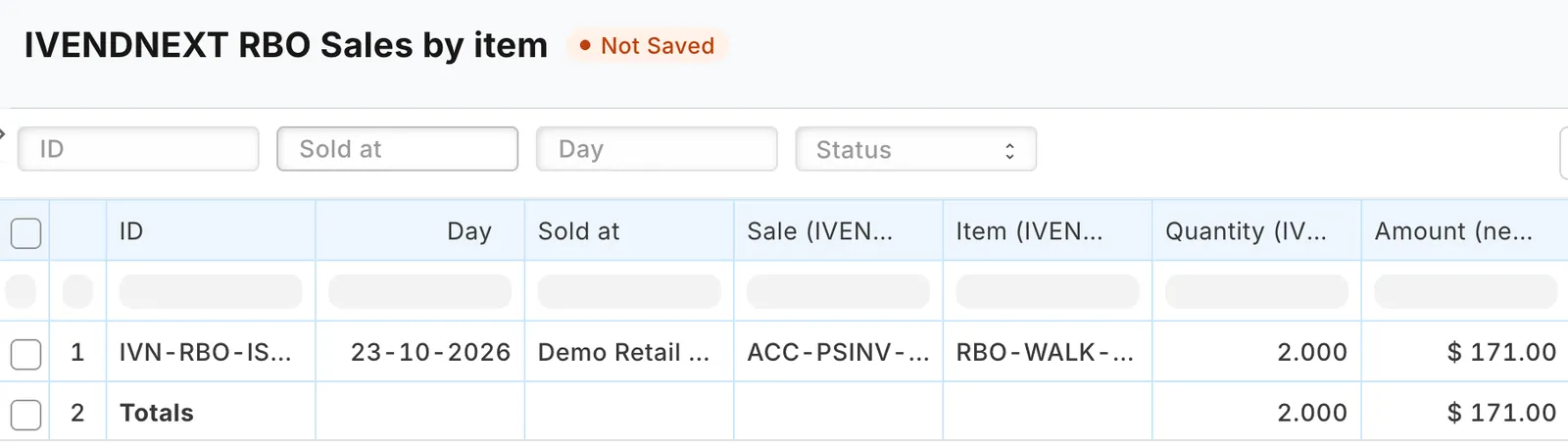
| Sales by item | A report of every line taken up: day, store, sale, item, quantity, amount before tax, who rang it and the part of the day, with totals. |
At the press, your manager reads, for example:
- "Issued the ingredients of 2 store-days. 148 sales taken up."
- "1 store-day is short of stock: open the issues marked Short." The issue says, for example, "Not issued: Café is short of Coffee beans (needs 1.908, has 1.866). Receive or count them, then press Issue ingredients again."
What you set up first
- Install the app from the App library (see About Retail Extensions). The install adds the records IVENDNEXT RBO Settings, Issue, Food Cost and Allergen Check, the Allergens field on Item, a link from Stock Entry to the issue, two reports, three buttons and their services (switched off), and the role IVENDNEXT RBO Integration with no one in it.
- Make a user for the app. Tick Is Desk User, give it the role IVENDNEXT RBO Integration alone and save. Then generate its API key: on the user, open Settings and press Generate Keys.
- Search Desk for Role Permissions Manager. Give IVENDNEXT RBO Integration Read on POS Invoice, POS Profile, Item, BOM, Bin, Stock Ledger Entry, Stock Reconciliation and Warehouse, and Read, Write, Create and Submit on Stock Entry. With these rights the app's user can book a stock issue of any item: give its role to no one else. If your Stock Settings limit back-dated stock entries to a role, give that role to the app's user too, or each issue is booked at the time of the press.
- Search Desk for Registered Application and open IVENDNEXT RBO Back office feed. Choose the app's user as its Application User and save. Leave the feed switched off.
- Make your company's settings, your recipes and your allergens (below).
- Switch the services and buttons on (below).
- In the App library, find the app under Installed and press Details. On the app's record, press Connect again. Your site sends the service the API key of the app's user.
Settings
Search Desk for IVENDNEXT RBO Settings and make one record for each company.
| Field | What it does |
|---|---|
| Company | The company whose tills the button works for. |
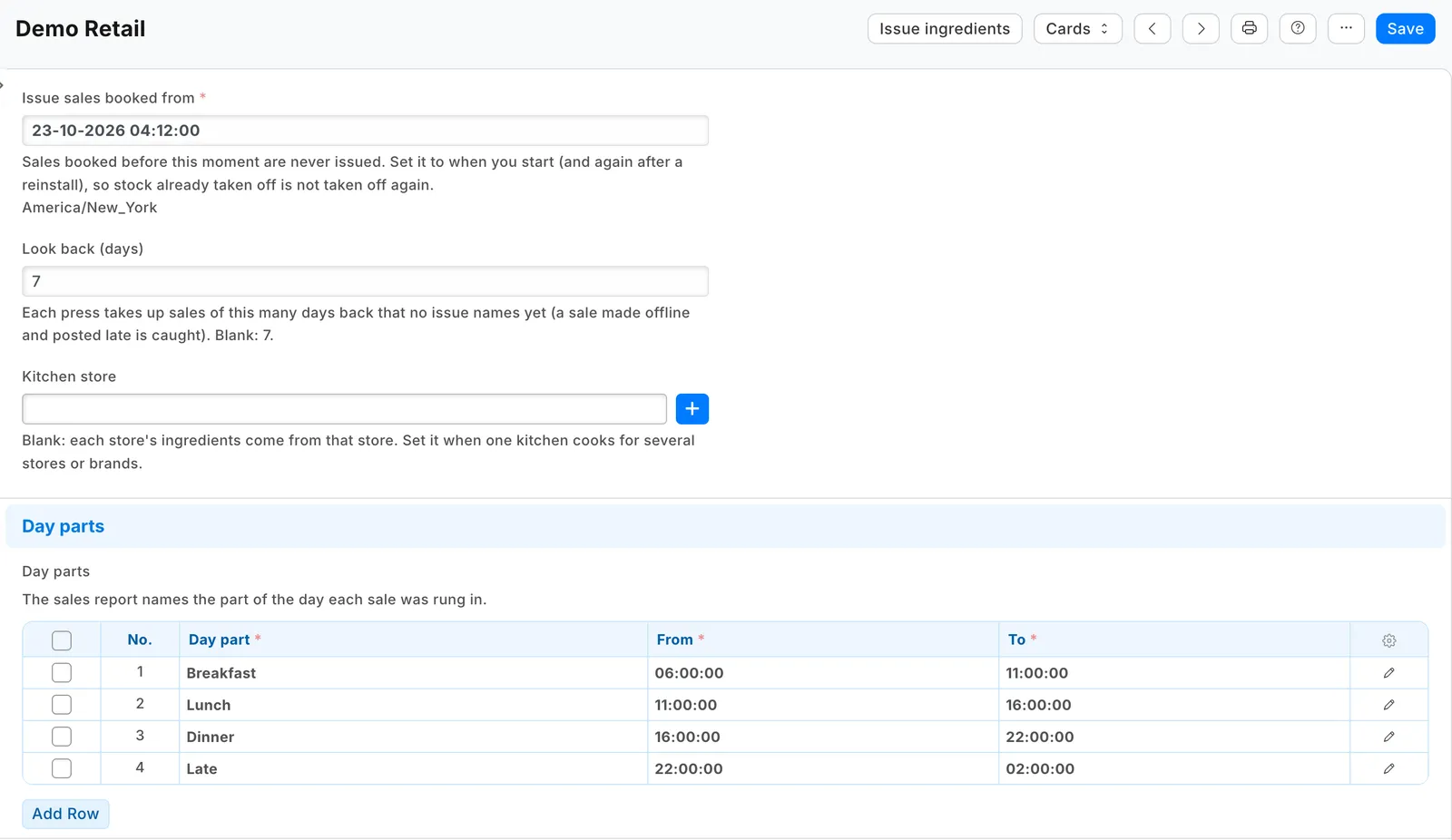
| Issue sales booked from | Sales booked before this moment are never issued. Set it to when you start, so stock you already took off by hand is not taken off again, and set it again after a reinstall. |
| Look back (days) | Each press takes up sales of this many days back that no issue names yet. 7 if blank. After a break of more than a week, raise it once. |
| Kitchen store | Leave it blank and each store's ingredients come from that store. Set it when one kitchen cooks for several stores or brands. |
| Day parts | Your names for the parts of the day (Breakfast 06:00 to 11:00, Lunch, Dinner). A part whose end is before its start runs past midnight. The sales report names each sale's part. |
| Your allergen list | One per line, in the words your menu uses (the EU's 14 to start). The allergen check names any word on an item that is not on this list. |
Recipes
Give each dish a Bill of Materials: the dish as the item, how many it makes, and each ingredient with its quantity. Submit it and keep it the default. A recipe can include another, such as a sauce made per portion. The form's item picker lists only stocked items, so type the dish's code.
- A dish is an item that is not stocked. A drink sold as it is (a can of soda) is a stocked item with no recipe: your till sale already moves its stock.
- A sauce your kitchen makes in batches and keeps in stock is a stocked item: the issue takes the sauce itself.
- An ingredient counted in whole units (a bun) takes whole quantities.
- A combo leaves out of its recipe the side or drink the customer chooses at the till as an option, or that part comes off twice: through the combo and through its own line. A No onions option takes nothing off the dish.
Each ingredient is booked to its own expense account: its Item Defaults, else its item group's, else the company's stock adjustment account. If you want the ingredients under your cost of goods sold, set that account on your ingredients' Item Defaults or their item group.
Allergens
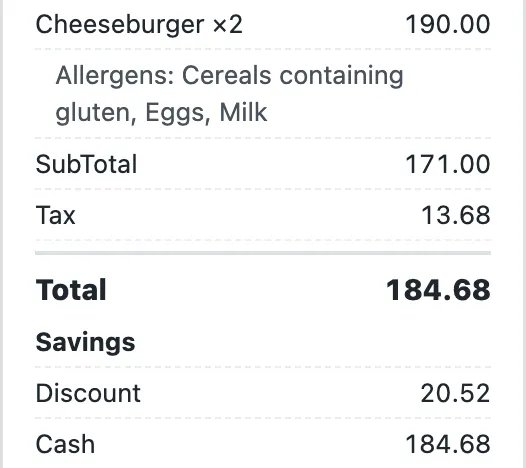
On each ingredient and each dish, type its Allergens in your list's words, separated by commas: Milk, Eggs (140 characters at most). For variants (a double burger, a large coffee), type Allergens on each variant. Where every variant has its template's allergens, you can instead search Desk for Item Variant Settings and add Allergens to the fields copied from the template: each save of the template then copies it over every variant, writing over what a variant had, so save the template once to reach the variants you already have.
To show it at the till, open POS Studio on each theme your café's tills wear (save a shipped theme as a new one first). On Fields, show ivendnext_rbo_allergens on A line of the sale and on The receipt, labeled Allergens.

Switch it on
Search Desk for Retail Extension Subscription and open each of the three services: Issue ingredients service, Food cost service and Allergen check service. Read what each is sent, tick the consent and switch it on. Then search for Retail Desk Action and switch on Issue ingredients, Work out food cost and Check allergens.
Issues
After the day's close, open your company's settings and press Issue ingredients. Each press:
- finishes any issue whose answer was lost on an earlier press;
- takes up the new sales, one issue per store and day, each dated at the day's last sale;
- tries again up to five issues left Short or Refused, Short first, with the recipes and settings as they are now, and says how many more wait.
Press it again whenever you like: it never takes a sale twice. If the press says "Another press is issuing for this company now, or one did not answer in time", wait a few minutes and press again.
| Status | What it means |
|---|---|
| Issued | The stock issue is booked. |
| Short | The store did not have enough of an ingredient. Nothing of that store-day was taken off. Receive the delivery or count the stock, then press again. |
| Refused | iVendNext refused the stock issue for another reason, in its own words (a half bun, a closed period). Fix it and press again. |
| Nothing to issue | The store-day sold nothing with a recipe. |
| Left out | A manager set it on a Short, Refused or Pending issue: its sales stay taken up and it is never tried again. Take the stock off by hand if it was used. |
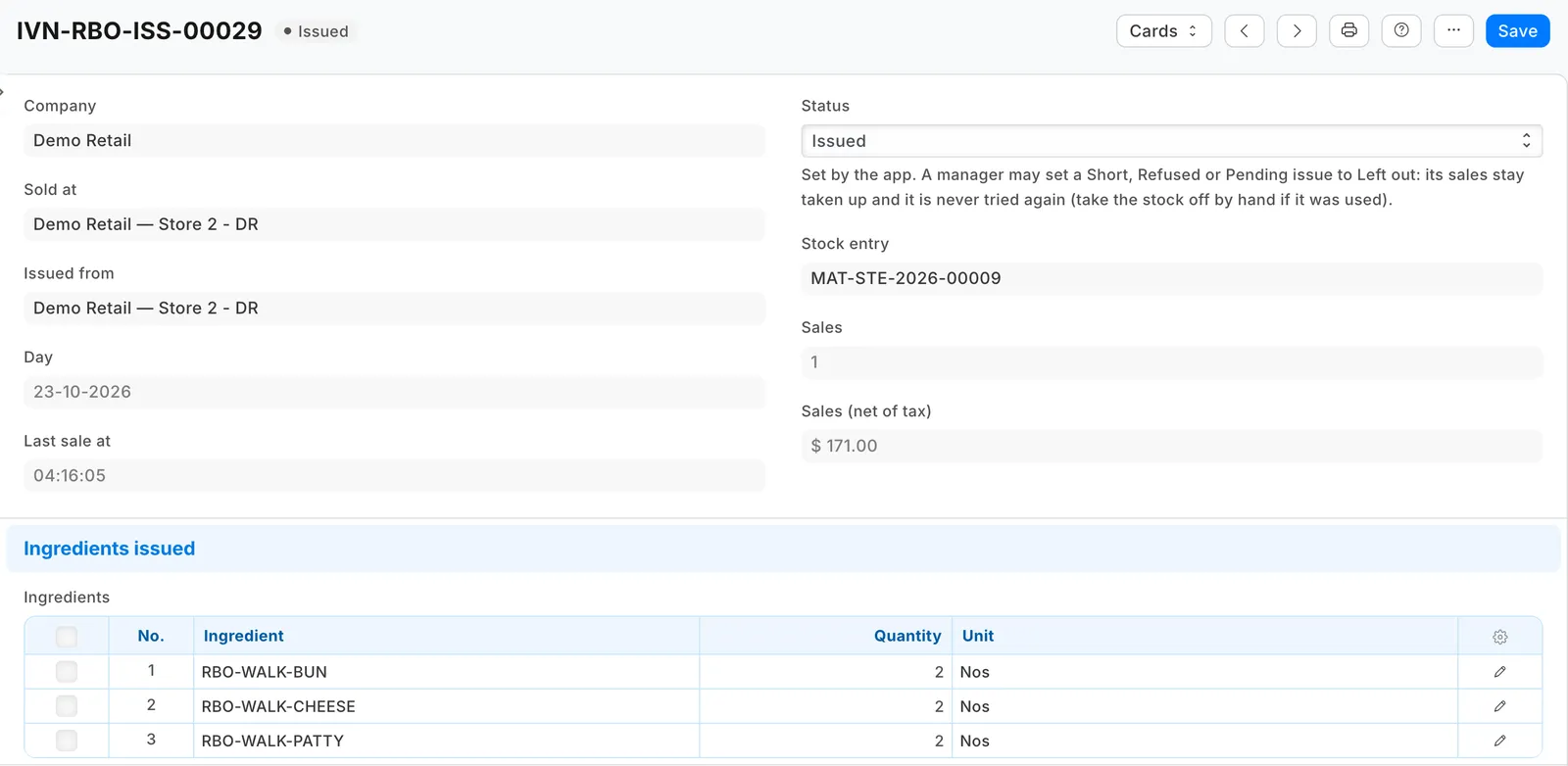
If the stock came in after the sales (a delivery entered later in the day), the issue is booked at the time of the press instead of the sales' time.
A store-day whose recipe goes round in a loop, or whose sales name no store when the settings name no kitchen store, is marked Refused with why, and nothing is booked: fix it, and the next press works it out again.
The Sales by item report lists every line the issues took up, with totals:
Food cost
At the end of a period, count your kitchen's stock first. Then search Desk for IVENDNEXT RBO Food Cost, make a record with the company, the store your ingredients are kept in, and the period (at most 92 days), and press Work out food cost.
| Column | What it counts |
|---|---|
| Used by recipe | What the app's issues took |
| Sold as it is | What was sold from stock (a can of soda); a return counts back |
| Other issues | Your own stock issues: waste, staff meals |
| Missing at the count | What your stock counts found missing; found extra counts back |
| Actually used | All four |
| Cost by recipe, Actual cost, Difference | The value of each |
The record also shows the period's sales before tax and both costs as a share of them. A day still Short or Refused counts its sales, but its cost by recipe only once it is issued, so cost by recipe reads low until then. With a kitchen store, every store's sales count at the kitchen, but a stocked item sold at the front (a can of soda) comes off the front store's stock, so its cost is not in the kitchen's food cost. Receipts and transfers between stores are not use and are left out. The Food cost by ingredient report lists the lines of every food cost record.
Checking allergens
Tick the dishes in the Item list and press Check allergens (or press it on one item). When there is something to look at, iVendNext opens a check record listing:
- each dish that leaves out an allergen one of its recipe's ingredients carries, and which ingredient, at every depth, a stocked sauce's own recipe included;
- each variant with none of its template's allergens;
- each dish with no allergens typed whose recipe carries none either (the till prints nothing for it);
- each word not on your allergen list (check the spelling).
The check reads what you typed: it cannot know an allergen nobody wrote down, and it changes nothing on an item.

What leaves your shop
The app's service runs at restaurant-back-office.ivendnext.app, hosted by CitiXsys in the United States. After the install, and when you press Connect again, your site sends the service its key from the App library, its address, the buttons' signing keys and the API key of the app's user.
On each press, your shop sends the record's name and the fields its button names (the company; or the store and the dates; or the items' names), the pressing user's login and the language. The service then reads, with the app's user, your till sales and their lines, your tills' stores, items and recipes, stock levels, the stock ledger and stock counts, and its own records. It writes its issues, food cost and allergen check records, a press stamp on the settings, and your stock issues. It keeps nothing of a press.
Limits
- The ingredients come off when someone presses the button, not at the moment of the sale.
- Only till sales are taken up; a dish sold on a Desk invoice is not. A returned dish takes nothing back: the food was made. A till sale canceled after its issue keeps its issue, and one canceled and amended in Desk is not issued again, as long as its date is left as it was: book a changed quantity by hand.
- A dish rung before its recipe was made issues nothing. Its issue names it (BURGER: sold with no recipe): book that day's ingredients by hand once the recipe is made.
- A stock issue of the app canceled in Desk is not booked again: the issue stays Issued.
- A sale older than the look-back is never taken up.
- The kitchen ticket does not print the allergens. The till shows at most three extra item fields per theme.
- If you give Check allergens to another role, give that role read on IVENDNEXT RBO Allergen Check too, or Desk cannot open the findings.
- The till shows the allergens of the item sold: a variant needs its own, or the field in Item Variant Settings.
- The shipped receipt prints the allergens. A receipt layout of your own prints them only if it calls the till's item-fields reader.
- The allergen list the check uses is every company's settings together.
- After a reinstall, food cost still knows the app's earlier stock issues, but their sales figures went with the uninstall.
How to remove it
- In the App library, find the app under Installed and press Details.
- On the app's record, press Export and uninstall and confirm. iVendNext first exports your settings, issues, food cost and allergen check records to a file, and tells the service that the app was removed.
- iVendNext removes the records, the Allergens field (and what you typed in it), the link on Stock Entry, the reports, the buttons and the feed registration. Your stock issues stay in your books.
- Make a new API key for the app's user, or disable the user, so the key the service had stops working.