
Customer code check
Retail Extensions · Rule · checked 2026-10-23
Customer code check asks your customers to prove they are at the counter before their account is used at the till. For example, your loyalty members before their points are spent, or your account customers before they buy on account. When the cashier puts such a customer on a sale, your iVendNext texts a one-time code to the mobile number on the customer's record, and the cashier types the code the customer reads out. Until the code is right, the sale cannot be paid with that customer on it. This page covers what the app adds, how to set up the text message, how to write your rules, how to switch it on, and how to remove it.
What it does
When the cashier puts an existing customer on a sale (picked from the list, found by their card or phone, or brought back with a parked sale, a quote or an exchange), your iVendNext asks the app's service about that customer. The service finds the rule for the customer's group. When the rule asks for a code, the service makes a 6-digit code and your iVendNext texts it to the customer through your own SMS gateway.
| The cashier sees | When |
|---|---|
| A code field: "Ask the customer for the 6-digit code we sent to their phone ending 47." (or your own words) | The customer's rule asks for a code. The last two digits are those of the number the code went to, so the customer can say if it is not theirs. |
| The customer on the sale | The right code. Or no rule asks for this customer. |
| "That code is not right." and the tries left | A wrong code. The third wrong code ends the check, and the customer is off the sale. |
| "This code check has ended." | A code check older than ten minutes. The cashier picks the customer again, and a new code is sent. |
| The customer taken off the sale | The cashier pressed Cancel on the code field. |
| The customer taken off the sale: "Customers in ⟨group⟩ need a code, and this customer has no mobile number." | The rule asks, the customer's record has no mobile number, and the rule says to take them off the sale. |
| The customer on the sale, and the sale flagged on Sales to review | The service did not answer within 5 seconds (the text included), the service has not been sent the app's user yet, or it could not read your iVendNext. |
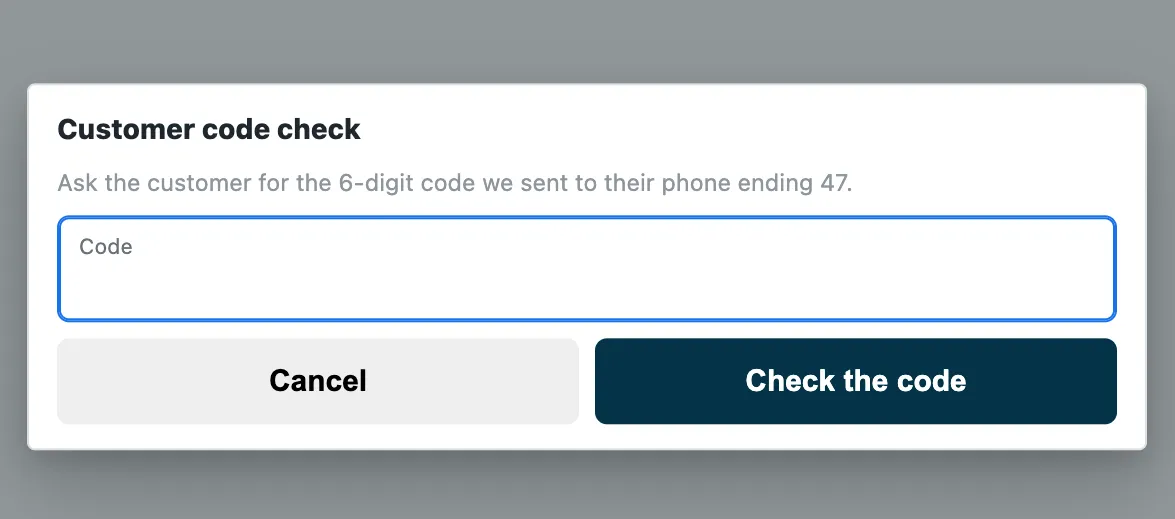
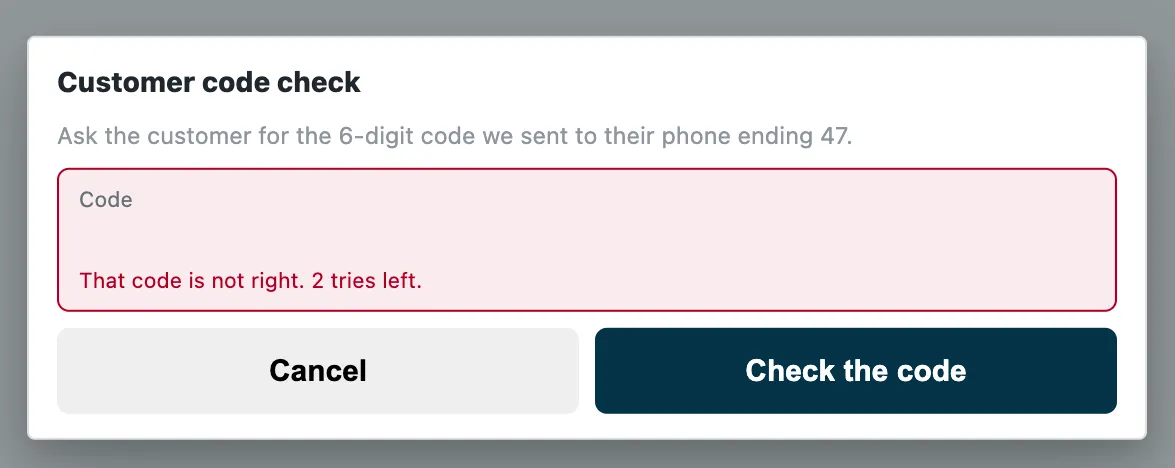
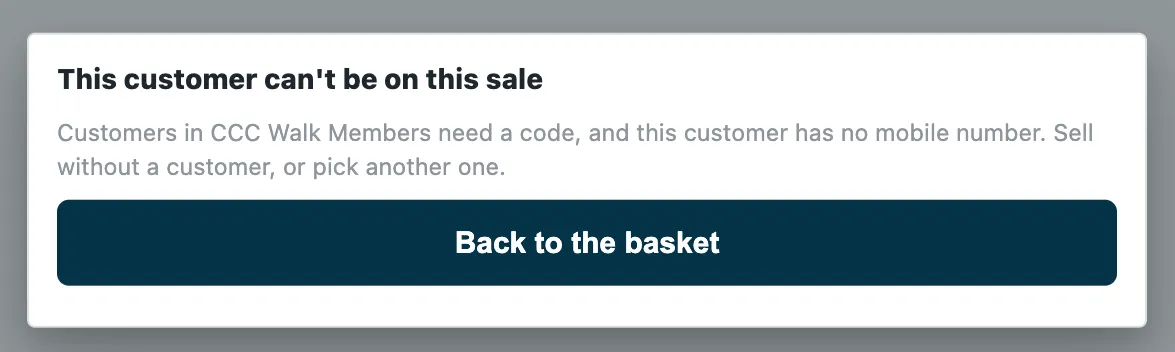
Your store's walk-in customer is never asked. While the app is switched on for a POS Profile, every way of paying at those tills (the card, a split, loyalty points, store credit, a wallet, a layaway or an order) waits for the right code, or the service's yes, for that customer.
What you set up first
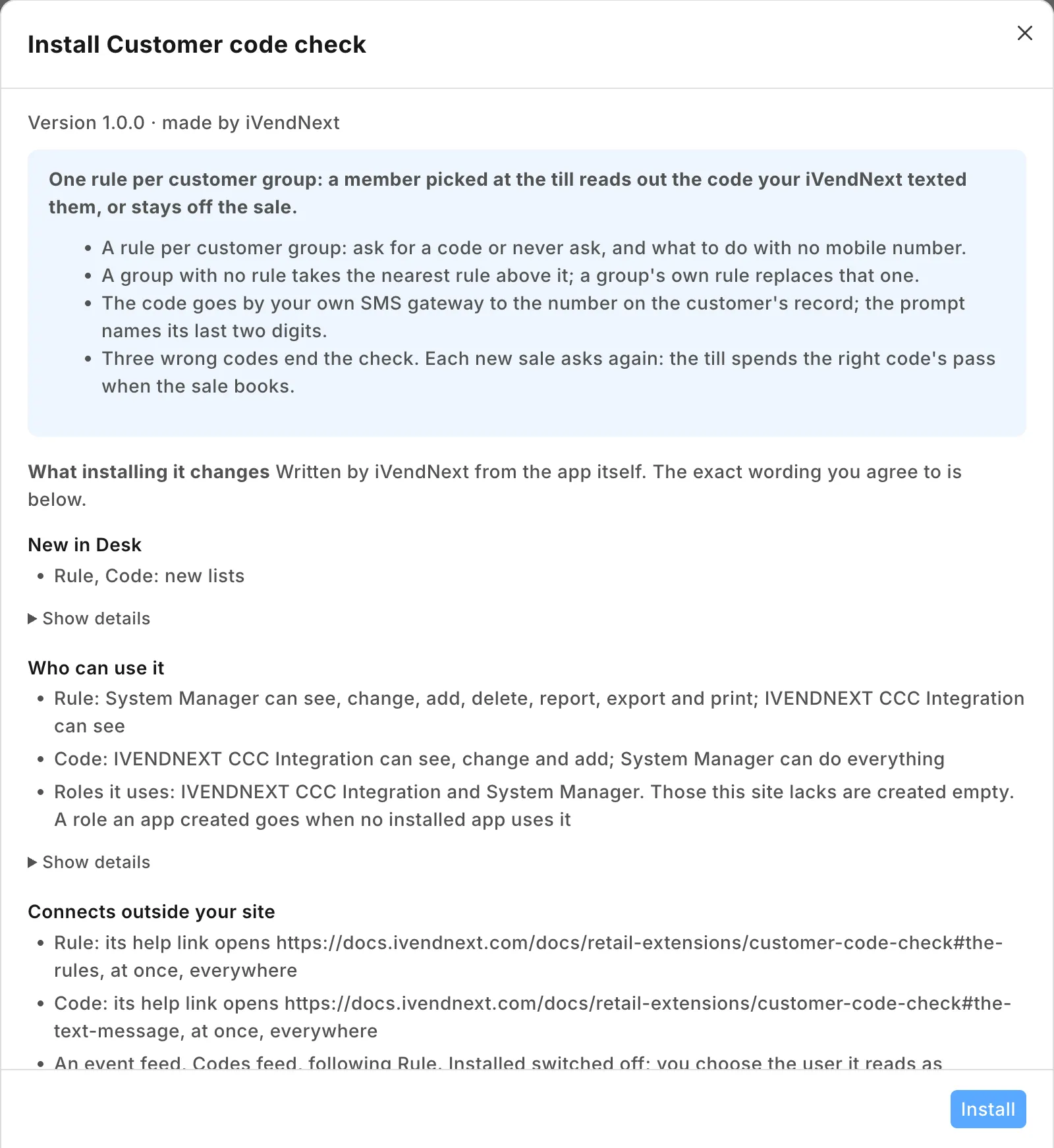
- Install the app from the App library (see About Retail Extensions). The install adds the role IVENDNEXT CCC Integration, with no one in it. The app's question comes in switched off.
- Make a user for the app. Tick Is Desk User, give it the role IVENDNEXT CCC Integration alone and save. Give the user no User Permissions. Then generate its API key: on the user, open Settings and press Generate Keys.
- Search Desk for Role Permissions Manager. Give IVENDNEXT CCC Integration Read on Customer Group. The service reads your customer group tree, so that a group can take the rule of a group above it.
- Stop cashiers moving a customer out of a group that asks. The till lets a cashier change a customer's group, so a cashier could move a member into a group that is never asked and pick them with no code. Search Desk for Customize Form, open Customer, set Customer Group's Perm Level to 1 and save. Then in Role Permissions Manager, give level 1 Write on Customer only to the roles that may move customers, such as your managers. A cashier's change to the group then does not save, though the till still says Saved. A cashier also can no longer give a new customer a group: a customer created at the till takes your default customer group (Selling Settings), or none if you have not set one, and a manager sets the right one. Check the level 1 rows already there: Sales Master Manager has one by default, and none of your cashiers' roles may have level 1 Write.
- Decide about the phone. The code goes to the customer's mobile number, and the till lets a cashier change it: a cashier who types in their own number gets the customer's code. To stop it, set the Perm Level of the customer's phone field, the one the till edits (Phone Number, or Mobile No if you have no Phone Number field), to 1 in the same Customize Form. A cashier's change to the number then does not save. What follows: a customer created at the till is then saved with no phone, so a manager records new customers' numbers. If your cashiers must keep recording phones, leave it open: the prompt's last two digits let the customer notice a wrong number.
- Set up the text message (below).
- Search Desk for Registered Application and open IVENDNEXT CCC Codes feed. Choose the app's user as its Application User and save. Leave the feed switched off.
- Write your rules (below).
- In the App library, find the app under Installed and press Details. On the app's record, press Connect again. The record then says that it sent the API key of the app's user.
- Switch it on (below).
- Test it: pick a customer of a group whose rule asks for a code. A text with the code must reach their phone, and the code must let them on. If no text arrives, check your SMS Settings and the Notification. If the till does not ask and the sale shows on Sales to review, check the Read on Customer Group (step 3), then press Connect again.
If you must never let a customer on without their code, then change When the service is down to Stop until the service answers (refuse), after Connect again. Every pick of a customer then waits on the service.
The text message
The code reaches the customer through your own SMS gateway, sent by your own iVendNext:
- Search Desk for SMS Settings. Enter your SMS gateway's address and the parameters its guide asks for, with the Receiver Parameter that takes the mobile number. Save.
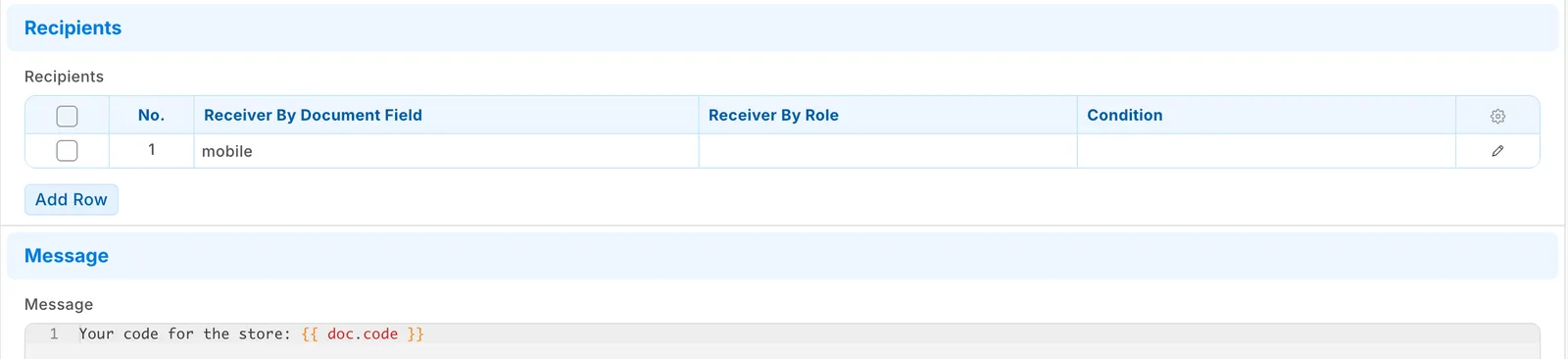
- Search Desk for Notification and press Add. Set Document Type to IVENDNEXT CCC Code, Send Alert On to New and Channel to SMS. Under Recipients, add a row with Receiver By Document Field set to mobile. Write the message with the code in it, for example
Your code at our store: {{ doc.code }}. Save it with Enabled ticked.
Your iVendNext sends the text while the code is saved. If your gateway refuses it or cannot be reached, the code is saved anyway and your Error Log records Failed to send Notification: the customer gets no code, and the cashier sells without them. A Notification switched off, or SMS Settings with no gateway address, also send nothing and show no error. Step 11's test catches these; watch your Error Log for a gateway that stops answering.
Each code is kept as an IVENDNEXT CCC Code record: the customer, the number the code went to, the store, the POS Profile, the cashier, Sent or Used, and when. The app's user and your System Manager read these records; your cashiers do not. A code is cleared once the customer gives it. Each record keeps the customer's mobile number: your System Manager can delete older ones from the list. Your SMS log also keeps each text, with its code, and the uninstall's export file keeps the code records.
The rules
Search Desk for IVENDNEXT CCC Rule and press Add. Make one record for each customer group that needs a rule. The record is named by its customer group. A System Manager can add or change these records, or another role you give rights on them in Role Permissions Manager. Whoever keeps them needs Select on Customer Group: without it the rule's lookup is refused (No permission for Customer Group). Check that your System Manager has it: a site can remove it.
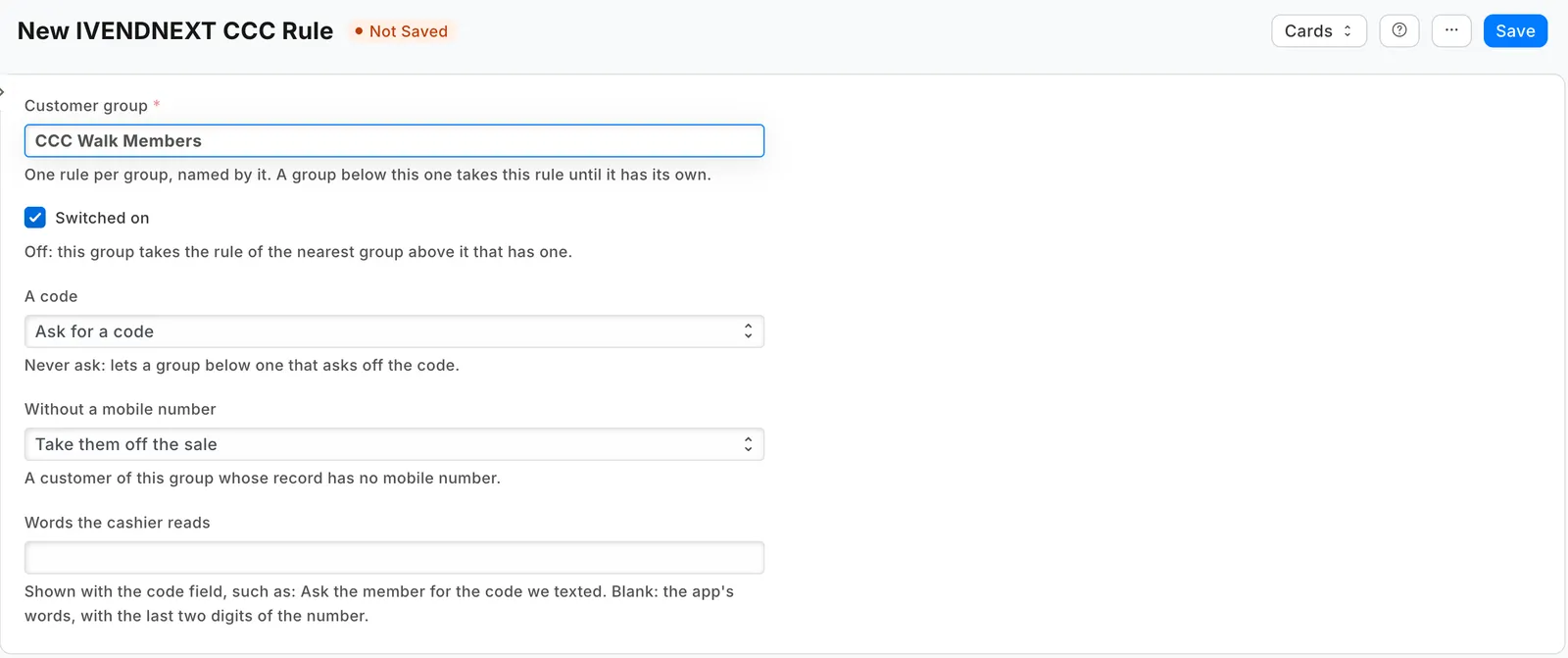
| Field | What it does |
|---|---|
| Customer group | The group this rule is for. One rule per group. |
| Switched on | Untick to stop using the rule. The group then takes the rule of the nearest group above it that has one. |
| A code | Ask for a code, or Never ask (to let a group below one that asks off the code). |
| Without a mobile number | For a customer of this group whose record has no mobile number: Take them off the sale, or Let them on. |
| Words the cashier reads | Shown with the code field, such as "Ask the member for the code we texted." Blank: "Ask the customer for the 6-digit code we sent to their phone ending ⟨last two digits⟩." |
A customer takes their own group's rule. A group with no rule takes the rule of the nearest group above it in your customer group tree. A customer with no rule up the tree is never asked. A group's own rule replaces the rule above it entirely. So these two rules ask every member except your staff:
| Customer group | A code |
|---|---|
| Members | Ask for a code |
| Staff members (below Members) | Never ask |
- The service reads your rules and your customer groups again within a minute of a change.
- The right code lasts for that cashier, that customer and that POS Profile until the sale is paid or for twelve hours. The next sale asks again.
Switch it on
- Search Desk for Retail Extension Subscription and open Customer code check.
- Read what it is sent, and tick the consent.
- Leave its POS Profiles empty, so every till asks. A POS Profile left off a list never asks.
- Switch it on and save.
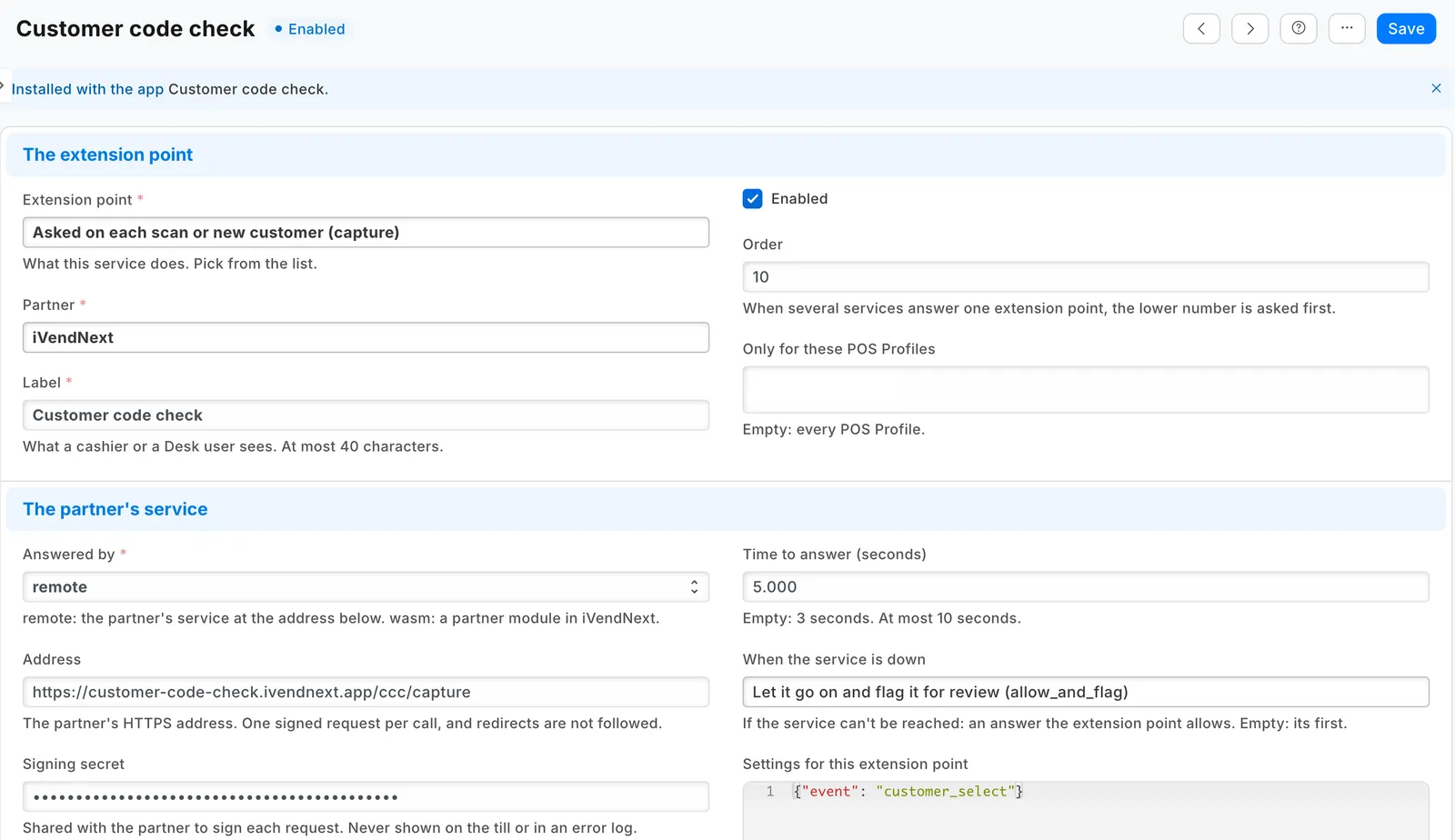
A POS Profile has one app for this question (the till asks it when a customer is put on a sale). So Customer code check cannot share a POS Profile with another app that asks it, such as Customers by store. It adds no check at Pay.
What leaves your iVendNext
The app's service runs at customer-code-check.ivendnext.app, hosted by CitiXsys in the US. After the install, and when you press Connect again, your site sends the service its key from the App library, its address, the app's signing key, and the API key of the app's user.
Each time a cashier puts an existing customer on a sale, your iVendNext sends: the store, the POS Profile, the till's language, the signed-in cashier's user, the till's own reference for the sale, an id for the code check, and the customer's id, name, phone, email and customer group. After a code, it sends the code the customer read out. No price, total or payment is sent.
The service reads your IVENDNEXT CCC Rule records, your customer group tree and the code records with the app's user. It keeps the rules and the groups for up to a minute and keeps nothing of a sale. It writes one code record for each code and clears it once given. The code itself goes from your iVendNext to your SMS gateway, never through the service. It never reads the customer record. It keeps your site's keys until you remove the app.
Limits
- The code is asked for when the customer is picked, not when they pay with their points: a customer of a group that asks is asked even if they only earn. Choose the groups that need it.
- The code goes to the customer's mobile number as your till shows it. Unless you lock the phone (step 5), a cashier who may change it can send the code to another phone; the last two digits in the prompt let the customer notice.
- A rule change can take up to a minute to apply.
- Sales orders and invoices made in Desk are not checked: only the till asks.
- A payment on something the customer already has is not checked: a later payment or the settlement of a layaway plan, an order's balance, a payment on their account.
- While an app that checks new customers is switched on for the POS Profile, a customer the cashier added in the last ten minutes goes on the sale without this app being asked.
- One cashier can send the service at most 60 picks in ten minutes; after that the till says "Too many attempts. Try again in a few minutes." A customer already let on stays on.
- While the service does not answer, the code field takes any code, and the sale is flagged for review. If you must never let a customer on unchecked, choose Refuse (above).
- Your SMS gateway must answer quickly. Past about 3 seconds the code field still opens and the text arrives late; a gateway that never answers keeps your site busy for each pick until the site gives up on it.
- Offline, the till cannot ask the service, so it acts as when the service does not answer (above). A sale paid offline is flagged when it syncs.
- If you make the app's user a new API key, press Connect again. If you disable the user, switch it back on (or give it a new key), then press Connect again. Until then every pick of a customer is flagged for review (or stopped, if you chose Refuse).
- A pick after a quiet spell can take longer than usual; past 5 seconds the customer stays on the sale, flagged for review.
- After you install the app again, it comes in switched off and your rules are gone. Add your rules again (the uninstall exported them to a file), and switch your earlier Notification back on, or make one if you deleted it (two would text each code twice). Give the app's user the role IVENDNEXT CCC Integration and its read right again, choose it again as the Application User of IVENDNEXT CCC Codes feed, press Connect again, then switch it on with its consent.
How to remove it
- In the App library, find the app under Installed and press Details.
- On the app's record, press Export and uninstall and confirm. iVendNext first exports your rule and code records to a file, and tells the service that the app was removed.
- iVendNext removes the question, the rule and code records, the feed registration and the role. Delete your Notification on IVENDNEXT CCC Code.
- Make a new API key for the app's user, or disable the user, so the key the service had stops working.