
Fetching data from a linked master
Question:
How to add terms and conditions in driver form?
Steps:
-
Go to the doctype where you want to add the terms and conditions.
-
Go to Menu > Customize
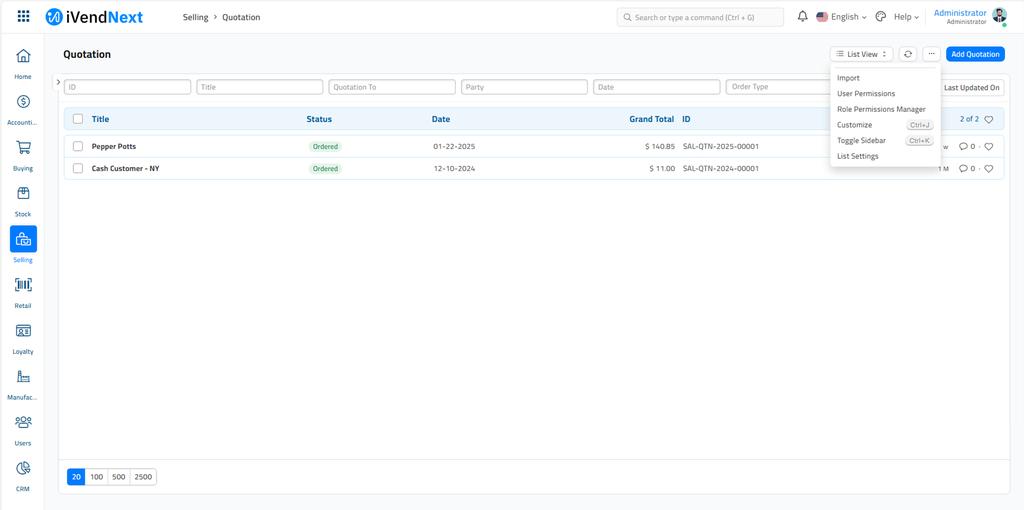
-
You will see a table with a list of fields. These are the fields in your driver page.
-
Scroll down to the section/field after which you want to add terms and conditions.
-
Click on the small icon on the right side. This will expand the selected field.
-
You can add a new field above on below by clicking on Insert Above/Below.
-
Add a new field. For more details on adding a custom link field, refer to this link.
-
Add a second field below the newly added field: How does this work? In Fetch from, we are adding the following details: doctype.field. In the Terms and Conditions doctype, the field where we add the terms is named terms and it is of type: Text Editor. For fetch from to work, the data must be in the following format: link_field_name.field_to_fetch
-
Once this is done, click on Update, and go back to your list. Click on Ctrl + Shift + R to reload.
-
When you select the terms template in the driver, the system will fetch the conditions from the selected template.