
What iVendNext offers a restaurant
Hospitality · checked 2026-10-24
This page lists what a restaurant, café, bar or kitchen can use in iVendNext. Some parts are in the till, in Desk or in the App library today. The rest are coming, and they have their own list at the end. Each part below says what it does, who uses it and what to know before you rely on it.
Each part is its own piece, so you take what your outlet needs and leave the rest. To see which parts fit your kind of outlet, read Choosing your set-up.
What the till does today
The till is the iVendNext POS, at /pos. It runs in the browser on a counter terminal, a tablet or a phone. A restaurant uses the same till as any other retailer, so these parts are set up and not rebuilt.
| Part | What it does | Who uses it | What to know |
|---|---|---|---|
| Notes, discounts and voids | The cashier adds a note to a line, such as "no onions". A discount above your limit needs a manager's approval. Voiding a whole sale asks for a reason where your store requires one and keeps voided sales. See Adding a note, Promotions, coupons and discounts and Voids. | Cashier, server, manager | The till's own receipt prints the note under the item. A receipt layout of your own may not. Offline, the line screen has no field for a note, but a note typed before the connection dropped is kept. A line void asks for no reason. |
| Signing in and locking | Each person signs in with an Associate ID and a PIN, a badge or a password. The till locks itself when nobody uses it. See Signing in. | Everyone who sells | A person is signed in on one device at a time. |
| The till on a phone or tablet | A server sells and takes payment on the same till, on a phone or a tablet. See iVendNext POS. | Server | A sale is rung and paid as one sale. A table's check that stays open while the party orders is coming. |
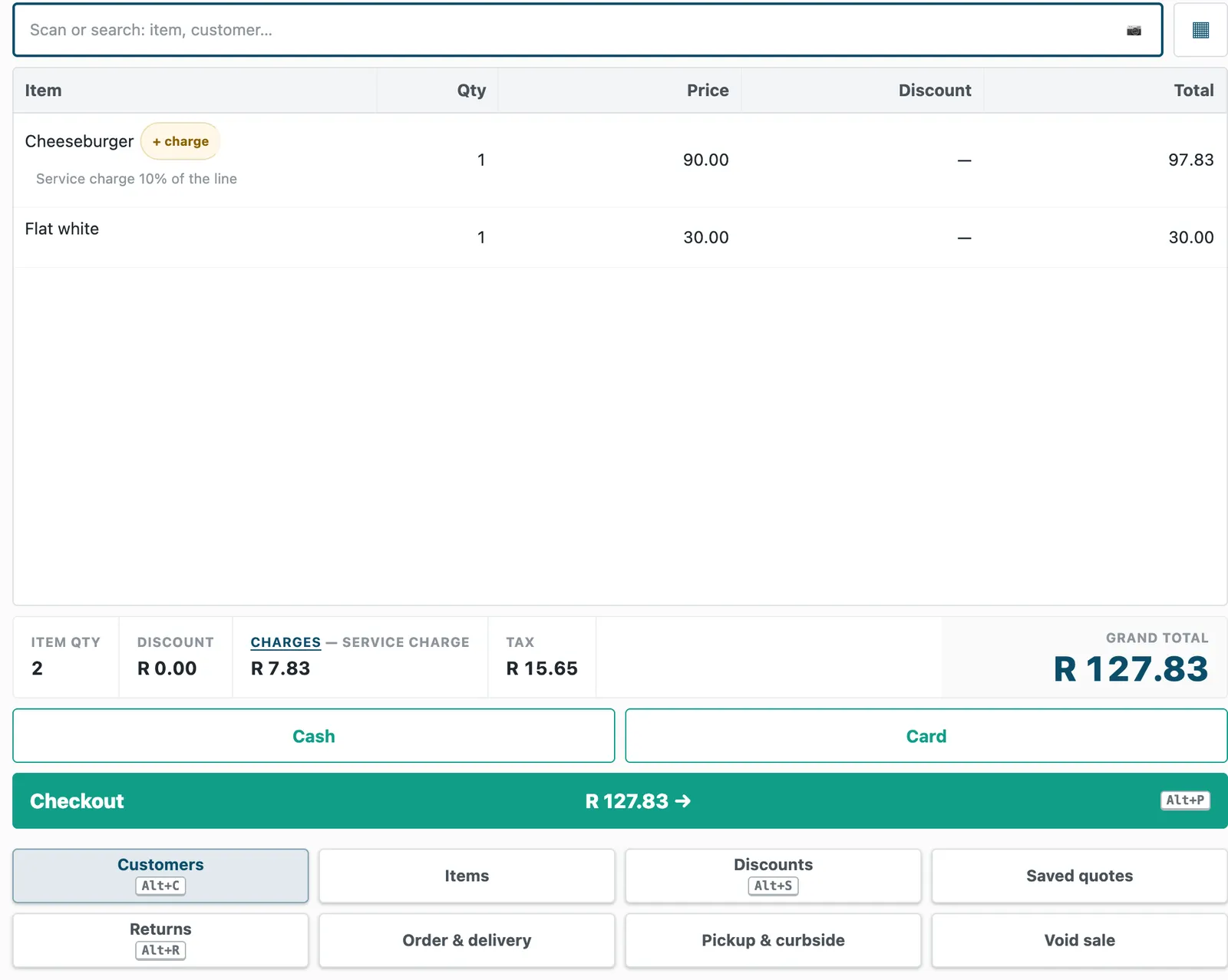
| Service charge | A charge on the bill that comes with a dish by itself, or that the cashier adds to a sale. It is worked out offline too, for a dish that carries one. See Setting up the service charge. | Manager sets it up, cashier sells | A charge appears only for a store whose company has a row in Surcharge Accounts. Offline, the basket and the provisional slip show no line for a dish's own charge, so the lines can look short of the total. A charge the cashier adds needs a connection. A taxable charge offline needs its Sales Tax Code. The Sales today tile on Home leaves the charge out. |
| Splitting the payment | One bill paid with more than one method. A leg can be a gift card, store credit, loyalty points, on account, or a card on an integrated terminal. On a till with a cash drawer, one leg can be cash. See Split Tender and Layaway. | Cashier | The legs must cover the amount due. On a till with a cash drawer, the till gives change on the cash leg. On a till without a drawer, a split that needs cash goes to a register. Loyalty points need the iVendNext Loyalty app. A split needs a connection. Splitting one check by item or seat is coming. |
| House accounts and deposits | The cashier charges a sale to a regular guest's account, within a credit limit, and the guest pays later. Money taken against an account above what the guest owes becomes an advance, which is how a party's deposit is kept. See Setting up a house account and Balance-backed tenders. | Cashier, manager | The guest needs a credit limit for the company. Where your country asks for the buyer's tax registration, the sale asks for it. On account needs a connection. A link between a deposit and a booking is coming. |
| Deals by the hour | A promotion with a time window, such as a coffee with a pastry before eleven. It applies online and offline. See Promotions, coupons and discounts. | Manager sets it up | Set it up as a buy-and-get promotion. It needs another item in the sale, and the reward applies to one unit of a sale. A price for one item by the clock, such as a happy-hour price on a lone drink, is not available. |
| Selling offline | The counter keeps selling dishes when the connection drops, and the cashier reviews and sends the sales when it returns. See Selling offline. | Cashier | Offline the till takes cash, or a card on the bank's own machine with its slip recorded. Gift card, store credit, on account and loyalty need a connection. Offline selling needs the store's Item Tax Template. |
| Receipts | Printed at the counter or sent to the guest. See Delivering a receipt. | Cashier | A service charge prints as its own row, except on the offline slip for a dish's own charge. |
| The day's close | A manager takes a mid-shift read, printed as an X report, and the cashier counts the drawer at the close. Each approval a manager gives is kept in Retail Override Request in Desk. See Cash and the drawer and Ending your day. | Manager, cashier | Opening and closing a day need a connection. |
What you use in Desk today
Desk is the back office. A restaurant uses what a retailer uses, set up for dishes. The person who sets these up needs the rights to create stores, items, prices and users.
| Part | What it does | Who uses it | What to know |
|---|---|---|---|
| Dishes and menus | Each dish is an item with its photo, its price and its tax. Each outlet has a price list, with its own prices where they differ. See Adding your dishes. | Whoever sets up | A dish is an item the shop does not keep in stock, so selling a dish moves no stock. |
| Recipes | A recipe is a bill of materials on a dish. The Restaurant back office app takes the ingredients off stock by it. See Recipes. | Kitchen manager | The ingredients come off when someone presses Issue ingredients, not at the moment of the sale. |
| A central kitchen | Production and waste are booked as work orders and stock entries. | Kitchen manager | None beyond the stock rules below. |
| Purchasing and stock | Par levels, purchase orders, goods in and stock counts. | Kitchen manager, buyer | A stock issue that needs more than the store has is refused. Allow Negative Stock covers the whole site. |
| Several brands from one kitchen | Each brand has its own store, till profile and price list. One kitchen store can supply them all: the Restaurant back office app takes every brand's ingredients from the kitchen store you name in its settings. See Settings. | Whoever sets up | Nothing keeps another brand's items off a brand's till. An item missing from a brand's price list rings at 0 on that brand's till. Offline the till says "1 item on this sale has no price here. It rings at 0." |
| Staff and rights | Roles, permissions and a manager's approval. See Letting your staff sell and Granting permissions. | Whoever sets up | The Retail Manager role runs the till. By default it cannot create stores, items, prices, users or stock entries, and an administrator can grant more. |
| Loyalty and gift cards | A guest's points and gift cards work at the till. See Balance-backed tenders. | Cashier | Points need the iVendNext Loyalty app and a connection. |
Apps from the App library
An app has its own card in the App library and its own consent. A restaurant installs the ones its outlet needs. Each app below has a service that CitiXsys hosts. What the service receives and keeps is on the app's guide, under What leaves your shop.
| App | What it does | Who uses it | What to know |
|---|---|---|---|
| Restaurant back office | Takes the ingredients of what was sold off stock by your recipes, shows each dish's allergens on the till line and the receipt, checks them against the recipes, and works out food cost by recipe against what you really used. It also reports sales by item, by who rang them and by the part of the day. | Kitchen manager, finance, cashier | Only till sales are taken up. A returned dish takes nothing back. The kitchen ticket does not print the allergens. The till shows at most three extra item fields per theme. |
| Age-restricted sale check | Asks for ID at the scan of alcohol or tobacco, and refuses Pay until the sale records the check. An age on an item group covers every item in it. | Cashier, manager | Offline, or when its service does not answer, a restricted item goes on and the sale is paid, flagged for review. There is no manager override of a refusal and no restricted selling hours in this version. One age per item group applies to the whole site. |
| Payment method rules | Decides which payment methods a group of customers may use. The methods a customer may not use are dimmed at Pay, with your reason. For example, customers who order through a delivery platform pay only by that platform's method, and only account customers buy on account. | Manager sets the rules, cashier sees them | A rule is per customer group. Offline, the sale goes on with every method, flagged for review. Two methods together in one sale are not checked. |
| Post-sale feedback | Sends each guest your message after the sale with a link to a short page: your question, three answers in your words and a comment box. The answers are kept with the sale, and a report shows them by store. | Manager | Till sales only. The messages go when your manager presses Send feedback requests, not at the moment of the sale. Asking guests for feedback may need their consent where you sell. That is yours. |
The age check and payment method rules answer a check before the sale is paid. A till profile answers at most three checks, and they share 10 seconds. Age check at Pay takes 4 of those seconds and payment method rules takes 3.
Other apps a restaurant often adds
| App | What it does |
|---|---|
| Coupon rules | Limits a coupon to a guest's first purchase or to one customer group. |
| Gift card on spend | Gives a guest your own gift card when a sale reaches your threshold. |
| Till guard rules | Adds checks at the till, such as no line at a placeholder price and a manager's approval for a large sale. |
| Counter hardware | Connects the counter's cash drawer, receipt printer and customer display to the till. It has no guide here yet. |
| iVendNext Loyalty | Gives guests points they redeem at the till. It has no guide here yet. |
| WhatsApp messages | Sends receipts and order messages through your own WhatsApp Business account. It has no guide here yet. |
Your ERP and your card payments
Your own ERP keeps the books, and iVendNext runs the restaurant. The SAP Business One and Acumatica connectors are listed in the App library. Any other ERP is connected by a partner or by your own developers.
Card readers and payment gateways also come from the App library. See Cash and card for how the till takes a card.
What a partner or your own team adds
An iVendNext partner in your region, or your own developers, can set up and extend what these parts do not cover. Examples are the link to a delivery platform your region uses, a hotel's property system, a franchise's brand rules, tip payouts to payroll, the printers and screens a kitchen already has, and your country's e-invoicing link. They can copy the free apps and change them. See How to customize.
What is coming
These parts are not available yet, so this page has no steps for them. They are listed in the order they are planned to be finished.
- Counter service in full: call numbers, items sold out and menus by the hour, item options and combos, eat in or take away with its tax, the service charge added by itself by service mode or on a check, a dish's own service charge shown as a row on the offline basket, and kitchen tickets by station that print when the internet is down. Looks on the till for cafés, quick service and cloud kitchens come with them.
- The kitchen display: tickets on a screen for each station, with timers, bump and an expo screen.
- Table service: a Table service switch on the till, the floor, open checks shared by every till, seats and courses, split by item or seat, tips at Pay, and looks for restaurants, bars and hotels.
- Front of house and guest ordering: reservations and the waitlist, ordering by QR code, kiosk and web, and covers, table turns and a tips report in the back office.
- Hotel food and beverage: room charge to the guest's folio.
- Delivery platforms: delivery orders straight into iVendNext and on to the kitchen.
- Bar tabs on a card: a card kept when the tab opens and charged when it closes, and a tip keyed on the card terminal.
For the path from the first conversation to a live outlet, see Where to start.