
Delivering a Receipt
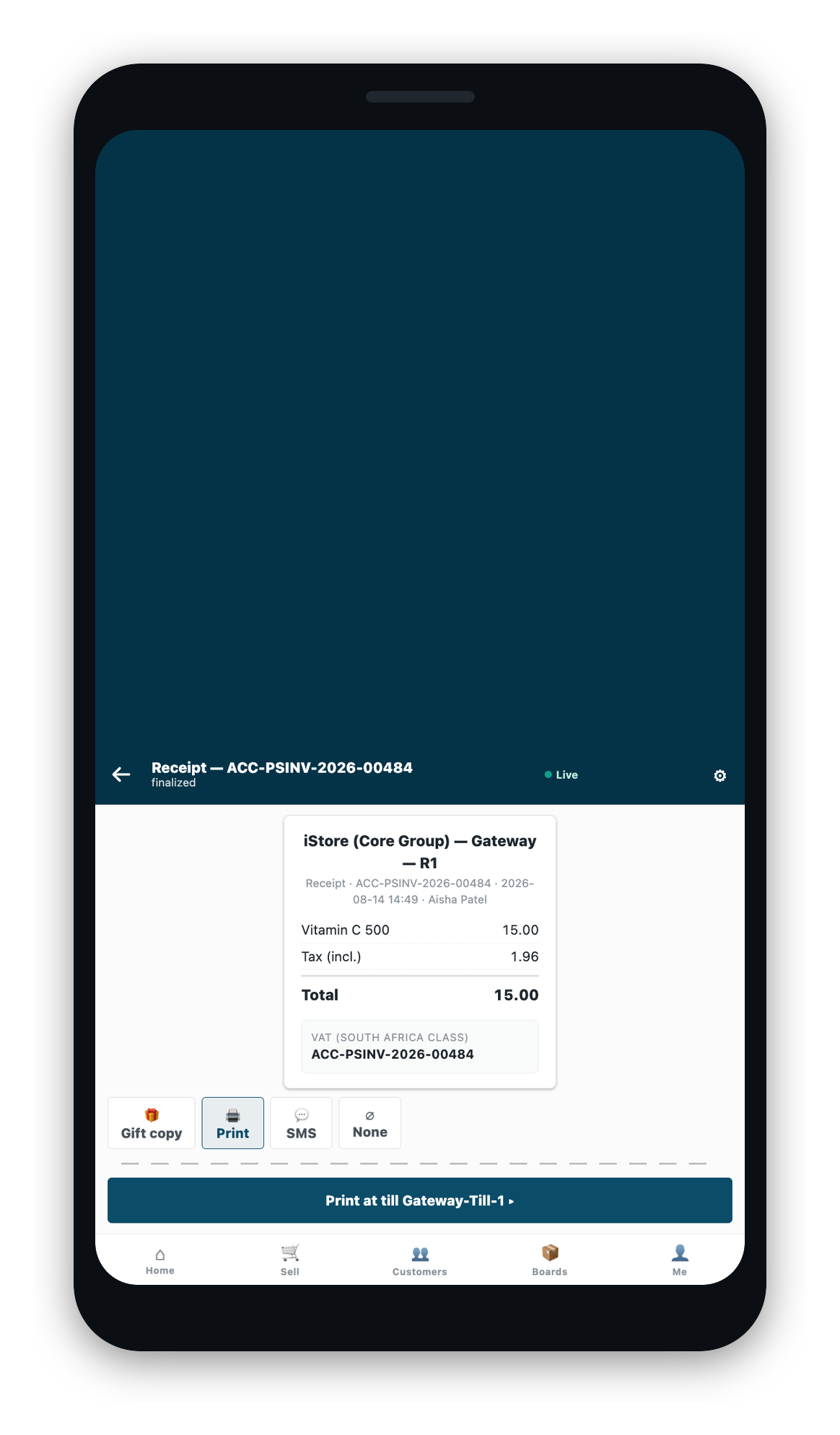
Once a sale is ready, the receipt screen shows the receipt and asks how the customer wants it. This page covers the delivery channels, what each one does, and the refusals you may meet. The gift copy has its own page, Gift Receipts and Reprints. Whether a sale is ready to release at all is covered in Receipts and Fiscal.
The channels
There are five choices. Which ones appear depends on what your store has set up.
| Choice | What happens | Worth knowing |
|---|---|---|
| The receipt goes to the printer set up for this register | The phone has no printer of its own. The paper comes out at the register the sale belongs to | |
| Gift copy | The same sale, printed with the prices removed | Covered in Gift Receipts and Reprints |
| Sent to the customer's stored email address | Reported as queued: handed to the mail system, which delivers it | |
| Text message | Sent to the customer's stored mobile number | Needs your store's messaging service to be set up |
| None | Nothing is sent | A real choice, and it is recorded as one |
Print and none are always there. The gift copy appears wherever a gift layout is set up. Email and text are off until an administrator switches them on, so a register straight out of the box shows four choices, not five. Email is not grayed out when it is off. It is simply not offered, which is the correct way to show a channel the store has not set up.
Every attempt reports what happened
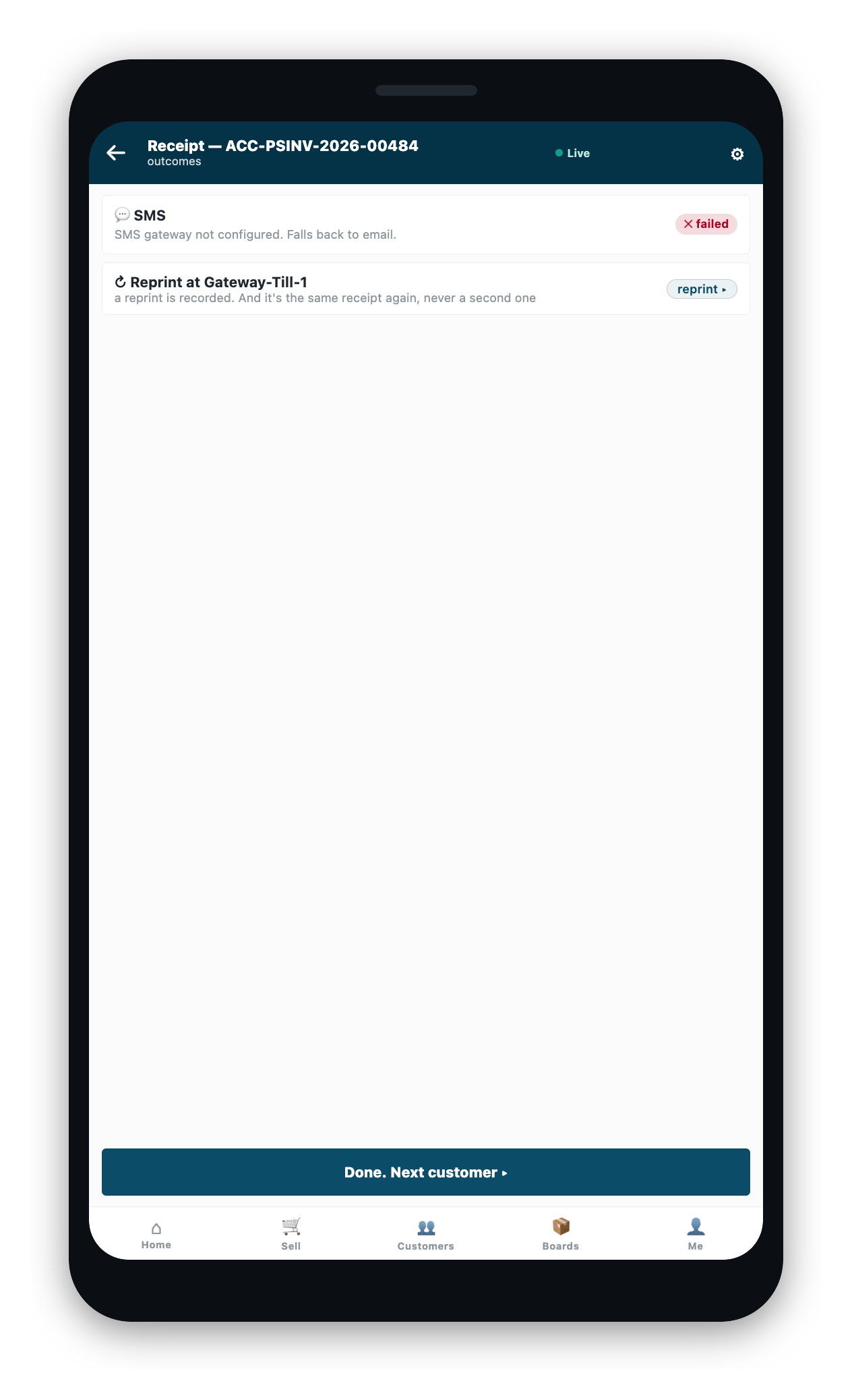
After you send, the screen shows a row for each attempt: sent, queued, failed, or skipped. A failure says what went wrong and what to do about it. The app never reports a success it did not achieve.
Two words are deliberately different:
- Sent, for a print, means the job reached the printer's server. It is not a promise that paper came out. If the printer is out of paper, that is the printer's own story to tell.
- Queued, for an email, means the message was handed to the mail system. Delivery happens after that.
Printing
Print sends the receipt to the printer set up for the register the sale belongs to. A phone with no printer of its own can still put paper in a customer's hand at a register.
Which printer serves a register comes from the register profile. The printer set on the profile is used, and if the site has exactly one printer, that one is used. If printing cannot go ahead, the app names the reason and the one-field fix rather than printing at the wrong place:
- No print route is set up for this register, and the site has no single printer to fall back to.
- This register has no printer assigned, on a site that has more than one. Assign one, or use another channel.
- The printer set for this register is missing, because its record was deleted. The app refuses rather than quietly printing somewhere else.
- The print job failed. The printer's server is set up but the job did not go through. Try again.
- Network printing is not set up for this store. The printing software is not installed on the server. This is a different problem from a failed job, and it needs an administrator, not a retry.
- Print is switched off for this register, because a manager set it to print nothing.
- No receipt layout is set for this store, and no built-in layout is available to fall back to.
The same printing route serves your store's shift and end-of-day papers, so a printer set up here is set up for those too. See Ending Your Day.
Emailing or texting a receipt
A digital receipt always goes to the customer's own record. You cannot type an address into the receipt screen and send to it. This means every receipt that leaves the store is attached to a customer and can be accounted for afterwards.
- If the customer already has an address or number stored, that is where the receipt goes. You cannot change it here. A customer's email address is part of their record, and changing it is a change to their record, not a step in handing over a receipt. The back office has a place to do that.
- If the customer has none stored, you can enter one once. It is saved to their record, and the receipt goes to the saved value.
- On a walk-in sale with no customer attached, the app asks you to create or attach a customer first. A shared walk-in record can never carry someone's personal email or number.
- One address, one number. A list joined by commas, a name-and-address form, or a number with no digits is refused.
Email is set for each register, and it is off until it is switched on. Where it is off, the app refuses before it reads any contact, so a disabled channel cannot capture a walk-in's details as a side effect. Text messages need your store's messaging service to be set up. With none set up, the app refuses by name rather than reporting a message it did not send.
What can stop a delivery
Most refusals name a store setting or a customer detail:
- Email receipts are switched off for this register.
- The messaging service is not set up, for a text message.
- No email address or mobile number for this customer, and none was entered.
- A digital receipt goes to a customer's stored contact: create or attach the customer first on a walk-in sale.
- This customer's contact is on file: changing it is a customer-profile edit, not a receipt step.
- A receipt can only be delivered to the sale's own customer, except a walk-in whose customer is captured in the same flow.
- Enter a single email address or a single mobile number.