
Alterations and made-to-measure tickets
Retail Extensions · App · checked 2026-10-29 on a demo site
Alterations and made-to-measure tickets is for a fashion store that alters what it sells, or makes suits and dresses to measure. Each alteration and each made-to-measure piece gets a ticket in iVendNext: what to do to which garment, the measurements, the fitting, the date it is ready, the tailor's progress, a slip for the customer with a tag for the garment, the tickets due, and who collected it. The charge and any deposit are taken at the till, as today. This page covers what the app adds, how to set it up, how your staff use it, and how to remove it.
What it does
| Where | What you get |
|---|---|
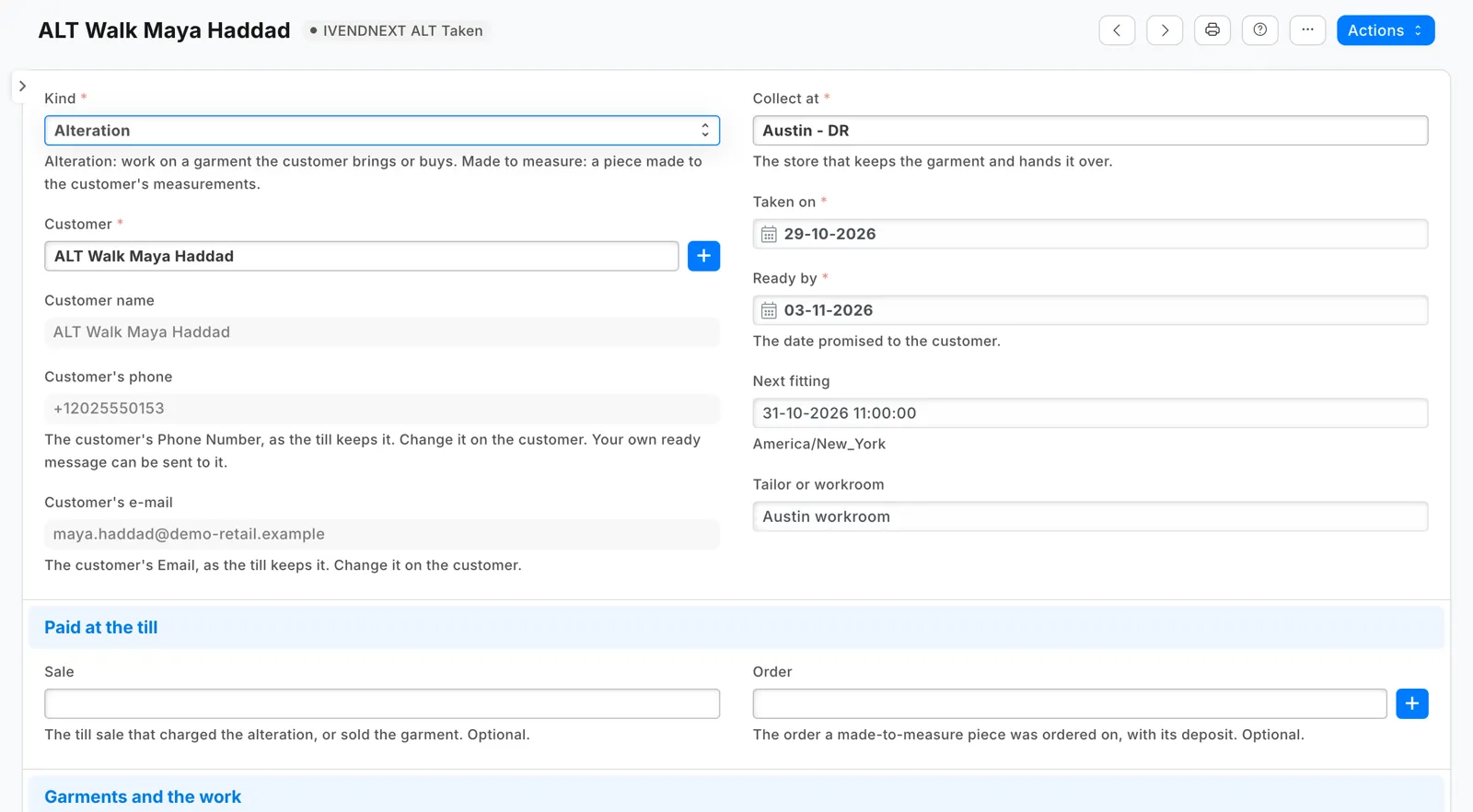
| Ticket | Alteration or Made to measure; the customer, with their phone and email as the till keeps them; the store that hands it over (Collect at); Taken on, Ready by, Next fitting and the tailor or workroom; the till sale and the order it was paid on; each garment and What to do; the Measurements; fitting notes; Collected by. Numbered IVN-ALT-00001 and on. |
| Its steps | Taken → With the tailor → Fitting → Ready to collect → Handed over, or Cancelled. Back to tailor from a fitting, or from Ready to collect for more work. Ready ticks Ready to collect; going back unticks it. Hand over and Cancel tick Closed. |
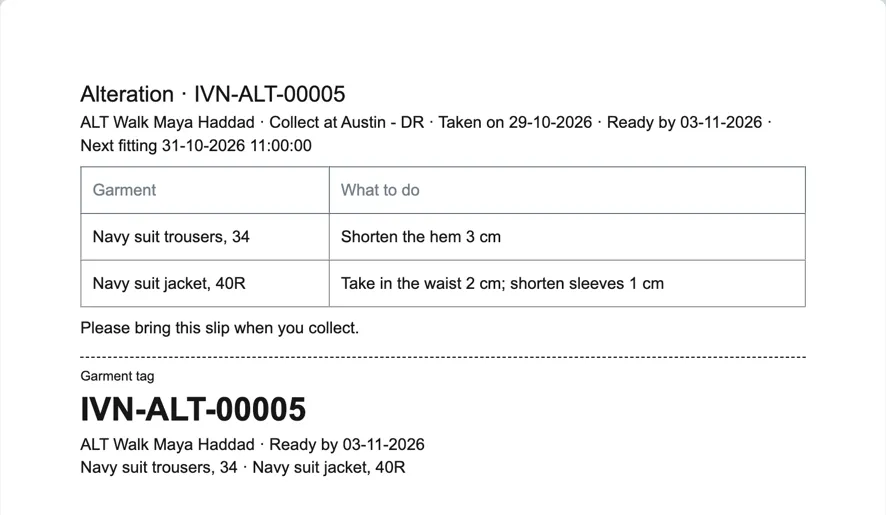
| The slip and the tag | Print gives the customer's slip (the ticket number, the store, Ready by, each garment and its work, the measurements) and, under a cut line, a tag to pin on the garment. |
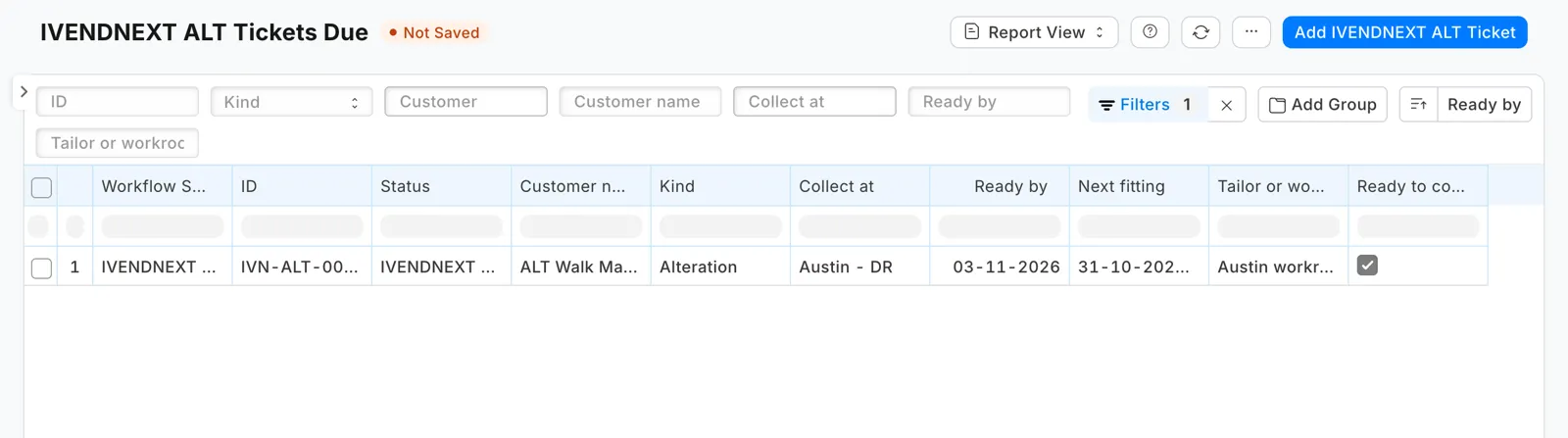
| Tickets due | A report of every ticket not closed, the earliest Ready by first. |
| The customer, the sale, the order | Each one's form lists its tickets under Alterations. |
What you set up first
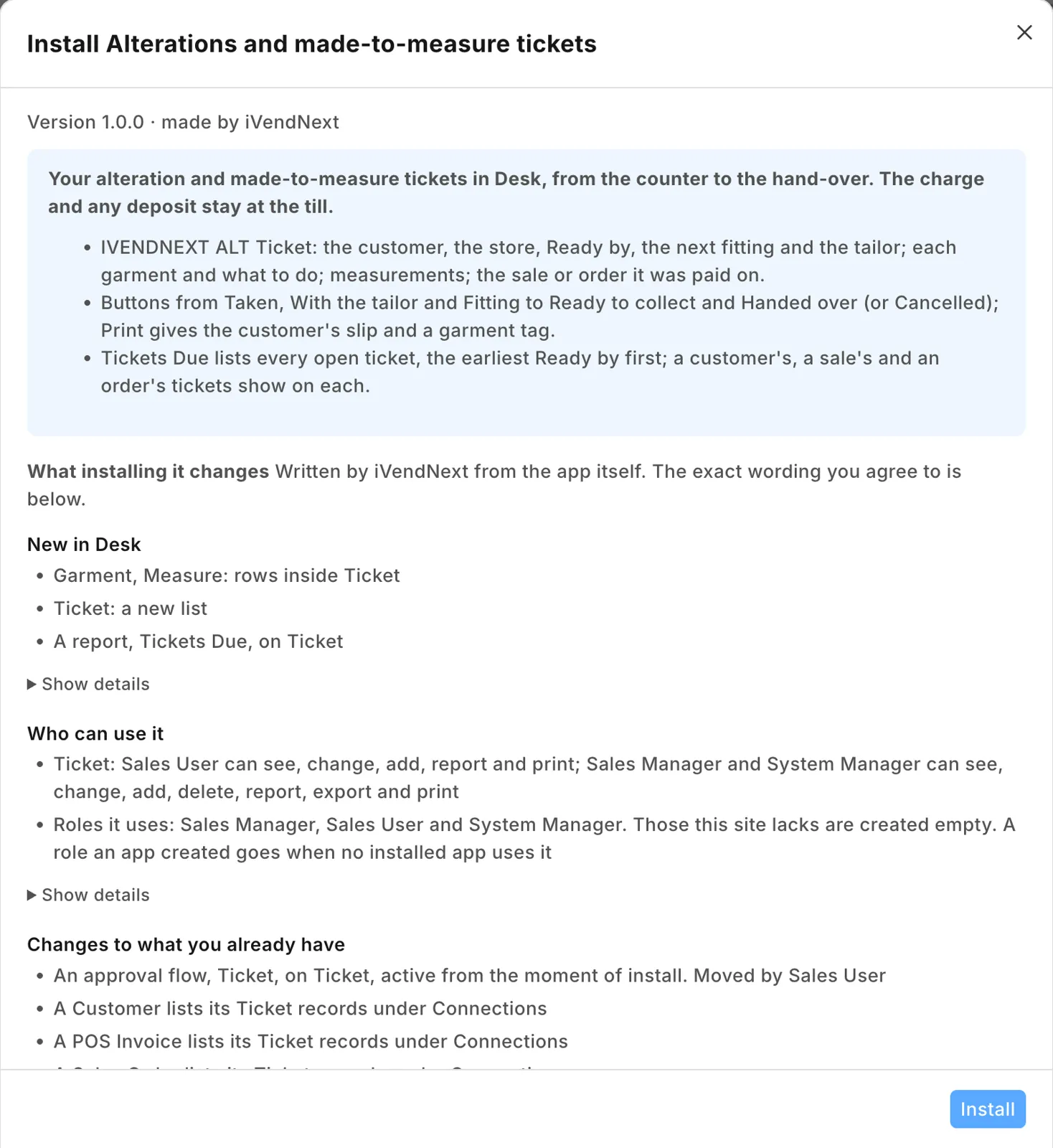
- Install the app from the App library (see About Retail Extensions). The install adds the record IVENDNEXT ALT Ticket, its steps, the print, the report and the lists under the customer, the sale and the order. It adds no role, no setting and no user, and it calls nothing outside your iVendNext.
- Give the people at the counter and in the workroom Sales User: they take, move and print tickets. They cannot delete one; a Sales Manager can, and also needs Sales User to move one.
- Ring the alteration at the till as you do today: as a service item (Hem trousers), or as a surcharge on the garment's line where you set one up. A made-to-measure piece is ordered with its deposit through the till's order or a layaway.
- Tell customers their alteration is ready with your own notification (below).
The ready message
The app sends nothing itself. Search Desk for Notification and add one:
| Field | Value |
|---|---|
| Document Type | IVENDNEXT ALT Ticket |
| Send Alert On | Value Change |
| Value Changed | Ready to collect |
| Condition | doc.ready_to_collect in (1, "1"); for SMS, doc.ready_to_collect in (1, "1") and doc.customer_phone |
| Channel and recipient | Email to the document field Customer's e-mail, or SMS to Customer's phone through your SMS gateway |
| Subject and message | for example, Your alteration {{ doc.name }} is ready to collect at {{ doc.store }}. |
Keep the condition as written: the steps write the tick as text, and without it the message would also go out when a ticket goes back to the tailor. For SMS, keep the phone in it: iVendNext refuses a text message with no number and records each refusal in its Error Log. A reminder the day before a fitting is a second notification: Days Before, Next fitting, 1 day, condition not doc.closed (for SMS, not doc.closed and doc.customer_phone).
Tickets
At the counter, after the till sale, search Desk for IVENDNEXT ALT Ticket and press + Add:
- Choose the Customer by name and number, never your store's walk-in customer: the slip, the tag and the ready message need the real person. If they are new, make them at the till's new-customer sheet first. Their phone and email come from the customer record, read only: to change them, change the customer (the till's customer edit writes them too).
- Choose Collect at, set Ready by, and, if there is one, Next fitting and the tailor.
- Add a row per garment under Garments and the work: the garment as the customer will know it, its item if it was sold in your store, and What to do (shorten the hem 3 cm).
- For a made-to-measure piece, set Kind to Made to measure and fill Measurements: chest, waist, inside leg, each with its value and unit.
- Under Paid at the till, choose the Sale or the Order it was paid on.
- Save, then Print the slip and the tag. Give the customer the slip and pin the tag on the garment.
As the work moves, press the ticket's buttons: Send to tailor, Book a fitting, Back to tailor, Ready. When the customer comes, take any balance for a made-to-measure piece at the till first, write Collected by, then press Hand over (it does not ask for Collected by). The ticket's history shows who pressed each button and when. Cancel closes a ticket the customer gave up.
Search Desk for IVENDNEXT ALT Tickets Due for the list of open tickets.
Where it shows
In Desk only: the ticket, its print, the report, and the lists on the customer's, the sale's and the order's forms. Nothing is shown on the till.
What leaves your iVendNext
Nothing, from the app: it has no service and no outside address. Your own notification sends the customer's email or phone to your mail server or SMS gateway. A ticket keeps the customer's measurements and phone: personal data you keep under your own policy.
Limits
- The ticket is written in Desk, at the counter or in the workroom. Nothing links it to the sale or the order on its own: your staff choose them.
- A customer made in Desk with only a contact's mobile and email has no Phone Number or Email on the customer record until they are set, so the ticket shows neither and the ready email goes to no one.
- Which buttons a person sees in each step is Desk's rule; anyone allowed to change tickets through the API can change one in any step.
- A canceled ticket refunds nothing: a refund is the till's return.
- Desk shows the record, the report, the steps and the buttons with the app's prefix, IVENDNEXT ALT: the button Ready reads IVENDNEXT ALT Ready.
How to remove it
- Delete your own notifications on the ticket first (the ready message and any fitting reminder): a daily reminder left on a removed record fails every day.
- In the App library, find the app under Installed and press Details.
- On the app's record, press Export and uninstall and confirm. iVendNext first exports your tickets to a file.
- iVendNext removes the ticket, its steps, the print, the report and the lists. Your customers, sales and orders stay.