
Retail Extensions · App · checked 2026-10-29
Front of house is for a restaurant, a bar that takes bookings or a hotel's restaurant that serves tables with iVendNext POS. Your host keeps the evening in iVendNext Desk: the bookings, and the walk-ins waiting for a table. The app keeps a table from being booked twice, records a no-show, ties a booking to the sale that took its deposit, texts a waiting party when its table is ready, and seats a party by opening its table's check on your tills, so the server finds the table on the floor with the party's size. This page covers what the app adds, how to set it up, how your hosts use it, and how to remove it.
What it does
| Where | What you get |
|---|---|
| Reservation | The store, the date and time, the party size, the length of the stay, the table; the guest's name, phone, customer and notes; the deposit's sale and its amount. Numbered IVN-FOH-RES-00001 and on. Its status is Requested, Booked, Seated, No-show or Cancelled, set only by the app's buttons. |
| Book | Keeps the table for the party: if another booked party has that table at an overlapping time (each from its start for its length), the booking is refused and the other one named. Once booked, the time, the length and the table are read-only. A party already seated keeps its table by its open check, for as long as it stays. |
| Change booking | Frees a booked table so you can change the time, the length or the table; press Book again after. |
| Seat | Opens the party's check at its table on your tills, with the party's size and the booking's number. It refuses a table booked for someone else within the party's stay, and a table that still has an open check unless your store allows a second one. Pressed twice, it opens one check. |
| No-show, Cancel booking | Close the booking and free its table. A no-show writes your store's rule for its deposit on it. |
| A second press | Seat pressed twice, or pressed again after no answer, opens one check. A press while another is booking or seating answers press again in a moment. |
| Waitlist Entry | A walk-in party, its name and phone, the wait you quoted, in the order added; Table ready texts them through your own notification; Seat opens their check. Numbered IVN-FOH-WL-00001 and on. |
A guest's name, phone, customer and notes, on the reservation and the waitlist entry, are read and changed only by the role IVENDNEXT FOH Host and by System Manager. They are never shown on a till, and the app's own service never reads them.
What you set up first
- Set up your floor if you have not: your sections and tables (Retail Floor Section, Retail Floor Place), and Table Service ticked on the store's register (its POS Profile).
- Install the app from the App library (see About Retail Extensions). The install adds the reservation, the waitlist entry, the settings, the roles IVENDNEXT FOH Host and IVENDNEXT FOH Integration, six buttons and their five services (switched off), and the app's own user, ivendnext_foh@integration.invalid, which works through the API only.
- Open that user (search Desk for User) and, in this order: keep Is Desk User and tick Is POS User; choose any Shift Profile; choose a Retail Permission that allows, under Open Checks, only open a check and see the checks (make one if you have none); add one row to the store access table, with the store and its register; Save; then press Generate Keys. Without Is POS User, saving drops the store row and every seating is refused. Never give this user write on Floor Section: that would let it do everything to a check, a comp included.
- Give IVENDNEXT FOH Host to your hosts and managers. In Role Permissions Manager, give it Read on Retail Floor Place and Select on Warehouse, POS Invoice and Customer, the records a booking links to; without them the host's list is refused. The deposit's amount fills in when the booking is saved: the Cannot fetch values box a host sees on choosing the deposit sale is expected, so do not give hosts Read on every sale.
- Fill in the settings (below).
- In Retail Extension Subscription, open each of the app's five services, read what it sends, tick the consent and switch it on. In Retail Desk Action, switch on the six buttons. If the App library asks, press Connect again on the app.
Settings
Search Desk for IVENDNEXT FOH Settings and add one for your company, with a row for each store whose tables the app seats:
| Field | What to put |
|---|---|
| Store | the store |
| Register | the same register you gave the app's user at that store; its checks open there |
| Usual booking length (minutes) | how long a party keeps its table when the booking does not say; 90 to start |
| Seat at a table that has an open check | leave it off, so the last party's bill is never split in two; tick it for a long table shared by different parties |
| No-show deposit | Keep it or Return it: what No-show writes on a booking that took a deposit |
The table-ready text
The app sends nothing itself. With SMS Settings set up for your SMS provider, search Desk for Notification and add one:
| Field | Value |
|---|---|
| Document Type | IVENDNEXT FOH Waitlist Entry |
| Send Alert On | Value Change |
| Value Changed | Status |
| Condition | doc.status == "Table ready" and doc.phone |
| Channel and recipient | SMS, receiver by document field phone |
| Message | for example, Your table is ready. Please come to the host stand. |
Keep the phone in the condition: iVendNext refuses a text with no number and records each refusal in its Error Log; the waitlist entry still saves.
Reservations
Search Desk for IVENDNEXT FOH Reservation. The list is the evening's diary: set its Date filter to the day (Desk remembers it), and it lists that day's bookings by time.
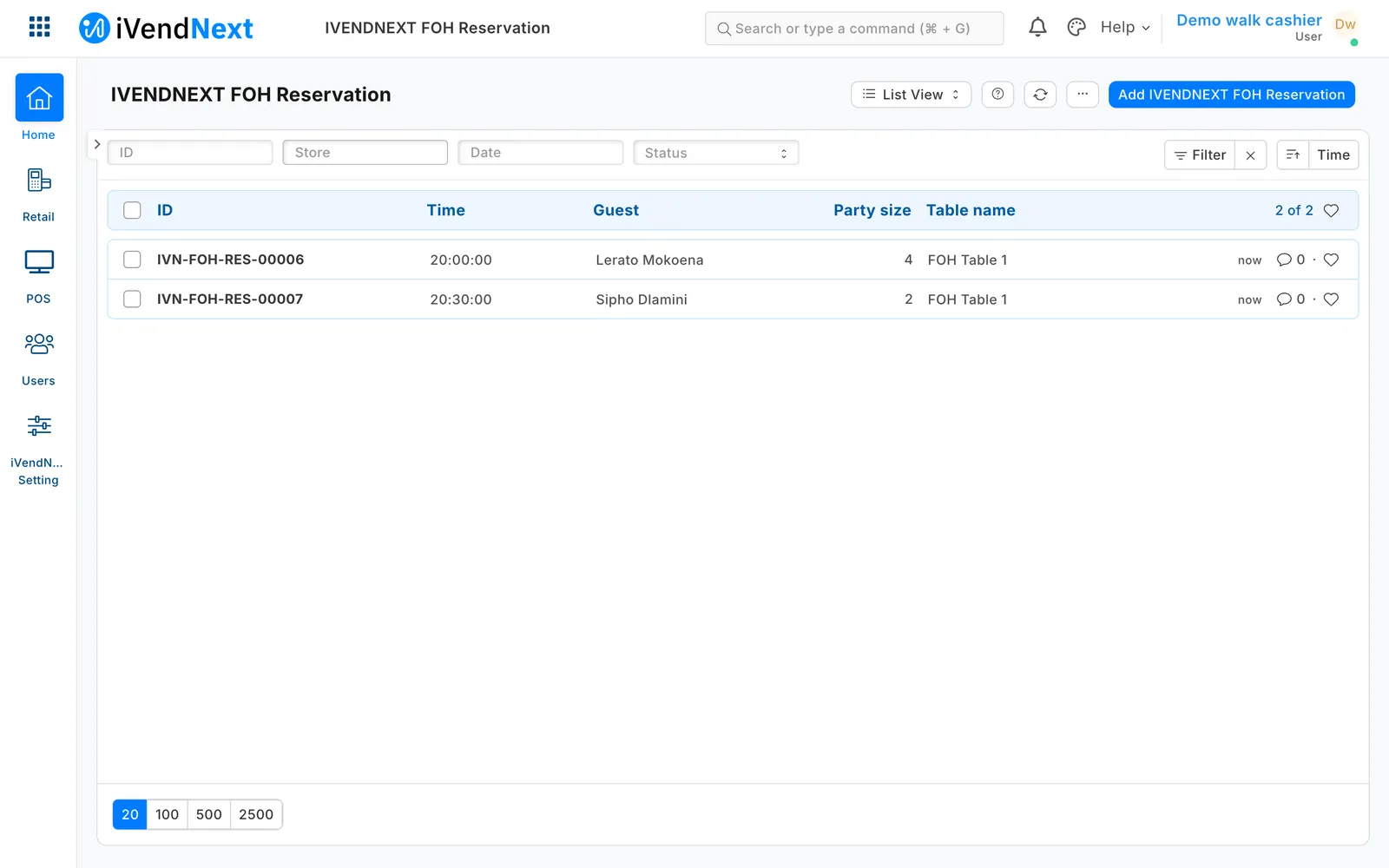
- Press + Add: the store, the date and time, the party size, the guest's name and phone, and the customer if they have one. Choose a table now to keep it for them, or when they arrive. Save: the booking reads Requested.
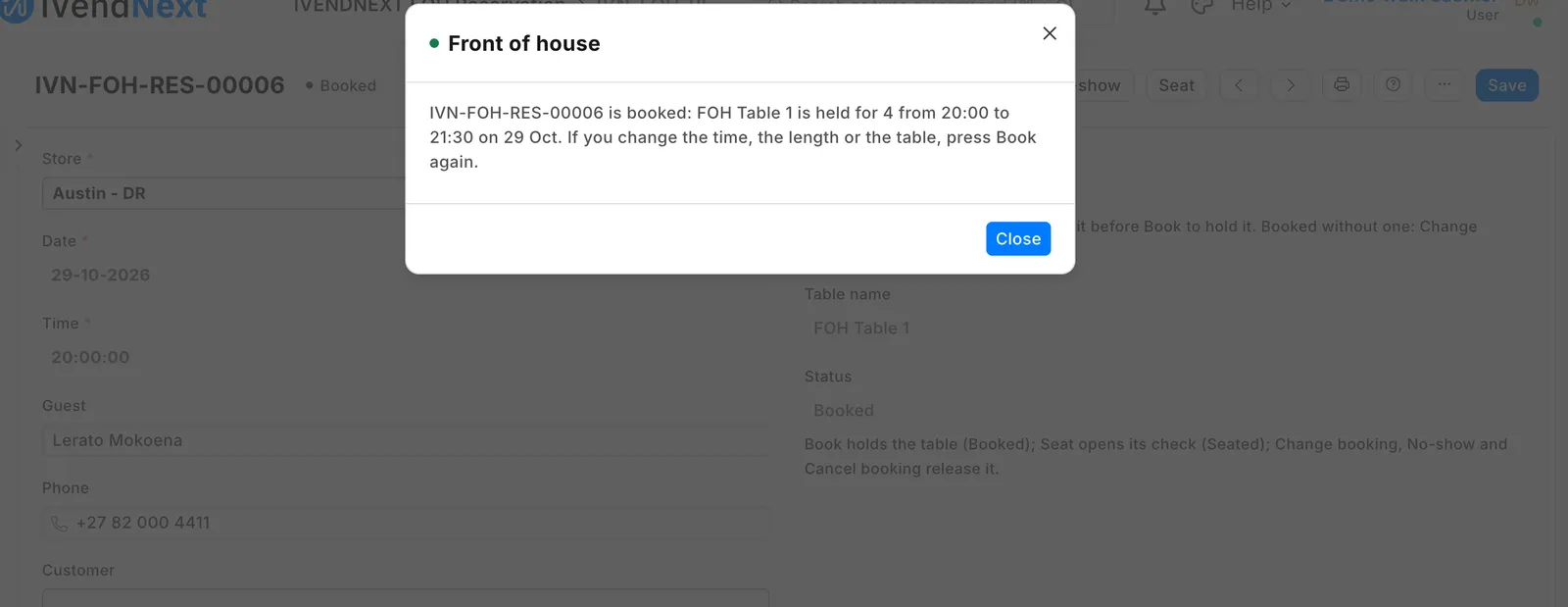
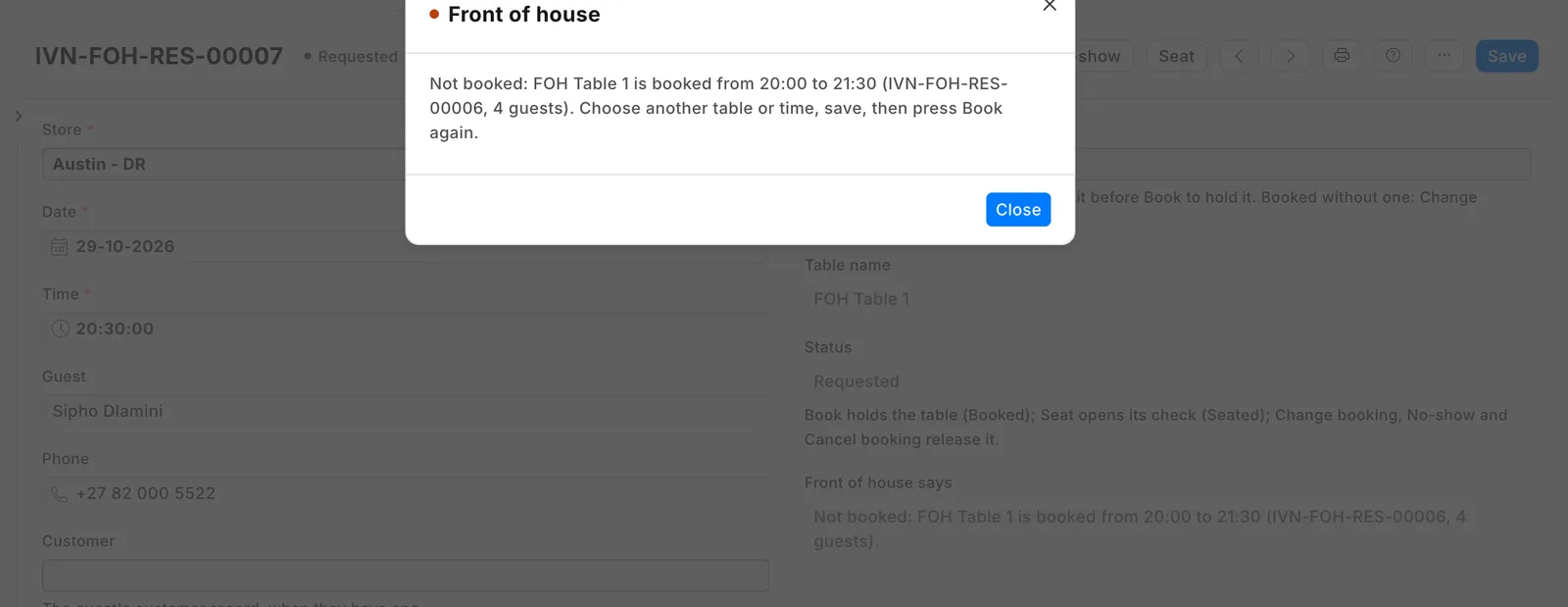
- Press Book. The table is kept for the stay: the booking's own length, or the store's usual one. If another party has that table then, the booking is refused, naming the other booking and its time; choose another table or time, save, and press Book again. Once booked, the time, the length and the table are read-only: to change them, press Change booking, change them, save, and press Book. A booking made without a table gets one the same way.
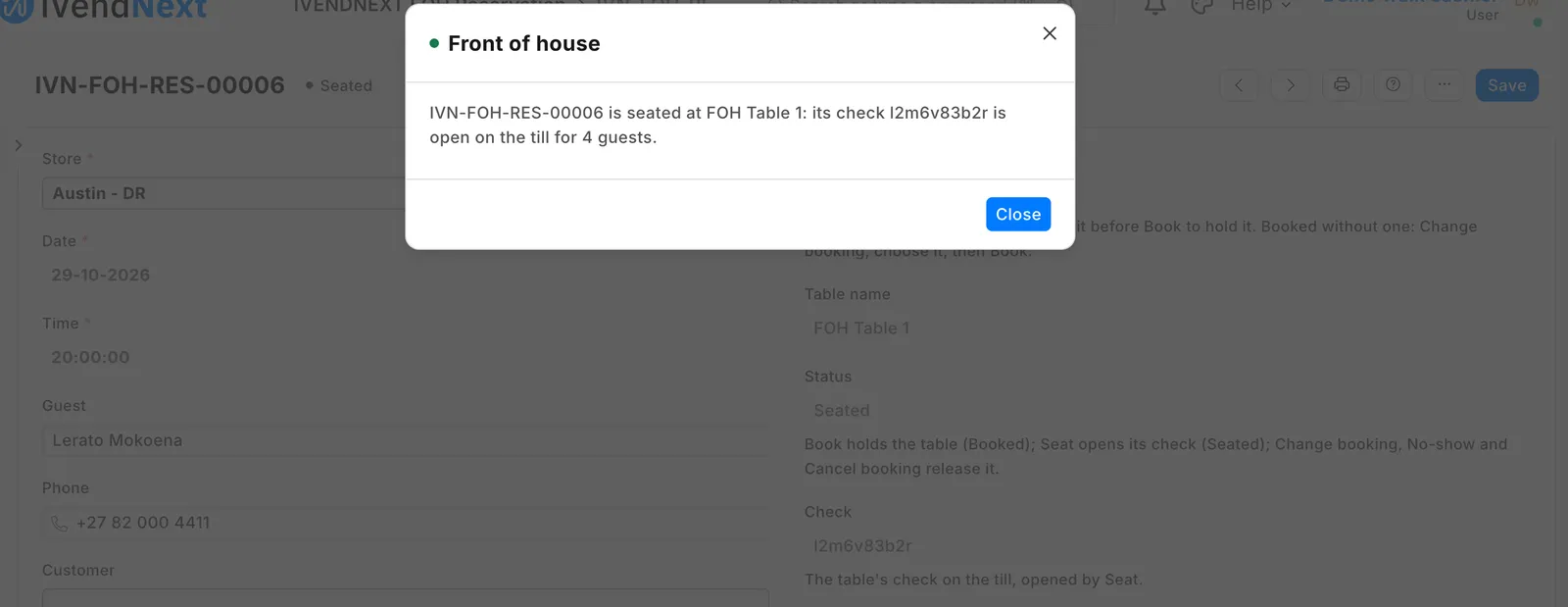
 3. When the party arrives, choose the table if you have not, save, and press Seat. Their check opens on your tills at that table, for the party's size, labeled with the booking's number. The booking reads Seated with the check's number. The server takes the order on the till as usual, and the table pays at a till.
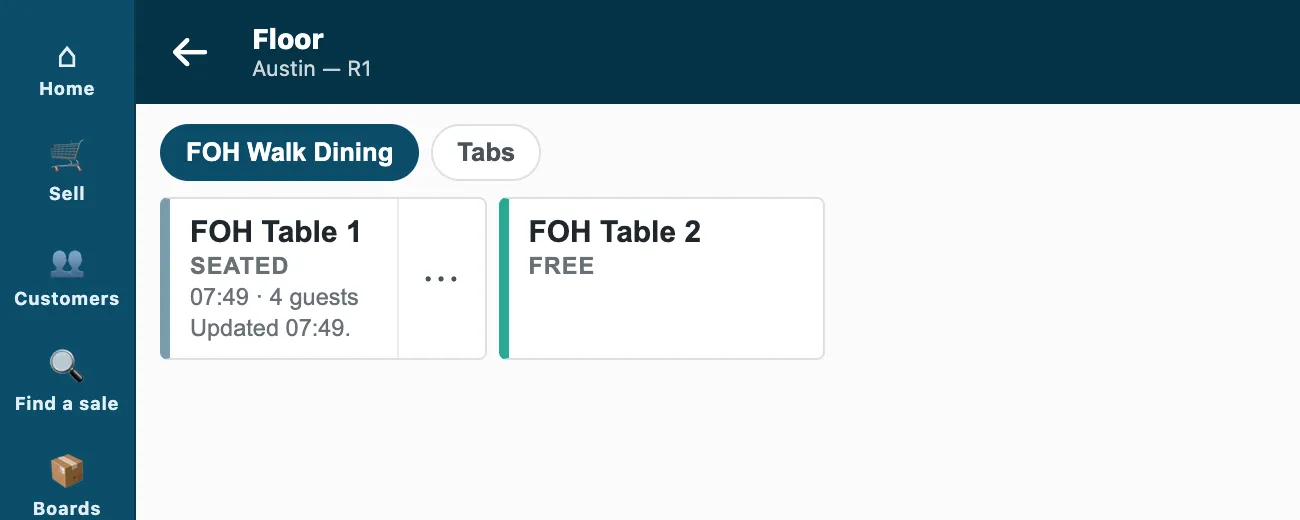 4. A party that does not come: press No-show. A booking called off: press Cancel booking. Either frees the table.
A deposit
Take the deposit at the till as an advance for the guest's customer record (Customers, then Take a payment). If the guest already owes you on account, the till settles that first and only the rest becomes the deposit, unless the cashier sets those bills aside. On the reservation, choose that sale under Deposit sale: its amount shows beside it, and the check's label carries it. The deposit stays on the guest's account: nothing takes it off the bill by itself. When the table pays, the cashier puts the guest's customer on the sale and puts the deposit's part On account (the cashier needs take a payment on account in their Retail Permission, and the guest a buyer tax registration where your market asks for one), the rest as usual. When the day closes, that sale joins the guest's invoice, and your accountant matches the deposit to it in Payment Reconciliation. A no-show deposit you keep is booked to income from the same advance; one you return is paid back from it.
Waiting list
Search Desk for IVENDNEXT FOH Waitlist Entry and press + Add for a walk-in: the party size, a name and phone, the wait you quoted. The list shows the parties in the order they came.
- When a table is ready, set the entry's Status to Table ready and save: your notification texts the guest.
- When they come to the stand, choose the Table, save, and press Seat. Their check opens at that table. If the table is booked for someone else before the party would leave, Seat refuses and names that booking: choose another table.
- A party that leaves without a table: set Status to Left.
Where it shows
In Desk: the reservations, the waiting list and the settings. On the till: the seated party's check on the floor, at its table, with the party's size. The till shows no guest's details from this app.
What leaves your iVendNext
On each press, iVendNext sends the app's service at front-of-house.ivendnext.app (hosted by CitiXsys in the United States) the record's number, the user who pressed and the language. The service reads, with the app's own user, the booking or waiting party without the guest's details, the table's bookings around that day, your settings and the store's floor; it writes the record's status, its note and the check's number, and opens one check through your till. It keeps nothing about a booking or a guest; it keeps your site's key from the connection until you remove the app. Guests' names and phones stay in your iVendNext, and your own notification sends a phone number to your SMS provider.
Limits
- The guard runs when someone presses Book or Seat. Once booked, the form keeps the time and the table read-only; a change made another way (the list's Actions, Edit, or the API) is checked only at the next Book or Seat.
- Times are your site's: stores in other time zones on one site see bookings at the site's time.
- Nothing marks a booking late or a no-show by itself: the host presses No-show.
- At a table the floor shows the check by its table's name, so the booking's number and deposit on the check's label show when you open the check.
- A check moved or merged at a till after Seat keeps its first number on the reservation.
- The app opens checks and reads the floor, nothing more: it never adds a dish, moves, closes or prints a check.
- Opening a check needs a connection to iVendNext.
- Desk shows the records with the app's prefix, IVENDNEXT FOH.
How to remove it
- Pay or close every check the app opened (each reservation and waiting party shows its Check): once the app is removed, a check it opened can no longer be changed.
- Delete your own table-ready notification.
- In the App library, find the app under Installed and press Details.
- On the app's record, press Export and uninstall and confirm. iVendNext first exports your reservations and waiting list to a file.
- iVendNext removes the reservations, the waiting list, the settings, the roles and the app's user. Your sales and deposits stay.