
Sell-through by size
Retail Extensions · App · checked 2026-10-29 on a demo site
Sell-through by size is for a fashion, footwear or sportswear retailer whose buyers need to know which sizes and colors of each style sell out and which sit on the shelf, store by store. A buyer names a range, the stores and a start date, and presses a button. The app writes one row per style, color, size and store: what the tills sold since that date, what is still in stock, and the share sold. Both figures come from your own iVendNext reports. This page covers what the app adds, how to set it up, how your buyers use it, and how to remove it.
What it does
| Where | What you get |
|---|---|
| A run | A title; an item group, or one style in it; Sold since (at most two years back); the size attribute and, if your styles come in colors, the color attribute; one to 20 stores. Numbered IVN-SST-00001 and on. |
| Work out sell-through | A button on the run. It fills the run's rows from your reports and writes a summary line, for example 42 sold since 2026-10-01, 58 in stock now: 42.0% sold through, across 3 stores. 2 rows sold out: none left in that store. Each press replaces the rows with today's figures. |
| A row | The style, the color, the size and the store; Sold: the units your tills sold since the date, returns taken off; In stock: the units there today; Sell-through %: sold divided by sold plus in stock; None left: ticked when the size has run out in that store. |
| The order | Styles together; colors and sizes in the order your attributes list them (XS, S, M, L, never the alphabet's); stores in the run's order. |
| The report | IVENDNEXT SST Sell-through by size lists every run's rows; filter it by the run, sort by any column. |
What you set up first
-
Install the app from the App library (see About Retail Extensions). The install adds the record IVENDNEXT SST Sell-through with its rows, the report, the button and the role IVENDNEXT SST Integration. It also makes the app's own user,
ivendnext_sst@integration.invalid, with that one role. That user works through the API only and can never sign in to Desk. Your site connects it to the app. It also adds a feed registration that names that user: leave the feed off. The button and its service come in switched off.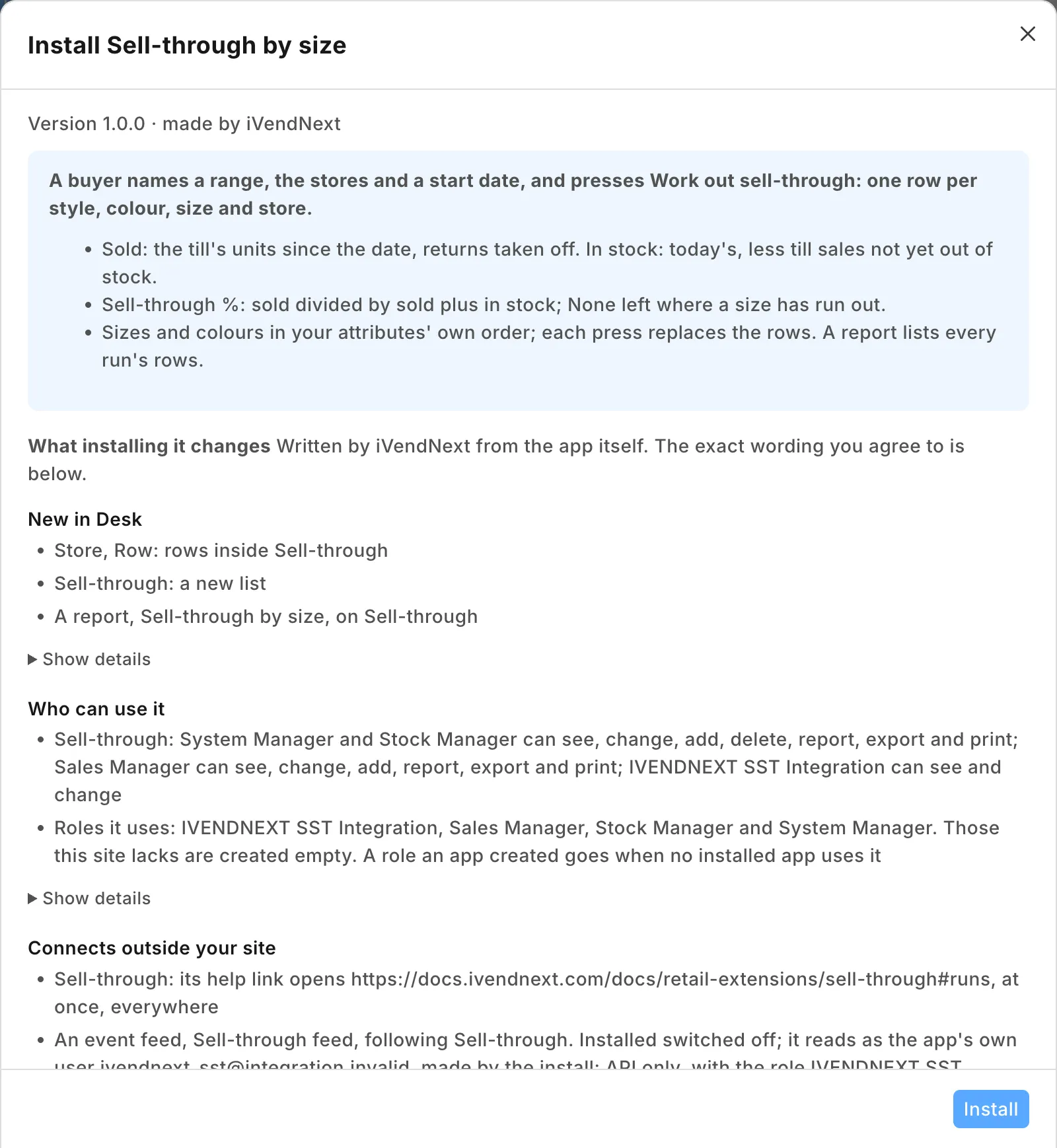
-
Search Desk for Role Permission for Page and Report. Choose Report, then POS Sale Report, add the role IVENDNEXT SST Integration and save. Do the same for Stock Projected Quantity.
-
Search Desk for Role Permissions Manager and give IVENDNEXT SST Integration these rights:
Record type Rights Why POS Invoice Read, Report the till sales POS Sale Report counts Item Read your styles and their sizes and colors Item Attribute Read the order of your sizes and colors Warehouse Read both reports' store filter UOM Read the stock report reads it POS Profile, Item Group, Customer, Customer Group Select only the sales report's own filters ask for them These are the fewest rights both reports answer with. The app reads no customer, but Read on POS Invoice and Select on Customer would let its user read your till sales and list your customers' names: give the role to no other user. A new row comes with Read ticked: untick it where the table says Select only.
-
Search Desk for Retail Extension Subscription and open Sell-through: read what it is sent, tick the consent and switch it on. Then search for Retail Desk Action and switch Work out sell-through on.
-
Your buyers are your Stock Managers and Sales Managers (a System Manager too): they keep the runs and press the button. In Role Permissions Manager, give both roles Select only (untick Read) on Item Attribute and Warehouse: a run's attributes and stores are picked from those, and neither role has them by default.
-
Your site connects the app by itself. Only if a press says the app is not set up, or that it may not read, and your site could not reach the app or a key was lost: in the App library, under Installed, press Details, then Connect again.
Runs
Search Desk for IVENDNEXT SST Sell-through and press + Add:
- Give the run a Title (Summer dresses, every store).
- Choose the Item group. The run reads that group's own items, not its sub-groups. To read one style, also choose it under Style: the item your variants were made from.
- Set Sold since: the run counts till sales from that day to today.
- Choose the Size attribute (such as Size) and, if your styles come in colors, the Colour attribute. Leave the second blank to count each size's colors together.
- Add one row per store under Stores, in the order you want them shown, and save.
- Press Work out sell-through and confirm. The rows and the summary appear on the run.
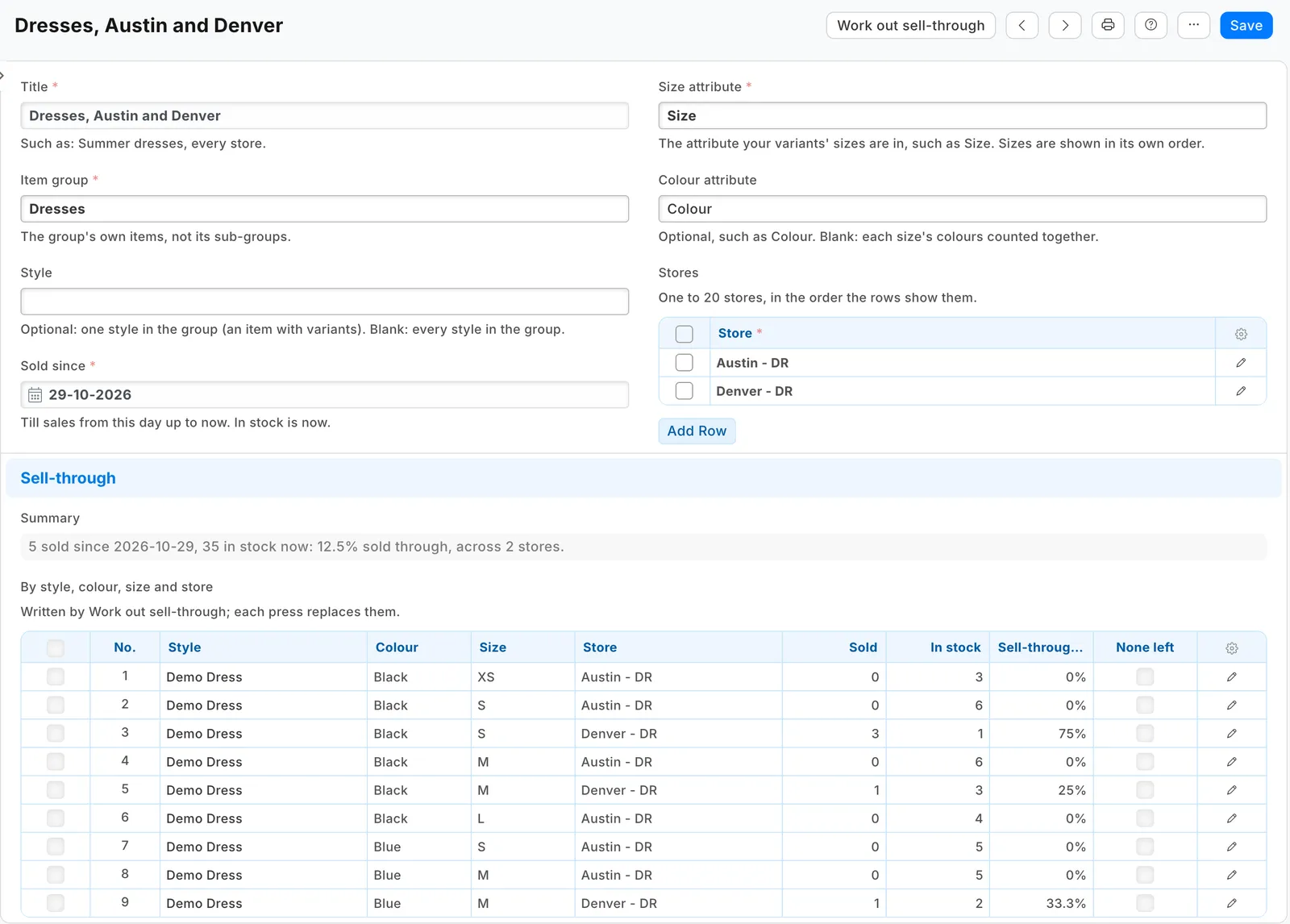
Press it again any time for today's figures. A sale rung today counts at once: its units are taken off the stock even before the day is closed.
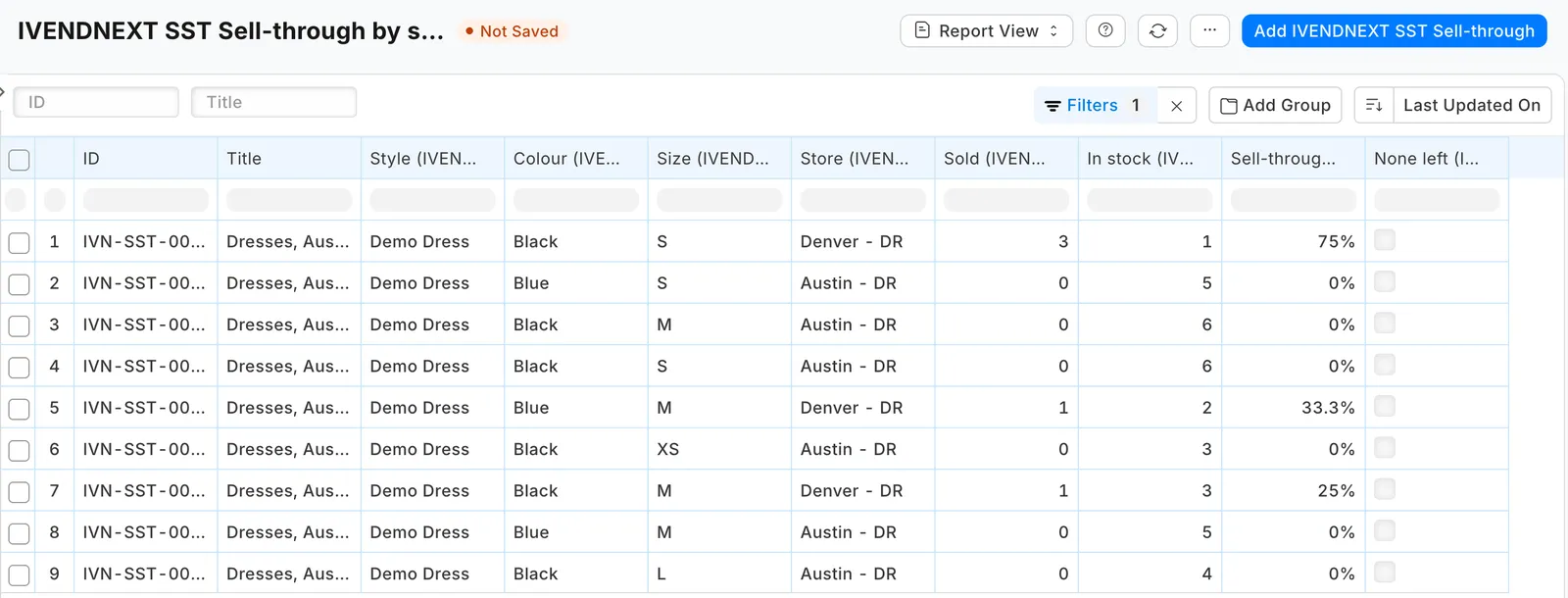
Where it shows
In Desk only: the run, its rows and the report. Nothing is shown on the till.
What leaves your iVendNext
On each press, your iVendNext sends the app's service at sell-through.ivendnext.app (hosted by CitiXsys in the US) the buyer's login and language and the run's name. The service then reads, with the app's own user: the run, the two attributes, the group's items and their sizes and colors, and for each store your POS Sale Report and Stock Projected Quantity. POS Sale Report also sends each item's sale amounts, refunds, discounts and tax: the service drops them and keeps only the units. It writes the rows back on the run. It reads no customer. It keeps nothing of a press; after the install your site sends it the button's signing key and the API key of the app's own user, which it keeps until you remove the app.
Limits
- Sold counts your tills' sales, as POS Sale Report counts them. Orders from an online store, and invoices made in Desk, are not in it. A till order not yet delivered counts as sold while it is still in stock.
- In stock is today's, so a run always reads from its start date up to today.
- Sold counts the units on each sale's line, In stock the item's stock unit: an item sold in packs reads wrong. Sell such items in their stock unit, or leave them out of the group.
- An item past its end of life keeps its sales but has no stock in the report, so it reads as none left.
- Sold since may be at most two years back.
- Choose each store's own warehouse, never a group of warehouses: a group reads as nothing sold and nothing in stock.
- A variant you have disabled is left out of the run.
- At most 20 stores and 1,000 rows a run, inside the button's 10 seconds. The button says which to change: fewer stores when the reports are slow, one style when a group has too many rows.
- Giving the app's role the two reports lets its user read every store's figures in them.
- If Stock Projected Quantity ever takes more than 15 seconds, iVendNext moves it to the background (a prepared report). The button then says so and writes nothing: untick Prepared Report on that report.
- Desk shows the record and the report with the app's prefix, IVENDNEXT SST.
How to remove it
- In the App library, find the app under Installed and press Details.
- On the app's record, press Export and uninstall and confirm. iVendNext first exports your runs to a file.
- iVendNext removes the run, its rows, the report, the button, the role and the app's user. Your items, sales and stock stay. Take the role off the two reports in Role Permission for Page and Report if it is still listed, and take back the Select on Item Attribute and Warehouse you gave your buyers' roles if nothing else needs it.