
Donation intake with a donor receipt
Retail Extensions · App · checked 2026-10-29 on a demo site
Donation intake with a donor receipt is for a charity or thrift store that takes donated goods in at its door. Each donation is recorded in iVendNext: who gave it (one of your customers, a name typed at the door, or no one named), what came in (each kind of goods, how many and in what condition), which store took it in, and when. The donor gets a receipt that stays as it was given. When the sorted goods go into stock, the stock entry names the donation. This page covers what the app adds, how to set it up, how your staff use it, and how to remove it.
What it does
| Where | What you get |
|---|---|
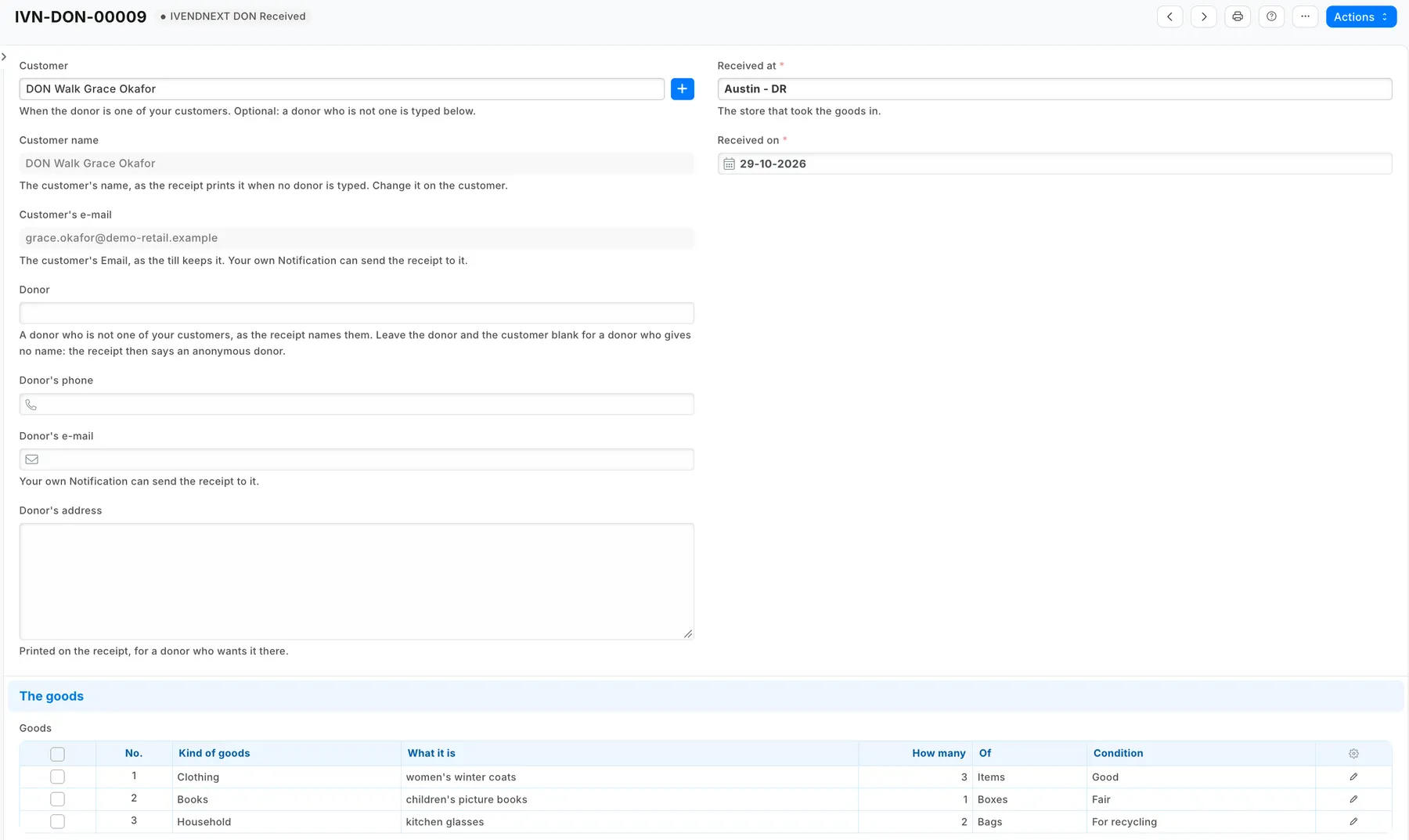
| Donation | The Customer when the donor is one of yours (their name and email show from the customer record, read only), or the Donor's name, phone and email typed in, or neither for an anonymous donor; the Donor's address for the receipt; Received at (the store) and Received on; a row for each kind of goods with What it is, How many, Of (items, bags or boxes) and Condition; notes for your store only. Numbered IVN-DON-00001 and on. |
| Its steps | Received → Receipt given, or Cancelled. Store staff cancel a donation that is still Received; only a store manager cancels one whose receipt was given. Nobody in the store deletes a donation: the donor may have its receipt. |
| The lock | Once a donation is Receipt given or Cancelled, its customer, donor, address, store, day and goods cannot change, in Desk, in an import or through the API. The phone, the emails and the notes stay editable: the receipt prints none of them. |
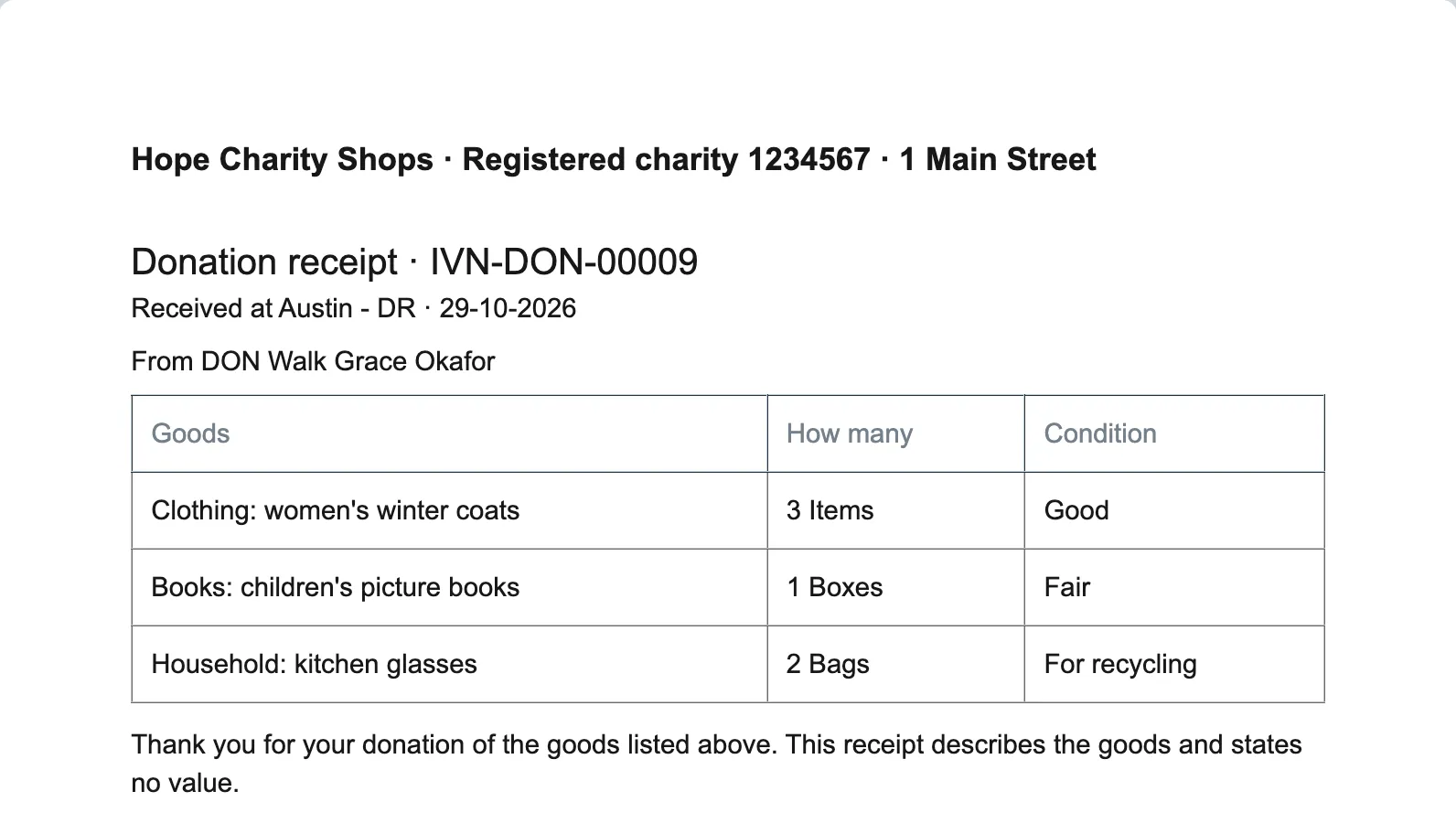
| The donor receipt | Print gives the receipt under your letter head: the donation's number, the store and the day, the donor (or the customer, or an anonymous donor) and their address, each line of goods with its count and condition, and "Thank you for your donation of the goods listed above. This receipt describes the goods and states no value." |
| Donations | A report of every donation not canceled, newest first, with its store and its donor. |
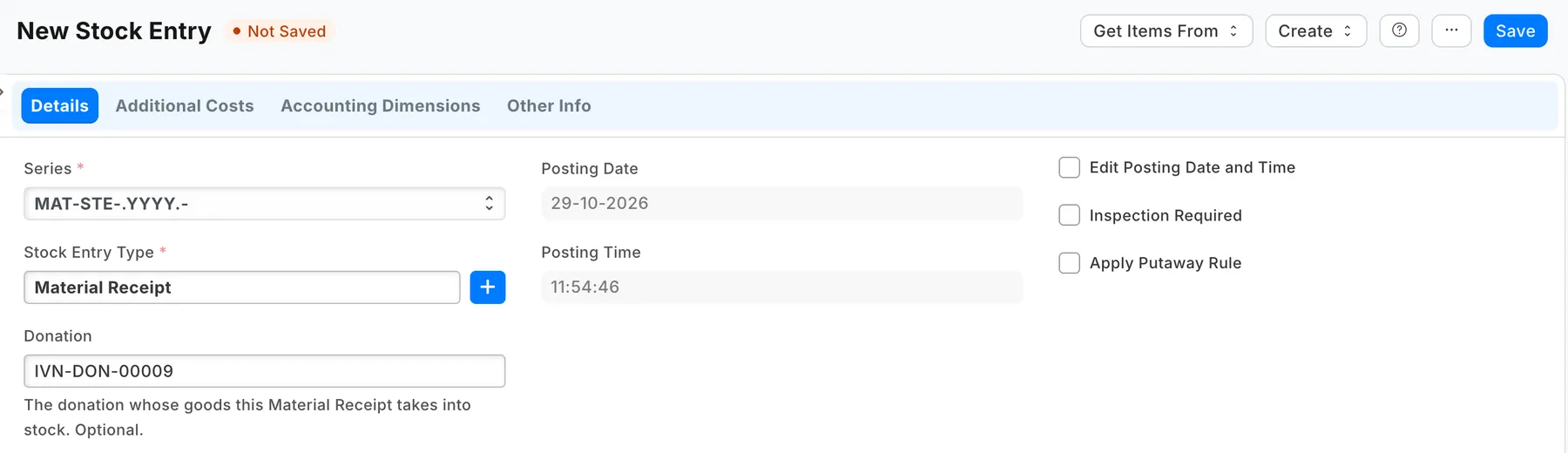
| Into stock | A Donation field on a stock entry of type Material Receipt: choose the donation whose goods it takes into stock. A customer's form lists their donations under Donations. |
What you set up first
-
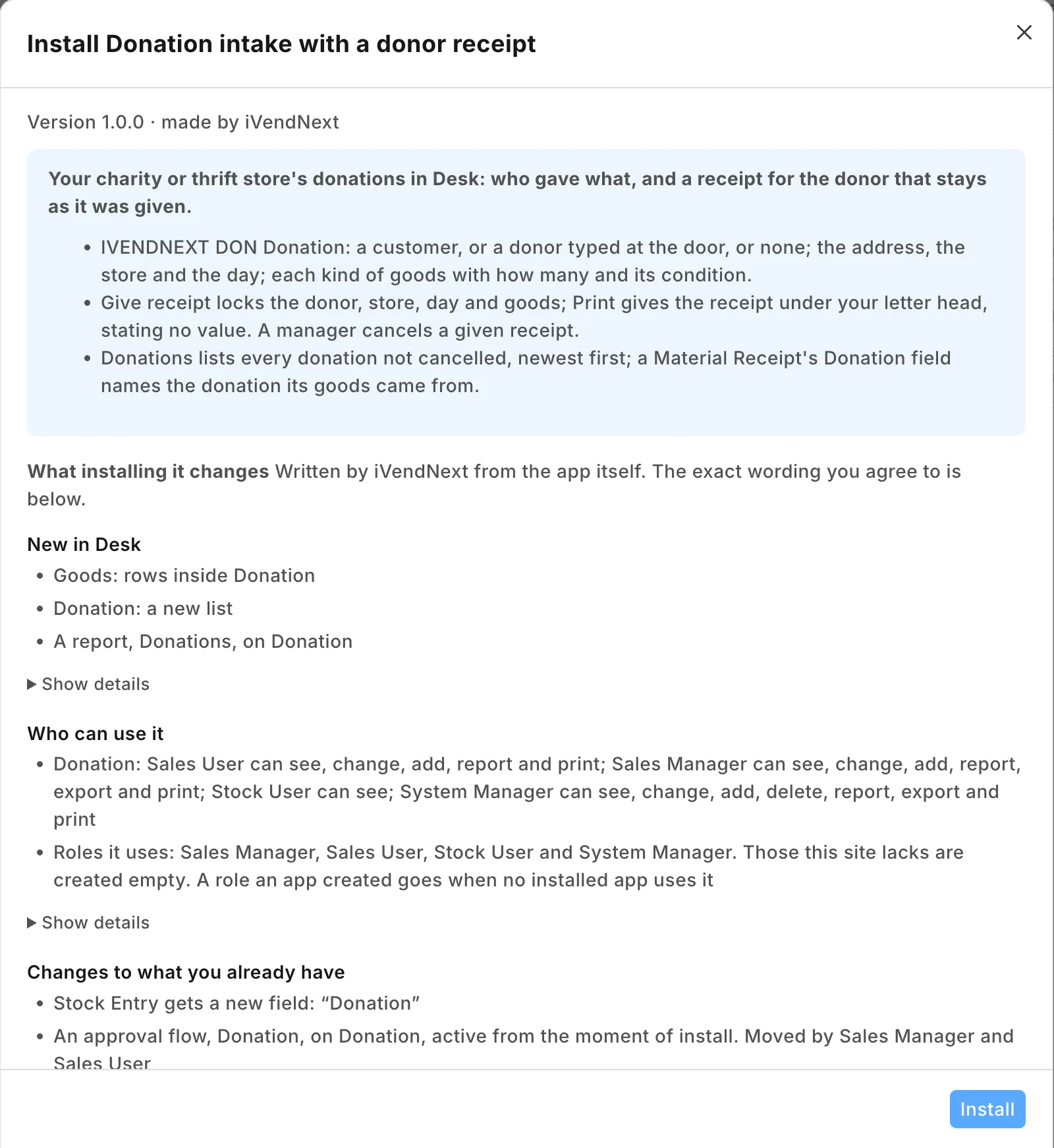
Install the app from the App library (see About Retail Extensions). The install adds the record IVENDNEXT DON Donation, its steps and lock, the receipt, the report, the Donation field on stock entries and the list under the customer. It adds no role, no setting and no user, and it calls nothing outside your iVendNext.
-
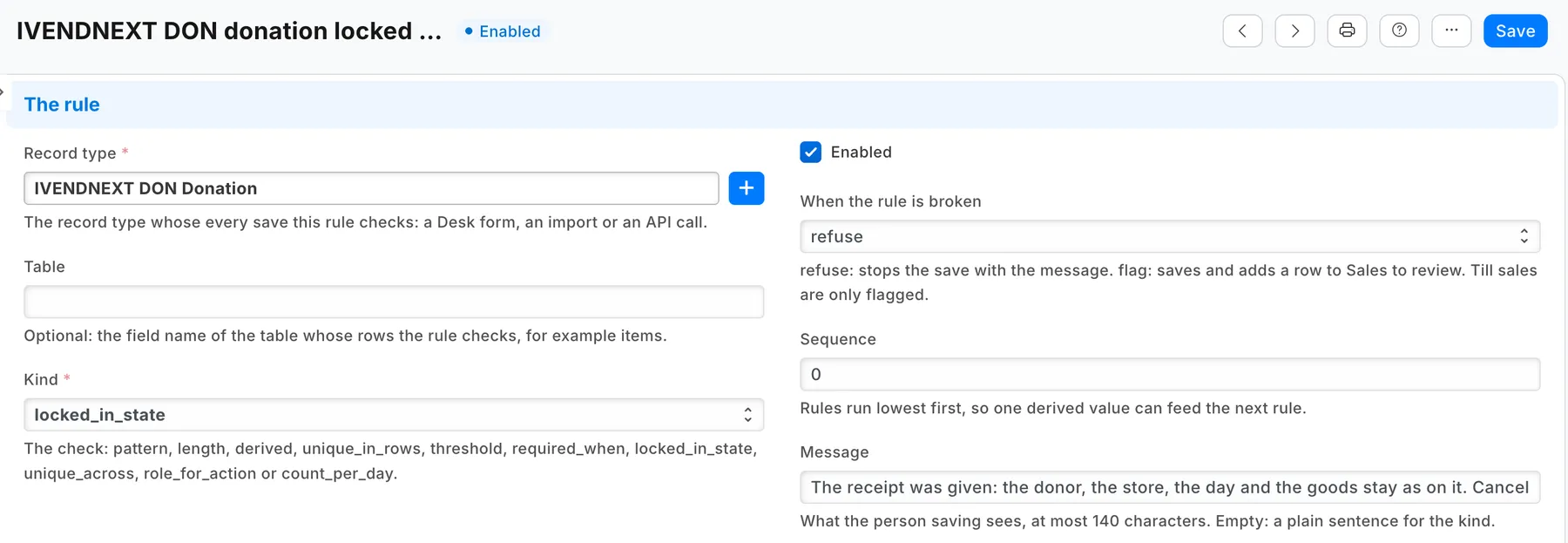
Switch the lock on: search Desk for Retail Save Rule, open the rule IVENDNEXT DON donation locked once its receipt is given, tick Enabled and save. Like every rule an app installs, it arrives switched off; until it is on, a given receipt can still be changed.
-
Give the people at the donation door Sales User (or a role of your own with the same rights on the donation): they take donations, give and print receipts, and cancel a donation not yet given its receipt. A Sales Manager cancels a given receipt. Neither deletes a donation.
-
Put your charity's name, registration number and address on the Letter Head your store prints with (search Desk for Letter Head). The receipt prints under it. If your store gives anything back for a donation, such as a voucher, say so there too: the receipt itself says nothing about it.
-
Give whoever takes the sorted goods into stock Stock User. It lets them read donations, so the stock entry's Donation field can find one; it also shows them the donor's details. Keep the roles they make stock entries with today: on our demo site, Stock User alone was refused the stock entry form's own settings, and Stock Manager beside it opened the form. If your site has no stock entry type named Material Receipt, search Desk for Stock Entry Type and add one: name Material Receipt, purpose Material Receipt.
-
To email receipts to donors, add your own notification (below).
Emailing the receipt
The app sends nothing itself. Search Desk for Notification and add one:
| Field | Value |
|---|---|
| Document Type | IVENDNEXT DON Donation |
| Send Alert On | Value Change |
| Value Changed | Workflow State |
| Condition | doc.workflow_state == "IVENDNEXT DON Receipt given" and (doc.donor_email or doc.customer_email) |
| Channel and recipients | Email to the document fields Donor's e-mail and Customer's e-mail (two rows) |
| Attach Print | ticked, with the print format IVENDNEXT DON Donor receipt |
| Subject and message | for example, Thank you for your donation. Your receipt {{ doc.name }} is attached. |
Keep the condition as written: it sends only when the donation moves to Receipt given, and skips a donor with no email.
Donations
At the donation door, search Desk for IVENDNEXT DON Donation and press + Add:
- If the donor is one of your customers, choose the Customer: their name and email show from the customer record, the Email the till keeps on the customer (to change them, change the customer). Otherwise type the Donor's name, and the phone and email if they give them. Leave both blank for a donor who gives no name: the receipt then says an anonymous donor.
- Add the Donor's address if they want it on the receipt.
- Check Received at and Received on.
- Add a row for each kind of goods under The goods: Kind of goods (Clothing), What it is (children's coats), How many, Of, Condition. A row left with no kind and no description is not printed.
- Save. Check the goods with the donor, then press Give receipt (add the goods first: after it, they cannot change) and Print the receipt. From now on the donor, the store, the day and the goods stay as on the receipt.
A donation printed before Give receipt says Not yet a receipt at the top. If a receipt was wrong, a store manager presses Cancel (it then prints Cancelled: this is not a receipt) and your staff take a new donation. The donation's history shows who pressed each button and when.
Search Desk for IVENDNEXT DON Donations for the list of donations.
Into stock
When the goods are sorted and priced, take them into stock as you do today: a Stock Entry of type Material Receipt into the store, at the valuation you choose. Choose the donation in its Donation field (it shows on a Material Receipt only, and can be set after the entry is submitted). To see where a donation's goods went, open the Stock Entry list and filter by Donation. If you duplicate a Material Receipt, clear its Donation on the copy.
Where it shows
In Desk only: the donation, its receipt, the report, the Donation field on a Material Receipt, and the list on the customer's form. Nothing is shown on the till.
What leaves your iVendNext
Nothing, from the app: it has no service and no outside address. Your own notification sends the receipt to your mail server. A donation keeps the donor's name, phone, email and address: personal data you keep under your own policy, as you keep your customers'.
Limits
- The receipt states no value. A valuation for a tax claim, or a scheme such as the UK's Gift Aid, is not part of this app: an iVendNext Partner can build it on top.
- The donation is written in Desk, at the donation door; the till does not take donations.
- A customer's name follows the customer record: a receipt printed again after the customer is renamed shows the new name.
- The stock entry names the donation; the donation does not list its stock entries. Filter the stock entry list by Donation.
- Which buttons a person sees in each step is Desk's rule; the lock is not: it refuses the change itself, for everyone.
- Desk shows the record, the report, the steps and the buttons with the app's prefix, IVENDNEXT DON: the button Give receipt reads IVENDNEXT DON Give receipt.
How to remove it
- Delete your own notification on the donation first.
- In the App library, find the app under Installed and press Details.
- On the app's record, press Export and uninstall and confirm. iVendNext first exports your donations to a file.
- iVendNext removes the donation, its steps and lock, the receipt, the report, the Donation field and the list under the customer. Your customers, stock entries and stock stay.