
Retail Extensions · App · checked 2026-10-30
Kitchen screen is for a restaurant, a café, a bar, a quick-service counter, a cloud kitchen or a hotel's restaurant whose tills send orders to the kitchen with iVendNext POS. Your kitchen works from screens instead of paper: each station's screen shows its tickets as the tills send them, a cook taps each one when it is started, ready and gone; the pass sees every station's part of an order together; and a Now serving board shows guests whose order is ready. A cook can also mark a dish sold out, and your tills stop selling it. This page covers what the app adds, how to set it up, how your kitchen uses it, and how to remove it.
What it does
| Where | What you get |
|---|---|
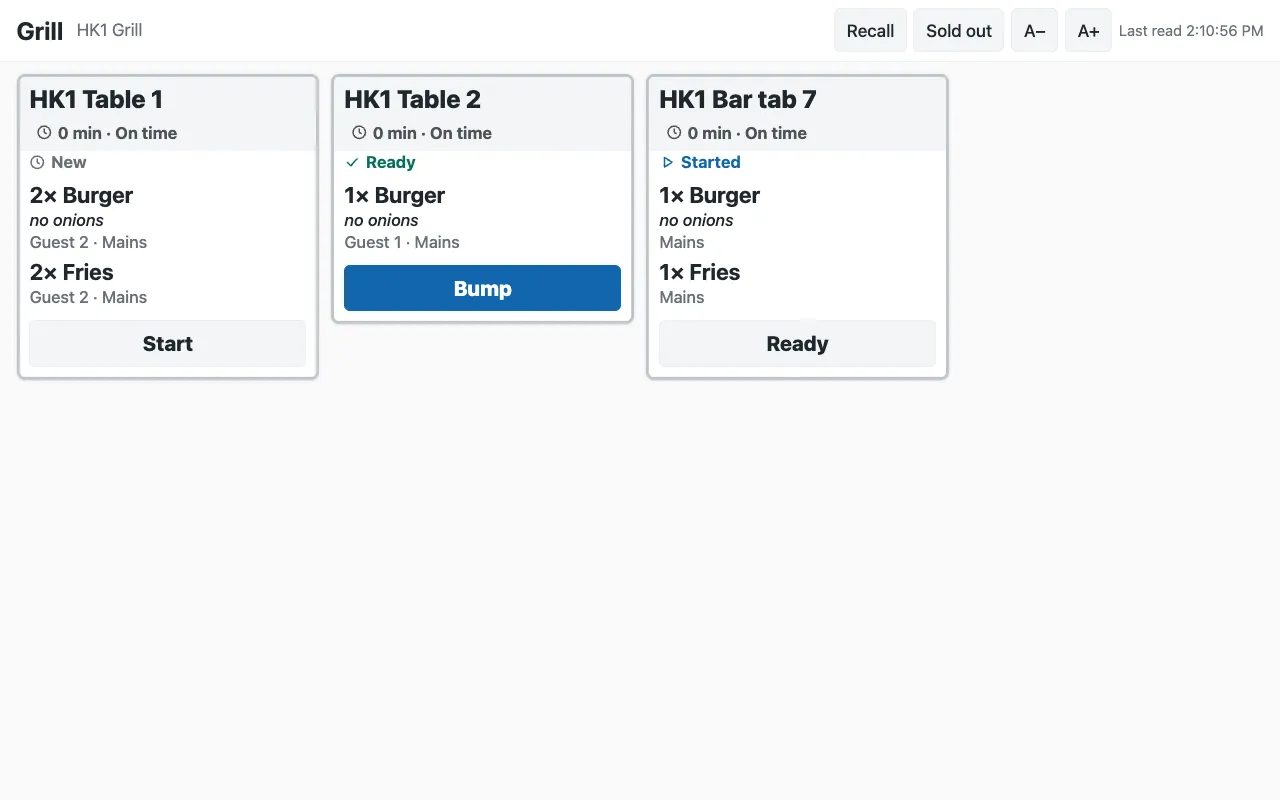
| A station screen | The tickets of one station (or a few, on a small kitchen's screen), oldest first: the table or the order's number, its state (New, Started, Ready), each dish with its quantity and its choices under it, the guest and course, the note and the allergen line, and how long it has waited. The time turns amber with Late soon, then red with Late. One tap moves a ticket one step: Start, Ready, Bump. |
| A void | When a manager voids a dish the kitchen already has, its ticket shows Void: stop making with the dish struck through. The cook bumps it like any ticket. |
| Recall | The tickets bumped in the last 30 minutes, to read again. A bumped ticket cannot be moved back. |
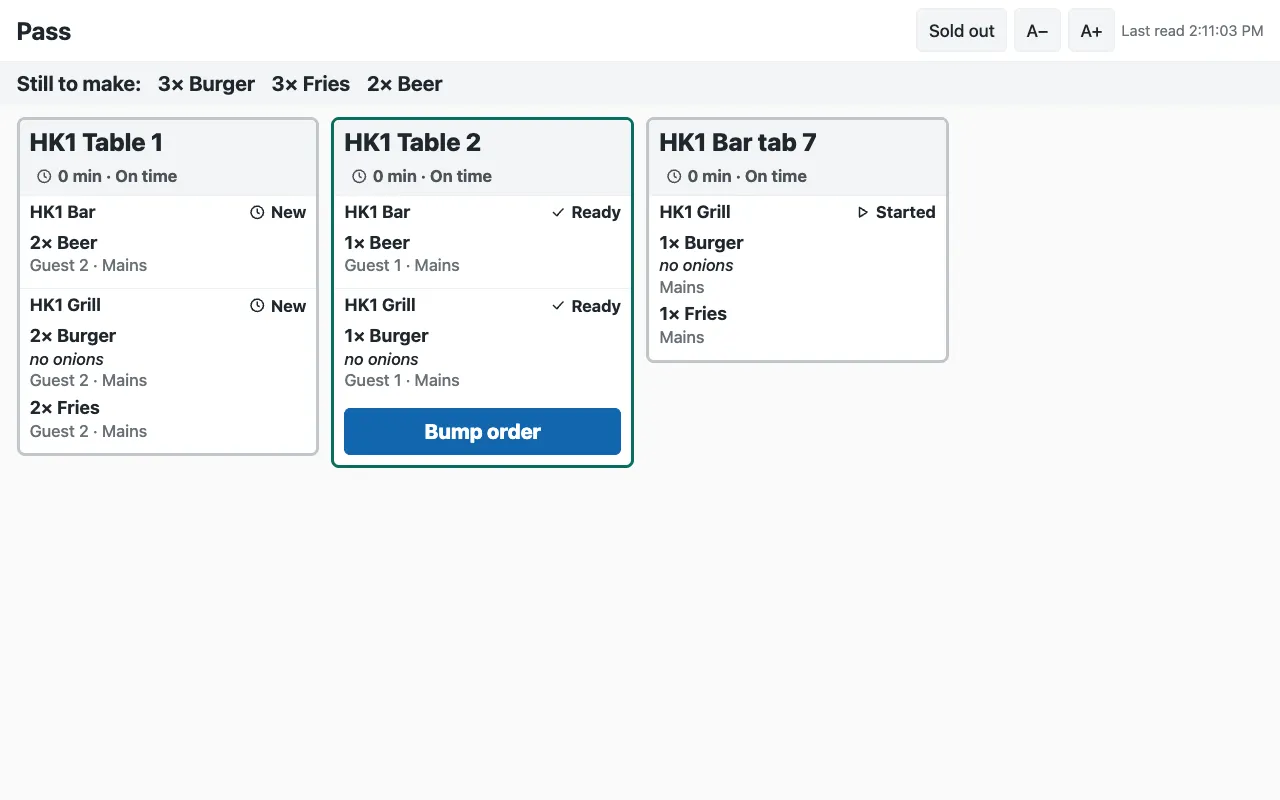
| The expo | One card per order with each station's part and its state, a strip across the top with what is still to make (3× Burger · 2× Beer), and Bump order when every station's part is ready. |
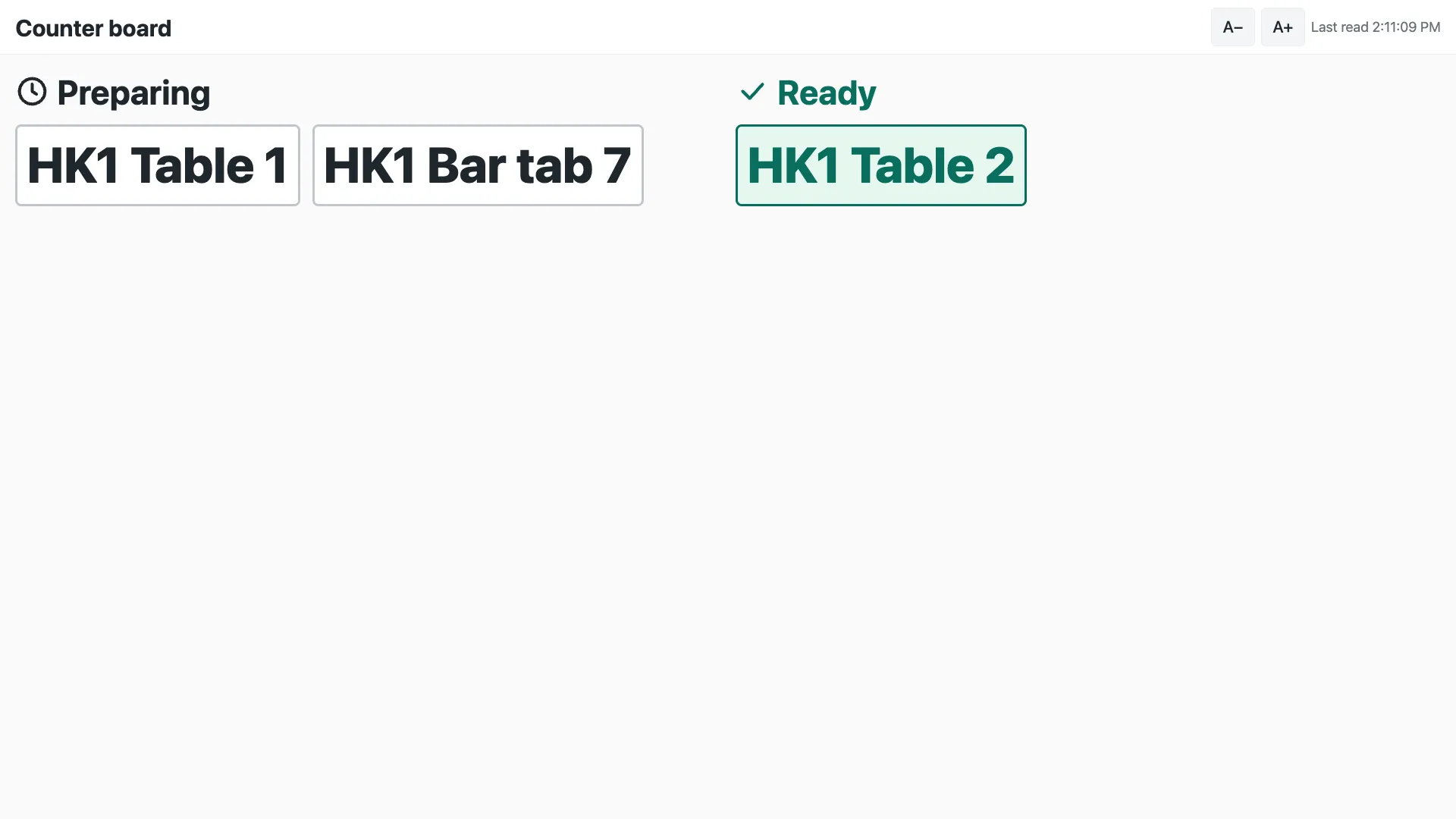
| The Now serving board | Two columns, Preparing and Ready, with the orders' numbers: your counter sales' call numbers, and your tables' too if you choose. No dish; a tab shows its name as typed at the till. |
| Sold out | A cook taps Sold out and marks a dish of the screen's own stations (the pass: any station's) sold out at this store, or makes it available again. Your tills stop selling it at once. |
| A link that leaked | Press Make link again on that screen and open the new link: the old one stops working within 15 seconds. |
A ticket carries no price, and the app keeps no guest's name, phone or e-mail.
What you set up first
- Set up your kitchen if you have not: your Kitchen Stations in Desk, and on each dish (or its item group, or the register) the station it goes to. On the register that sends (its POS Profile), add a printer row for each station: a ticket reaches the screens only when its station's printer takes it. Tick Table Service for your tables' checks.
- Install the app from the App library (see About Retail Extensions). The install adds the screens, the settings, the roles IVENDNEXT KSC Manager and IVENDNEXT KSC Integration, the Make link button and its service (switched off), and the app's own user, ivendnext_ksc@integration.invalid, which works through the API only.
- Open that user (search Desk for User) and, in this order: keep Is Desk User and tick Is POS User; choose any Shift Profile; choose a Retail Permission that allows, under Open Checks, only May Work a Kitchen Screen (make one if you have none: a new one may come with layaway ticked, so untick it); add one row for each store to the store access table (each store once), with a register there; Save; then press Generate Keys. Without Is POS User, saving drops the store row and every screen says it cannot read the tickets. Use this user for this app only: a user that ever enrolled a till is refused.
- Only if your cooks will mark sold out: in Role Permissions Manager, give IVENDNEXT KSC Integration Read, Write and Create on Retail Item Availability. That right is not limited to the user's stores; the app marks only the screen's own store.
- Give IVENDNEXT KSC Manager to whoever sets up the screens, with Select on Kitchen Station and Warehouse. For a manager of one store, add a User Permission on Warehouse for that store.
- Fill in the settings (below).
- In Retail Extension Subscription, open the app's service, read what it sends, tick the consent and switch it on. In Retail Desk Action, switch on Make link. If the App library asks, press Connect again on the app.
Settings
Search Desk for IVENDNEXT KSC Settings and add one for your company, with a row for each store whose kitchen uses the screens:
| Field | What to put |
|---|---|
| Store | the store |
| Sold out from the screens | ticked to let this store's station and pass screens mark dishes sold out |
| Warn after (minutes) | when a ticket's time turns amber; 8 when blank |
| Late after (minutes) | when it turns red; 15 when blank, always after Warn after |
| Screens' look | Dark (for a kitchen) or Light (for a bright counter) |
Accent colour |
the buttons' color, as #rrggbb; the iVendNext blue when blank |
| Screens' language | the screens' own words: English, Arabic, Spanish, French, German or Portuguese. Your dish names show as you wrote them |
| Ticket size | how large the tickets are on this store's screens: Compact, Standard, Large or Extra large (Standard when blank). The tickets also grow and shrink with each screen, and a cook's A− and A+ on a screen win over it there |
| Board shows tables | ticked to show your tables' orders on the Now serving board too; otherwise only counter sales |
Screens
Search Desk for IVENDNEXT KSC Screen.
- Press + Add: the screen's name (shown at its top, for example Grill), its kind (Station, Expo or Board), its store and, for a station screen, its stations. Save.
- Press Make link. To make many at once, tick them in the list and press Make link there.
- Open the screen's Link on its tablet or TV, in full screen (a kiosk browser keeps the address off the screen): anyone with a station screen's link can move its tickets.
- If a link leaks, press Make link again on that screen and open the new link: the old one stops working within 15 seconds, and no other screen changes. Changing a screen's kind, store or stations also stops its link until you press Make link again.
How your kitchen uses it
- At a station, the cook taps Start when they take a ticket, Ready when its dishes are on the pass, and Bump when they have left. A second tap by mistake does nothing more. If a ticket has moved on another screen, the screen says so for a few seconds and reads the tickets again.
- At the pass, the expo reads each order's card and presses Bump order when every station's part is ready.
- At the counter, guests read the Now serving board: a number moves to Ready when its order is, and leaves when it is bumped.
- Sold out: tap Sold out, then Mark sold out beside the dish; tap Available again when it is back.
- The size of the tickets follows the screen: about 4 tickets across a 10-inch tablet turned sideways, 5 on a TV, 2 on a tablet standing upright, 1 on a phone. Tap A− or A+ at the top to make them smaller or larger on that screen; the screen remembers it.
- The screen never scrolls. It shows whole tickets only, oldest first. When more are waiting, the top shows +N more tickets and two page buttons; a page button turns red while a ticket on the other page is late, and the screen goes back to its first page a minute after the last tap. A ticket too tall for the screen shows its first dishes and +N more dishes (a dish with many choices first folds them to +N more choices): tap it to read the whole ticket. Only a ticket that still does not fit (one very long dish, or at the pass a void) scrolls inside itself, showing everything, so its button stays in reach. On the pass, Still to make lists whole dishes and counts the rest.
Where it shows
In Desk: the screens and the settings. On each kitchen screen and on the board: the tickets and the numbers. On the tills: nothing new, except that a dish marked sold out cannot be sold.
What leaves your iVendNext
Your kitchen's screens call the app's service at kitchen-screen.ivendnext.app (hosted by CitiXsys in the United States). The service reads, with the app's own user, the screen, your settings, the store's kitchen tickets and, when sold out is on, the store's sold-out dishes; it writes a ticket's next step and a dish's sold out at the screen's store. On Make link, iVendNext sends it the screens' record names, the user who pressed and the language, and it writes each screen's number and link. It keeps nothing about your orders; it keeps your site's key from the connection until you remove the app.
Limits
- A ticket is on the screens only when its station's printer took it from the till: a station with no printer on the sending register, or a printer that did not answer, has no ticket.
- The screens need the internet. Tickets your tills printed while the store was offline stay on paper and never reach the screens.
- A ticket your till's printer later reports unprinted leaves the screens without a bump; its dishes come back on the next Send.
- A screen reads the kitchen's tickets every 3 seconds, so a new ticket shows within about 4 seconds. If a screen cannot read, its corner shows Last read in amber after 15 seconds.
- A bumped ticket can be read again under Recall, never moved back.
- The sold-out right covers every store; the app marks only the screen's own. A dish marked and then made available again at one store keeps that store's own setting, which wins over a later sold out for every store: mark it again at that store if it runs out there too.
- If the app's user lacks the sold-out right, the screens keep showing their tickets and hide Sold out.
- A dish already sold out that no ticket on the screen names shows by its item code in the list.
- A dish marked sold out that reaches an open check another way (an app adding to a check) is refused when the check is paid, not when it is added. A till that is offline sells it until it syncs.
- Allergens show where your store's receipt theme shows them on the item.
- Desk shows the records with the app's prefix, IVENDNEXT KSC.
How to remove it
- In the App library, find the app under Installed and press Details.
- On the app's record, press Export and uninstall and confirm. iVendNext first exports your screens and settings to a file.
- iVendNext removes the screens, the settings, the roles and the app's user. Your tickets and sales stay. The screens' links stop working.