
Project quotes and deliveries by stage
Retail Extensions · App · checked 2026-10-30 on a demo site
Project quotes and deliveries by stage is for a hardware or DIY store that sells to builders. A builder buys for a job, such as a house or an extension: you quote the job's materials, the builder takes all or part of the quote, and the goods go to site as the work reaches each stage, often over months and several orders. iVendNext already quotes, orders, takes deposits and delivers an order in parts. This app adds the builder's project: one record per job, named on every quotation, order, delivery and invoice of that job (and on its sales and orders rung at the till), with a stage on the lines of each quotation, order and delivery and one project sheet that lists them all. This page covers what the app adds, how to set it up, how your staff use it, and how to remove it.
What it does
| Where | What you get |
|---|---|
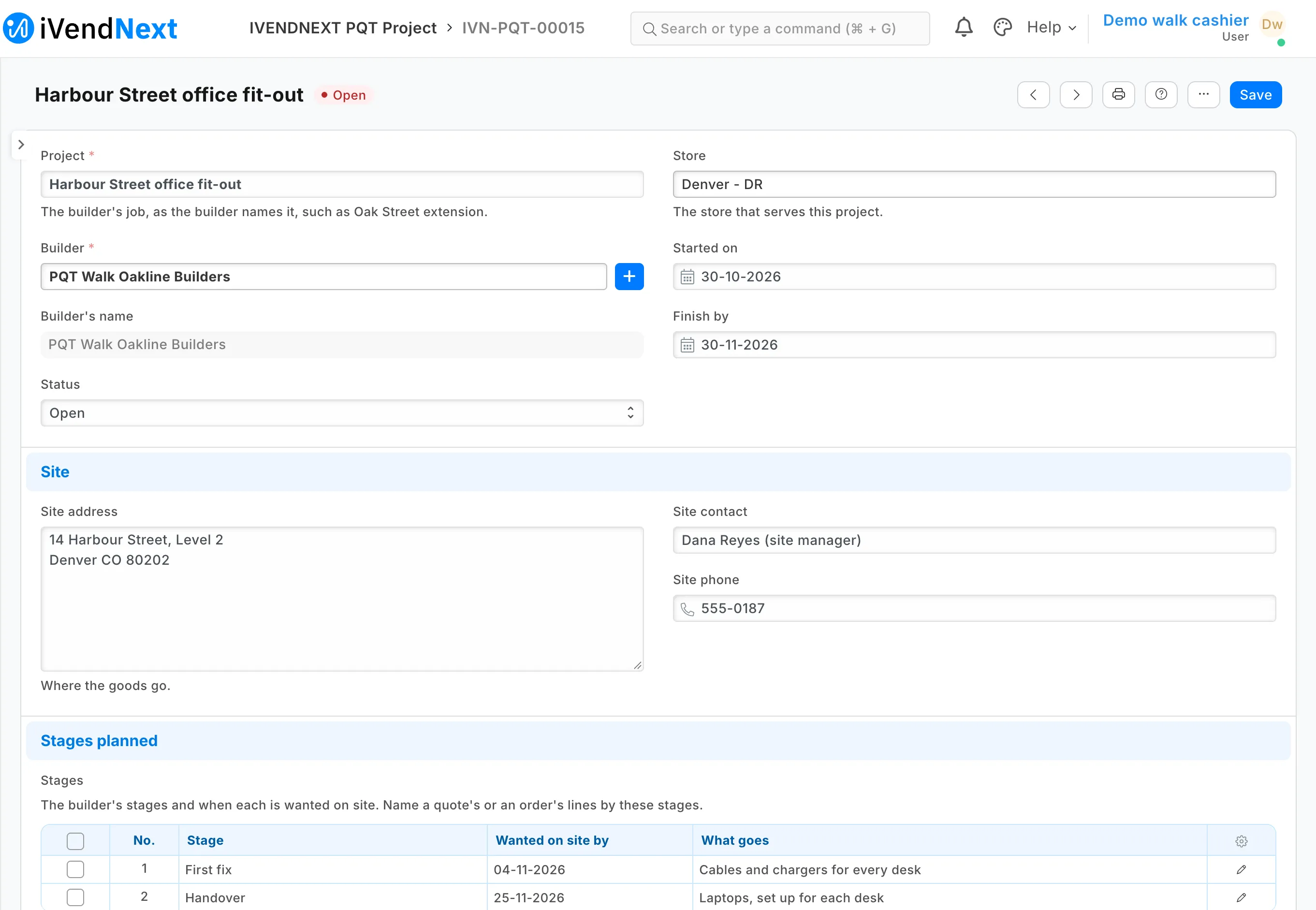
| Project | The Project as the builder names it; the Builder (a customer; the builder's name shows, read only); the Status (Open, Completed or Cancelled); the Store that serves it; Started on and Finish by; the Site address, Site contact and Site phone; and the Stages planned, a row per stage with the date it is wanted on site and what goes. Numbered IVN-PQT-00001 and on. |
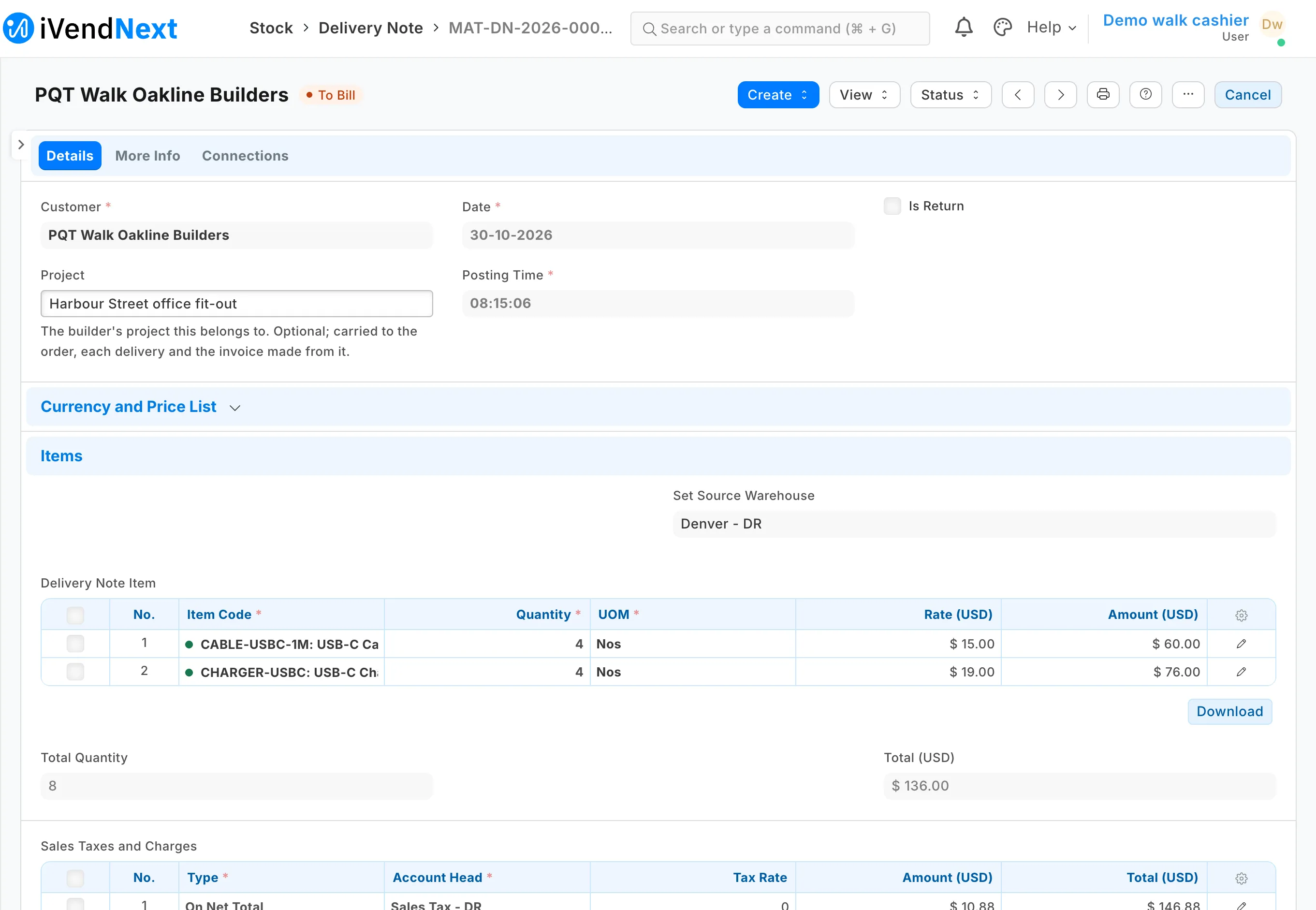
| Project on your documents | A Project field on quotations, sales orders, delivery notes and sales invoices, and one on the till's sales and orders (POS Invoice). Set it on a quotation, and Create carries it to the sales order, each delivery note and each invoice made from it. It can be set after a document is submitted. |
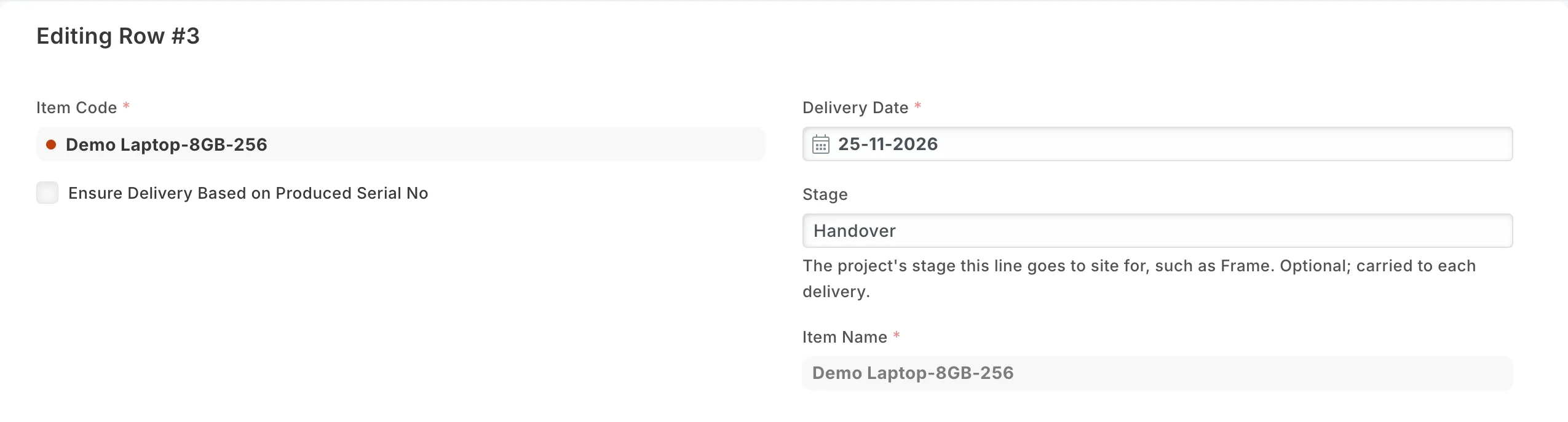
| Stage on each line | A Stage field on the lines of a quotation, a sales order and a delivery note, carried the same way. On a sales order it sits beside the line's own Delivery Date, and you can change it after the order is submitted. |
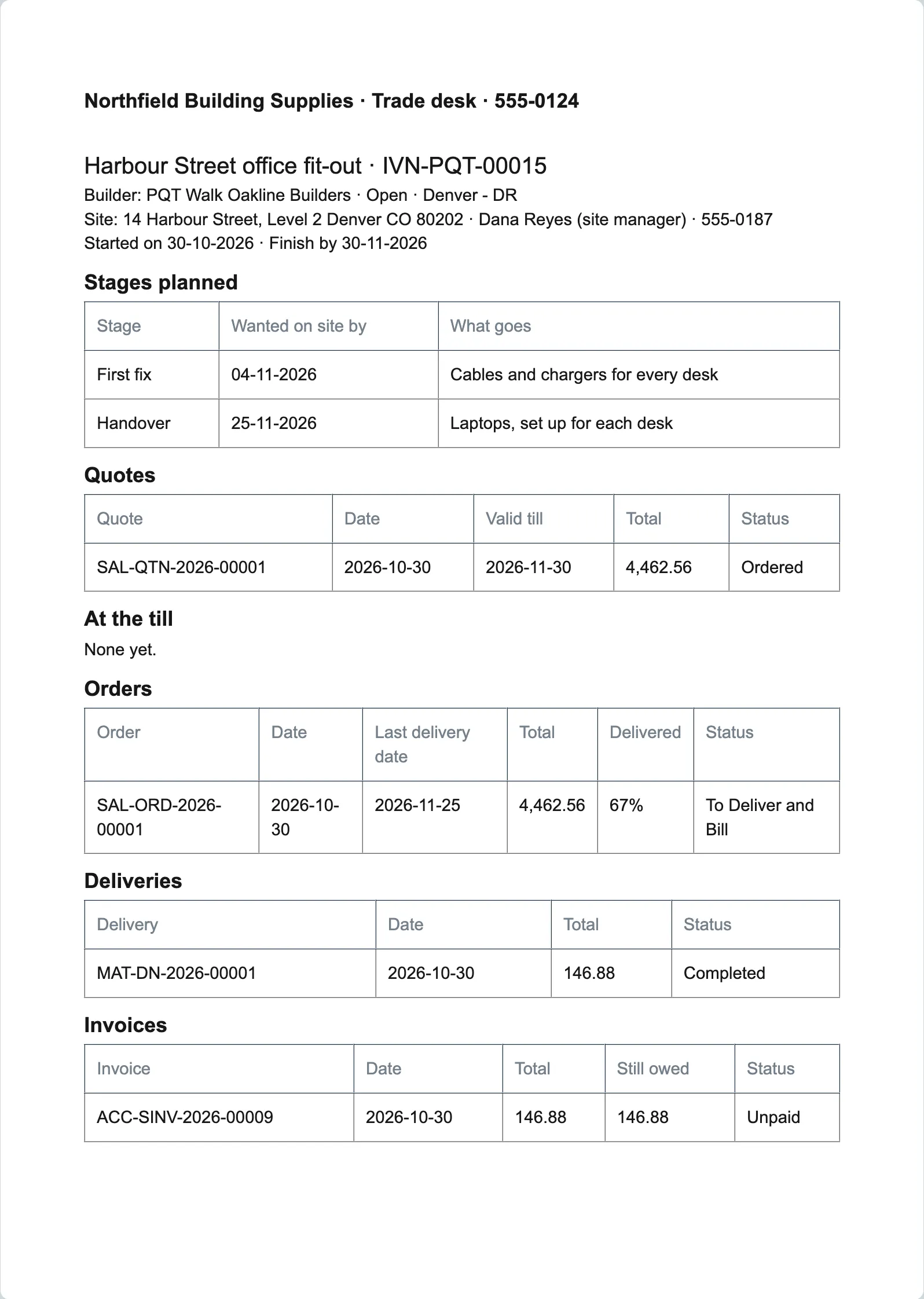
| The project sheet | Print on a project gives one page under your letter head: the project, the site, the stages planned, then its quotations, its POS Invoices, its sales orders with the share delivered, its delivery notes and its invoices with what is still owed. Each person sees only the documents they may read. |
| The builder's projects | A customer's form lists the builder's projects under Projects. Every one of those lists (Quotation, Sales Order, Delivery Note, Sales Invoice, POS Invoice) has Project as a filter. |
What you set up first
-
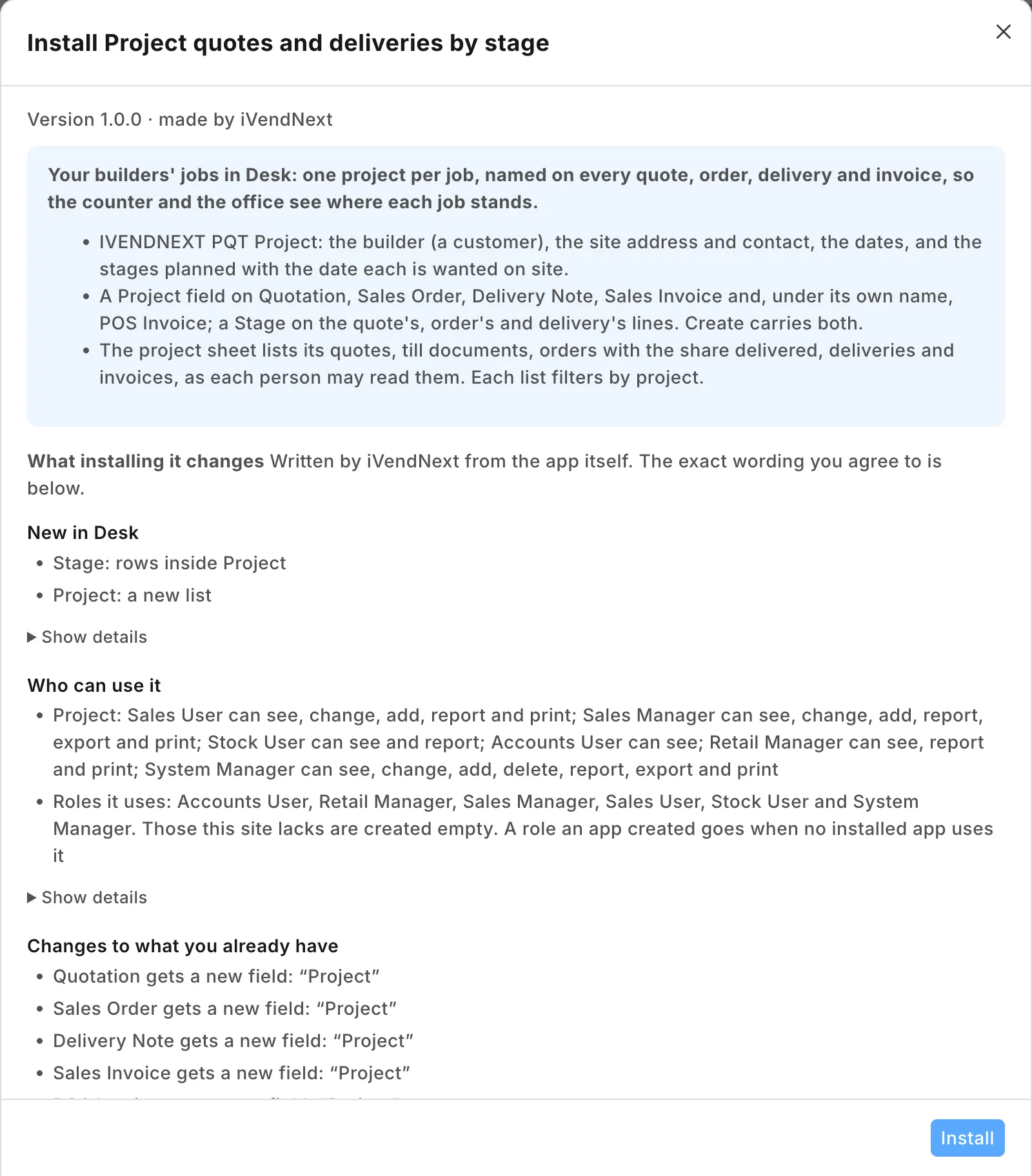
Install the app from the App library (see About Retail Extensions). The install adds the record IVENDNEXT PQT Project, the Project and Stage fields on your documents, the project sheet and the list under the customer. It adds no role, no setting and no user, and it calls nothing outside your iVendNext.
-
Give the trade desk Sales User (or a role of your own with the same rights on projects): they keep projects, quotations and sales orders, and name each one's project. A Sales Manager keeps projects too. Neither deletes a project; a System Manager can.
-
Give whoever sends goods out Stock User, and accounts Accounts User: both read projects, so the Project field on a delivery note or an invoice can find one. An Accounts User also names the project on a sale or order rung at the till (below). A Retail Manager reads projects and sees every section of the project sheet.
-
Put your store's name, address and phone on the Letter Head your store prints with (search Desk for Letter Head). The project sheet prints under it.
Projects
A new project
- Search Desk for IVENDNEXT PQT Project and press + Add.
- Type the Project as the builder names it, for example Oak Street extension, and choose the Builder.
- Choose the Store and the dates, and type the site's address, contact and phone.
- Under Stages planned, add a row per stage: Foundations, wanted on site by its date, Blocks and cement; Frame, Timber; and so on.
- Save. The new project's status reads Open.
Quoting the job
- Make a Quotation to the builder as you do today, choose the Project, and on each line type its Stage.
- When the builder accepts, press Create > Sales Order on the quotation. The project and every line's stage come with it.
- On the sales order, give each line its own Delivery Date: the date its stage is wanted on site. Submit.
Delivering in stages
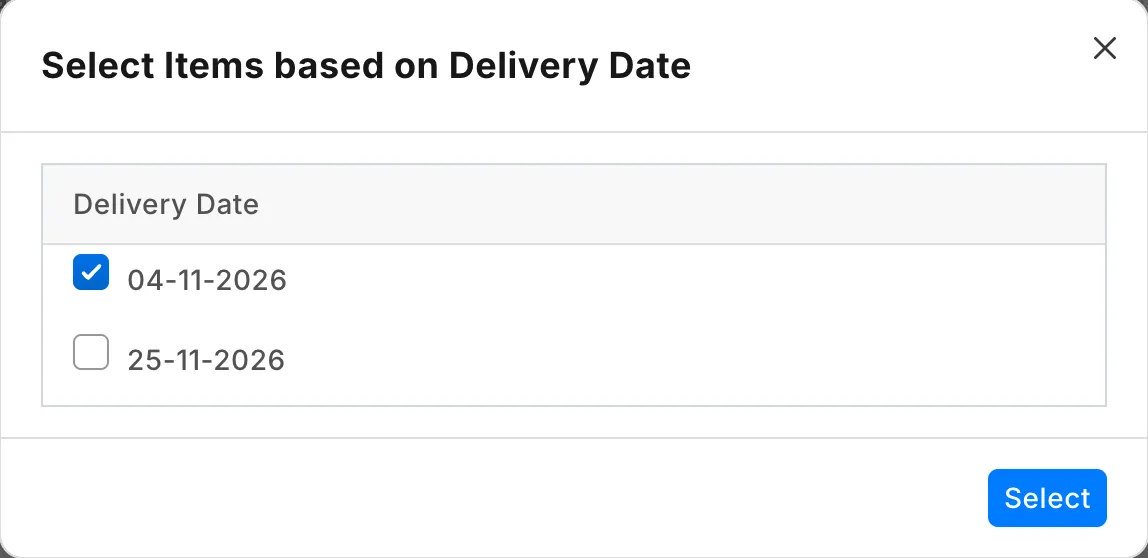
- When a stage is due, press Create > Delivery Note on the sales order. iVendNext asks which delivery dates to send, with every date still to deliver ticked: untick the dates that are not due and press Select. Only the lines of the ticked dates are taken, with the project and their stage.
- The sales order now reads partly delivered. The next stage's delivery note takes the lines of its own date.
- Press Create > Sales Invoice on a delivery note to invoice it: the invoice carries the project too.
Sales and orders rung at the till
A sale or an order rung at the till for the builder is a POS Invoice in Desk. Once it is booked, an Accounts User opens it (search Desk for POS Invoice) and chooses its Project. A Sales User does not read POS Invoices.
- A till order also makes a sales order: the trade desk chooses the project on that sales order too. Every delivery note and invoice made from it in Desk then carries it.
- A till quotation is not named to a project: name the sale or order it becomes.
The job in one place
On the project, press Print and choose IVENDNEXT PQT Project sheet. Each section lists only what the person printing may read: a Sales User sees the quotations, sales orders and delivery notes; a Stock User the sales orders and delivery notes; an Accounts User the sales orders, delivery notes, invoices and POS Invoices; a Retail Manager all of them. A sheet sent from the e-mail queue lists no documents.
To see the deliveries still to come line by line: open the Sales Order list, switch to Report view, filter Project and % Delivered under 100, add the item columns Stage, Delivery Date, Quantity and Delivered Qty, and save it as your own report.
When the job is done, set the project's Status to Completed, or Cancelled for a job that will not go ahead.
Where it shows
In Desk only: the project, its sheet, the Project and Stage fields on your documents, and the list under the customer. Nothing is shown on the till.
What leaves your iVendNext
Nothing: the app has no service and no outside address. A project keeps the builder's site contact and phone, details you keep under your own policy, as you keep your customers'.
Limits
- The till does not name the project: a POS Invoice is named in Desk after it is booked, as above, and a till quotation not at all.
- The project on a document is not checked against the document's customer: the trade desk chooses the builder's project.
- The project has no money fields: a budget, retentions or progress claims are not part of this app; an iVendNext Partner can build them on top.
- This app does not use the Projects module of the iVendNext back office, which iVendNext keeps switched off with its roles.
- A sales order made at the till, and a delivery the till makes from it, do not carry the project by themselves: name them in Desk. A delivery note or invoice you make in Desk from a named sales order carries it.
- The sheet lists every document that names the project: drafts, canceled ones beside their amendments, and returns with their negative totals. Each section shows at most 200 documents, and the documents' dates print as year-month-day.
- A document made from several others (Get Items From over two sales orders) takes the last one's project: keep one job per document.
- A Completed or Cancelled project can still be chosen, and Duplicate on a quotation keeps its project.
- Desk shows the record and the sheet with the app's prefix, IVENDNEXT PQT.
How to remove it
- In the App library, find the app under Installed and press Details.
- On the app's record, press Export and uninstall and confirm. iVendNext first exports your projects to a file.
- iVendNext removes the project, the sheet, the Project and Stage fields from every document and the list under the customer. Your quotations, orders, delivery notes, invoices, POS Invoices and customers stay, but which project each one named goes with the fields: the export keeps the projects, not those links.