
Liquor excise returns
Retail Extensions · App · checked 2026-10-31 on a demo site
Liquor excise returns is for a store that sells wine, spirits or beer and files an excise return with its excise or licensing authority. Every month or quarter, the return asks what stock you had and what moved, by volume and duty class, and often the volume of pure alcohol too. The app works those figures out from your own stock, one store and one period at a time. For each duty class you get the opening stock, what came in, what went out, what stock counts changed and the closing stock, each in units, volume and pure alcohol. Once you file a return, its figures are locked as filed. This page covers what the app adds, how to set it up, how your staff use it, and how to remove it.
What it does
| Where | What you get |
|---|---|
| A duty class | A class as your authority names it (Spirits, Wine, Beer, a strength band) and the code or line your return form gives it, if any. |
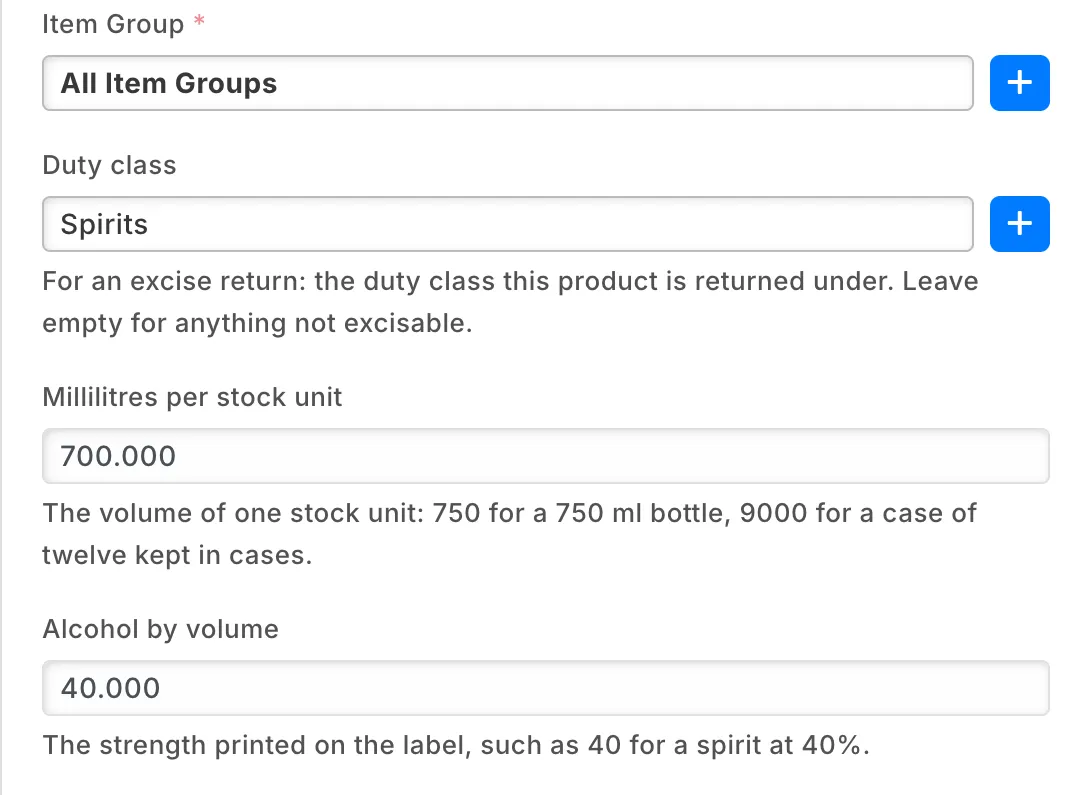
| On each item | Duty class, Millilitres per stock unit (750 for a 750 ml bottle; 9000 for a case of twelve you keep in cases) and Alcohol by volume (40 for a spirit at 40%). The Item list filters by duty class. An item with no duty class is never on a return. |
| A return | One company, one store, From, To and Volumes in (Litres or US gallons), all fixed once saved. Numbered IVN-EXR-R-00001 and on, and a draft until it is filed. |
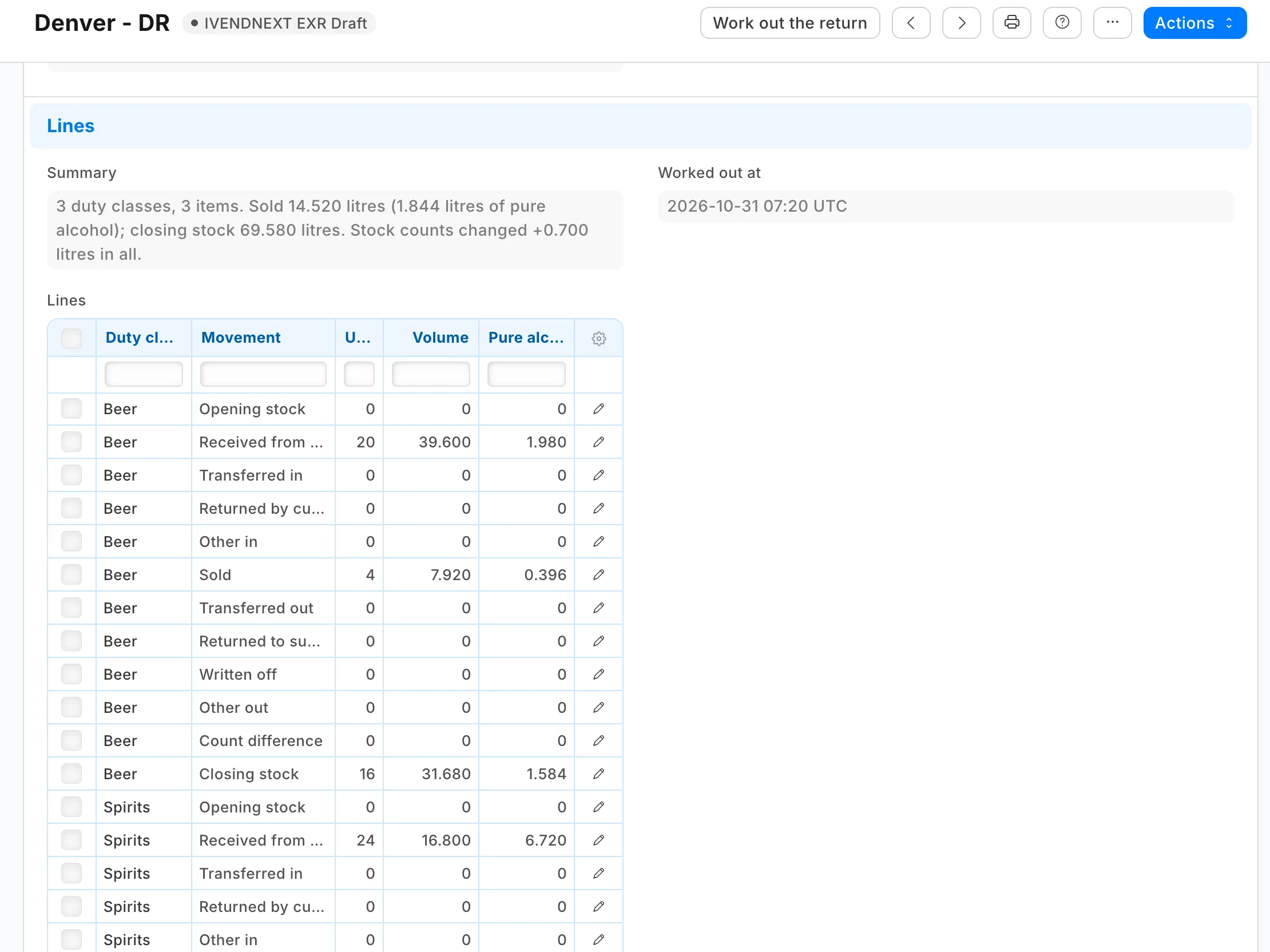
| Work out the return | A button on a draft return. It reads your store's stock and writes twelve lines for each duty class: Opening stock, Received from suppliers, Transferred in, Returned by customers, Other in, Sold, Transferred out, Returned to suppliers, Written off, Other out, Count difference and Closing stock. Each line shows units, volume and pure alcohol. A summary sums it up, for example 3 duty classes, 3 items. Sold 14.520 litres (1.844 litres of pure alcohol); closing stock 69.580 litres. Stock counts changed +0.700 litres in all. Press it again to replace the lines with your books as they are now. |
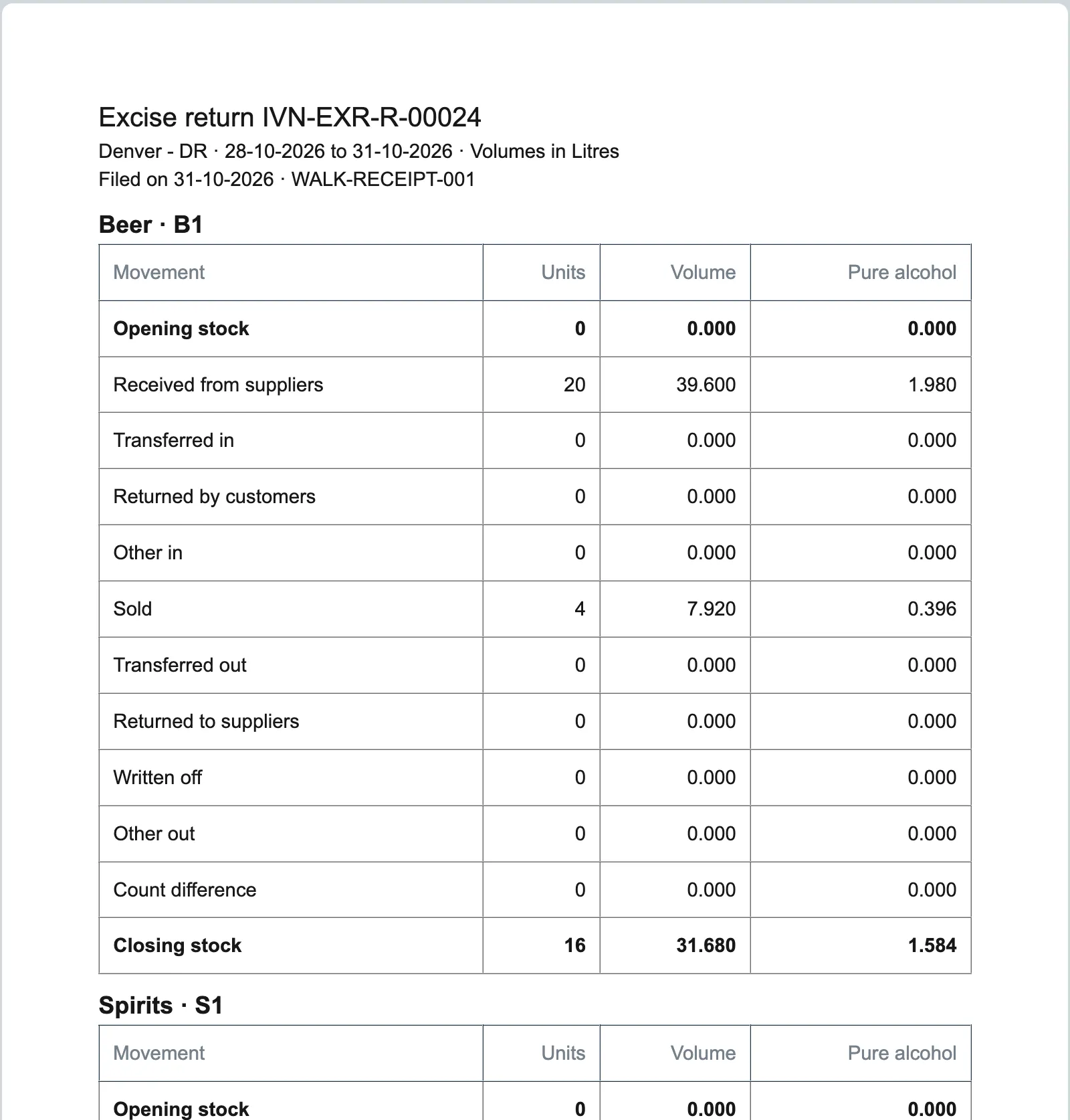
| The worksheet | A print of the return's lines, one table per duty class, under your letter head: the figures you copy onto the authority's form. |
| A filed return | Your Stock Manager moves it to Filed. From then on its store, period and figures are locked. |
What you set up first
-
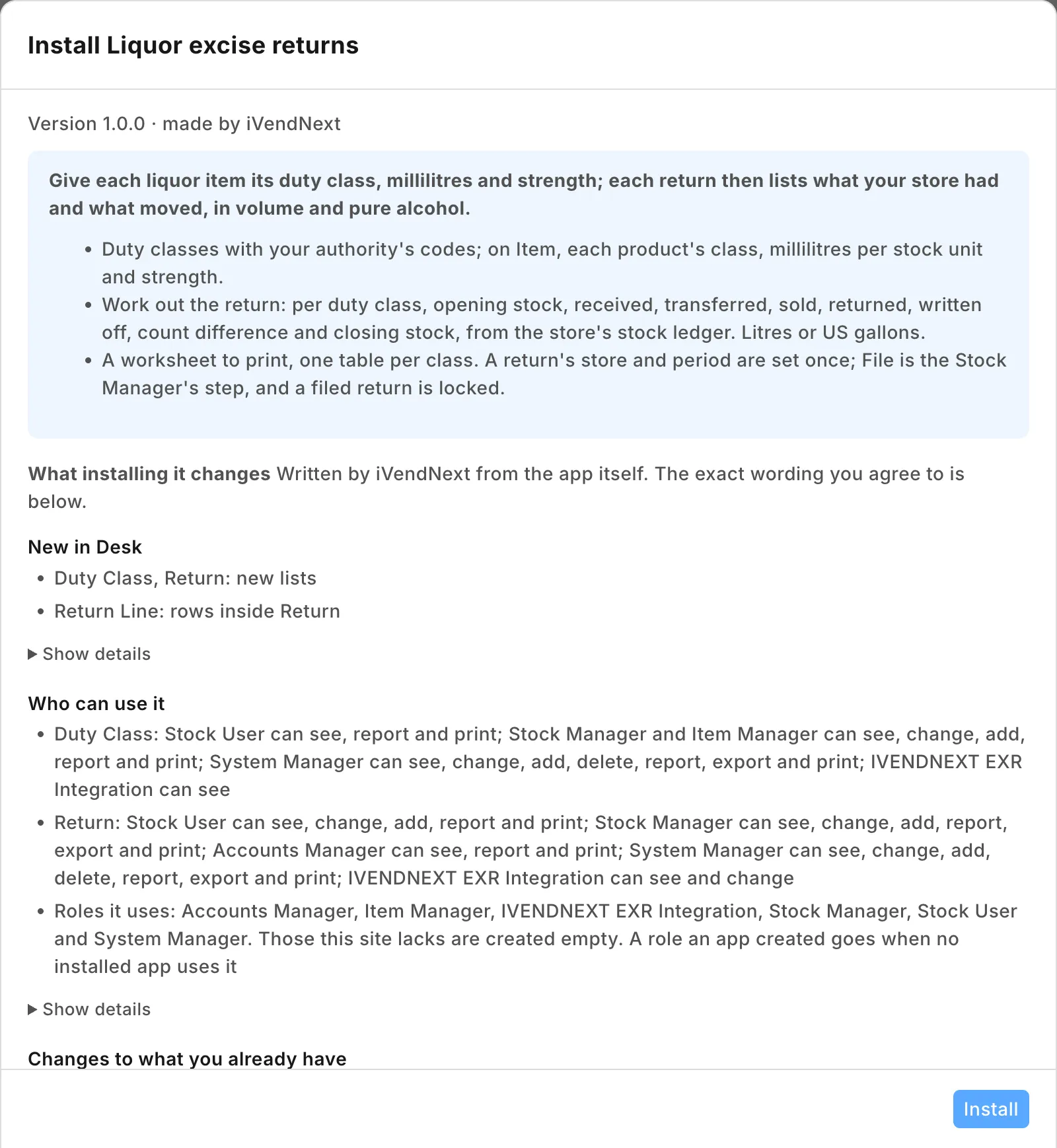
Install the app from the App library (see About Retail Extensions). The install adds:
- the records IVENDNEXT EXR Duty Class and IVENDNEXT EXR Return;
- the three fields on Item;
- the return's workflow (Draft, Filed, Dropped), the lock, the worksheet and the button;
- the role IVENDNEXT EXR Integration, and the app's own user,
ivendnext_exr@integration.invalid, with that one role. That user works through the API only and can never sign in to Desk. Your site connects it to the app.
It also adds a feed registration that names that user: leave the feed off. The button, its service and the lock come in switched off.
-
Search Desk for Retail Save Rule, open IVENDNEXT EXR return locked once filed and switch it on. Work out the return refuses while it is off.
-
Search Desk for Role Permissions Manager and give IVENDNEXT EXR Integration Read on Stock Ledger Entry, Stock Entry, Item and Retail Save Rule. The install gives it its rights on the app's own records.
-
Search Desk for Retail Extension Subscription and open Liquor excise returns work out: read what it is sent, tick the consent and switch it on. Then search for Retail Desk Action and switch on Work out the return.
-
Decide who does what:
Who Role Does Set-up Item Manager or Stock Manager makes the duty classes and fills the three fields on each liquor item The store's back office Stock User makes returns, works them out, drops a draft not wanted The manager Stock Manager checks a return, files it with the authority, moves it to Filed and fills the filing details A draft return is the Stock User's to edit: Desk shows it read only to anyone else, so a manager who also makes returns needs Stock User too. Accounts Managers may read and print returns. Write on Item decides what a return counts, so give it to people you trust with the return. A return's Company, Store, period and Volumes in are fixed once saved.
-
Your site connects the app by itself. Only if a press says the app is not set up, or that it may not read, and your site could not reach the app or a key was lost: in the App library, under Installed, press Details, then Connect again.
Duty classes
Search Desk for IVENDNEXT EXR Duty Class and press + Add: the Duty class as your authority names it and, if your return form gives it a code or a line, the Authority's code. Save. Make one for each class your return asks for.
Then, on each liquor item, under the item group:
- Duty class;
- Millilitres per stock unit: the volume of the unit you keep stock in (750 for a bottle of 750 ml, 375 for a half bottle, 9000 for a case of twelve 750 ml bottles if you keep stock in cases);
- Alcohol by volume: the strength on the label.
An item missing its millilitres or its strength is still counted in units, and the summary names it.
Returns
-
Search Desk for IVENDNEXT EXR Return and press + Add. Choose the Company and the Store (its warehouse), the period's From and To (both days included) and Volumes in. Save. These are fixed once saved: for a different period, make a new return, and put aside a draft you do not want with Actions, IVENDNEXT EXR Drop.
-
Make sure every till of the store has synced and the store's last day of the period is closed. Close that day before midnight: where your company posts till sales when the day is closed, they reach your stock records dated by the closing, so a day closed after midnight counts in the next period (where each sale posts as it is made, it keeps its own date).
-
Press Work out the return and confirm. The lines and the summary appear. They come from your store's stock as iVendNext booked it:
- Opening stock and Closing stock: each item's stock at the end of the day before From, and at the end of To;
- Received from suppliers: purchase receipts, purchase invoices that took stock in, and stock entries of type Material Receipt;
- Transferred in and Transferred out: stock entries of type Material Transfer into or out of the store;
- Sold and Returned by customers: till sales, Desk sales invoices and delivery notes, and their returns;
- Returned to suppliers: returns on purchase receipts and purchase invoices;
- Written off: stock entries of type Material Issue, such as breakage;
- Other in and Other out: any other movement;
- Count difference: what your stock counts (stock reconciliations) changed.
Opening stock plus what came in, less what went out, plus the count difference, is the closing stock. Volume is units times each item's millilitres; pure alcohol is the volume times its strength.
-
Print the IVENDNEXT EXR Excise return worksheet and copy the figures onto your authority's form.
-
Your Stock Manager checks the lines, files the return with the authority, opens it, and chooses Actions, IVENDNEXT EXR File. The return reads Filed and its figures are locked. Then fill Filed on and the authority's Filing reference, and save.
Work out the return says so and changes nothing when:
- the return is already filed or dropped (make a new return for a correction);
- To is before From, or the period is longer than 366 days (drop the return and make a new one);
- the store has no stock movements at all: a group of warehouses was chosen, or a User Permission on the app's user hides it;
- the lock IVENDNEXT EXR return locked once filed is off (step 2);
- the app may not read your stock (check its role's rights in step 3).
Where it shows
In Desk only: the duty classes, the returns, the button and the worksheet, and the three fields on Item. Nothing is shown on the till.
What leaves your iVendNext
On each press, your iVendNext sends the app's service at liquor-excise-returns.ivendnext.app (hosted by CitiXsys in the US) the user's login and language and the return's name. The service then reads, with the app's own user:
- the return (its company, store, period and unit);
- whether the lock rule is on;
- the duty classes and their codes;
- the items that have a duty class (code, name, class, millilitres and strength);
- from the store's stock ledger, totals only: each item's balance at both ends of the period, and the period's totals per item and kind of movement;
- the type of the store's stock entries in the period.
No customer, price or money is read. It writes the return. It keeps nothing of a press. After the install your site sends it the button's signing key and the API key of the app's own user, which it keeps until you remove the app.
Limits
- The figures are your books as they stand when you press. A back-dated entry changes the earlier books, not a filed return: the next return's opening stock then differs from this one's closing stock by that amount.
- Two returns for one store and period are not stopped: use the filing reference to tell the filed one. A period not yet over is worked out from the books so far.
- An item moved to another duty class takes its stock with it on the next return, with no line of its own.
- A store that spans several warehouses makes one return per warehouse.
- The lines are read only on the form, but anyone allowed to change returns could change a draft's lines through the API before it is filed: check them before you file.
- A stock count is worked out by difference, so a count and another movement booked at the same second are not told apart. The total still stands.
- An item's class, millilitres and strength are read when you press: a change shows only on a return worked out after it. An item variant does not take them from its template: fill them on each variant you keep in stock.
- Each movement counts by its document: a delivery note or invoice to another company of your group counts as Sold, a receipt from one as Received from suppliers; a move between your own stores is a stock entry and counts as Transferred. A Material Receipt counts as Received from suppliers.
- Units add each item's own stock unit, so a class with both bottles and cases adds both. A US proof gallon is twice a gallon of pure alcohol.
- The count difference also carries the rounding: a period with no count can show a count difference of a few thousandths.
- One store and one period a press. A store with very many liquor items can run out of the press's time.
- Give the app's own user no User Permission: one silently narrows what the app reads, and the return would leave items out.
- Duty owed, duty rates, your authority's own form and codes, a brand-by-brand list and electronic filing are not included: an iVendNext partner adds them for your market.
- A System Manager can switch the lock off or delete a return; no other role can.
Removing it
In the App library, under Installed, press Details, then Export and uninstall. Removing the app removes its duty classes and returns and the three Item fields; the export keeps a copy. Your stock and items stay as they are.