
The back office screens
The Handheld adds two screens to iVendNext Desk: one for the devices and one for the day's picks. You find both in the iVendNext Setting workspace, on the Module Settings card.
Handheld Devices
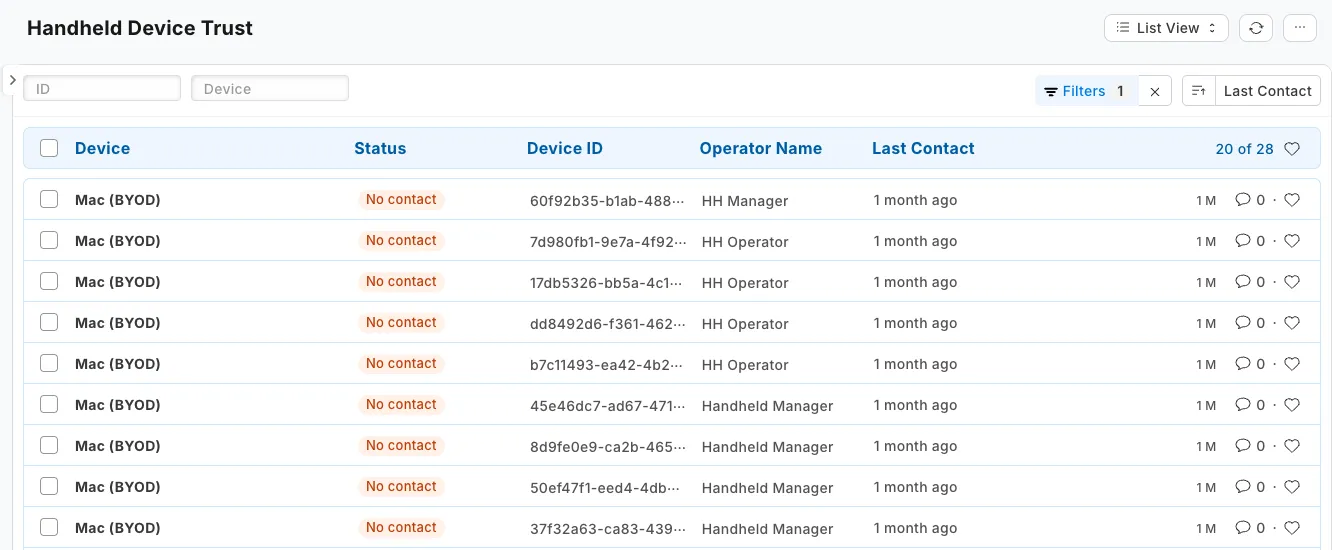
This list shows each device that has signed in to the Handheld, and who it belongs to. Its title on the screen reads Handheld Device Trust, and you can also search Desk for that name. It opens with the devices that have not been in touch for the longest time. Open a device to see how much work it had not posted when it last reported.
The status of each device shows as one of these:
| Status | What it means |
|---|---|
| Enrolled | The device can run the app |
| No contact | The device can run the app, but it has not been in touch for some days. Nothing is revoked for going quiet |
| Revoked | The app refuses to run on this device |
The app recognizes a device by an id it stores on that device. If someone reinstalls the app, clears its data, or sets up several devices from one master image, the list can differ from the number of devices you have.
Revoking devices from the list
- Tick the devices you want to revoke.
- Open Actions and choose Revoke Devices.
- Read the note and confirm.
The result counts what was revoked and what was already revoked. A device that could not be revoked is named, with the reason. The same rules apply as on the device. See Removing a device.
Handheld Operations
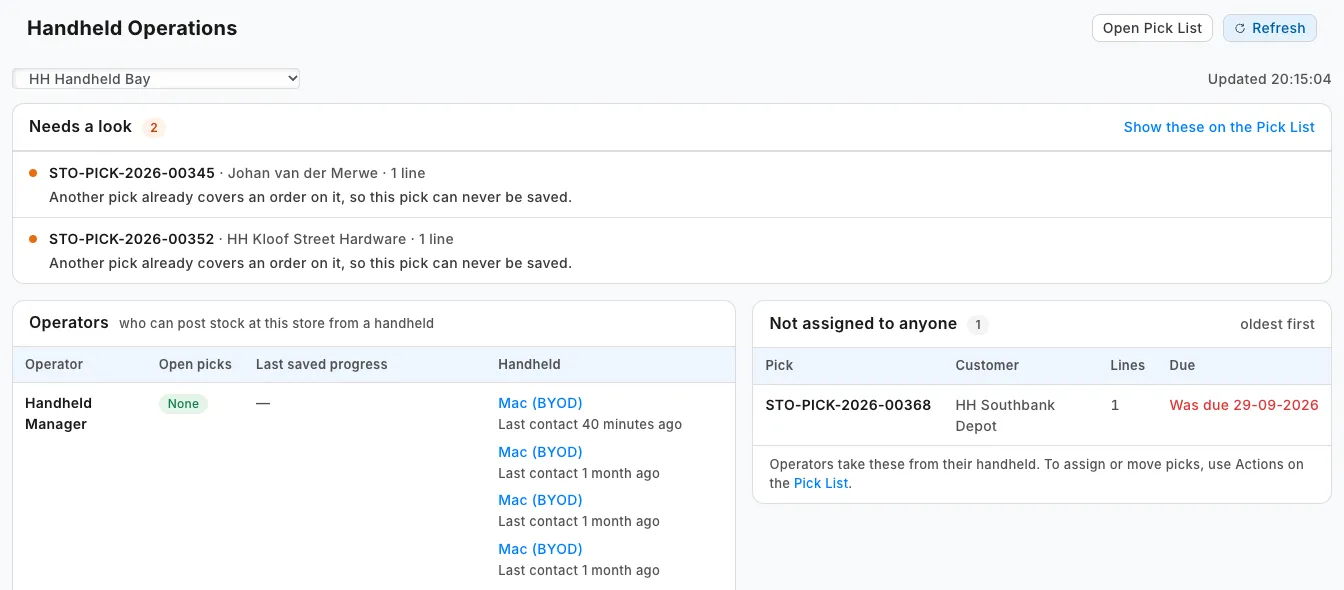
This page shows, for one store, who has what and what nobody has yet. It opens from the Module Settings card, or from the Handheld Operations button on the Pick List list.
Choose the Store at the top. Tap Refresh to read it again, because the page does not change while you read it.
| Card | What it shows |
|---|---|
| Needs a look | Picks that are stuck, and why. For example, a pick is assigned to someone who cannot post at this store, or another pick already covers its order |
| Operators | Who can post stock at this store from a handheld, their open picks, their last saved progress and their device |
| Not assigned to anyone | Picks nobody has yet, oldest first. Operators take these from their device |
You cannot change anything on this page. To assign or move a pick, use Actions on the Pick List.
What you can see on the page
You see only what your role allows. A card you cannot fill names the access you need. With Stock User or Stock Manager alone, you see the picks and some checks. To see the Operators table and the other checks, you need read access to User and Retail Permission. To see the device column, you need read access to every record in the device list. An administrator adds this in the role permissions.