
Pick, pack and deliver
These screens take an order from the shelf to the customer in three steps. You pick the stock, pack it into cartons, and post the delivery. Your stock changes only when you post the delivery.
Before you start, for a manager
Picks start in iVendNext Desk, on a Pick List. Make one pick for each delivery address, because the app delivers one address at a time. Keep Reserve Stock for Orders off in Retail Setting, because an order with reserved stock cannot be made into a pick list.
Picking an order
- On Home, tap Pick · Pack · Deliver.
- Find your pick. The list shows picks assigned to you and picks at your store that nobody has taken yet. You can search by customer or pick number, or scan the pick's barcode.
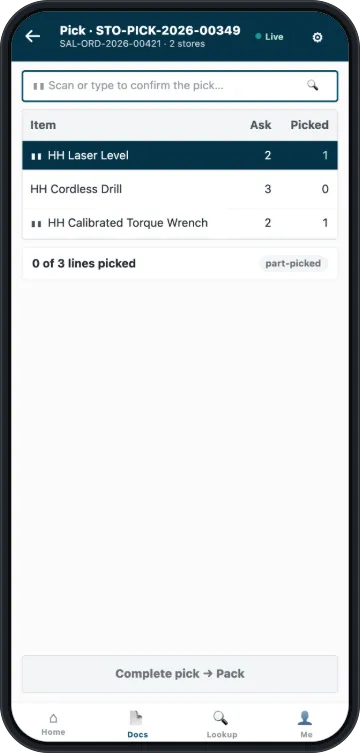
- Open the pick and go through its lines. Scan each item as you take it.
- For a tracked item, scan what the line asks for: each unit's serial, or the batch label. A different batch is refused.
- When every line is picked, tap Complete pick → Pack.
The app saves your picks as you scan, and the first scan makes the pick yours. You can leave the screen, or the app can lock, and you will not lose your place. Keep partial appears only if a save did not get through, and it tries again.
You can never pick more than a line asks for. The row says, for example, ✕ only 1 asked for · you scanned 2.
Some rows on the list are switched off and show the reason. For example, a pick may include a store you cannot post at, or another pick may already cover the order.
Packing into cartons
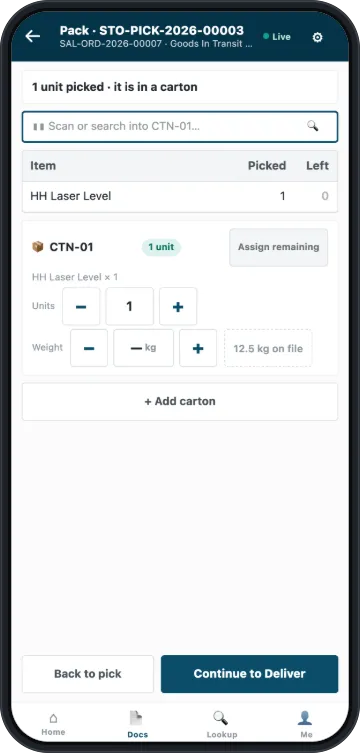
Pack turns what you picked into cartons. It posts nothing, and the device keeps your cartons until you deliver.
- Scan each item into the carton. To fill the carton with everything left, tap Assign remaining.
- To start another box, tap Add carton. You can name it, such as Large. Only this screen and Deliver show the name. For a pick with several orders, One carton per order sets up the boxes for you.
- Enter each line's weight with + and −, or tap the number and type it. If you did not weigh a line, leave it. The screen shows a dash, and that is better than entering zero. If the item has a weight on file in kilograms, tap the kg on file button to use it.
- Tap Continue to Deliver.
A carton can never have more than you picked. If you pack less than you picked, the screen says that the rest cannot be sent from this device and the back office has to send it. To go on anyway, tap again.
The weights go out on the delivery note. Carton names do not.
Posting the delivery
The review shows the customer, the order, each carton with its contents and the totals.
- Check the cartons and the customer.
- Tap Post Delivery Note.
You will see Delivery posted, the note's number, and how many units are on their way to whom. If the pick has more customers, tap Next delivery.
The screen refuses a delivery it cannot make, and says who can help. See A delivery will not post.
Delivering an order taken at the till
An order taken at the till can be picked and delivered here too. The delivery also bills the order. After it posts, the screen shows the invoice and what is left to pay. On a pick with more customers, Deliver shows them again on that customer's row. You see them only if your role may read invoices. The app takes no payment.

The person delivering needs a role that may create invoices, such as Accounts User. Without it, the screen says Your role cannot create invoices and Post Delivery Note stays off. Ask a manager.
If the order has a fixed charge or discount, you must deliver all of it at once. Pack all of it, or let the till send it. If you tap Continue to Deliver with only part of it in a carton, the screen says ✕ Not ready to deliver, and you stay on Pack. On a pick for several customers, Post Delivery Note refuses it instead. If the pick cannot send all of the order, Deliver says Let the till send this order.
If the customer collects the order at the till instead, the till sends it. If the pick has other orders, its carton then says Not going out. The till sent it. If nothing else is left on the pick, the screen says The till sent what was left.
When a delivery was wrong
A manager can cancel a posted delivery, and the pick comes back to pack and deliver again. See Canceling a delivery.