
Use these screens when goods come in from a vendor or go back to one. You receive against a purchase order, raise a new purchase order, or return goods. The app calls iVendNext Desk and the people who work in it the back office.
Receiving against a purchase order
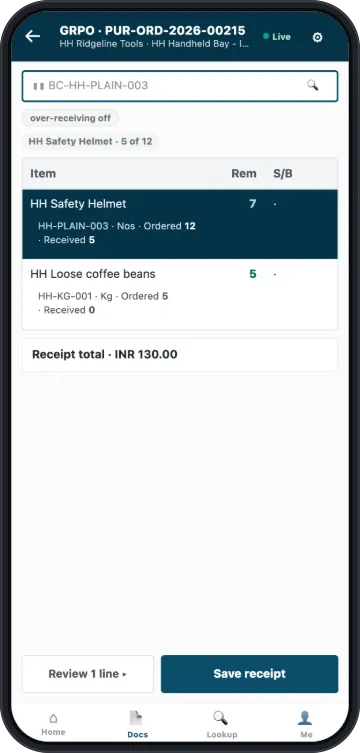
- On Home, tap Goods Receipt PO.
- Scan the barcode of the order's number, or find the order in the list. You can search by vendor or order number.
- Scan each item as you unpack it. Each line shows what was ordered, what has been received, and what remains.
- For a tracked item, one you track by serial number or by batch, enter its serial or batch numbers.
- Tap Save receipt. To check your lines first, tap Review, then Save receipt.
You will see Receipt posted and the receipt's number. The app keeps your lines on the device as you scan, so you can leave the screen and come back. Your stock changes only when you save.
To change a line before you save, tap it. You can change its quantity, or remove it.
What the screen tells you while you receive
- How much extra you can receive. The small line under the scan field reads over-receiving off, over-receiving up to 10% or over-receiving allowed for you, from your site's settings. A scan over that amount is refused on the row, for example ✕ only 2 can be received · you scanned 3.
- Where the stock goes. A line that reads Goes to and another store's name sends the stock there, as the order says. After you post, the screen names the store and offers Move to bring the stock to your store.
- The total. Receipt total comes from the back office.
When a batch has expired
You can record a batch with a past expiry date, and the panel marks it expired. When you save, the app refuses it and marks the line: "This batch has expired. It cannot be received or delivered." Tap Fix the 1 line, remove that batch, and save again.
Adding shelf labels when you receive
If Print labels after receiving is on in Preferences, a receipt adds shelf labels to the print list when it posts. It adds one batch of labels for each store the stock went to, using that store's label format.
A person with access to iVendNext Desk prints the labels from the print list. Do not print them by hand as well. A store with no label format gets no labels, and the screen says "No label format for" that store. The receipt still posts.
Raising a purchase order
Use this when goods are needed and nobody has ordered them yet.
- On Home, tap Purchase Order.
- Tap Vendor and select the vendor. The prices come from that vendor's price list. To use a different price list, tap Change beside Price list.
- Tap Required by and set the date. The order cannot be saved without it.
- Scan or search for each item. Each scan adds a unit, and the screen shows the order total from the back office.
- Tap Save purchase order.
You will see Purchase order posted and the order's number. The order then shows under Goods Receipt PO, unless your back office has an approval step for it.
If you change the vendor, the app clears your lines, because the prices come from the vendor. The screen says Lines cleared. If you change the price list, the app prices the lines again.
The same item cannot go on an order twice unless your site has that setting on. If you add it twice, the screen asks you to put it on one line. See Settings for a store.
Returning goods to a vendor
- On Home, tap Goods Return to Vendor.
- Tap Against receipt and select the receipt the goods came in on. You can search by receipt number or vendor. The lines you can still send back then appear, with Can send beside each one.
- Scan each item going back, or tap a line and enter the quantity. A tracked item goes back by its serial or batch numbers, not by quantity alone. The batch panel offers the batches that came in on the receipt.
- Optionally, add a reason under Comments. The back office sees it.
- Tap Save return.
The app does not let you send more than the receipt can still accept. It works this out from what has already gone back. If a line is over, the row says so, and you lower the quantity or take the line off.
An item that is not on the receipt is refused, unless your store allows free items on a return. You can return an expired batch here. It is often why the goods are going back.
A return also needs May Return Goods to a Supplier on your record. If the tile says it is off, ask a manager.