
Use Item Lookup to find what an item is and what it sells for. Use Stock Inquiry to see how much you have and how it moved. Neither screen moves any stock.
Finding an item
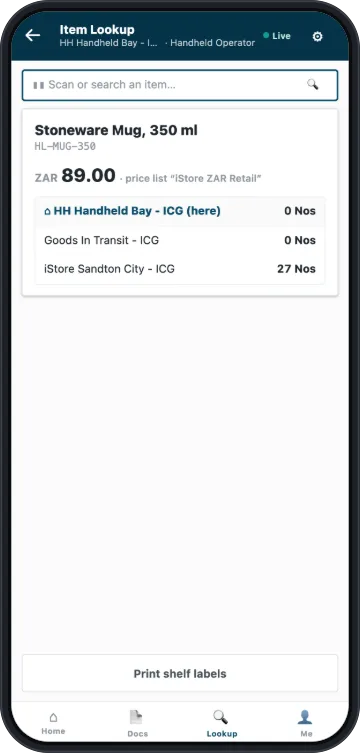
- On Home, tap Item Lookup, or tap the Lookup tab.
- Scan a barcode, a serial or a batch, or type a code. You can also tap Search by name.
You will see:
- The item's name and code.
- The price at your store, from your store's price list. If there is none, the screen says "No price for this store".
- The stock that is free, for each of your stores, with your own store first.
- Size and color chips, if the item comes in versions. Tap a chip to see that version's price and stock.
The large number on each store is the stock that is free, which means not already promised to an order. Stock that is promised shows as reserved. A ▼ low mark appears where the back office has set a reorder level for the item at that store.
If nothing matches, the screen says "Not an item, serial or batch on this site", and you can search by name. A code for a parent product shows "This code covers a whole range of items". Search for the exact one.
Seeing where stock went
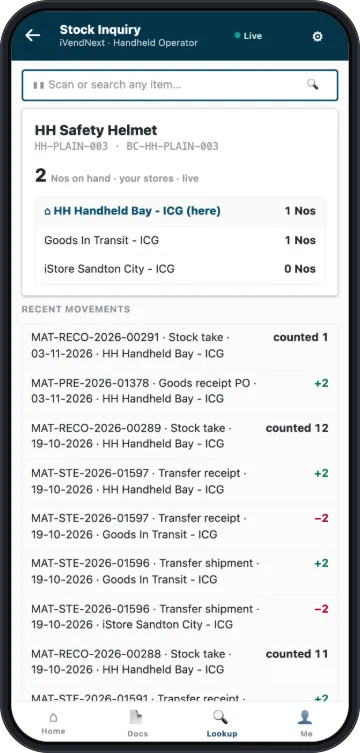
- On Home, tap Stock Inquiry.
- Scan or search for the item.
You will see what is on hand in each of your stores, and Recent movements. Each movement shows its document, date, store and quantity. A count shows counted and the figure.
Seeing movements needs its own permission. Without it, the screen says "Movement history is not yours to see", and the on-hand figures still show. This does not mean nothing moved, so ask a manager. If the list says This may not be all of it, some movements are outside your access, and what you see is correct.
Adding shelf labels to the print list
The device prints nothing. It adds labels to a print list, and a person with access to iVendNext Desk prints them.
- In Item Lookup, find the item and tap Print shelf labels.
- Set Copies.
- Tap Add, which shows the number of labels.
You will see ✓ added to the print list. The labels wait under Item Label Printing in iVendNext Desk.
Your store needs a label format. If it has none, the screen says No label format for this store. Ask a manager. An administrator sets Default Label Format on the Warehouse.