
Use Stock Take to count your stock. A count compares what you found with what the system has, and posts the difference, called the variance. You count item by item, so a whole store is the same steps for each item.
Counting a shelf
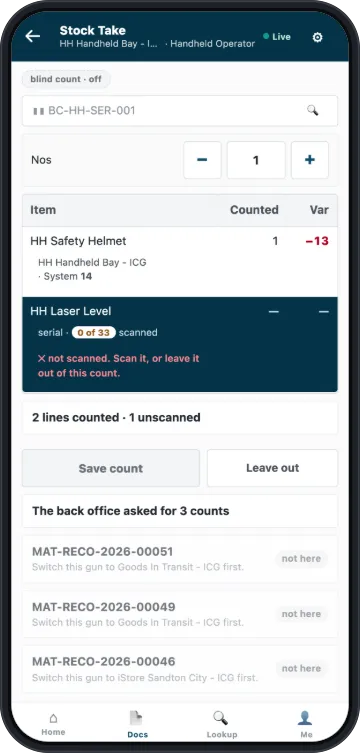
- On Home, tap Stock Take.
- Scan or search for an item. It joins the list with a count of 1, the system quantity and the variance.
- Keep scanning, or tap +, − or the number to set the quantity. If you scan a box barcode, the app adds the units in the box and shows you the sum.
- Do the same for each item.
- Check the variance on each line, then tap Save count.
The app saves the count on the device after every line, so you can stop and come back. When it posts, you will see Count posted and the document number.
If every line matches the system, there is nothing to post. The screen says Count complete. Everything matched, and the count stays in Docs until tomorrow so that a manager can see it. You have nothing more to do.
Counting without seeing the expected quantity
Tap the blind count chip to switch it on. The app hides the expected quantity while you count. You still see the variance before you save.
Your store can start every count this way, with Blind Stock Take By Default on the Warehouse. You can still change it for this count.
Counting when the back office asks
Requested counts are listed under the count, for example The back office asked for 3 counts. Tap one to open it. If it belongs to another store, the row says so and shows not here. Switch your device to that store first.
A requested count stays on your list after you post it. The back office clears it once it has your count.
Counting serial and batch items
For a tracked item, one you track by serial number or by batch, the count comes from what you scan. Scan each unit's serial number, or choose its batches with their quantities.
Until you do, the row says ✕ not scanned or some units not scanned, and Save count stays off.
Leaving a line out of a count
Leave out takes a line out of this count. The line's stock stays as it is, and the row shows left out. The count then posts without it. The button appears below the list when a tracked line still needs scanning, or when a line is marked because stock moved. It acts on that line.
Use it in two cases:
- You cannot scan every unit of a tracked item right now. Tap Leave out, save the rest, and count that item another time.
- Stock moved on an item during your count. The row is marked and tells you to leave the item out and count it again after this count posts. Otherwise your count would include that movement twice. When the count is done, the screen says Count again now and names the item.
If you scan a left-out item again, it comes back into the count.
A saved count that waited on the device can also come back from its review with a line that stock moved on. Tap Fix the 1 line, and the app opens Stock Take with the line named. Tap Leave out, then save, and count the item again once this count posts. If no line is left on the count, scan the item to count it again.
When stock moves while you count
The app checks your lines when you save. If stock moved since you counted a line, a note above the list names how many lines changed, and each changed line shows the old and the new system figure. Check each variance, then tap Save count again.
How long a saved count stays valid
A count you save on the device can post for 7 days, unless your store has set a different number. Once it runs out, it will not post, and you count again. The Docs tab warns you while there is still time.
Correcting a count
A count cannot be canceled. If you counted wrong, count again. The newer count replaces the old one.